Agents are not the only ones that use your integrations. A workflow can call the same tools on a schedule or when something happens, and Octo, the assistant beside every page, can look things up for you or set an integration up. Each integration’s tools say which of the three may use them.
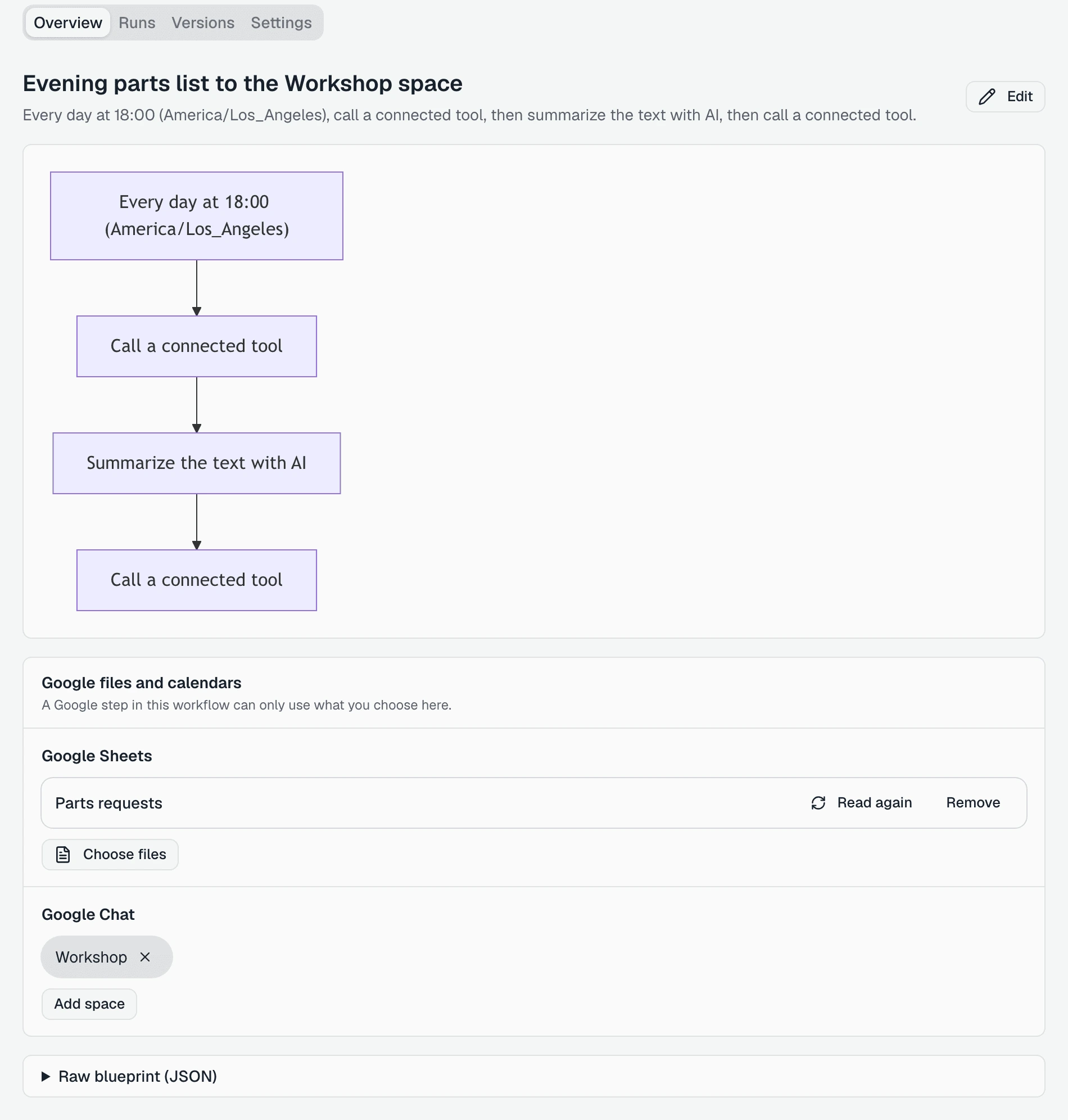
Copperleaf Bike Works, a fictional bike repair shop, wants a message every evening in its Workshop Google Chat space with the day’s parts requests, read from its Google Sheet. That is a workflow, not an agent: nobody is talking to a customer.
Build the workflow with Octo
Workflows are written by Octo. Open /workflows and click New workflow. The Octo chat opens with “Help me draft a workflow”. Say what you want in your own words:
Every evening at 6, read today’s rows from the parts request sheet and post a short list in the Workshop space in Google Chat.
Octo finds the integrations with the tools it needs and puts them in the workflow’s steps. If no integration fits, it tells you to add one on /integrations before saving. To change a saved workflow, open it and click Edit on its Overview tab: the chat opens on that workflow.
On the Overview tab, the diagram shows each step in plain words. A step that calls an integration reads Call a connected tool or Call a web service. Raw blueprint (JSON) at the bottom shows every field of every step.
The two kinds of step
| Integration | Step in the diagram | What it does |
|---|---|---|
| An app you signed in to, an MCP server, Google | Call a connected tool | Runs one of the server’s tools by its name |
| An API by its address | Call a web service | Sends a request to the API. The integration adds its key |
Call a connected tool
The step names the integration, the tool, and the tool’s inputs. This is the Copperleaf step that posts to Google Chat, as Raw blueprint (JSON) shows it:
{
  "id": "post",
  "kind": "mcp.call",
  "connection_id": "ig-3f9c2a71d0",
  "tool_name": "send_message",
  "args": {
    "conversationId": "spaces/AAAAworkshop",
    "text": "${{ steps.summarize.output.summary }}"
  }
}
Two steps come before it: one reads the sheet with the Google Sheets tool
get_values, and one sums the rows up with AI. This step posts that summary.
| Field | What goes in it |
|---|---|
connection_id | The integration, by its id from the address bar (ig-…) |
tool_name | The tool’s name as the server lists it, for example send_message |
args | The tool’s own inputs, by the names the tool uses |
timeout_ms | How long to wait for the answer. 15 seconds unless set, at most 60 |
Any text inside args can take a value from the trigger or an earlier step,
written as ${{ … }}. A value that is only one such reference keeps its type,
so a number stays a number.
The step gives back:
| Output | What it holds |
|---|---|
ok | true when the tool ran without an error |
isError | true when the tool itself answered with an error |
error | The tool’s error text, when there is one |
data | The answer as data, for later steps to read |
content | The tool’s answer exactly as the server sent it |
A later step reads it as steps.post.output.data. An agent’s conveniences do
not apply here: the workflow passes the tool’s own inputs, not an agent’s sheet
or calendar.
A workflow calls the server’s tool by name, so it can call any tool the server lists, even one you did not add on the integration’s Tools tab. When a tool changes on its server and is paused for agents, workflows keep calling it. The review screen says so: “Workflows aren’t paused: they call the server’s tool by name.”
Call a web service
For an API you connected by its address, the step is an HTTP request that names
the integration. The integration adds its key, and sends it only to the API’s
address and the addresses you approved. The step gives back the answer’s
status, headers and body. An error status does not stop the workflow, so a
later step can check status.
A request to another address is refused before anything is sent:
“This address (https://parts.copperleaf.example) isn’t approved for Copperleaf workshop.”
Owners and admins get Approve this address next to it. Others see “Ask a workspace owner or admin to approve it.”
Which key a workflow uses
A workflow always uses the integration’s default key or account. The Authentication tab says: “Workflows use the default key. Add another key to switch over without downtime.” Agents can pick a different account; workflows cannot.
Google steps
A Google step may use only the calendars, sheets, files and Chat spaces chosen for its workflow. When a workflow calls a Google integration, its Overview tab shows Google files and calendars:
“A Google step in this workflow can only use what you choose here.”
Copperleaf picks its parts sheet with Choose files and its Workshop space with Add space. Google’s file picker opens only in your own browser, so Octo cannot do this for you. When Octo saves a workflow with Google steps, its answer ends with a link to this section. Until you choose, the run stops with Choose the Google files for this workflow, which takes you there. How the choosing works is in connect Google Sheets, Calendar, Docs, Drive and Chat.
Who can use each tool
Every tool on an integration has three switches. Open the integration from /integrations, go to its Tools tab, and look at each tool’s card: Who can use it, then AI agents, Octo and Workflows. A tick means on. They are all on for a new tool.
| Switch | On | Off |
|---|---|---|
| AI agents | ”AI agents can use this tool. Turn it off and it can’t be added to an agent; agents that already have it stop being offered it.” | It cannot be added to an agent |
| Octo | ”Octo can run this tool when you ask it to. Changes still ask you first. Turn it off and Octo won’t run it." | "Octo won’t run this tool. Turn it on to let Octo run it when you ask.” |
| Workflows | ”Workflows can use this tool. Turn it off and a workflow step that calls it stops with a clear message." | "Workflows can’t use this tool. Turn it on to let a workflow step call it.” |
A switch saves at once and says so, for example “Workflows can’t use Add a parts request.”, with Undo and Apply to the other 3 tools.
To set many tools at once, use All tools above the list. It shows each switch with a count, such as Octo and 2 of 4, and one press turns it on or off for every tool. Who can use all tools does the same from a menu: Let workflows use every tool, Turn off every tool for workflows, and the same for AI agents and Octo.
When a workflow step calls a tool that is off for workflows, the run stops with a message that names the way back:
“tool turned off for workflows: “Add a parts request” is turned off for workflows. Turn it on under Integrations, Google Sheets, Tools, Who can use it.”
The Workflows switch governs tools added on the Tools tab. A tool the server lists but you never added has no switch, and workflows can still call it.
When a workflow step fails
Open the workflow’s Runs tab and pick the run. Run error shows why it stopped. Each step shows its Input and Output, so you can see exactly what was sent to the tool and what came back.
The call is also on the integration’s Activity tab, with Workflow under Who, next to the calls agents and Octo made. More on reading that tab is in see what a tool did.
| It says | What to do |
|---|---|
| ”tool turned off for workflows: …” | Turn Workflows on for the tool, under Who can use it |
| ”This address (…) isn’t approved for Copperleaf workshop.” | Approve this address, or ask an owner or admin |
| ”Google … not chosen: …” | Choose the Google files for this workflow |
| ”Google account needs more permission: …” | Sign that account in again on the Google integration |
| ”Copperleaf workshop takes no key — call its address directly in this step without naming the integration.” | Ask Octo to take the integration off that step |
A turned-off integration stops its workflow steps too: “Workflows, AI models and Octo don’t use it, and workflow steps that use it stop with a clear error.” Problems that need you, such as an expired sign-in, are in when an integration needs you.
Let Octo look things up
Octo can run an integration’s tools for you in the chat: “What’s the status of repair 4521?” It uses Look up a repair and answers. Two switches decide whether it may:
- On the integration’s Settings tab, Octo can use this integration: “Octo can look things up here when you ask it to. It asks before making changes.” The Overview tab shows the same switch’s state.
- On each tool, the Octo switch under Who can use it.
Both must be on. When the whole integration is off for Octo, every tool’s Octo switch is off too, and says why: “Octo is turned off for this whole integration. Turn it on under Settings first.”
A tool that only reads runs at once. A tool that makes a change never runs on its own. Octo shows a card with the exact request: “Run this tool now?”, with Run and Cancel. Run sends it once. Cancel says “Cancelled. Nothing was changed.”
You can ask Octo to use one agent’s settings, such as “book it the way Copperleaf Front Desk would”. It then uses that agent’s values and the account that agent chose. Octo’s calls are on the Activity tab with Octo under Who.
Octo does this for workspace owners and admins.
Set an integration up with Octo
On /integrations, Set up with Octo opens the chat with “I want to connect one of my other systems to Omni Octo. Help me set it up.” In the Add integration dialog, under “Not sure what to pick?”, Ask Octo to set it up does the same. If you typed a search first, the button carries it: “Ask Octo to set up “Copperleaf workshop””.
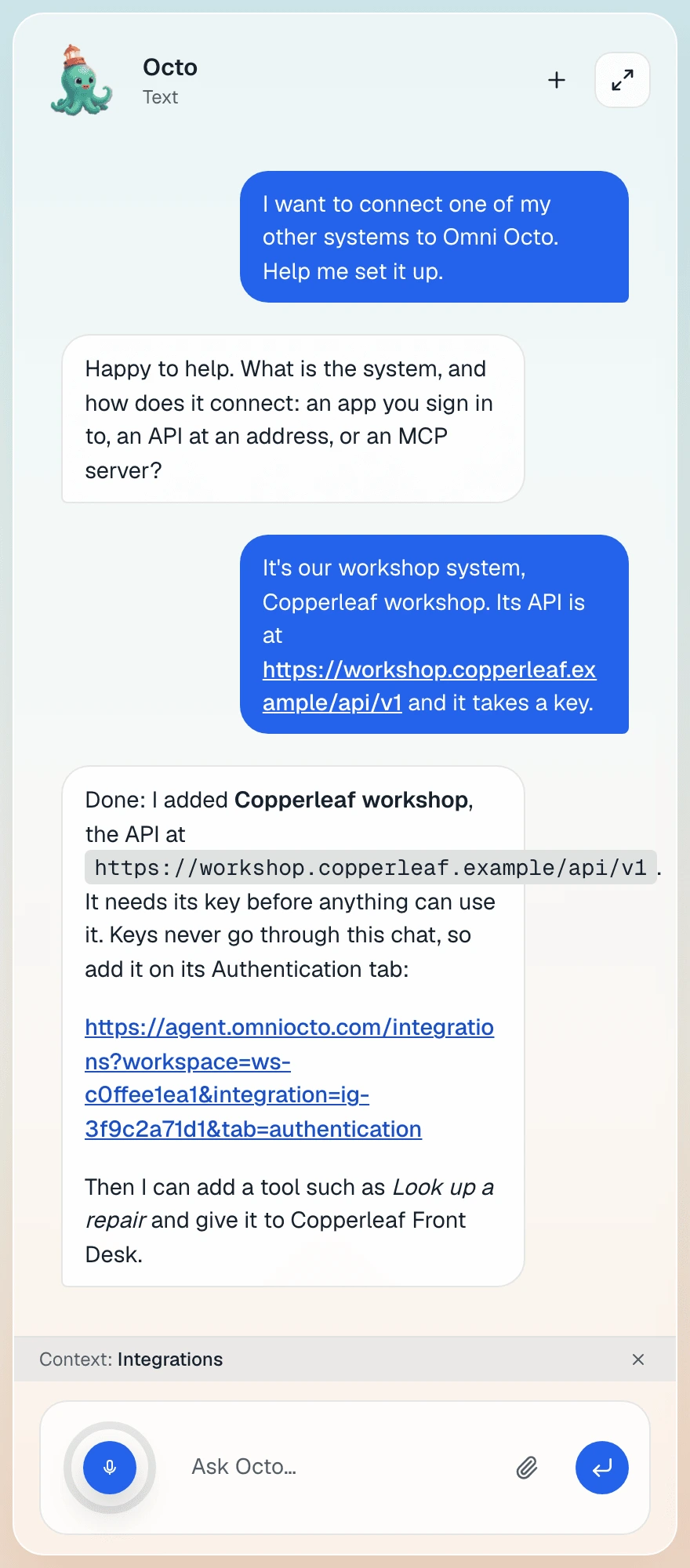
What Octo can do, and when it asks first:
| You ask | What Octo does |
|---|---|
| Connect an API by its address | Creates the integration at once. If it needs a key, Octo sends you the link to its Authentication tab |
| Connect an app or an MCP server | Sends you the link that opens its setup panel. The address can hold a private key, so it never goes through the chat |
| Add a tool to an API | Adds it at once. A new tool is on no agent yet |
| Change or delete a tool | At once if no agent uses it. Otherwise a card names the agents: “Change this tool?” (Save change) or “Delete this tool?” (Delete tool) |
| Check a tool with a real call | A tool that makes changes asks first: “Check this tool with a real call?” (Run check) |
| Give tools to an agent | Always asks: “Change this agent’s API tools?” (Confirm) |
| Choose which key an agent uses | Always asks: “Change which key this agent uses?” |
| Turn tools on or off for AI agents or workflows | Always asks, and the card says how many tools change. Octo never changes its own switch |
| Read an MCP server’s tools again | Asks first: “Read this server’s tools again?” (Refresh) |
| Approve another address for a key | Always asks: “Let this integration send to this address?” (Approve address) |
Octo never asks you for a key, and never repeats one you paste. Keys go in the integration’s Authentication tab, where they are “Stored encrypted. Nobody, including Octo, can read it back.”
To connect apps by hand instead, see connect an app by signing in.