Most agents never need this. Every agent can speak in any voice from our catalog, including the ElevenLabs ones, with no ElevenLabs account and no key: the speech runs on our account and is billed in credits with the rest of the call. That is what we recommend, and it is how every agent starts.
This guide is for the one case the catalog cannot cover: a voice that lives in your own ElevenLabs account, such as a clone of your voice or one you designed there. Only your account can speak in it, so we need your ElevenLabs key to use it. You save the key in Integrations, import the voices you want, and pick one on the agent. ElevenLabs then bills your account for that speech, and we charge no credits for it.
It takes three steps, all in the dashboard:
- /integrations → save your ElevenLabs key.
- On that integration, import your voices.
- /agents → your agent → Voice Pipeline → Synthesized Voice → pick it under Your voices.
What you need
If you only want a voice from our catalog, you need nothing on this list: pick it under Synthesized Voice and you are done. For a voice of your own:
- An ElevenLabs account with the voice in it: an instant or professional clone, a voice you designed, or a Voice Library voice you added to your voices.
- An ElevenLabs API key with two permissions: Text to Speech and Voices: read. Nothing else is needed. Create one on ElevenLabs’ API keys page (Settings → API Keys), giving it those two and leaving the rest off.
- Owner or admin access to the workspace. Only owners and admins can save the key and import voices; anyone who can edit an agent can then pick an imported voice for it.
- An agent on the Standard (STT + LLM + TTS) pipeline. Realtime pipelines bring their own voices and do not use ElevenLabs.
1. Save the key
/integrations → Add integration → Save a key → ElevenLabs. The dialog is titled “Save an ElevenLabs key”. Paste the key and save.
We check the key with ElevenLabs before saving it: we read your voices list and ask ElevenLabs to speak one character. That character comes out of your ElevenLabs quota, and it is the only thing the check costs. A key without the Text to Speech permission fails the check and is not saved, because it could read your voices but never speak on a call.
The key then appears under Keys as ElevenLabs with the label Voice key. A workspace holds one ElevenLabs key at a time. To change it, replace the key on that integration rather than saving a second one.
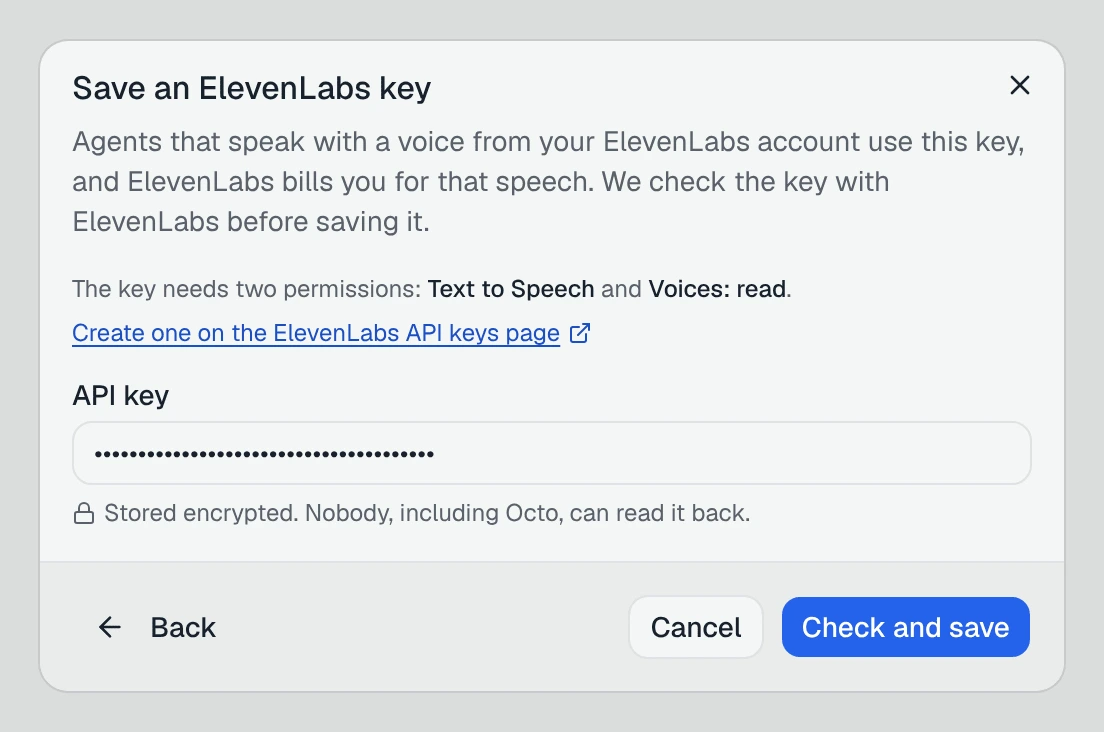
Once the key is saved, every ElevenLabs voice your agents use speaks through it, including the stock ElevenLabs voices in our catalog, not only the ones you import. One rule for the whole workspace: if it is an ElevenLabs voice, it is on your key. If you would rather keep catalog voices on credits, do not save a key; nothing else in the product needs one.
2. Import your voices
Open the ElevenLabs integration. Its Overview lists “Voices in your ElevenLabs account”: each voice’s name, language, kind (Cloned, Generated, Professional, ElevenLabs default) and a play button for the preview ElevenLabs keeps for it. A voice with no preview says No preview; we do not generate one on your key.
Tick the voices you want and press Import selected. Imported voices move to Imported voices and are marked Imported in the list.
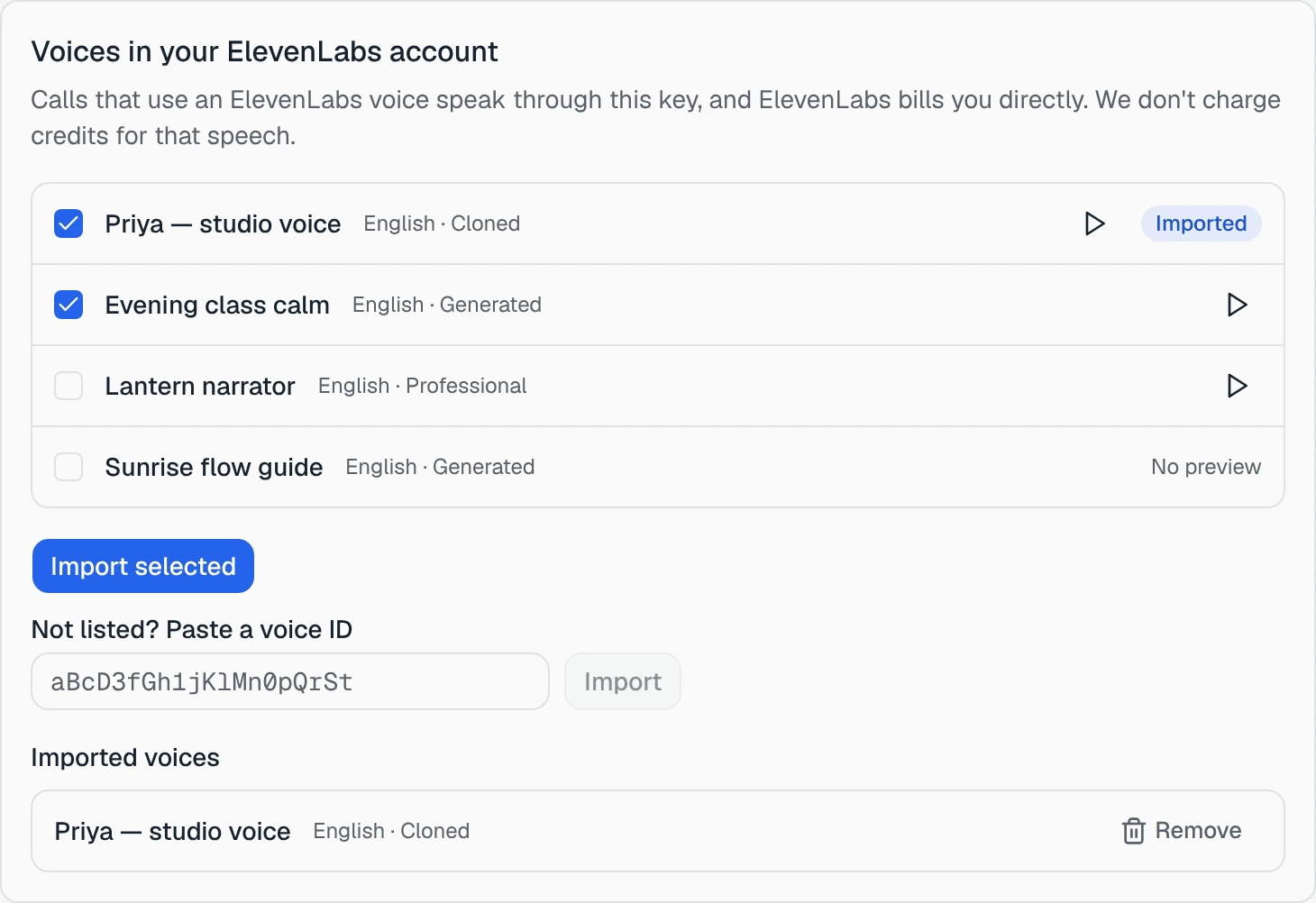
A voice that is not in the list, for example a Voice Library voice you can use but have not added to your account, can still be imported: under “Not listed? Paste a voice ID”, paste its ID and press Import. If ElevenLabs does not know that ID on your key, you see “ElevenLabs doesn’t have a voice with ID … on this key.” and nothing is imported.
The list shows up to 500 voices. An account with more says “Showing the first 500 voices.”; paste the ID of any voice beyond that.
3. Pick it on your agent
/agents → your agent → Voice Pipeline → Synthesized Voice. The voice picker has a Your voices filter, and your imported voices sit above the Catalog in their own Your voices section, each with a Your key badge. They show in every language view: a cloned voice usually speaks many languages, so we do not hide it behind its listed one.
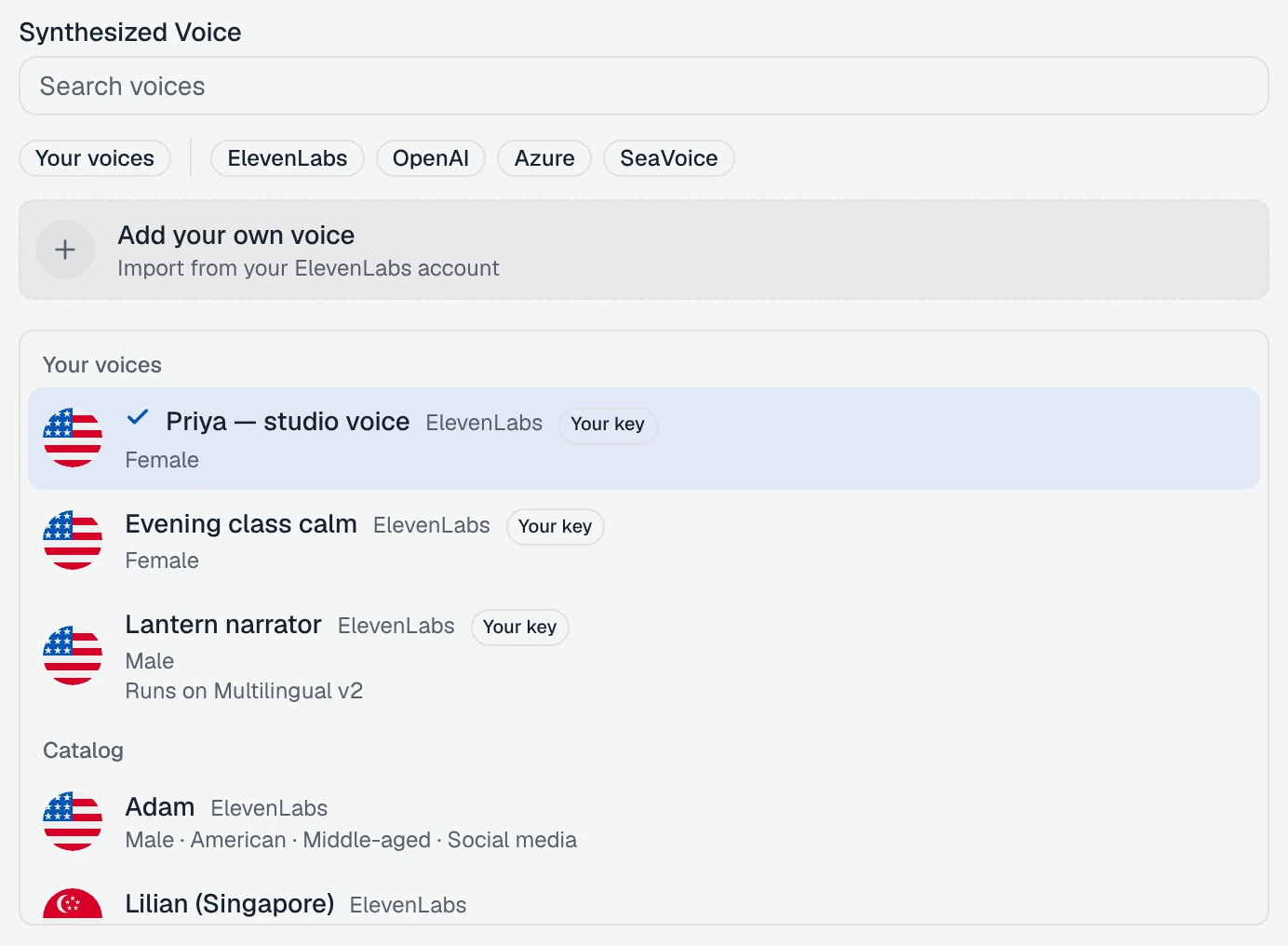
Until you import your first voice, the field carries a hint: “Want to use your own cloned voice? Import it from ElevenLabs”. The Add your own voice row at the top of the picker stays there afterwards.
You can also ask Octo, for example “switch the front desk agent to my Lantern voice”. It lists your imported voices alongside the catalog.
Professional clones. ElevenLabs trains a professional clone for particular models. If your agent’s model is not one of them, the voice’s row says “Runs on” followed by the model it will use (for example “Runs on Multilingual v2”), and calls use that model for your voice. Read ElevenLabs voice models before you pick a voice that only runs on Multilingual v2: it starts every answer noticeably later.
Then call the agent. Try voice on the agent’s page lets you talk to it in the browser before you put it on a number.
What it costs
| On a call that uses your voice | Who pays |
|---|---|
| The speech in your voice | ElevenLabs bills your account. We charge 0 credits for it. |
| The phone line, listening to the caller, the AI model | Charged as usual, the same as any call. |
| Speech in the backup voice (see below) | Charged as usual: it runs on our ElevenLabs account, not yours. |
When the key stops working
A call never goes silent because of your ElevenLabs account. If ElevenLabs refuses your key, the call carries on in a backup voice on our ElevenLabs account: a stock voice in the agent’s language and, when ElevenLabs says what your voice is, the same gender. If it happens in the middle of an answer, that answer starts again from the beginning in the backup voice, so the caller may hear a few words twice.
What happens next depends on why ElevenLabs refused:
- The key was revoked, deleted or lost a permission. The rest of that call and every later call speak in the backup voice from the first word. The integration shows Failed on a call, and the agent’s voice field says “Calls are using backup voice …”. Fix the key in ElevenLabs (or save a new one), then press Check the key on the integration. When the check passes, the next call is back in your voice. Nothing switches back on its own.
- You ran out of ElevenLabs quota or hit its limit on calls at once. Calls keep trying your key and switch to the backup voice whenever ElevenLabs refuses it. Once your quota or plan allows it again, calls are back in your voice.
- A voice was deleted from your ElevenLabs account (or is no longer shared with you). That voice shows “Removed from your ElevenLabs account”, calls that used it speak in the backup voice, and the key itself is fine. Import it again or pick another voice.
Owners get an email when your key or a voice fails on a call, with admins copied: at most one a day for each kind of failure, naming the agents affected. Errors that say nothing about your key are not emailed. If ElevenLabs is slow to start one answer, that answer is spoken in the backup voice and the next one tries your key again (two slow starts in a row keep the backup for the rest of the call). If it fails in some other unexplained way, such as a server error, the rest of that call uses the backup voice and the next call tries your key again.
Removing a voice or the key
Remove next to an imported voice takes it out of the workspace. If an agent still uses it, you see ”… use this voice. Pick another voice for them first.” and nothing is removed.
Deleting the ElevenLabs integration lists every agent that speaks on the key first, because their calls will use a backup voice from then on. The integration’s Used by line counts those agents too.
What this does not do
- It does not clone a voice. You create the voice in ElevenLabs; we use it.
- It works with ElevenLabs only. Other voice providers’ keys cannot be saved this way.
- Imported voices belong to one workspace. Another workspace imports them with its own key.
- It does not change how fast your agent answers. The voice model decides that, not whose key it runs on.