The moment a WhatsApp Business App number connects, Omni Octo asks WhatsApp to share two things from the app on your phone: your contacts and your chat history. You do not press anything for this. What you do is keep the app open, and watch the status on the channel’s page.
For Fernhill Cake Studio that means the last half-year of order chats — the three-tier birthday cake, the customer who always asks about nut-free icing — lands in /conversations, and the people behind them land in /contacts, before the AI has answered anyone.
Once per connection
WhatsApp allows this import once per connection, and only shortly after it: Omni Octo asks right after you connect, and if WhatsApp is briefly unavailable it keeps asking for up to 24 hours. Two choices you make in the app decide what comes back:
- Chat history. During the connection WhatsApp asks, in the app, whether to share your chat history. If you said no, there is no history to import.
- Contacts. Contact sharing is a setting in the app too.
To import again later — say you declined history and changed your mind — you disconnect in the app and connect again. That is covered at the end of this guide.
What comes across
| From the app | What arrives in Omni Octo |
|---|---|
| Contacts | Each number in the app’s contacts, as a contact in /contacts |
| One-to-one chats from the last 180 days | Each chat as a conversation in /conversations, with its messages at the times they were sent |
| Photos and files | A line saying what it was; for the last 14 days only, WhatsApp also says which file it was |
| Group chats | Nothing — they stay in the app only |
The connect card puts it in one line: “We import chats from the last 180 days. Photos and files come across only for the last 14 days, and group chats are not imported.”
Keep the WhatsApp Business App open on your phone until the import finishes. The connected screen says so, and so does the channel’s page while the import runs.
Watch it on the channel’s page
Open /channels and click the number — or See import progress on the connected screen. The channel’s page has a card headed WhatsApp Business App, and the import lives there.
The line at the top
One sentence says where things stand overall:
| The card says | What it means |
|---|---|
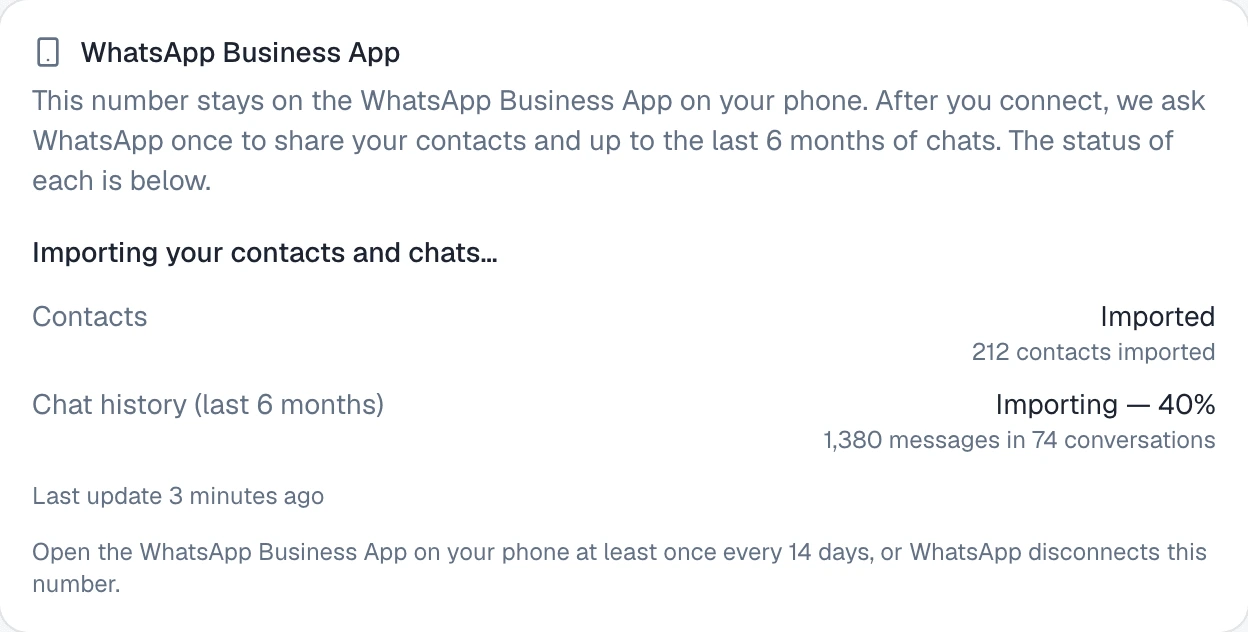
| Importing your contacts and chats… | WhatsApp is sending, or about to |
| Still waiting for WhatsApp — this can take up to 24 hours. We’ll notify you when it’s done. | Omni Octo asked; WhatsApp has not sent anything for a while. Nothing for you to do |
| Imported 212 contacts and 3,400 messages — you can start using this number now. | Everything WhatsApp sent is in. Under it: “We’re making sure WhatsApp has nothing more to send. This finishes on its own within about 10 minutes, and we’ll notify you.” |
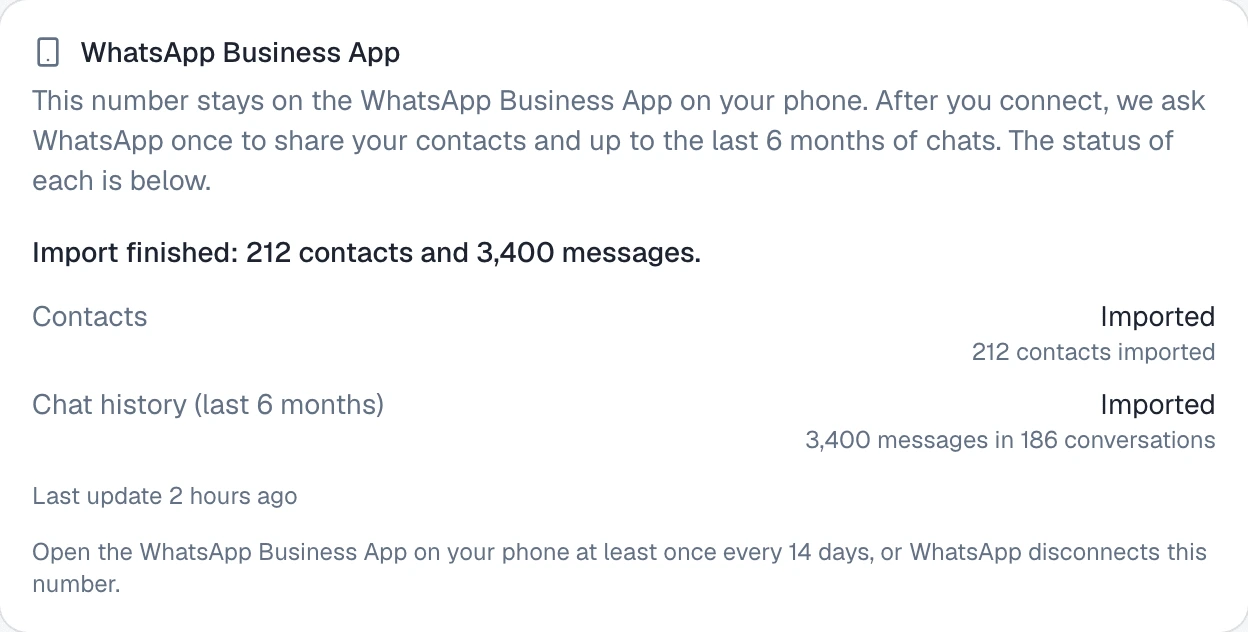
| Import finished: 212 contacts and 3,400 messages. | Done |
| Nothing was imported. | Neither contacts nor history came across — see below |
While the import is moving, the page checks again on its own; you do not need to refresh it.
One row each for contacts and chat history
Under the line are two rows, Contacts and Chat history (last 6 months), each with its own status:
| Status | What it means |
|---|---|
| Waiting to start | Not asked yet — chat history waits until contacts have been asked for |
| Asking WhatsApp… | Omni Octo is asking right now |
| Trying again shortly | WhatsApp did not answer; Omni Octo asks again on its own |
| Requested — waiting for WhatsApp | WhatsApp accepted the request and will send when it is ready |
| Importing / Importing — 40% | Arriving now. Chat history shows how far WhatsApp says it is |
| Imported | Finished |
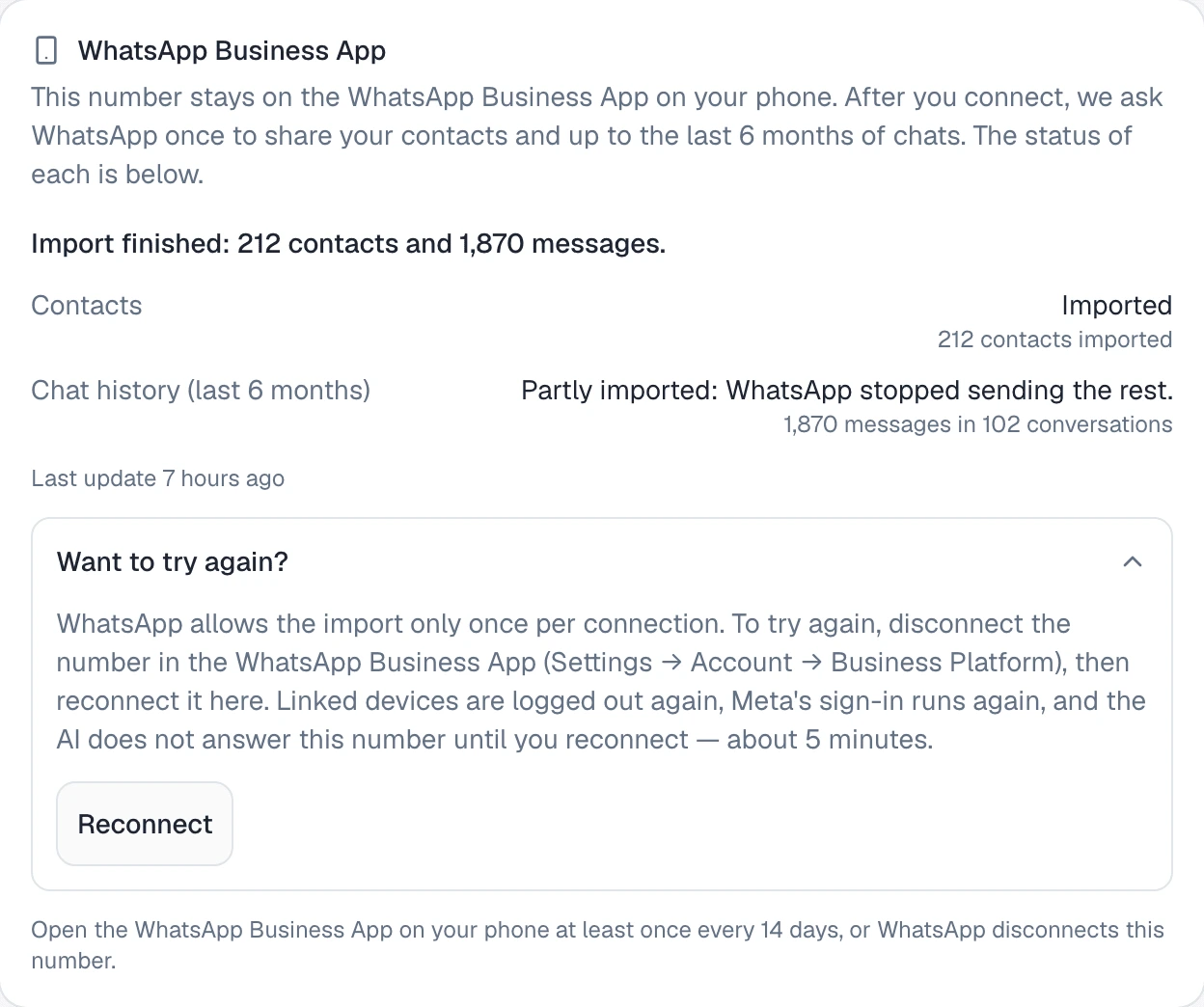
| Partly imported: WhatsApp stopped sending the rest. | Some chat history came, then WhatsApp sent nothing more for 6 hours. Everything that arrived stays |
| Not imported: chat history sharing is turned off in the WhatsApp Business App. | The answer in the app was no |
| Not imported: contact sharing is turned off in the WhatsApp Business App. | The same, for contacts |
| Not imported: WhatsApp didn’t send anything. | WhatsApp accepted the request but sent nothing — 6 hours for contacts, 24 hours for chat history |
| Not imported: the 24-hour window after connecting passed before WhatsApp answered. | The request could not be made in time |
| Not imported: WhatsApp did not accept our sign-in. | The connection’s sign-in was refused |
| Not imported: WhatsApp refused the request. | WhatsApp said no, for another reason |
Under each status the card counts what came in — 212 contacts imported, 3,400 messages in 186 conversations — and the last line under the rows says when the latest batch arrived: Last update 3 minutes ago.
When it finishes
The workspace owner is told once, in two places: the Notifications bell in the dashboard, and an email. The heading depends on how it went:
| Outcome | In-app notice | Email subject |
|---|---|---|
| Both came across | WhatsApp Business App import finished | Your WhatsApp Business App import into Fernhill orders line finished |
| One came across, or history only partly | WhatsApp Business App import finished — partly | … finished — partly |
| Neither came across | WhatsApp Business App import needs attention | … needs attention |
The notice gives the counts and names what is missing — for example “Chat history was not shared — history sharing is turned off in the WhatsApp Business App.” The email links to the inbox, to your contacts, and to the channel’s settings, and reminds you where Return to AI automatically is set.
What an imported chat looks like
Open /conversations. Imported chats sit among the rest, ordered by when their last message was really sent — a chat from March is not pushed to the top because it arrived today.
Inside a thread:
- Your messages from the app are in WhatsApp’s green, with the WhatsApp Business App’s icon where an avatar would be, and the line Sent from the WhatsApp Business App on the account owner’s phone. Omni Octo’s own replies — yours from the inbox, or the AI’s — keep their usual colours, so you can always tell which were typed on the phone.
- The customer’s messages look like any customer message.
- A photo or file shows as a one-line stand-in: what it was — Photo, Video, Voice message, Document — then ”· view it in the WhatsApp Business App on the account owner’s phone”. One older than 14 days, which WhatsApp does not describe, reads Media not available with the same pointer. The file itself stays on the phone.
A chat that holds only imported history is stored as Resolved, and not as unread: these customers wrote weeks or months ago, and nothing about them needs you today. The customer’s next message reopens it, and from there it runs like any other conversation.
Importing a chat runs nothing: the AI does not answer imported messages, and no workflow starts because of them.
Writing first to someone from the import
An imported message does not open WhatsApp’s 24-hour window. To write to a customer whose last message to you is only in the imported history, send an approved template — when a WhatsApp message has to be a template explains the rule, and sending a template from a conversation how to do it from the thread. Once they reply, you can type freely.
Your contacts in /contacts
Each number from the app’s contacts becomes a contact in /contacts, named as you saved it in the app:
- A number already in Omni Octo — from a CSV import, a campaign list, or a customer who wrote in before — is matched to that contact rather than added twice. Its name in Omni Octo stays as it was. The card’s count is of the contacts the import created.
- A chat that arrived before its contact picks up the saved name when the contact comes in, so threads are not left showing a bare number.
- A contact you save in the app later comes across too.
- Deleting a contact from the app’s address book does not delete it in Omni Octo. The contact may have other channels, sit on a list, or have conversations you want to keep. Delete it in /contacts if you want it gone here as well.
If something did not come across
When a row ends as Not imported or Partly imported, the card says first what has not changed:
Your AI agent still answers new messages — it just has no earlier chats to refer to.
(That line is shown when it is the chat history that is missing.) Under it is a collapsed Want to try again?:
WhatsApp allows the import only once per connection. To try again, disconnect the number in the WhatsApp Business App (Settings → Account → Business Platform), then reconnect it here. Linked devices are logged out again, Meta’s sign-in runs again, and the AI does not answer this number until you reconnect — about 5 minutes.
It is optional. If you go ahead:
- In the app, go to Settings → Account → Business Platform and disconnect. If chat history is what you want, decide now to share it when WhatsApp asks again.
- Back on the channel’s page, press Reconnect and go through the steps in keep using the WhatsApp Business App. The number comes back as the same channel, with its conversations.
- Omni Octo asks WhatsApp again, and the card starts over. Messages that are already here are not stored a second time.
Disconnect in the app rather than deleting the channel in Omni Octo: deleting and restoring the channel does not ask WhatsApp again.
Where to go next
- When you reply from the phone, the AI steps back — what happens to a chat when you answer it in the app.
- When WhatsApp disconnects your number — each reason, and what reconnecting does.