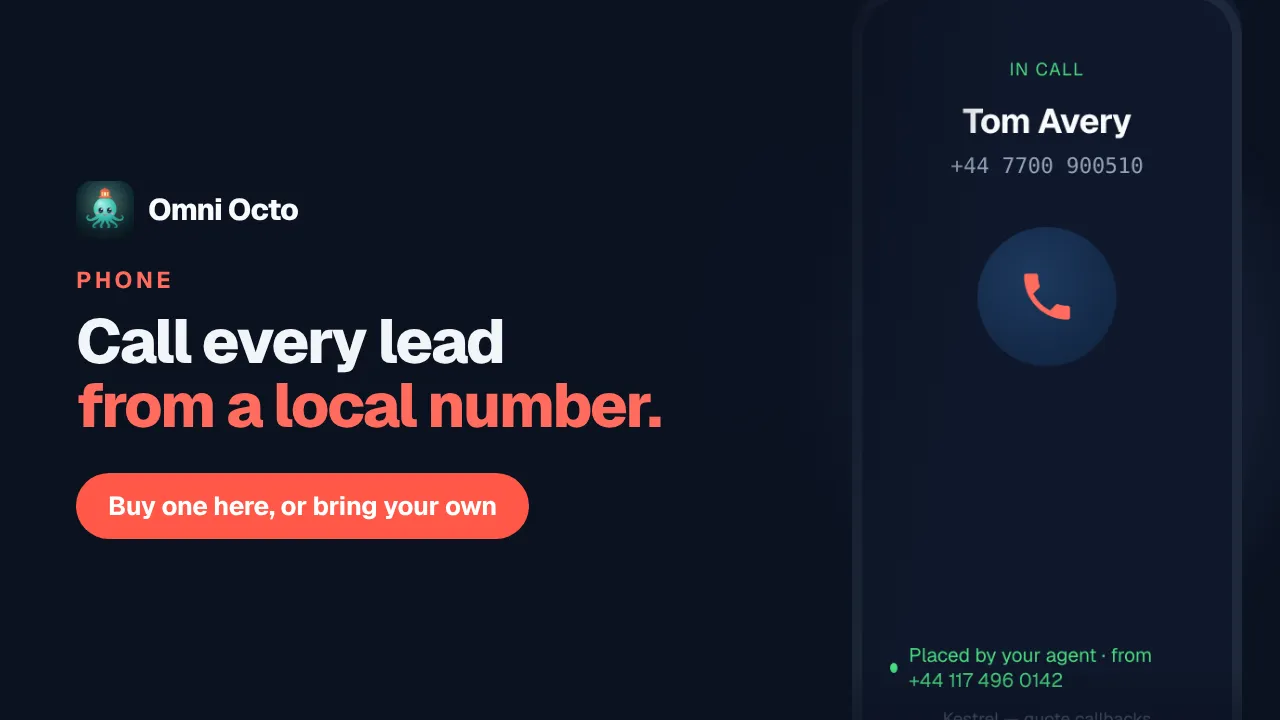
Kestrel Home Solar fits solar panels in Bristol and Bath. Homeowners ask for a quote on its website all day, and the team is on a roof all day. Gemma, the owner, wants every one of them called back straight away by an AI agent, and from a UK number. A homeowner in Bath does not pick up a call from an American number.
There are two ways to give the agent a number in another country:
| Buy one here | Bring your own over SIP | |
|---|---|---|
| Where | /phone-numbers → Buy a number | /phone-numbers → Bring your own → via SIP carrier |
| The number | A new local, mobile or toll-free number | The number you already have, which stays with your carrier |
| Before the first call | A one-time approval for the country, usually 1–3 business days | A test call Omni Octo places through your carrier |
| Who bills the line | Omni Octo, monthly, in credits | Your carrier, as today |
| Texts | Where the number supports them | Calls only |
A workspace can hold as many numbers as you need, in as many countries, from both routes at once. Each call says which one it comes from.
Buy a number in another country
Go to /phone-numbers and press Buy a number. The page is one form: Country, Type, Digits or phrase and Match to, then Search.
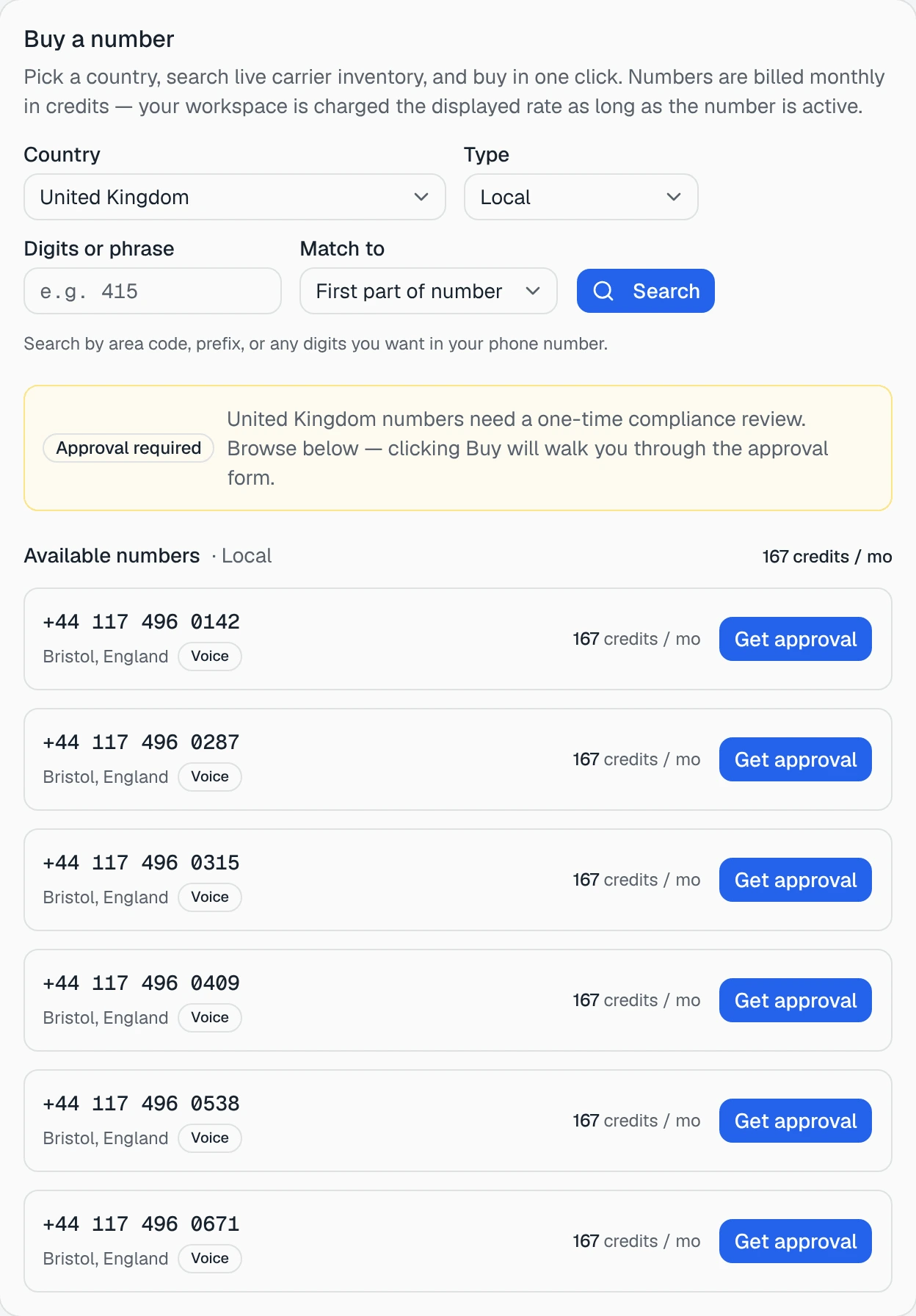
The United States and Canada can be bought straight away. Most other countries, the United Kingdom among them, show an Approval badge in the country list, because their carriers require the business behind a number to be identified first. Pick one and the page says so: United Kingdom numbers need a one-time compliance review.
You can still search. Each result shows its locality, what it can do (Voice, SMS) and its monthly rate in credits, but the button reads Get approval rather than Buy.
The approval form
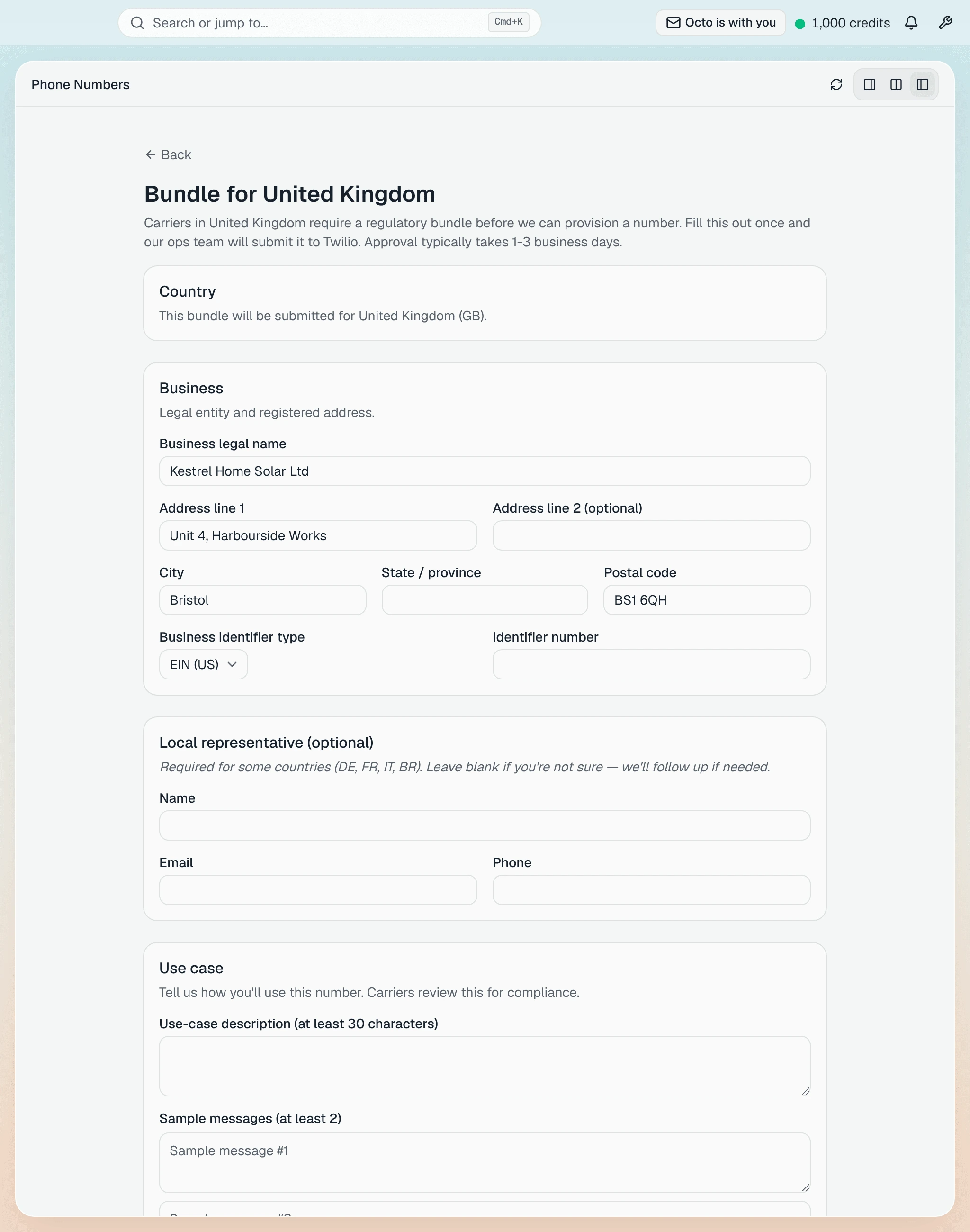
Get approval opens Bundle for United Kingdom: Fill this out once and our ops team will submit it to Twilio. Approval typically takes 1-3 business days.
It asks for:
- the business’s legal name and registered address;
- a business identifier (for a UK business, VAT (EU/UK)) and its number;
- an optional local representative, which some countries require;
- a use case: how you will use the number, in your own words, with sample messages, and the monthly volume you expect.
Press Submit bundle: Ops will email you within 1-3 business days. The number’s button then reads In review, and it stays that way: for a country that needs approval, the team sets up the number for you rather than you pressing Buy. For a second number in the same country, ask them.
While you wait, everything else can be set up: the agent, the automation that calls new leads, the campaign for the list you already have. Only the first call waits for the number.
Bring your own number over SIP
If you already have a UK number with a phone carrier (an internet phone provider, a business phone system, a regional carrier), you can keep it and let your agent call from it. Omni Octo connects to your carrier over SIP, the standard way phone systems hand calls to each other. The number stays yours, on your carrier’s bill.
Go to /phone-numbers → Bring your own → via SIP carrier. The import has four steps: Carrier › Connection › Numbers › Verify.
What your carrier has to support
The first step says it plainly: Your carrier must accept calls authenticated by SIP digest (username + password). Most do. Check two things with them before you start:
- A SIP username and password for your account, and the carrier’s SIP
host (an address like
sip.yourcarrier.example). - The addresses its calls come from, which the form calls Carrier signalling IP addresses. A carrier that only lets in callers from a fixed list of addresses, and has no username and password, will not work.
What a SIP number does not do here: it does not send or receive texts, and it is not a desk phone or a softphone app signing in. Omni Octo is the destination your carrier routes calls to, and the route its calls go out on.
The four steps
- Carrier. Pick Other SIP carrier (or your carrier, if it is listed).
- Connection. SIP host, Port, Transport (leave it on Auto unless your carrier says otherwise), SIP username, SIP password and Carrier signalling IP addresses. The box underneath shows the address Omni Octo will dial, We’ll dial, as you type.
- Numbers. Each number you are bringing, in international format
(
+44…), with its country and type. + add another if the account carries more than one. Then choose What we send as your caller ID: the phone number, or the SIP username if your carrier requires it. Press Set up carrier →. - Verify. Enter any phone you can answer in Call this number to test and press Place test call. Omni Octo rings it through your carrier.
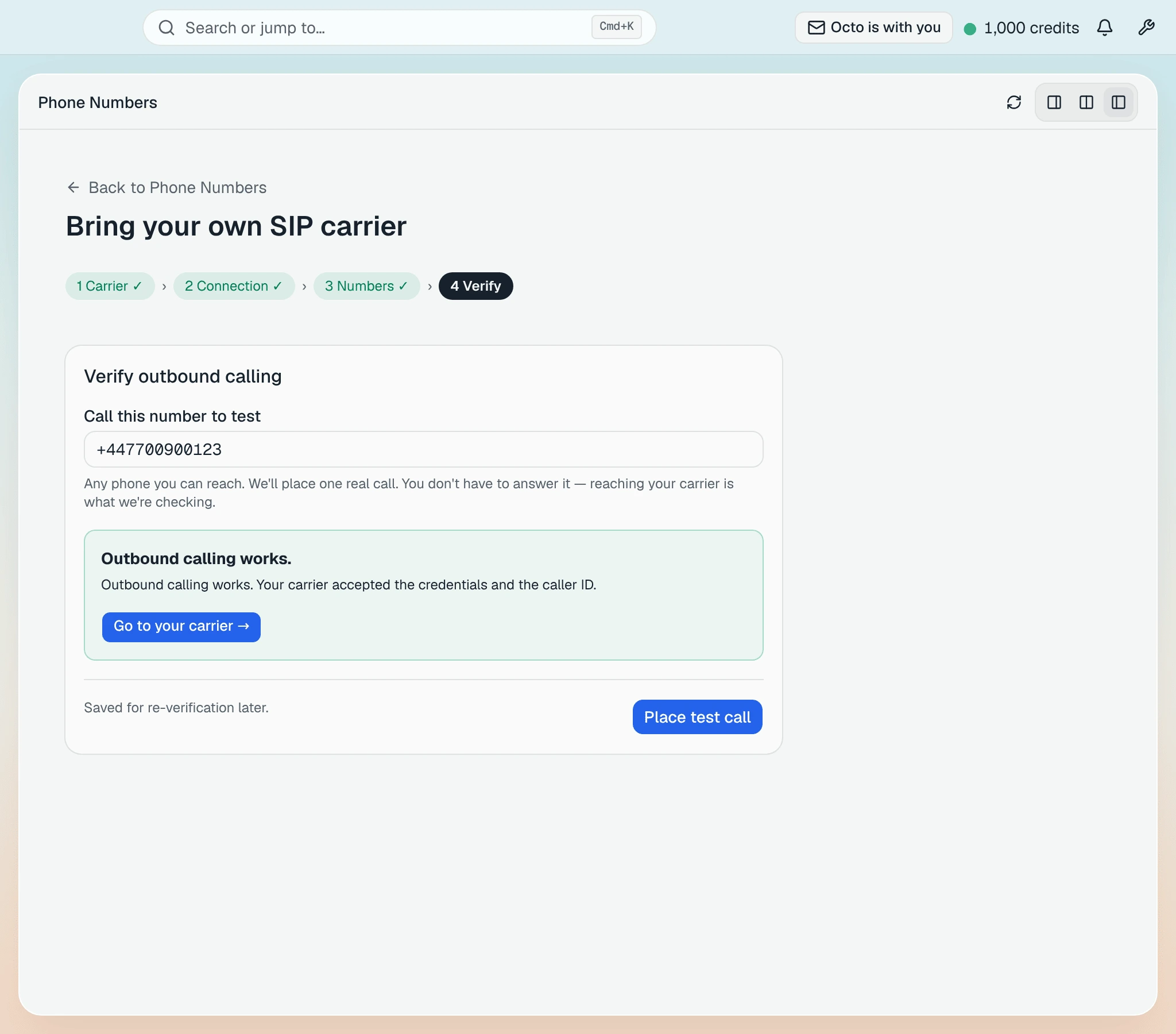
Outbound calling works. From this moment your agent can call from that number. Until the test call succeeds, it cannot: an unverified carrier is never used for a call.
The one thing only your carrier can do
Press Go to your carrier →. The carrier’s page shows outbound live and inbound — waiting on your carrier:
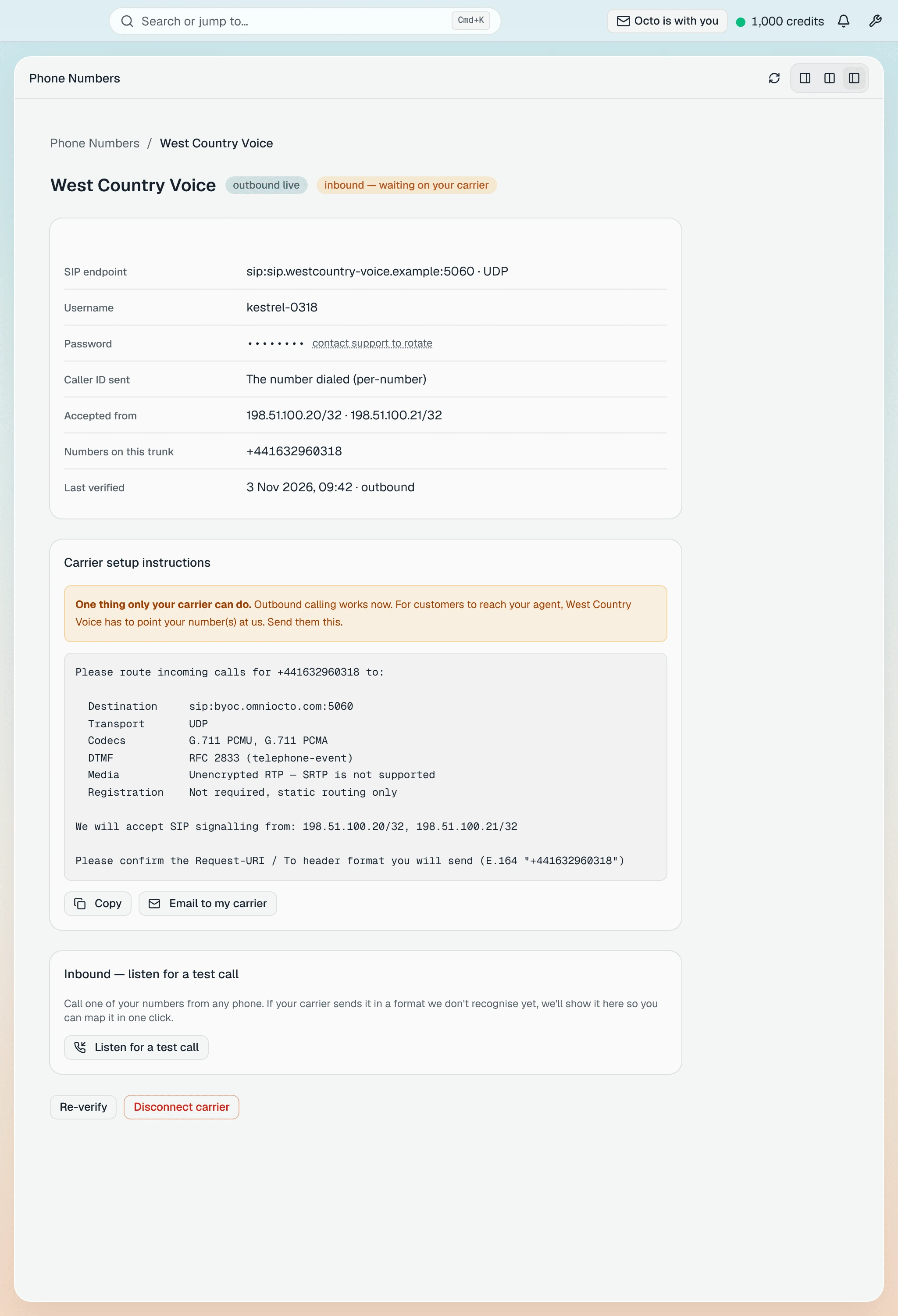
One thing only your carrier can do. Outbound calling works now. For customers to reach your agent, your carrier has to point your number(s) at us. The card underneath has the exact routing request, ready to Copy or send with Email to my carrier (it opens your own email app; Omni Octo does not send it). That step matters when people call the number back. Calling leads does not wait for it.
Several numbers, and which one calls
Everything lands on /phone-numbers: bought numbers marked Managed, SIP numbers marked BYO, and each SIP carrier under SIP carriers with its status.
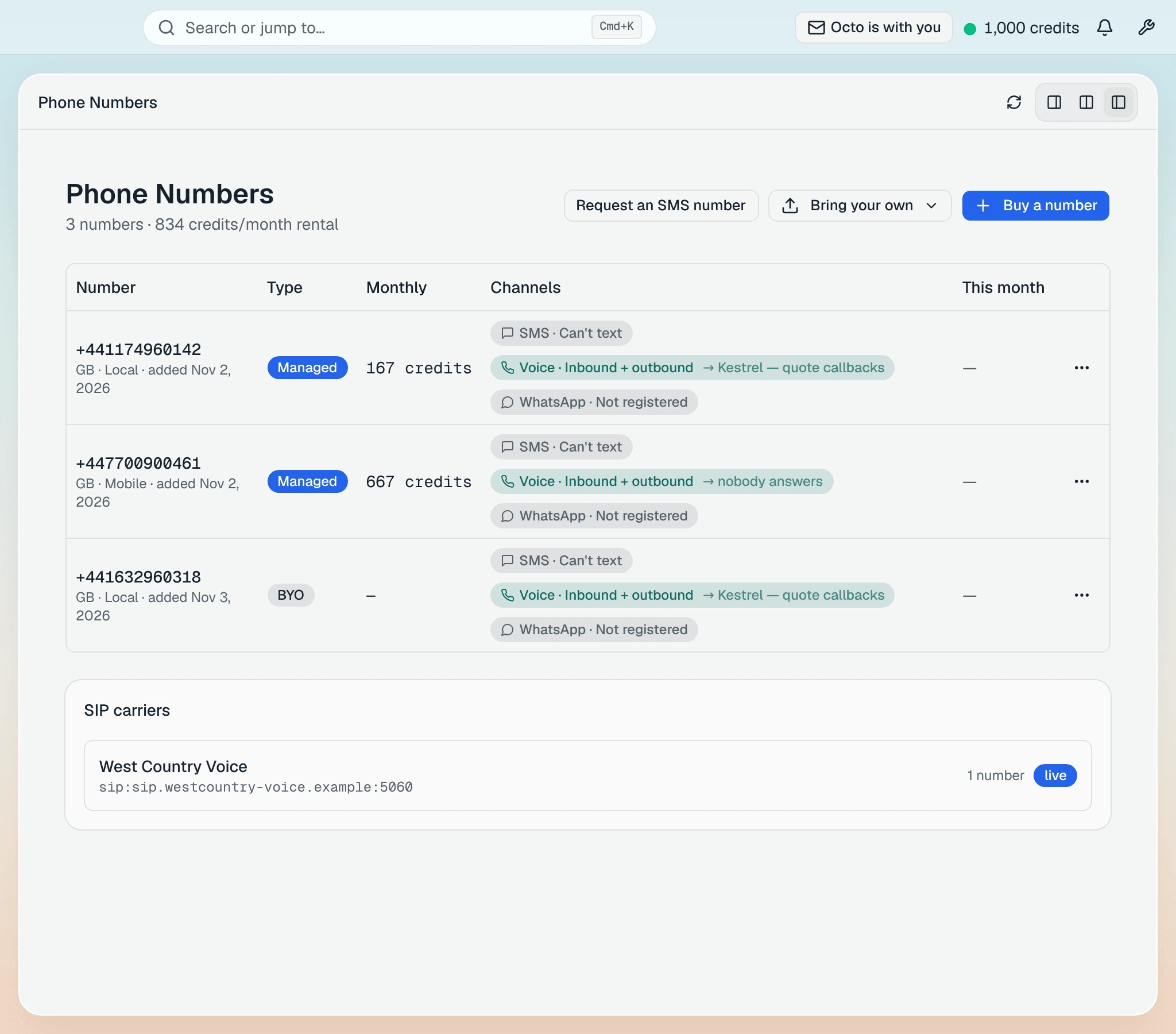
Which number a call comes from is set where the call is set up:
- A campaign has Caller ID in its Sender section, next to the agent. Picking the agent fills in its number, and the chip underneath says exactly what will happen: Dialing as Kestrel — quote callbacks from +441174960142.
- An automation names the number on its call step. Tell Octo which one (“from our Bristol number”) and it puts that number there.
Only numbers that can place calls are offered: a voice line that is set up for both directions, and for a SIP number, a carrier that passed its test call.
Call each lead as it comes in
A campaign calls a list you already have. A lead that arrives at 2:10 pm should not wait for next week’s campaign. Tell Octo, in one sentence:
When someone fills in the quote form on our website, call them from our Bristol number and book a free roof survey.
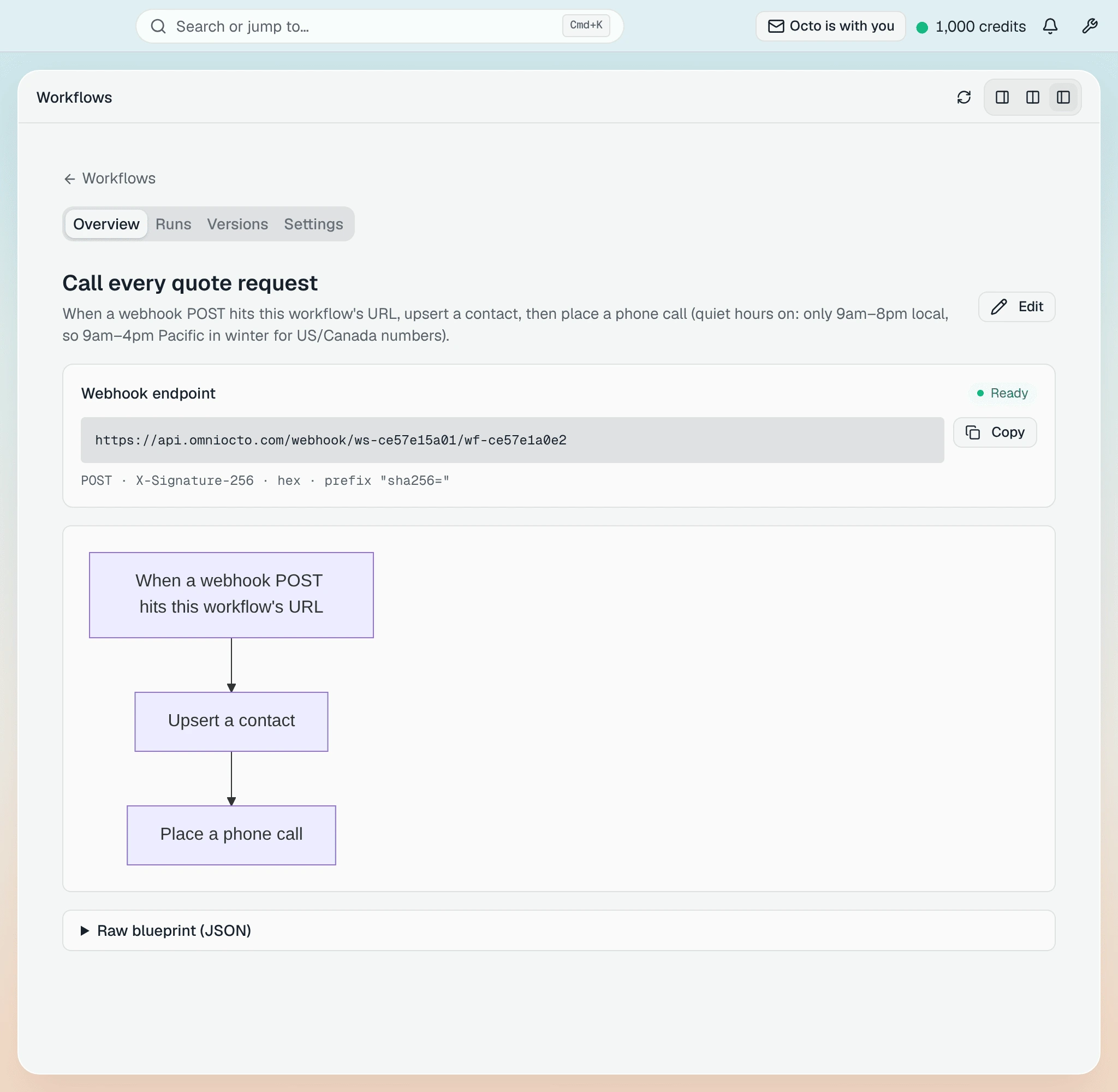
Octo writes the AI agent that makes the calls and builds an automation behind it. Its page shows the three parts:
Octo also writes the AI agent that makes the calls, and you can see it under /agents:
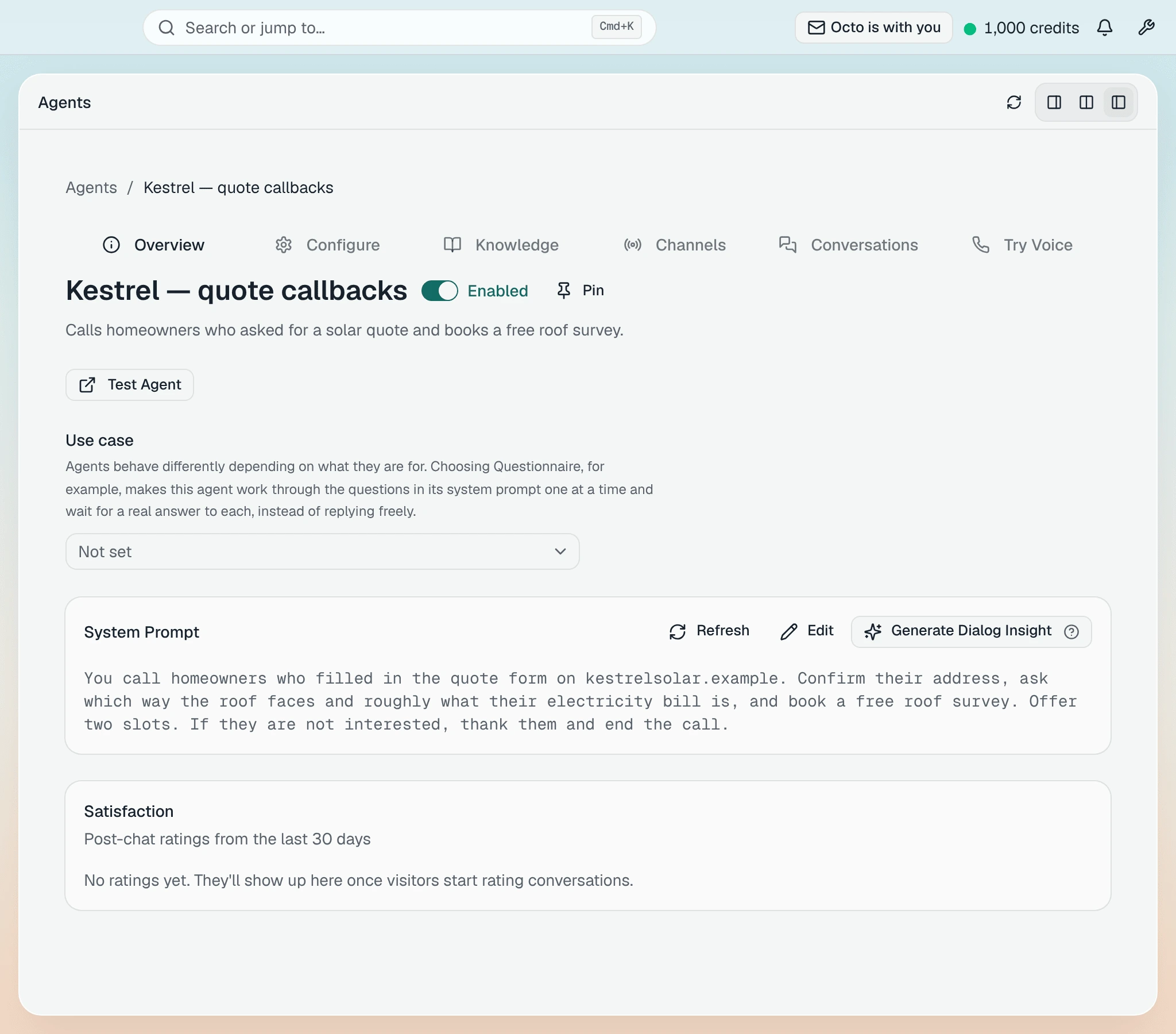
It confirms the address, asks which way the roof faces, and offers two slots for a free roof survey. To change any of it, tell Octo (“offer Saturday mornings too”), or press Edit on its System Prompt. The next call uses the change.
The automation’s page shows the rest:
- The form starts it. The automation has its own address, under Webhook endpoint. Your quote form sends each request there; most form tools and website builders have a setting for it. If yours needs a developer, the page shows how requests are signed.
- The homeowner is saved as a contact, so the call, its recording and what was said land on a real record in /contacts.
- The agent calls, from the number you named, with the name and postcode from the form.
It only calls in calling hours: 9am–8pm local time, in every time zone of the lead’s country. A request that arrives outside them is not called later; it is skipped. If leads come in at night, say on the form’s thank-you page that you will ring during the day, and call the evening’s requests the next morning as a campaign.
Call a list you already have
For the leads you already have (last month’s quote requests, say), put them in a list under /contacts → Lists, by hand or with Import CSV (map the phone column to Voice phone):
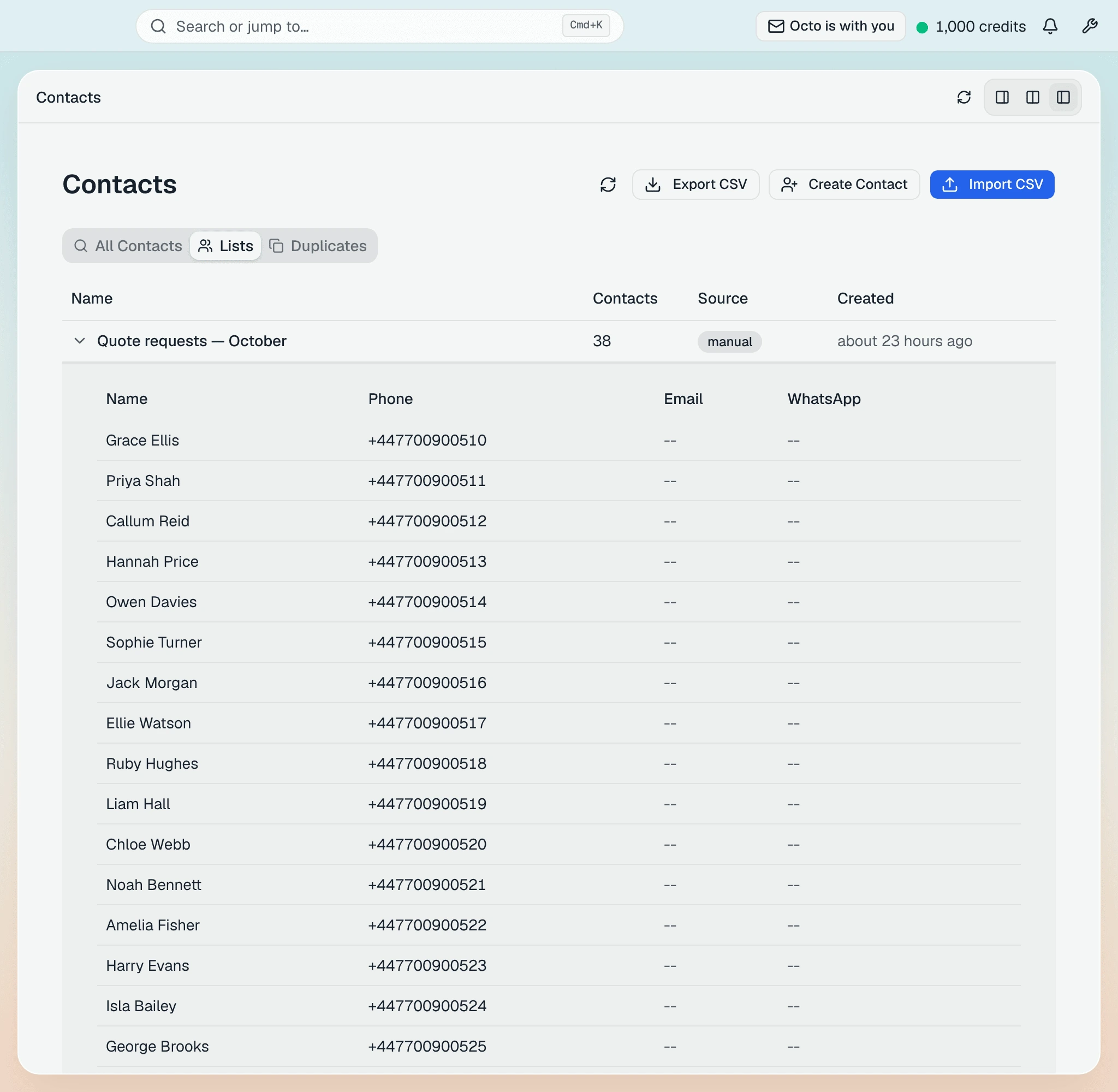
Then use a voice campaign: /campaigns → New Campaign → Voice AI.
Pick the agent and the Caller ID, the list, and the hours in the
recipients’ time zone (for UK homes, Europe/London), then Launch →.
The workspace’s first campaign asks you to accept the outbound-calling acknowledgment once (Accept and launch). Every call then comes back on the campaign’s page with its recording, its transcript, and what the call found out. Run your first call campaign walks the composer section by section.
When a caller asks something the agent does not know
A campaign can ask you, live. Turn on Enable operator input gathering in the campaign’s Advanced section (it is off by default). Then, when a homeowner asks something the agent’s instructions do not cover, the agent does not guess. It tells the caller it is checking (“Let me check on that…”), and a card opens at the top right of whatever page you are on:
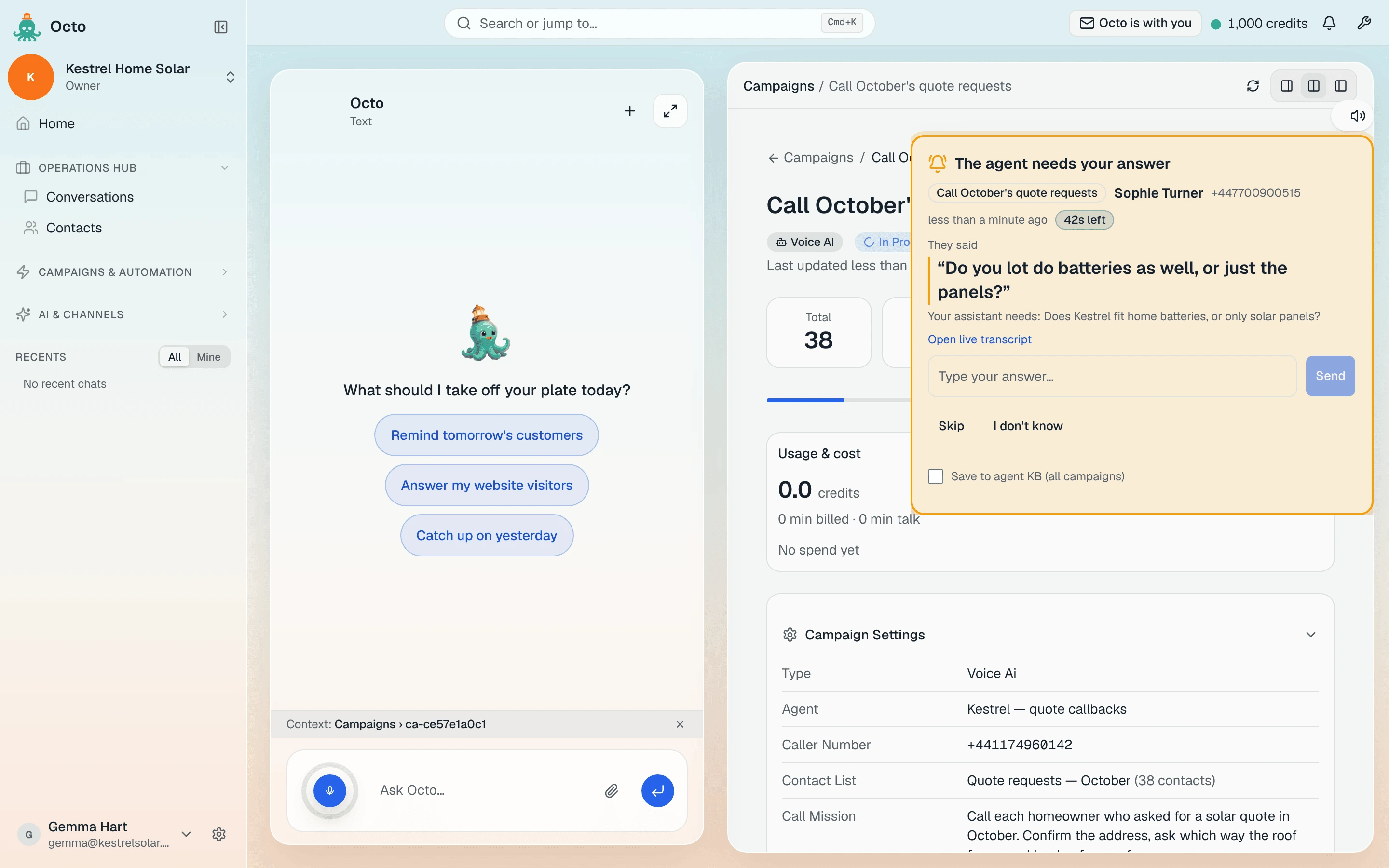
The agent needs your answer, with the caller’s own words and a countdown. Type the answer and press Send: it goes straight into the call. The caller waits about 45 seconds when somebody can answer: Omni Octo is open in a browser, or the question reached you on WhatsApp or Slack. When nobody can, or nobody answers in time, the agent says it will follow up, and carries on.
Tick Save to agent KB (all campaigns) before you send, and the answer is kept: it appears in the campaign’s FAQ, and the next caller who asks something similar is answered from it without asking you again.
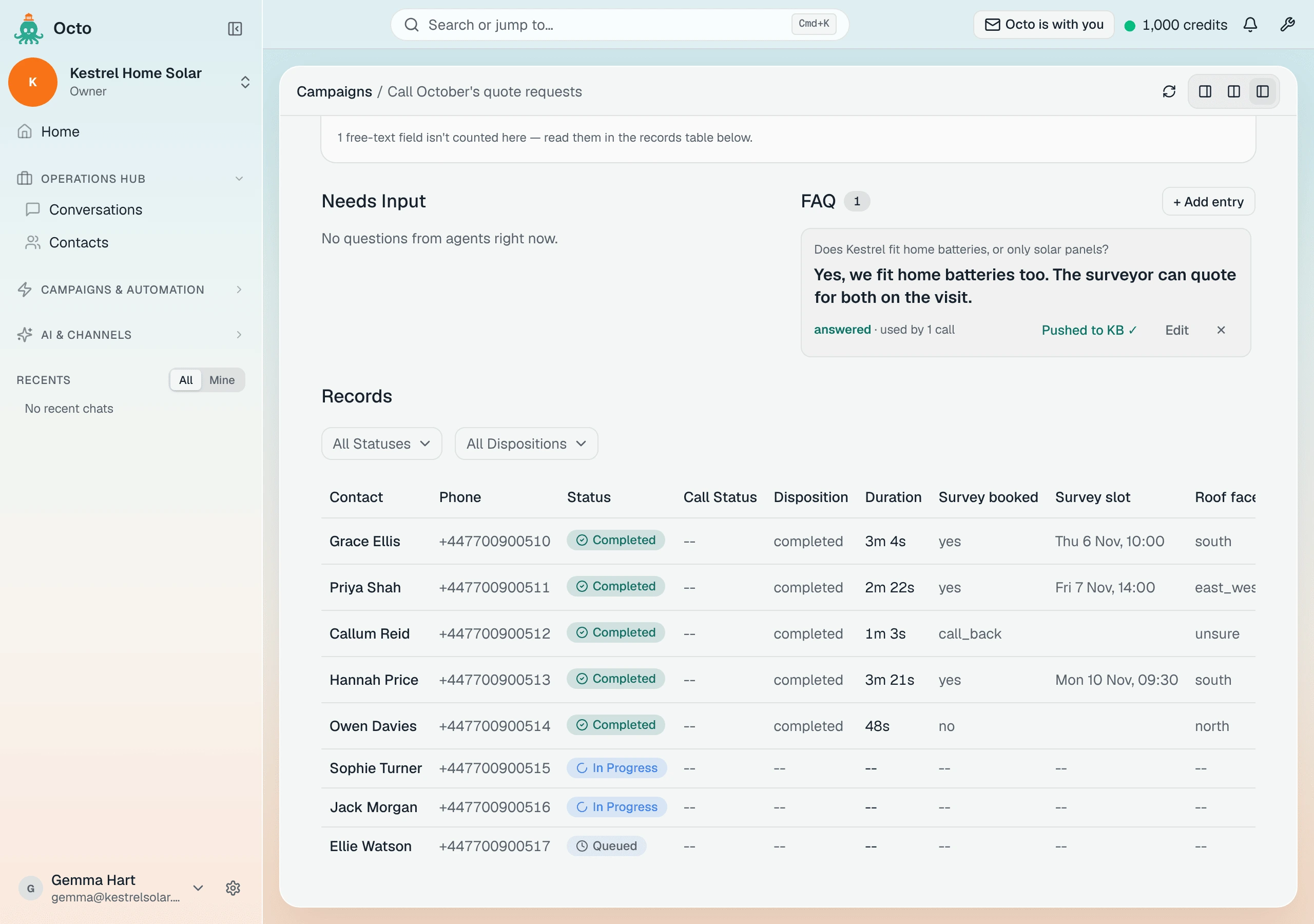
Leave the box unticked for a one-off answer that should not be repeated.
What this does not do
- A UK number cannot be bought in one click. It waits for the country’s approval, usually one to three business days, once.
- A late lead is not queued. Outside calling hours the automation’s call is skipped, not delayed.
- A SIP number carries calls, not texts. Text from a number bought here or your own Twilio number.
- A desk phone or softphone cannot sign in to Omni Octo over SIP. Your carrier routes the number to Omni Octo; nothing registers to it.
- A running campaign does not pick up new leads. New leads are the automation’s job; a campaign calls the list it was launched with.