Google connects directly, by signing in with your Google account. There is no Zapier account in between and nothing to copy. Each Google product is its own card and its own integration, so you connect only the ones you need: a shop that books into Google Calendar and logs requests in a Google Sheet connects those two and nothing else.
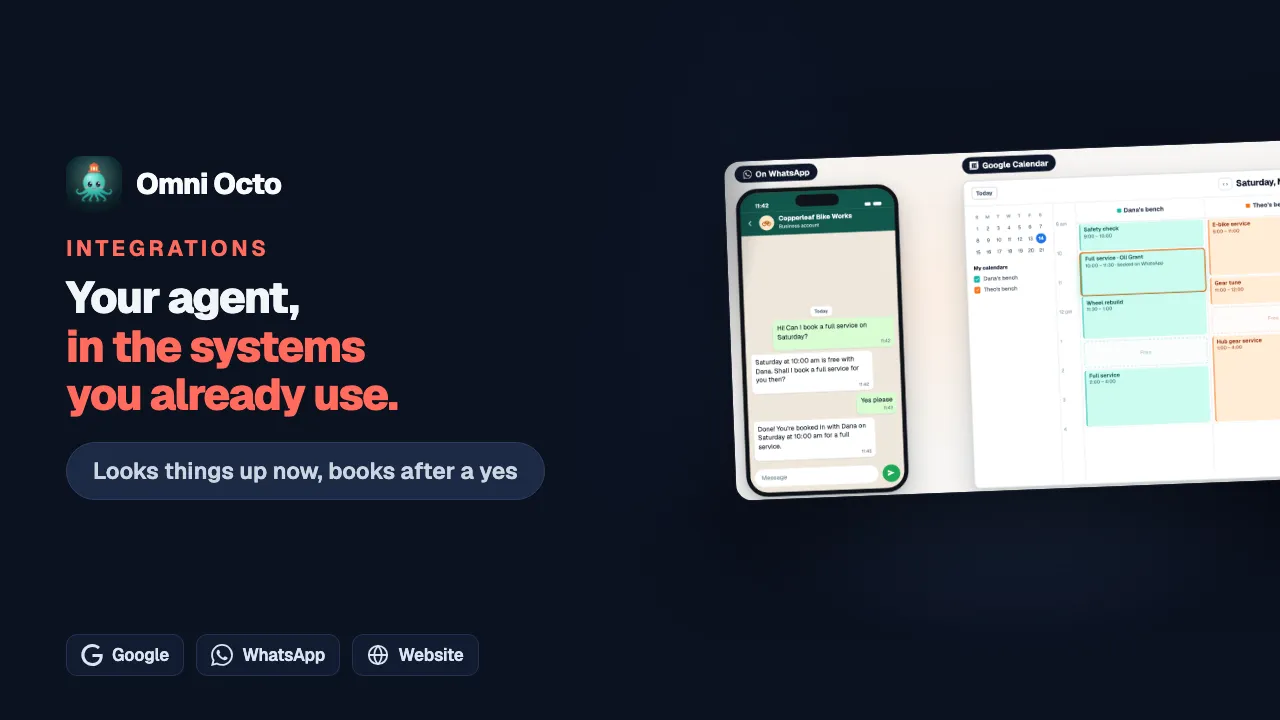
Copperleaf Bike Works, a fictional bike repair shop, keeps its bookings in Google Calendar; its own workshop system holds only the repair orders. It connects Google Calendar so its front-desk agent can find a free time and book services on the two mechanics’ calendars, Dana’s bench and Theo’s bench. It also connects Google Sheets, so Add a parts request can write a row to its parts sheet.
The Google cards
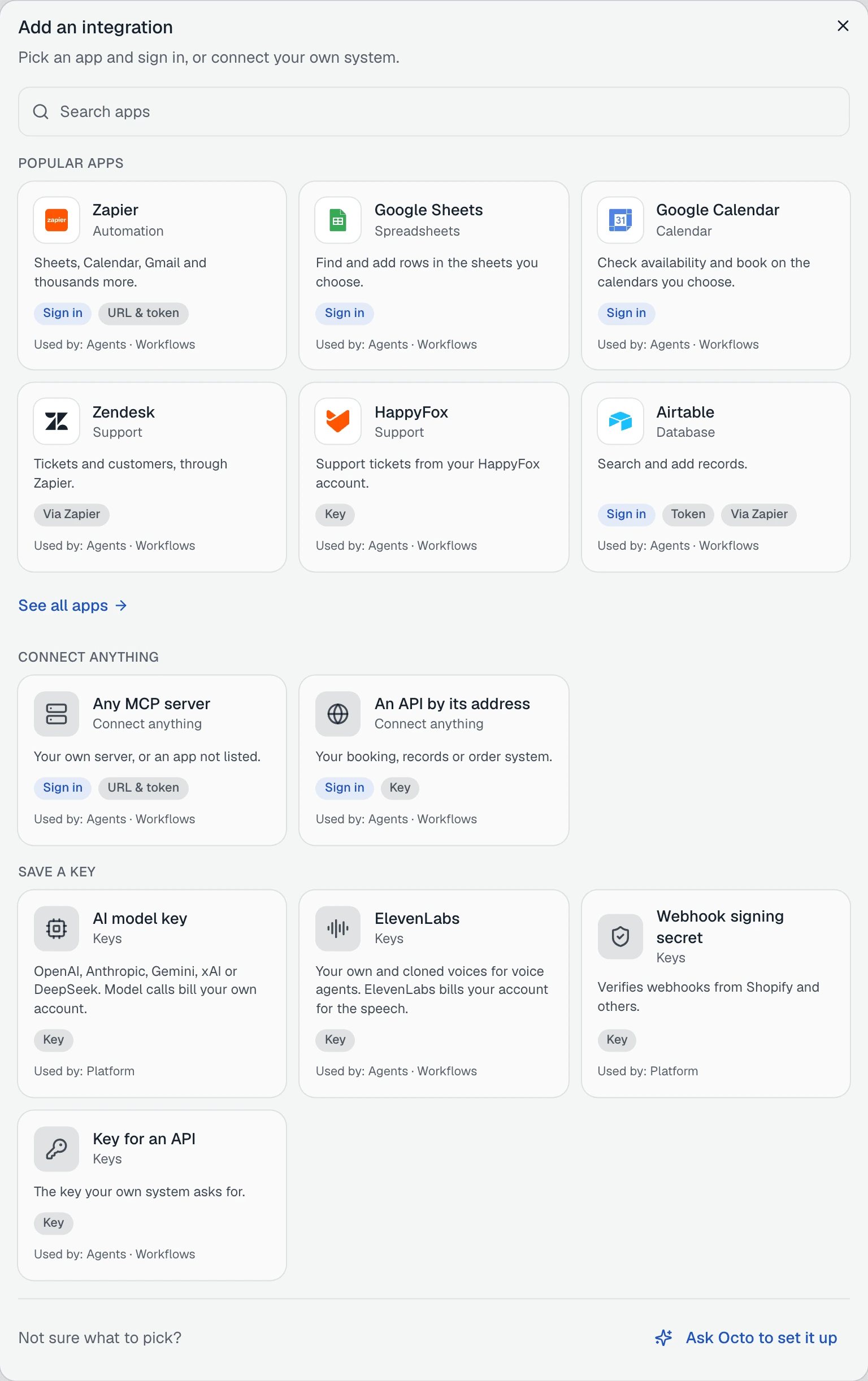
Open /integrations and click Add integration. Google Sheets and Google Calendar are under Popular apps. The others are under See all apps, in their categories. Each card says what it is for:
| Card | What it says |
|---|---|
| Google Calendar | ”Check availability and book on the calendars you choose.” |
| Google Sheets | ”Find and add rows in the sheets you choose.” |
| Google Docs | ”Read and add to the documents you choose.” |
| Google Drive | ”Use the files you choose, of any type.” |
| Google Chat | ”Post messages in the spaces you choose.” |
| Google Slides | ”Read and change the presentations you choose.” |
| Google Contacts | ”Search your contacts.” |
Note the words “you choose”. A Google integration never gives an agent your whole Drive or every calendar. After you connect, you pick the exact calendars, files and spaces each agent may use, as explained below.
Sign in
Click a card. The panel, “Connect Google Calendar”, asks How do you want to connect?, and the only answer is Sign in with Google: “A window opens. Nothing to copy.”
Google Calendar first asks What should agents be able to do?:
- Find free time. “Agents see when you’re busy or free, never what the meeting is.”
- Find free time and book. Agents can also add, move and cancel events on the calendars you choose.
Copperleaf picks Find free time and book, because its agent books services. The other cards have one level and skip this question.
Below the choice, What this lets agents reach lists, in plain words, what the sign-in asks Google for:
| Card | What this lets agents reach |
|---|---|
| Calendar | ”The list of calendars you subscribe to”, “When you’re free or busy on the calendars you choose for each agent” and, for booking, “Events on the calendars you choose: read them, and add, change or cancel them when an agent books” |
| Sheets | ”Only the spreadsheets you choose for each agent: read and change them” |
| Docs | ”Only the documents you choose for each agent: read them and add to them” |
| Drive | ”Only the files you choose for each agent, any type: PDF, Word, images, Google files” and “Files an agent creates” |
| Chat | ”Post messages in the spaces you choose. Messages are sent as you. You can’t read messages with this.” |
Sheets works with Google Sheets files only: “For an Excel file, open it in Google Sheets and choose File, then Save as Google Sheets”. The Chat card adds “Needs a Google Workspace account.”
Every card ends with the same line:
“Anyone who talks to an agent with these tools could ask about what they read. Only tools that read nothing of yours start ticked; tick the rest only if the agent needs them.”
Click Sign in with Google. Google’s window opens. Choose your account and allow what it asks for. If you untick a permission, the panel says what is missing, and nothing is connected:
“Google didn’t grant: calendar events. Try again and leave every box ticked.”
If you close the window instead: “Google sign-in was cancelled. Nothing was connected.”
Choose the tools
After the sign-in, the panel lists the tools Google offers for that card: “Tick the tools from Google Calendar that your agents may use.” Each tool that only reads says Only looks things up. Each tool that makes a change has Ask the customer first ticked, so the agent asks the customer for a yes before it books, moves or cancels anything. What that yes looks like on each channel is in changes the customer confirms.
On Google Calendar, the two tools that read nothing of yours, List calendars and Suggest time, start ticked. Copperleaf adds Create event, and saves with Save 3 tools. The panel then says “Google Calendar is ready” and “3 tools added. Give them to an agent next.”, with Give these tools to an agent. The front desk gets two of them: Suggest time to find a free time, and Create event to book it once the customer says yes.
You can change the tools later on the integration’s Tools tab.
What tools each card has
When you open a Google tool, and on the agent’s Integrations tab, each tool shows one line about what it does:
| Card | Tool | What it does |
|---|---|---|
| Calendar | List calendars | ”Lists your chosen calendars.” |
| Suggest time | ”Finds free times on your chosen calendars.” | |
| List events | ”Lists the events on your chosen calendars.” | |
| Get event | ”Looks up one event on your chosen calendars.” | |
| Search events | ”Searches your chosen calendars for events.” | |
| Create event | ”Books a new event on your chosen calendar.” | |
| Update event | ”Changes an event’s time or details on your chosen calendars.” | |
| Delete event | ”Cancels an event on your chosen calendars.” | |
| Respond to event | ”Accepts or declines an invitation on your chosen calendars.” | |
| Sheets | Get values | ”Reads rows from your chosen sheets.” |
| Get spreadsheet | ”Reads the tabs and layout of your chosen sheets.” | |
| Update values | ”Writes values into cells of your chosen sheets.” | |
| Update formulas | ”Writes formulas into cells of your chosen sheets.” | |
| Insert dimension | ”Adds empty rows or columns to your chosen sheets.” | |
| Update spreadsheet | ”Edits your chosen sheets, like adding a tab or changing formatting.” | |
| Docs | Read doc | ”Reads the text of your chosen docs.” |
| Update doc | ”Adds or changes text in your chosen docs.” | |
| Drive | Read file content | ”Reads what’s in your chosen files.” |
| Download file content | ”Downloads your chosen files.” | |
| Get file metadata | ”Looks up the name, type and size of your chosen files.” | |
| Get file permissions | ”Sees who your chosen files are shared with.” | |
| Create file | ”Creates a new file in your Drive. It can then use that file like a chosen one.” | |
| Copy file | ”Makes a copy of one of your chosen files.” | |
| Chat | Search conversations | ”Finds your chosen Chat spaces.” |
| Send message | ”Posts a message in your chosen Chat spaces.” | |
| Slides | Read presentation, Read slide page, Read slide page thumbnail, Update presentation | Read and change your chosen presentations |
| Contacts | Search contacts, Search directory people, Get user profile | Look people up in your contacts and, with a Google Workspace account, your company directory |
With Find free time, Calendar has only List calendars and Suggest time.
Choose what each agent can reach
Connecting gives the tools. It does not yet give any calendar or file. You choose those per agent, on the agent’s Integrations tab, inside the Google integration’s card. A workflow gets its own choice too, described further down. The rest of that tab, adding the tools and choosing an account, is in give an agent tools from your other systems.
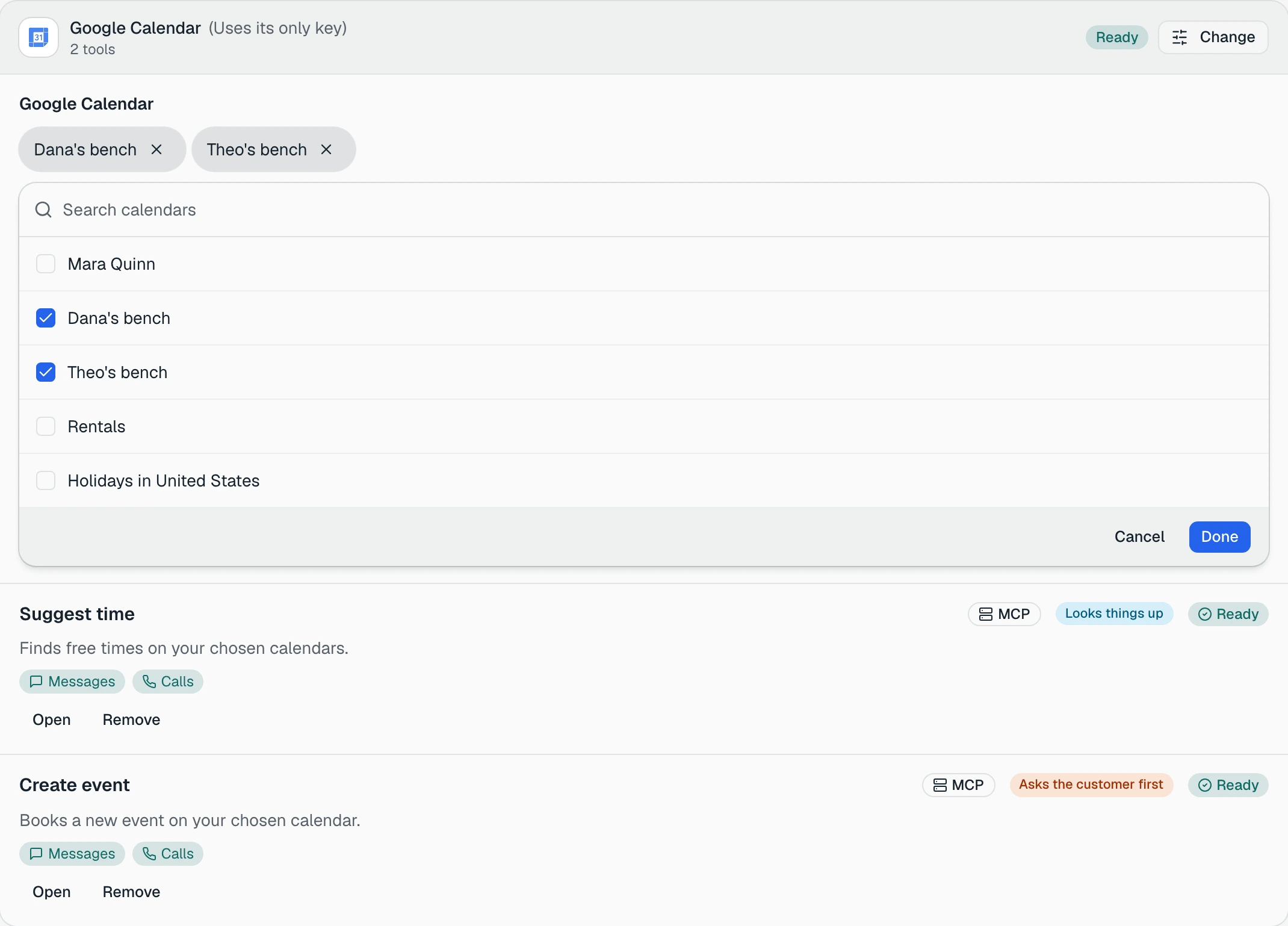
Until something is chosen, the card says so, and the agent cannot use that product:
“Choose at least one calendar. This agent can’t use Google Calendar until you do.”
Calendars and Chat spaces: pick from a list
Add calendar (or Add space for Chat) opens a list of what the signed-in Google account can choose from. Search with Search calendars, tick, and press Done. Copperleaf ticks Dana’s bench and Theo’s bench. The front desk can then check and book only those two calendars, and never touches any other calendar on the account. Remove takes one off.
Sheets, Docs, Slides and Drive: Google’s file picker
Choose files opens Google’s own file picker, with two tabs: All you can open and Shared with you by others. Pick one file or several. The agent can open only the files picked here. Google itself gives Omni Octo access to those files and no others.
For a Google Sheet, the card then lists the sheet’s tabs with their column headers. Tick the tabs the agent may use: “The agent picks among the ticked tabs.” If you change the header row in Google Sheets, press Read again. Keep private tabs in a different file:
“The agent is told to use the ticked tabs. It can still reach other tabs in this file; keep private tabs in another file.”
For Drive, each file shows its type (PDF, Google Doc, Word, Image and so on). A file the agent makes with Create file is listed apart, under “Files created by this agent”, and the agent can use it like a picked one.
Google Contacts has nothing to pick: “This agent can search your contacts.”
When picking doesn’t work
| What it says | What to do |
|---|---|
| ”Your browser blocked Google’s file picker. Allow third-party cookies for docs.google.com, or use Chrome or Edge.” | Allow the cookies, or switch browser |
| ”Google’s file picker closed without a choice. Try again.” | Open it again and pick a file |
| ”Some of those files can’t be used with Google Sheets: they are not the right type.” | Pick a Google Sheets file, or convert the Excel file first |
| ”These files were picked with a different Google account.” | Sign in to Google, in the browser, as the account the integration uses, then pick again |
| ”Sign in to Google on this integration first.” | The integration has no signed-in account yet |
| ”Google sign-in expired. Sign in again on the integration’s page.” | Sign in again on its Authentication tab |
Only the person who signed in the Google account can add files to it. Anyone who can edit the agent can remove files and tick tabs.
Google in workflows
A workflow step that uses a Google tool also needs its own choice. When a workflow calls a Google integration, its Overview tab on /workflows shows Google files and calendars:
“A Google step in this workflow can only use what you choose here.”
It works the same way as on an agent, and uses the integration’s default account. Until you choose, the step stops: “Choose calendars for this workflow. Its Google steps stop until you do.” How the step itself works is in use integrations in workflows, or set them up with Octo.
Change the calendar’s access level
To go from Find free time to Find free time and book, or back, open the Google Calendar integration’s Settings tab. What agents can do with this calendar offers the same two choices:
“Change the access level. Google opens to ask for the new permissions.”
Pick the level and press Change and sign in with Google. “Nothing changes until you finish signing in with Google.” If you move down to free time, tools that book come off the agents that had them, and the page names each one, for example “Copperleaf Front Desk lost Create event”.
More than one Google account
One Google integration can hold several accounts. On its Authentication tab, Sign in with another account adds one. One account is the default: workflows use it, and so do agents that have not chosen another. When you make a different account the default, files picked with the old account stay saved, but workflows and agents using the default cannot open them until the old account is the default again.
An agent can use a different account than the default. Choose it in the account menu of its tools on the agent’s Integrations tab. The Google section always names the account the agent uses.
If an account signed in before you raised the access level, its row says Needs more permission, with “Reconnect to grant the new permissions”.
Disconnect
Deleting a Google integration from its menu (Delete…) explains what it removes:
“This removes Omni Octo’s copy of the sign-in and the files and calendars agents were given through it. Your Google account still lists Omni Octo; remove it there to end access everywhere.”
Open your Google account’s third-party access takes you there. Turning an integration off instead, and the rest of the key and account settings, are in manage keys, accounts, and turning integrations off.