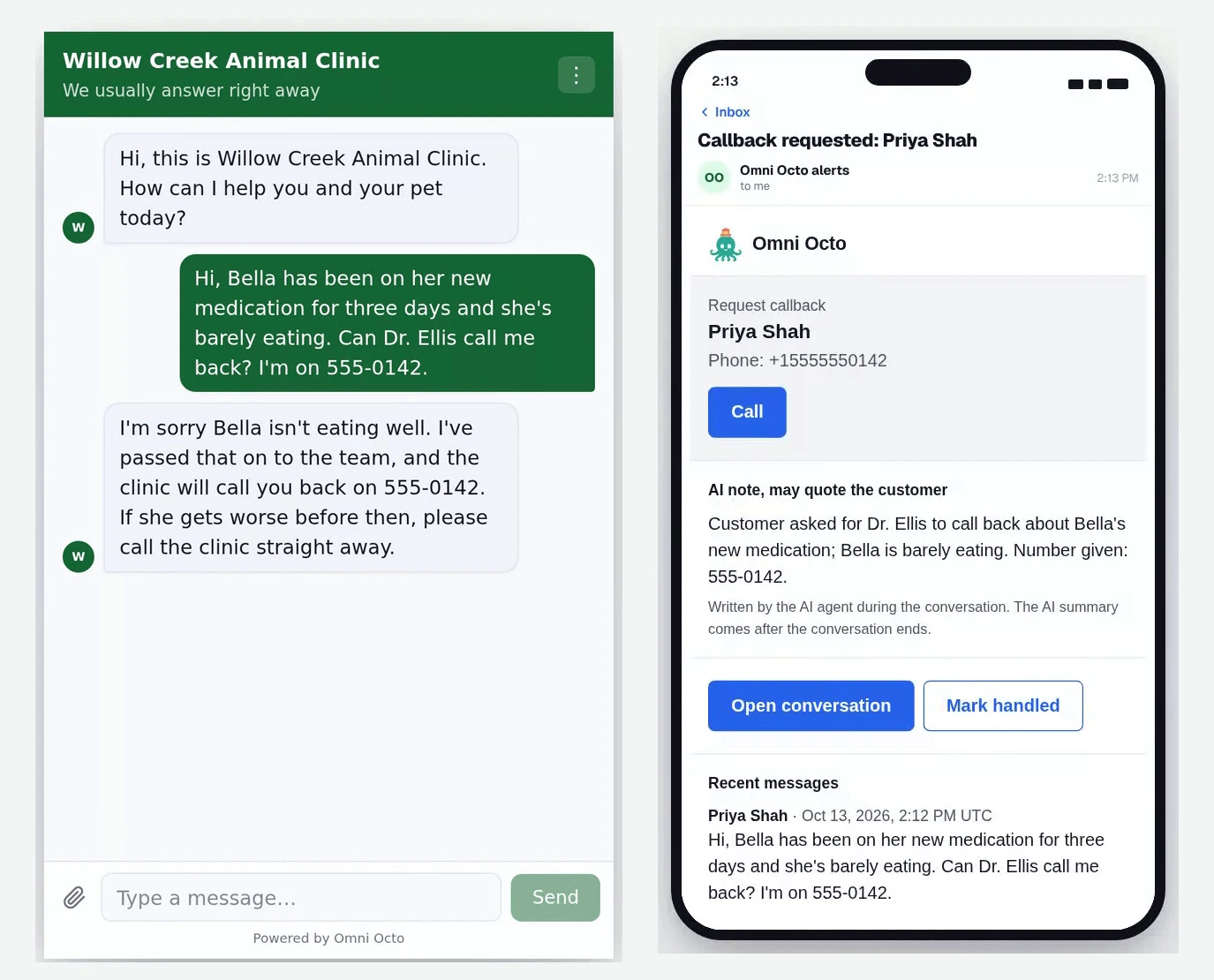
Willow Creek Animal Clinic has one vet who is in surgery most of the day and a front desk that is busy at the counter. Their AI agent, Front desk, answers the website chat and the phone. When Priya writes “Can Dr. Ellis call me back about Bella’s medication?”, the clinic wants to know now, while Priya is still on the website and before she rings another clinic, not half an hour after the chat ends.
That is what Live is for. It goes on one yes/no field of a Dialog Insight at a time. The agent then flags the request during the conversation, and the alert workflow on that field’s label runs within seconds. Every field you don’t switch on keeps working exactly as before.
The yes/no field behind it
A Dialog Insight is a short list of questions the AI answers about every conversation. Each question is a field, and each field has a Type: Yes / No, Enum (one of a list of values you write), Text or Number.
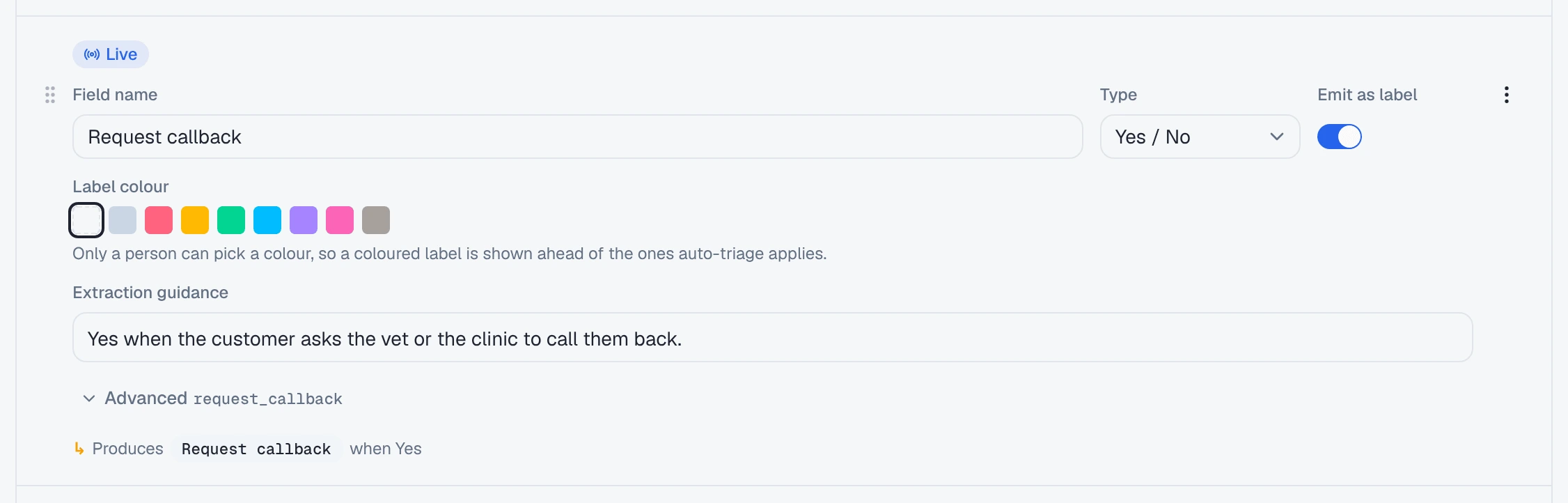
A Yes / No field asks one question with two answers. Willow Creek’s Dialog Insight, Front desk follow-ups, has one called Request callback, and its extraction guidance says when the answer is Yes: the customer asks the vet or the clinic to call them back.
With Emit as label on, the answer becomes a label on the conversation:
| Field type | With Emit as label on, the conversation gets |
|---|---|
| Yes / No | The field’s name, Request callback, when the answer is Yes. Nothing when it is No |
| Enum | The value the AI picked, such as Urgent |
| Text, Number | Never a label |
Labels are what workflows listen for. An email alert is a workflow that starts when a label is added to a conversation, so the label is what sends the email.
One label, many requests
A label is either on a conversation or it isn’t. That works for a question like “Was this about vaccinations?”, which becomes true once and stays true. It doesn’t work for requests, because a customer can ask more than once:
- Without Live, the label goes on the first time the analysis answers Yes. When Priya asks again an hour later, the label is already on, so nothing is added and the alert doesn’t run again.
- With Live, each time the agent flags the request it becomes a numbered request under the label: Request 1, Request 2. The label stays on the conversation while any request is open and comes off when the last one is marked handled. Each new request can run the alert again.
That is why only Yes / No fields can be Live: a Yes is something the customer did, and the next Yes is a new request. An Enum value describes the conversation, so there is nothing to count. The During the conversation section lists only yes/no fields that emit a label. When a Dialog Insight has none, it says “Front desk follow-ups has no yes/no fields that produce a label, so nothing can be Live yet.”
What changes when a field is Live
With Request callback emitting its label and an email alert on that label:
| Not Live | Live | |
|---|---|---|
| When the alert arrives | When the Dialog Insight runs, after the conversation ends | Within seconds of the customer asking, while they are still there |
| The customer asks again later in the same conversation | Nothing: the label is already on | A new request and a new alert |
| Who finds it | The check after the conversation | The agent, as the customer asks. If it misses, the check after the conversation still finds it and the alert goes out then |
The after-conversation analysis keeps running underneath a Live field. It is the safety net: a request the agent didn’t flag is still recorded and alerted when the conversation ends, exactly as it would have been without Live.
Where Live works
Everywhere your agents talk: the website chat widget, the agent’s test page, WhatsApp and the other messaging channels, email replies, and phone calls, incoming and outgoing.
On a phone call the agent makes one quick attempt to flag the request, at most two seconds, so the caller never waits on it. If it doesn’t go through, the agent carries on in its own words and the check at the end of the call finds the request instead. A call that isn’t recorded as a conversation is never flagged live.
Set it up by asking Octo
The quickest way is one sentence to Octo:
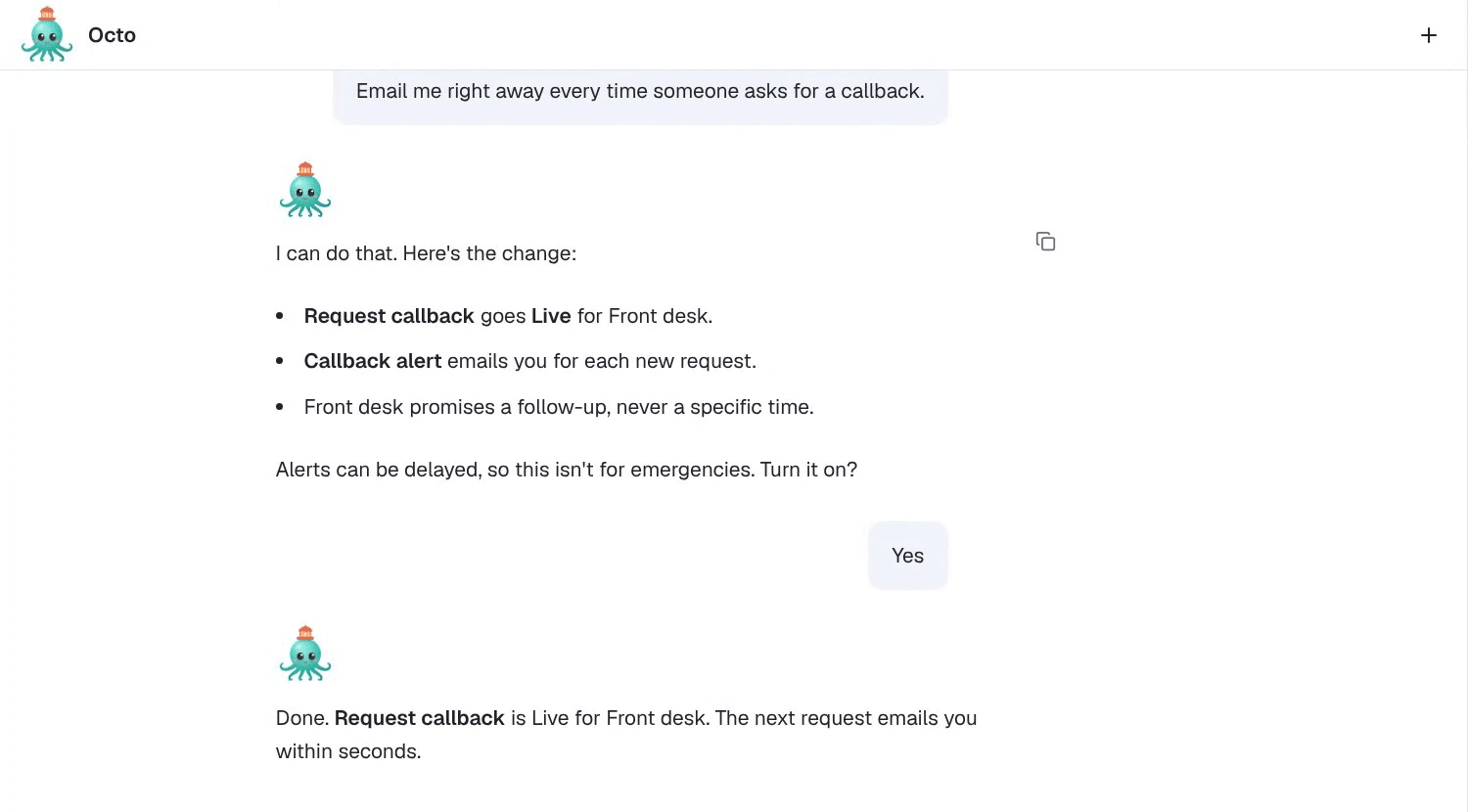
Email me right away every time someone asks for a callback.Octo finds the field that produces the label (or offers to add one to the agent’s Dialog Insight), builds the alert workflow, and shows you everything the change reaches before it turns the field Live. Nothing changes until you agree.
The words matter. “Right away”, “immediately”, “as soon as they ask”, “while they’re still chatting” and “every time they ask” ask for real time. A plain “let me know about callback requests” gets an ordinary alert that arrives after the conversation, and Octo tells you once that it can be made real-time.
Or turn it on in Configure
-
Open the agent on /agents and go to Configure.
-
Below After a conversation ends, where its Dialog Insight is attached, is a section of its own, During the conversation:
Turn a yes/no field Live and this agent flags it as soon as the customer asks, so its workflows run within seconds. Fields that aren’t Live are still found after the conversation ends.
With no Dialog Insight attached, it says “Attach a Dialog Insight above to choose what this agent flags while the conversation is still going.”
-
Each yes/no field that applies a label has a card with a Live switch and the workflows on its label. Enum, text and number fields are not listed: only a yes/no field can be Live.
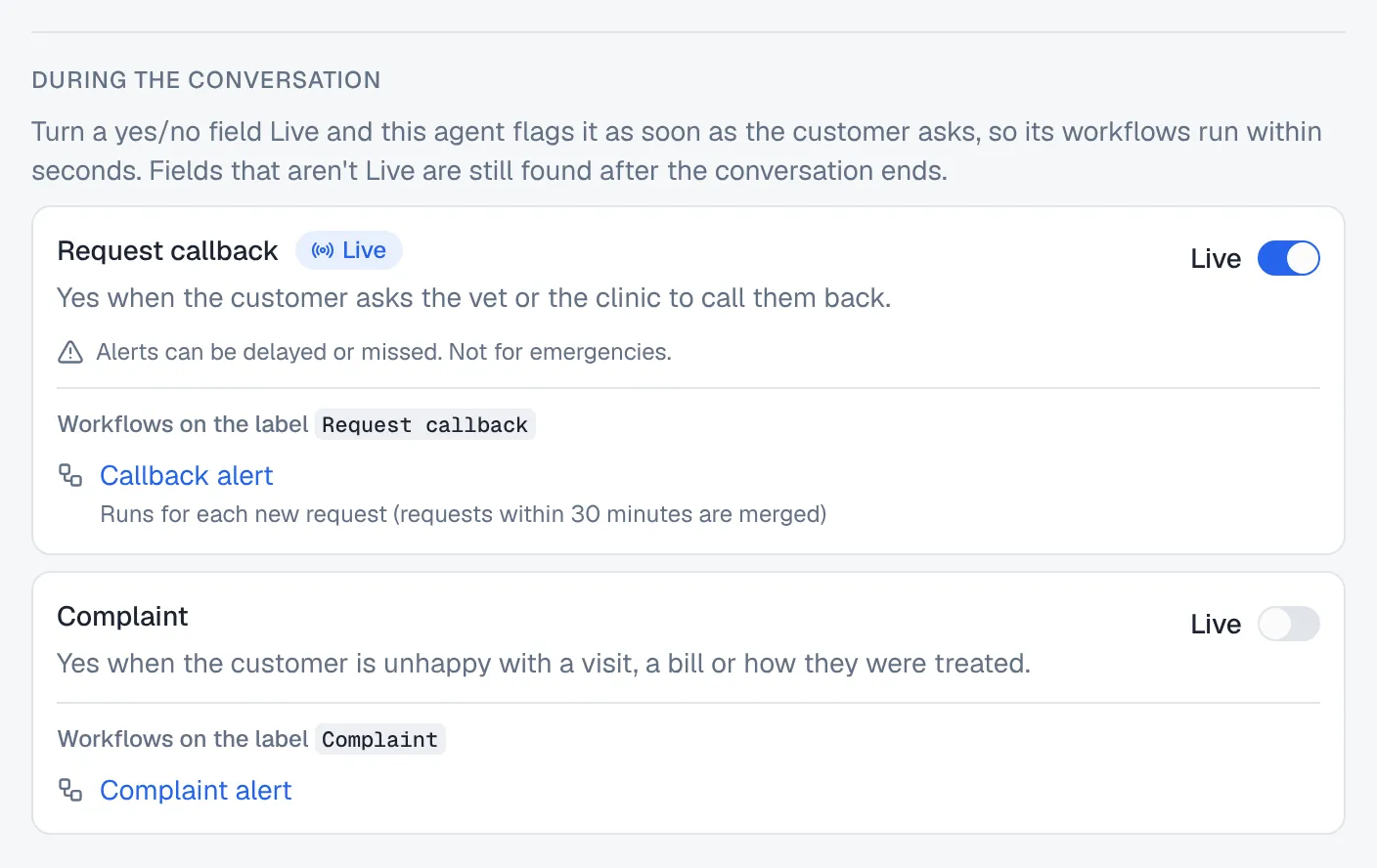
One card per yes/no field that emits a label. -
Flip Live on Request callback. The confirmation, Turn on Live detection for “Request callback”?, opens. Read it, then press Turn on Live.
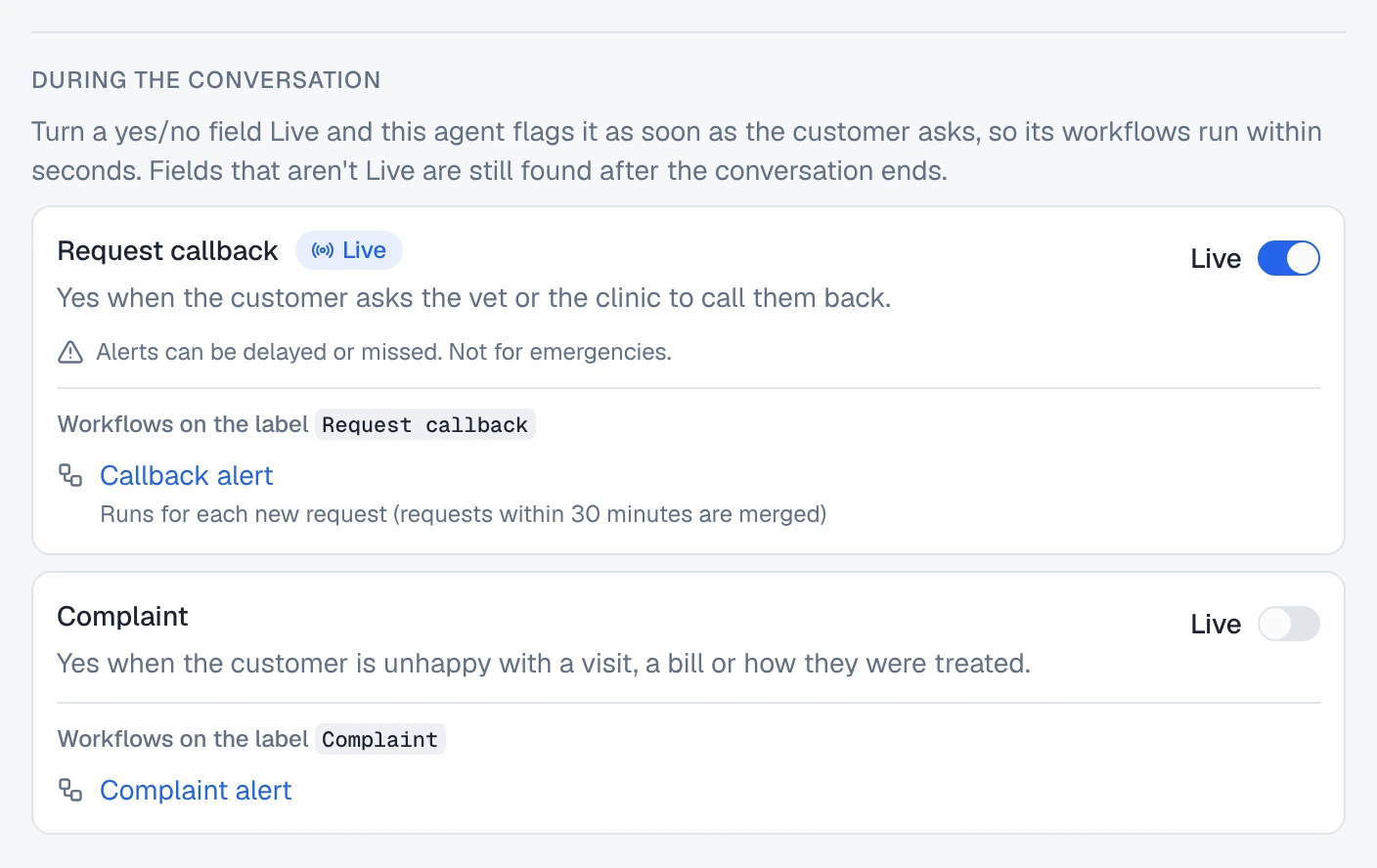
Only workspace owners and admins can change the switch. Everyone else sees it read-only, with “Only workspace owners and admins can change Live detection.”
What the confirmation tells you
The confirmation lists everything the switch reaches, under This changes it for:
- Every agent and campaign that uses this Dialog Insight. The switch is on the Dialog Insight, not on the agent. If Front desk shares it with the after-hours line, both start flagging. A shared Dialog Insight says so above the cards: “Shared with 1 other agent. A Live switch here changes it for all of them.”
- Every workflow on the label, with when it will run. A workflow marked “Built for after the conversation. It reads the AI summary, which doesn’t exist yet while a conversation is live.” needs a look before you turn Live on.
- Agents whose model can’t use tools. They can’t flag anything during the conversation. Their requests are still found after it ends.
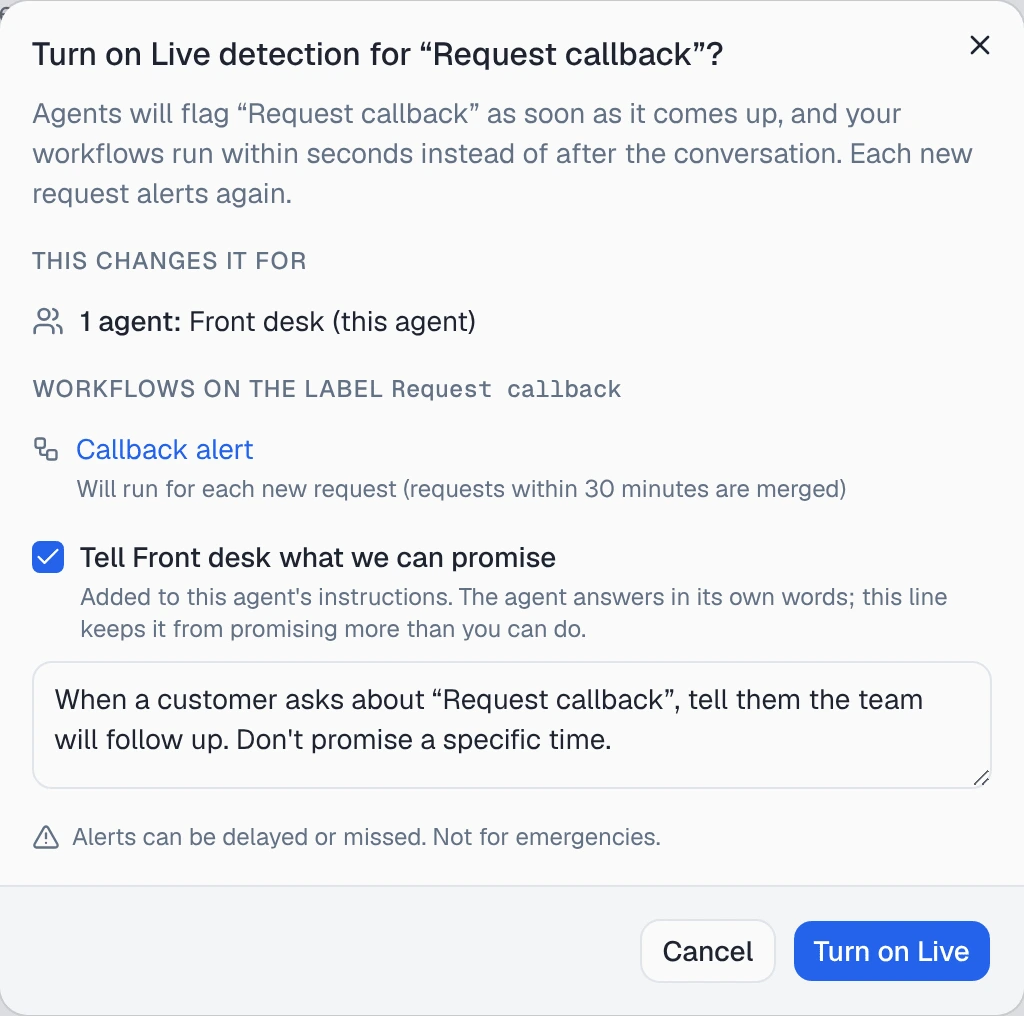
If an agent, campaign or workflow started using the field while the dialog was open, it says “Something changed since you opened this” and asks you to Review again.
What the customer hears
The agent answers in its own words, inside its instructions. It doesn’t read out a scripted line, and it never tells the customer who was alerted.
That leaves one risk: an agent promising more than your team can do (“Dr. Ellis will call you in five minutes”). So the confirmation has a checkbox named after the agent, Tell Front desk what we can promise, which adds one line to its instructions. It starts out as:
When a customer asks about “Request callback”, tell them the team will follow up. Don’t promise a specific time.
Edit it to what your team really does, such as “we return calls the same afternoon”. The line goes into this agent’s instructions only, not into the other agents sharing the field.
Repeat requests and the alert workflow
Each card shows, under Workflows on the label, when each workflow runs:
| The card says | What it means |
|---|---|
| Runs for each new request (requests within 30 minutes are merged) | The workflow’s trigger runs on every repeat. Octo sets this when it builds a real-time alert |
| Runs when the label is added: the first request, and again after every request is handled | An alert built before Live, or without repeat. It is left as it is; ask Octo to switch it to every request |
| Runs once per conversation until this field is Live | A repeating alert on a field that isn’t Live yet |
Two limits keep a chatty or hostile customer from flooding your inbox:
- Requests within 30 minutes are merged. A second “please call me” within 30 minutes of an open request is the same request: one request, one alert. The request shows “Asked again at 4:12 PM, merged into this request”.
- At most 5 requests per conversation in 24 hours start the workflow. The 6th and later are still recorded and shown, marked “Alert limit reached”, but the whole workflow is skipped for them, not only the email. If the workflow also updates a CRM or messages someone, those steps are skipped too.
What the alert email says
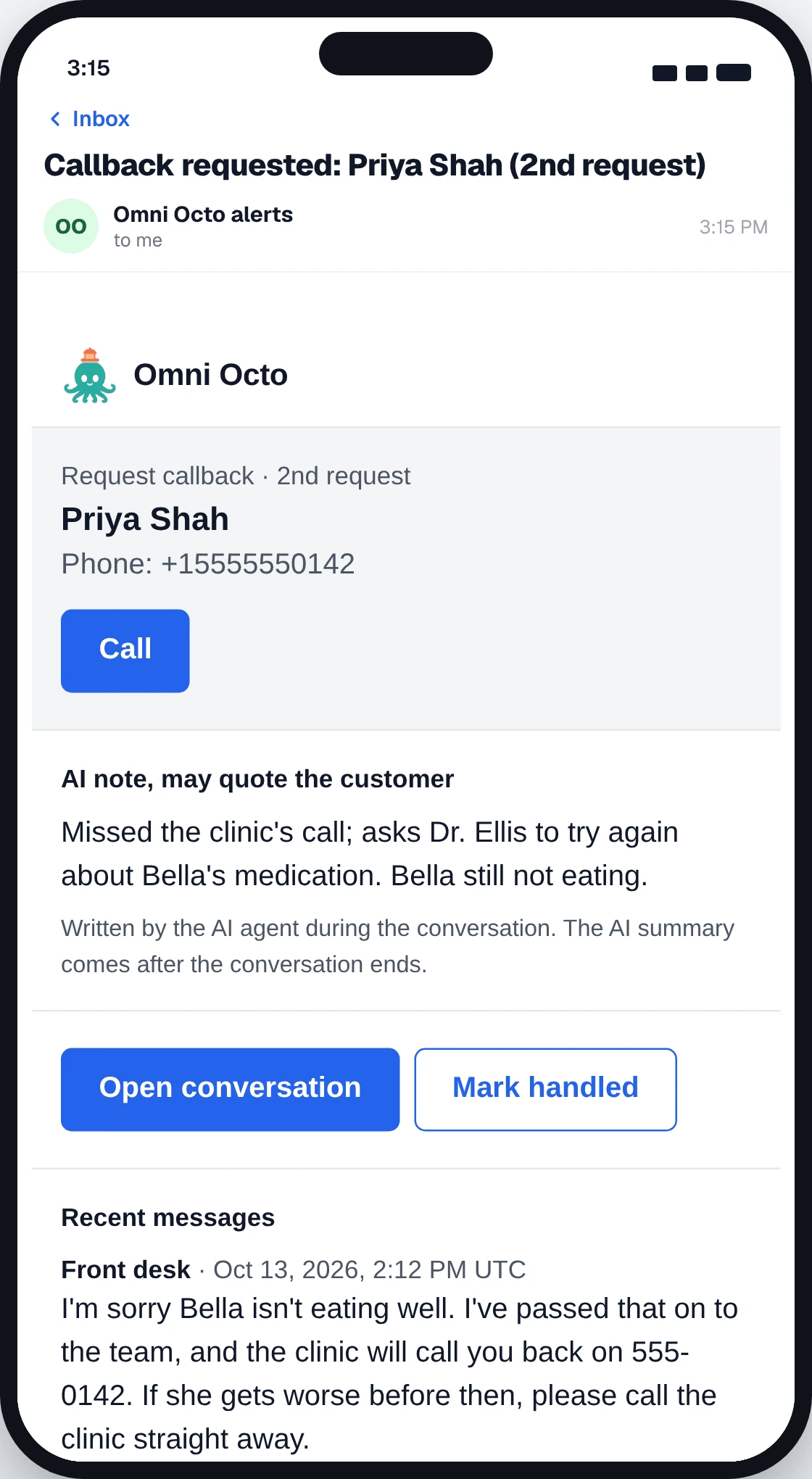
An alert Octo builds passes the request on, so the email says which request it is. From the second request on, the subject ends in “(2nd request)”, “(3rd request)” and so on. The line above the customer’s name reads like Request callback · 2nd request · Request 1 is still open (the first request shows the label alone). Below it:
- Call and Email buttons when the customer gave a phone number or an email.
- AI note, may quote the customer: what the agent wrote about the request when it flagged it. “Written by the AI agent during the conversation. The AI summary comes after the conversation ends.” It is shown as plain text, so nothing the customer typed turns into a link in your inbox.
- Recent messages from the conversation.
- Open conversation and Mark handled. Mark handled only opens the conversation on that request. It never changes anything by itself, because mail scanners open every link in an email. One more click there handles it: see track open customer requests and mark them handled.
Test it once: tests send real alerts
Conversations on the agent’s test page and in Try Voice are flagged live like any other, and the alert workflow runs for real: the email goes to the real address. That is the quickest way to see Live at work, so try it once.
To keep tests out of your alerts afterwards, ask Octo:
Only alert on real conversations.It adds a filter on where the conversation came from, so conversations from the test page, Try Voice and test batches no longer start the alert. Those test conversations still show their requests in the inbox.
Not for emergencies
Every Live card carries the line “Alerts can be delayed or missed. Not for emergencies.” It means it. An alert is an email sent by a workflow, and email can be late, filtered or never read.
For a field about an emergency, the confirmation says it again (“Email alerts can be missed or delayed; they are not an emergency service.”) and offers a different line for the agent:
If the customer describes an emergency, tell them to call 911 or their local emergency number now. Don’t say that the team has been told.
At a vet clinic, edit it to name the emergency animal hospital, and keep it. Live gets a request to your team sooner. It does not make your team an emergency service, and the customer must not believe it does.
Turning Live off
Flip the switch back and confirm Turn off Live. Agents stop flagging the field during the conversation. It is found after the conversation ends again, so alerts arrive later and repeat requests in the same conversation don’t alert again. Requests that are already open stay open until someone marks them handled.
Where to go next
- Track open customer requests and mark them handled — the inbox side: which conversations still need someone, and closing each request.
- Configuring a Dialog Insight — the fields a Live switch sits on.