You do not have to open the inbox to send one template to one person. Type the request into the chat with Octo the way you would say it to a colleague, and Octo finds the template and fills in its variables. It does not send it yet: it shows you exactly what it is about to send, and it goes out only when you press Confirm. The send goes through the same path as the inbox and the API, so it is checked the same way and lands in the same conversation.
This is for one recipient at a time. For a whole list, use a campaign. Why WhatsApp needs a template at all is in When a WhatsApp message has to be a template.
An example request
Tidewater Laundry Co. has an approved utility template pickup_confirmation,
body Hi {{1}}, your pickup is confirmed for {{2}}. Reply here to change it.
Ana asked about washing a duvet
last week, said she would get back to you, and has not written since. You type:
Send Ana Ruiz the pickup confirmation for Tuesday, 9–11am.
Octo is set up to work through it in this order:
- Find Ana. A name is looked up in your contacts; a phone number can be
used as it is. Either way it has to end up in international format
(
+14255550123) — the send refuses anything else. - Check her last contact. When Ana last wrote on WhatsApp tells Octo whether the 24-hour window is open, and whether someone already messaged her today.
- Find the template. Octo searches your templates by name and display name, looking only at approved ones.
- Fill the variables —
{{1}}=Ana,{{2}}=Tuesday, 9–11am— and prepare the send. Octo says it has prepared it for you to confirm; it does not say “sent”. - Wait for you. A card appears in the chat — see below. Nothing reaches Ana until you press Confirm.
Octo words each step in its own way. The checks in the rest of this guide are made by the send itself, every time.
Say which template, and every value
The more your request names, the less Octo has to choose:
Send +14255550123 the
pickup_confirmationtemplate. Name: Ana. Slot: Tuesday, 9–11am.
If you only describe the message, Octo picks the approved template that fits best and says which one it picked. If a variable is missing from your request, say it or expect to be asked — a template is never sent with a slot left empty (see below).
Templates with buttons work too. Tidewater’s marketing template with a copy code button takes the code as a value:
Send Ben the
duvet_promotemplate with the code FRESH20.
Confirm before it sends
In the dashboard chat, the prepared send appears as a card headed Send this WhatsApp template?:
| Line | What it shows |
|---|---|
| To | The number it will go to — +14255550123 |
| Template | The template and its language — pickup_confirmation (en_US) |
| Values | Every value next to the slot it fills, in order: header, then body, then buttons — Body 1 → Ana, Body 2 → Tuesday, 9–11am |
| Expires … | When the request lapses: 24 hours after Octo prepared it |
Then Confirm or Cancel.
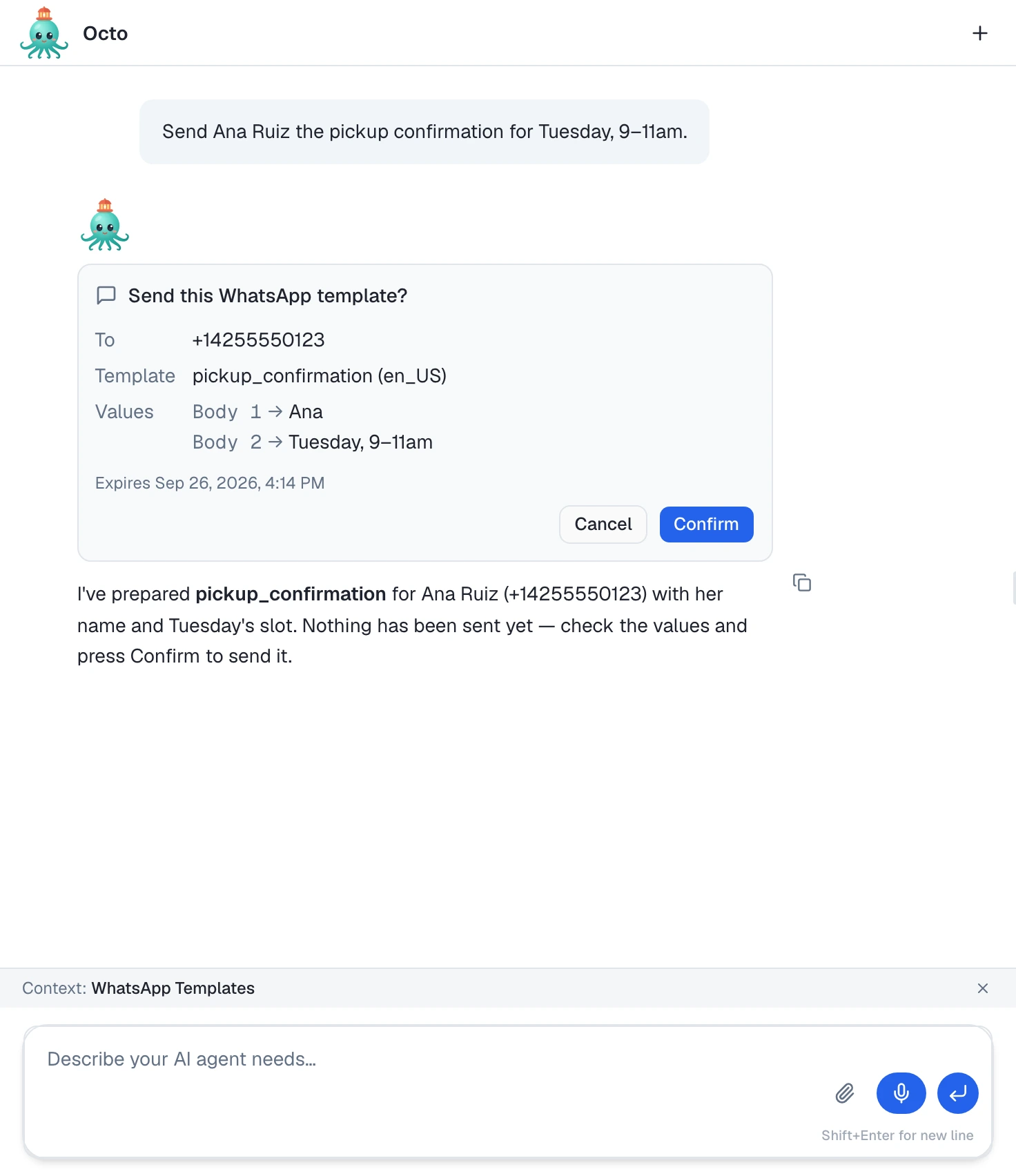
- Confirm sends it. The card changes to Sent, and a note appears in the chat: Done ✅ — Template “pickup_confirmation” sent to +14255550123 via WhatsApp. If WhatsApp or one of the checks below refuses it, the card reads Not sent with the reason instead.
- Cancel sends nothing. The card reads Cancelled — nothing was sent.
- Doing nothing sends nothing. After 24 hours the card reads Expired — nothing was sent.
A few details that matter:
- Read the values, not just the number. The card is the last point where a wrong slot or a typo can be caught. To change something, cancel and ask again.
- The buttons wait for Octo. While Octo is still writing its reply, the card says You can confirm once Octo finishes replying.
- Several templates, several cards. Ask for two sends in one chat and you get two cards; each is confirmed or cancelled on its own.
- Coming back later is safe. Reload the page and the card shows what actually happened. A request that was already sent, cancelled or expired never shows live buttons again, and pressing Confirm twice does not send twice.
- Who can confirm. Only the person who asked Octo, or a workspace owner or admin, can confirm or cancel it.
Talking to Octo by email, WhatsApp or Slack
Octo asks there too. The message shows what it is about to do and a short code. By email you reply with the code; on WhatsApp and Slack there are also Confirm and Cancel buttons. The line you approve names the template, the number and the values:
Send WhatsApp template "pickup_confirmation" (en_US) to +14255550123 — body 1: "Ana", body 2: "Tuesday, 9–11am"A value in a slot named like a code — otp, pin, a token — is shown as
•••• in that line. An unanswered request expires after 24 hours, and nothing
is sent.
What Octo refuses
Every refusal happens before WhatsApp is contacted, and Octo is told why.
| Situation | What happens |
|---|---|
| The template is pending, rejected, paused or disabled | Refused: only an approved template can be sent. |
| A variable is missing, or given as an empty value | Refused, naming the slot — for example body is missing variable “customer_name”, or that the body expects 2 values and got 1. |
| A value is too long | Refused. A copy code is at most 15 characters. |
| The template has an image, video or document header | Octo cannot supply the file, so the send is refused. Send it from your own system, which takes Meta’s full template payload. |
| The template’s WhatsApp number is no longer active | Refused. |
| Billing is not set up for the workspace | Refused with Billing setup required. |
| The number is sending too fast, or has reached its daily limit | Refused with the time to wait. Octo is given the wait and tells you when to try again; it is not meant to retry on its own. See How fast one number can send. |
These refusals leave the attempt visible in the conversation as a message that did not go:
- The customer opted out of WhatsApp messages. Recorded as blocked. Octo cannot override an opt-out.
- The WhatsApp number is still pending verification.
- The workspace is suspended, or the destination is not enabled for it. Recorded as failed.
- Meta rejected the message. Recorded as failed; Octo is given Meta’s error and can retry with different values.
Free text instead of a template
If the window is open, Octo can send your words as they are. Ask “WhatsApp Ana: your driver is ten minutes away” and, if Ana wrote in the last 24 hours on that number, the text goes out as a normal message.
If she has not, the free-text send is refused with the closed window as the reason. Octo will not slip it through: it has to switch to an approved template, and when none fits, it tells you so. It can help you create one, but a new template still has to be approved by Meta before anyone can receive it. Get your templates into Omni Octo covers that.
Where the message lands
- Which number sends it. Templates belong to one WhatsApp number, so the template decides the sender. If you have two numbers, name the template synced to the one you want.
- Which conversation. The same thread the customer’s messages already use, exactly as for a send from your own system. When Ana replies, her reply joins that thread.
- Who answers the reply. Octo does not take the conversation over. If an AI agent was handling it, the agent still is; if you had taken it over, it stays with you. This is different from sending from a conversation, where you take over first.
- What it shows. The message in the thread shows the body with the values filled in, recorded as sent by you. It starts as sent; delivered, read or failed arrive later from Meta.
“Sent” in Octo’s reply means Meta accepted the message. It does not mean Ana has received it — and a marketing template may never be delivered.
Asking twice sends twice
Each request is a new card, and each confirmed card is a new send. There is no “already sent” check across requests: if you ask again, or ask Octo to “try again” after a send that actually went, and you confirm both, Ana gets the template twice — and each one counts against the number’s limits. Check the earlier card’s status before you confirm a resend.
What Octo will not do
- Send to a list. One request is one recipient; use a campaign.
- Send a template with a media header. It has no way to supply the file.
- Override an opt-out, or send a template that is not approved.
- Slip free text past a closed window.
Octo outside the chat
When a program talks to Octo instead of a person, the send still waits for a person:
| Where the program connects | What happens |
|---|---|
/mcp — handing Octo a job with send_message | Parked. The result carries a pending_action with a code. Nothing is sent until someone replies YES <code> on the same conversation. |
/mcp/tools — calling Octo’s tools directly | Refused with confirmation_required. |
/v1, a stored conversation | Parked for a YES <code> reply, the same way. |
/v1, a request that stores nothing | Not offered at all. |
If your own software needs to send a template without a person approving each one, call the template send endpoint directly — Send a template from your own system.
Where to go next
- Send a template from a conversation — the same send, with a preview, from inside the thread.
- Send a template to a list — when it is more than one person.
- How fast one number can send — the limits Octo’s sends share with every other door.