Three screens of ours, plus Microsoft’s own sign-in. How long it takes is decided by something outside this product entirely: whether your Exchange admin has already given you access to the mailbox.
What stops people here is not a setting. It is an assumption about what a shared mailbox is.
You do not sign in as the shared mailbox
A Microsoft 365 shared mailbox has no licence and, in a normal tenant, no
sign-in. There is no password for support@ because nobody was ever meant to
log in as it. Exchange gives your own account permission to work inside it
instead.
So the sign-in step asks for you — the work or school account that has been granted access — and the shared mailbox address is typed separately, a screen later:
Enter the shared mailbox UPN (the address of the Exchange Online shared mailbox, e.g.
support@contoso.com). Your account must have Full Access and Send As on that mailbox — ask your Exchange admin if you’re not sure.
If you have been hunting for the shared mailbox’s password, this is why you could not find one.
The two permissions, and who grants them
Two, and they do different jobs. The wizard summarises the arrangement as Exchange Online shared mailbox · Admin grants Full Access + Send As.
| Permission | What it buys | Without it |
|---|---|---|
| Full Access | Reading the mail, and writing drafts inside the mailbox | Nothing connects — the wizard stops and says so |
| Send As | Replies leave as support@, not as you | Mail would go out under your own name |
Only an Exchange administrator can grant these. If you are not one, the useful thing to send them is the mailbox address and those two permission names — that is the whole request.
When Full Access is missing, the wizard is explicit rather than vague:
Your account doesn’t have Full Access on this shared mailbox.
and tells you what to do about it:
Ask your Exchange admin to grant Full Access and Send As on
support@contoso.com, then retry.
It has to be a work or school tenant
Shared mailboxes are a Microsoft 365 organisation feature. They do not exist on consumer Microsoft accounts, and connecting with one produces the clearest error in the flow:
Shared mailboxes only exist on Microsoft 365 (work/school) tenants — the account you connected is a consumer (Outlook.com / Hotmail / Live) Microsoft account. Re-start the wizard with a work/school account.
If that is you, the mailbox you want is a personal Outlook one, which is a different option on the first screen and needs no admin at all.
The screens, in order
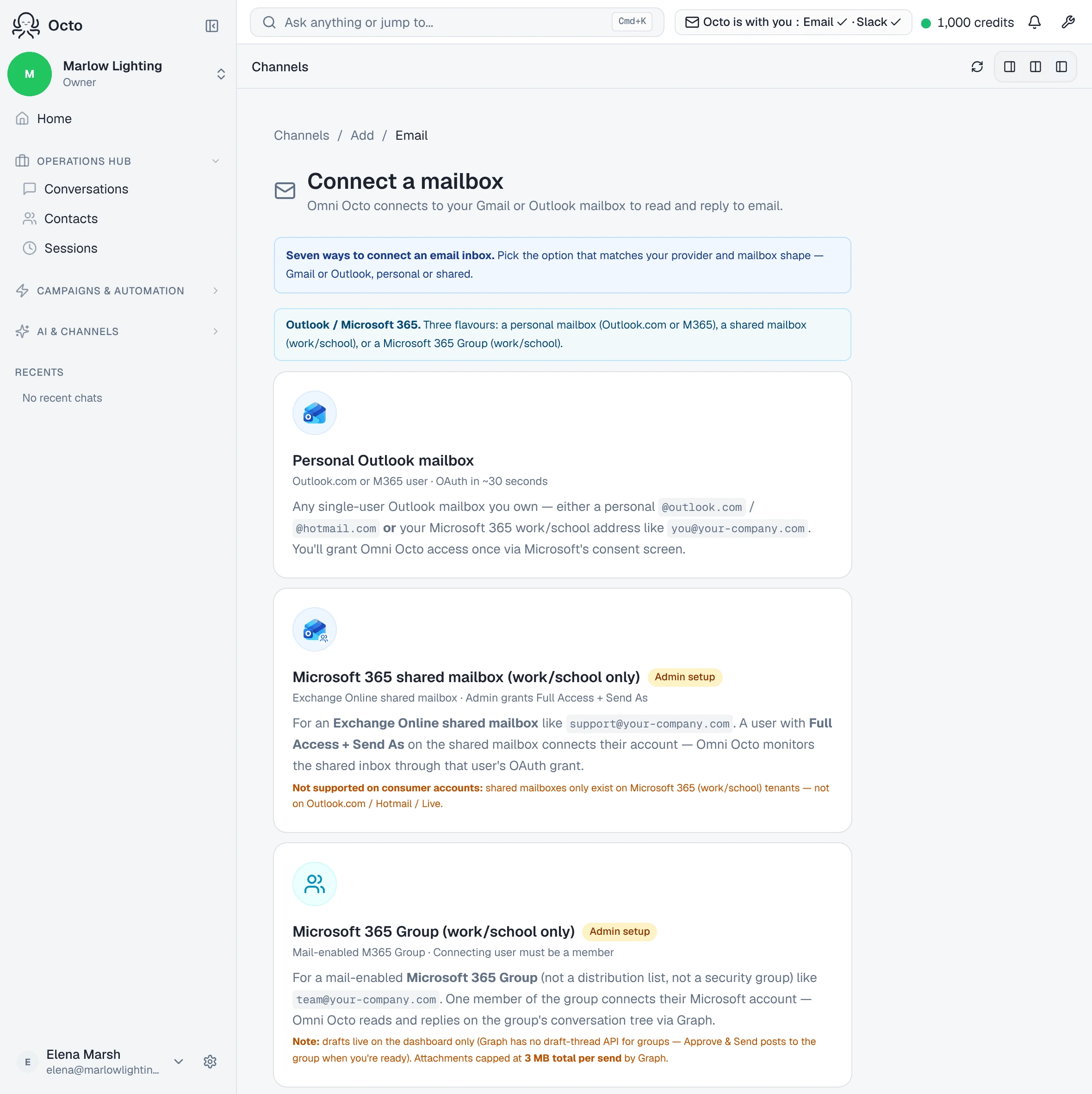
Channels → Add → Email, which is /channels/email/new. The first screen is
Connect a mailbox — “Omni Octo connects to your Gmail or Outlook mailbox to
read and reply to email.”
Choose the Microsoft side and you are offered “Three flavours: a personal mailbox (Outlook.com or M365), a shared mailbox (work/school), or a Microsoft 365 Group.” Take Connect an Exchange shared mailbox.
| Screen | What it says | What you do |
|---|---|---|
| Connect a mailbox | ”…connects to your Gmail or Outlook mailbox to read and reply to email.” | Pick the Exchange shared mailbox option |
| Microsoft sign-in | Microsoft’s own consent screen | Sign in as yourself, not as the shared mailbox |
| Set up an Exchange shared mailbox | ”Point at a shared mailbox in your Microsoft 365 tenant. The connecting user must have Full Access + Send As.” | Type the Shared mailbox address, then pick an Agent, a Default reply mode, and an optional Email signature (HTML, optional) |
| Verify mailbox setup | ”Round-trip a test message to confirm inbound and outbound delivery.” | Wait for the test message to come back |
The verification step is worth its minute. It sends a message from the mailbox to itself, so it proves reading and sending — a sign-in that succeeded but cannot send is a failure you would otherwise discover on your first real reply.
When it comes back you land in /conversations with a compose open. There is no separate configuration screen on this path: the shared-mailbox step already bound the agent, the mode and the signature, so a Microsoft connection skips the one Gmail’s personal and alias flows still use.
What the consent screen actually asks for
Seven permissions, and one of them is the one people want to know about:
| Scope | Why |
|---|---|
openid, profile, User.Read | Who you signed in as |
offline_access | Keeps the connection alive without asking you again |
Mail.ReadWrite | Read the mail, and write drafts |
Mail.Send | Send replies from the mailbox |
MailboxSettings.ReadWrite | Read the signature and automatic-reply settings |
Mail.Send is granted at connect time, before you have decided whether anything
should send automatically. That is worth saying plainly rather than burying: the
permission to send exists from the moment you connect, and what stops a reply
going out is the reply mode you choose on the next screen, not the absence of
permission.
A shared mailbox connection does not request Group.ReadWrite.All. That one
belongs to the Microsoft 365 Group flow, which is a different option.
Where the drafts go
Drafts land in the shared mailbox’s own Drafts folder, and the dashboard says
so: “Saved to the Drafts folder in support@contoso.com”.
That matters on a shared mailbox more than anywhere else, because everyone with Full Access sees the same Drafts folder. A colleague who has never opened this dashboard can read a pending reply in Outlook, in the mailbox they already have open.
This is specific to shared mailboxes. A Microsoft 365 Group behaves differently — Graph has no draft API for group conversations, so those drafts live on the dashboard only.
Who writes, and who presses send
Who answers is decided on that same Set up an Exchange shared mailbox screen, under Default reply mode. Three settings:
- Draft — I’ll review AI replies before they send. Nothing leaves until somebody approves it.
- Autonomous — send AI replies immediately.
- Human only — no AI replies. Mail still arrives; nothing is written.
Pick Draft for a shared mailbox you have just connected. A single thread can be overridden afterwards, and a per-thread setting beats the channel default.
One detail worth knowing before you choose: if the stored mode is ever missing or unrecognised, the fallback is Autonomous. Setting the default deliberately is therefore better than leaving it alone.
What this will not do
The limits are not fine print; each one changes what you should expect on day one.
It does not import your existing mail. Connecting starts a watch on new messages. Yesterday’s thread is not there and will not appear — the mailbox’s history stays where it is.
A reply your colleague sends from Outlook is not counted as answered. The platform credits replies that went out through it. Somebody answering from their own Outlook is invisible to that count, so the thread can still read as waiting when a human has already dealt with it.
Mail from a no-reply address is shown, never answered. It arrives, you can
read it, and no draft is written for it — a reply would reach nobody. The message
says why rather than leaving the silence unexplained.
When it does not connect
Three errors, and each names its own fix.
| What you see | What it means |
|---|---|
| ”Your account doesn’t have Full Access on this shared mailbox.” | The permission has not been granted yet, or not to the account you signed in with |
”support@contoso.com doesn’t exist in your Microsoft 365 tenant.” | A typo, or a mailbox in a different tenant from the one you signed into |
| ”Shared mailboxes only exist on Microsoft 365 (work/school) tenants…” | You signed in with a consumer Microsoft account |
The second one catches a specific mistake worth naming: signing in with an account from one tenant and typing a mailbox that lives in another. Both halves look correct on their own.
Give it fifteen minutes before you diagnose anything
A permission grant does not take effect instantly, and the wizard says so:
Microsoft caches permission lookups for ~15 minutes — first send and first inbound may briefly act stale after the grant.
So a first send that fails right after your admin grants Full Access is very often this, not a second missing permission. Waiting is a real fix here.
Two things worth knowing
The permission is on the account, not on us. If your admin later removes Full Access from your account, this connection stops working — not because anything here changed, but because the access it borrows was revoked. Connecting through an account that is about to leave the company has an expiry date on it.
Signing in as yourself means replies are attributed to the mailbox, not to you. Send As is what makes that true. It is also why the wizard will not treat Full Access alone as good enough: a mailbox that can read and draft but not send as itself would produce replies from the wrong address, which is worse than not connecting.