The last of the seven mailbox shapes, and the one with the most admin work in it. Budget for a round trip with whoever runs your Exchange tenant.
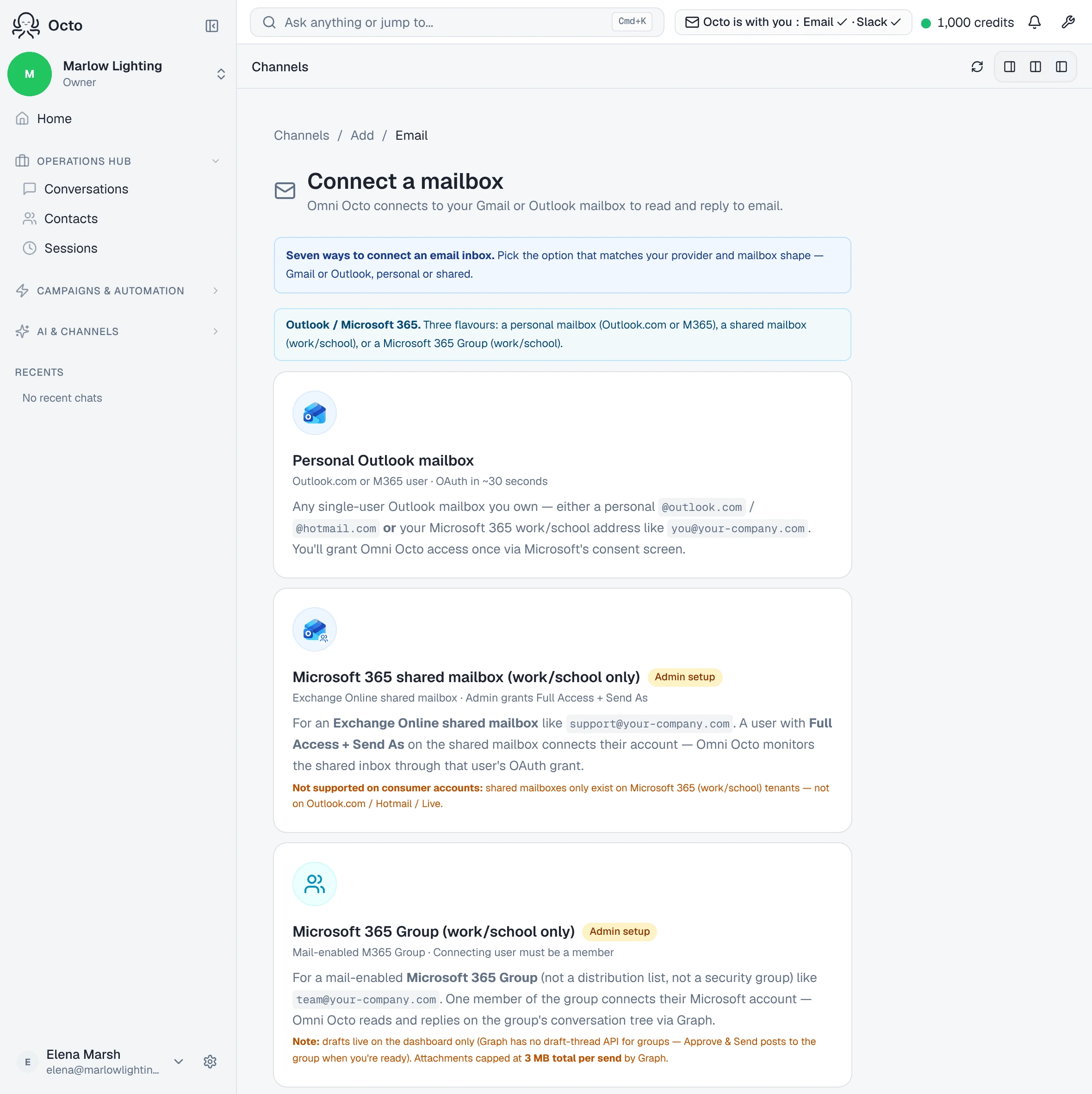
The wizard’s own summary: “Pick a mail-enabled M365 Group you’re a member of. Replies post on the group’s conversation tree.” And the constraint that decides whether you can start at all — Mail-enabled M365 Group · Connecting user must be a member.
This is work/school only. A consumer Microsoft account has no such thing.
You connect as a member, not as the group
Same shape as the Google Group path: a group is not an account you sign into. You sign in as yourself, and you must already be a member of the group — the wizard lists the groups you belong to, and if that call fails you get “Couldn’t list your groups”.
The one extra permission
This is the only email flow that asks for Group.ReadWrite.All on top of the
standard seven. It is what lets us read the group’s conversation tree and post
replies onto it. A personal Outlook
or shared mailbox
connection never requests it.
The two one-time admin grants
Unlike the other Microsoft paths, this one keeps a final configuration screen, and it carries a callout titled One-time admin steps to enable group send + receive:
To send and receive email through this M365 Group, ask your Exchange admin to do these two things in the Exchange admin center. Both are one-time.
A. Outbound — Send-on-behalf permission
- Open admin.cloud.microsoft/exchange → Recipients → Groups.
- Select this group from the list.
- On the Settings tab, toggle “Let people outside the organization email this group” ON (required for external inbound).
- Still on Settings, select Edit manage delegates.
- In Add a delegate, enter the connecting user’s email and pick Send on behalf as the permission type, then Save changes.
B. Inbound — subscribe the user to group mail
- Same group → Members tab → confirm the connecting user appears as a member (add them if not).
- On the Settings tab, ensure “Send copies of group conversations and events to members’ inboxes” is ON (or the per-user equivalent: the user is a Subscribed member).
- Microsoft caches permission lookups for ~15 minutes.
Step B explains the architecture, and it is worth reading rather than just performing: “This is how our app receives inbound — Microsoft delivers a copy of every group email to each subscribed member’s inbox, and we watch the connecting user’s inbox.” If those copies stop, inbound stops.
Without the outbound grant, the first send fails on Microsoft’s side with a 403 and no useful explanation, which is exactly why the callout exists.
Drafts behave differently here
The one real functional difference, and the reason to read this before choosing draft mode:
Drafts live on the dashboard only for M365 Groups — Graph has no draft-thread API for group conversations, so we don’t push a copy to Outlook drafts folder. Approve & Send posts to the group.
So on every other mailbox a pending reply is also sitting in the provider’s Drafts folder where a colleague can see it. Not here. The dashboard says so on the draft itself — “Waiting here for review — this mailbox has no Drafts folder of its own” — and approving posts straight onto the group conversation.
What it will not do
It does not import the group’s history. The watch starts at connect.
It stops working if the member leaves. The connection borrows one member’s subscription and delegation. Remove them from the group, or revoke the delegate permission, and inbound and outbound fail independently of each other.
It will not fix the tenant for you. Every step above is in Microsoft’s admin centre; the wizard can request them and detect the failure, not perform them.