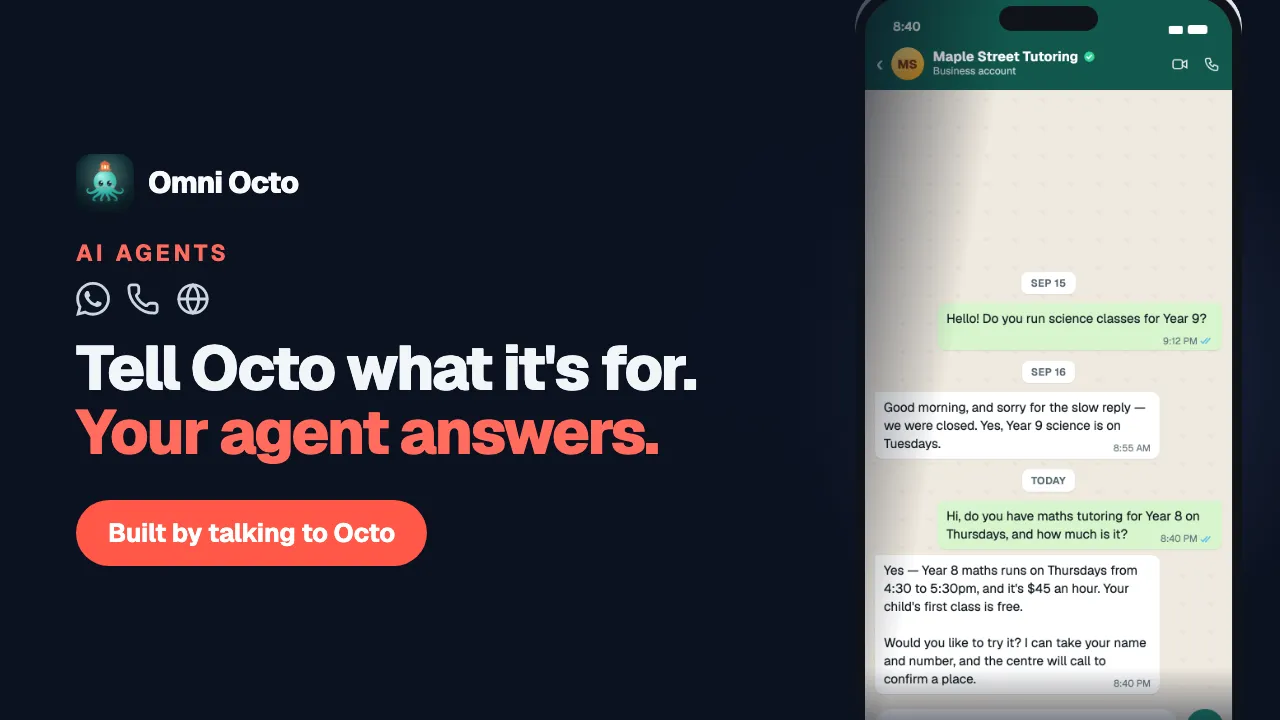
The instructions tell an agent how to behave. The knowledge base tells it what is true — your timetable, your fees, your policies. When a parent asks Maple Street Tutoring “how much is the Year 9 maths class?”, the answer should come from a page you wrote, not from the model’s imagination.
Each agent has its own knowledge base, and it serves every channel that agent answers: the phone, WhatsApp, your website chat, email. Fill it once.
Where it is
Open the agent from /agents and choose the Knowledge tab. The same page is at /agents/knowledge — without an agent picked it asks you to “Select an agent to manage its knowledge base.”
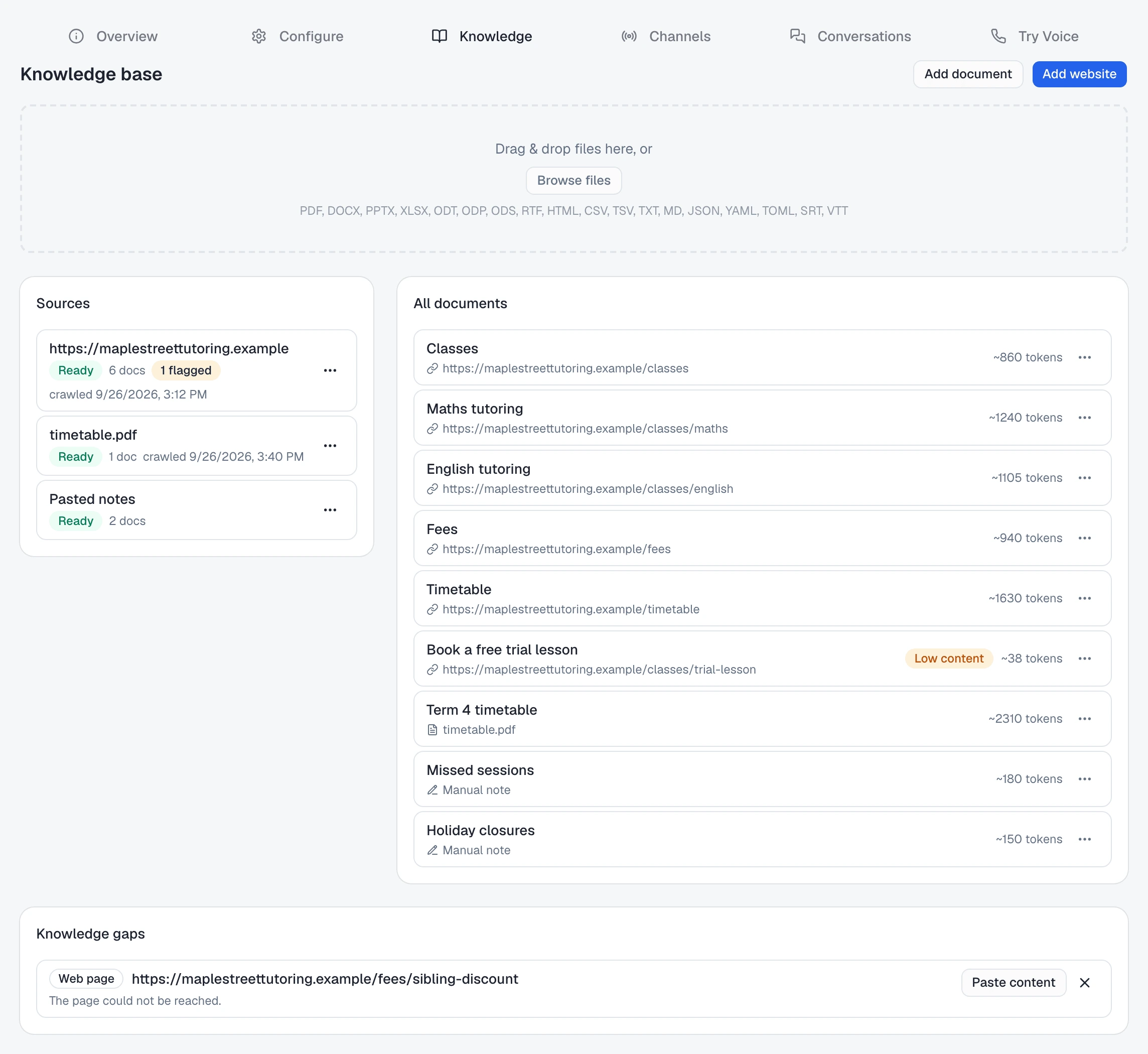
At the top are Add document and Add website, and under them a drop zone for files. Below that, three cards:
| Card | What is there |
|---|---|
| Sources | Each website, file or set of pasted notes you added, with its status, how many docs it produced, how many are flagged, and when it was crawled |
| All documents | Every document the agent can answer from. Click a source to narrow it to Documents in source; click it again to see everything |
| Knowledge gaps | Pages and files that could not be read, waiting for you to paste their content |
Add your website
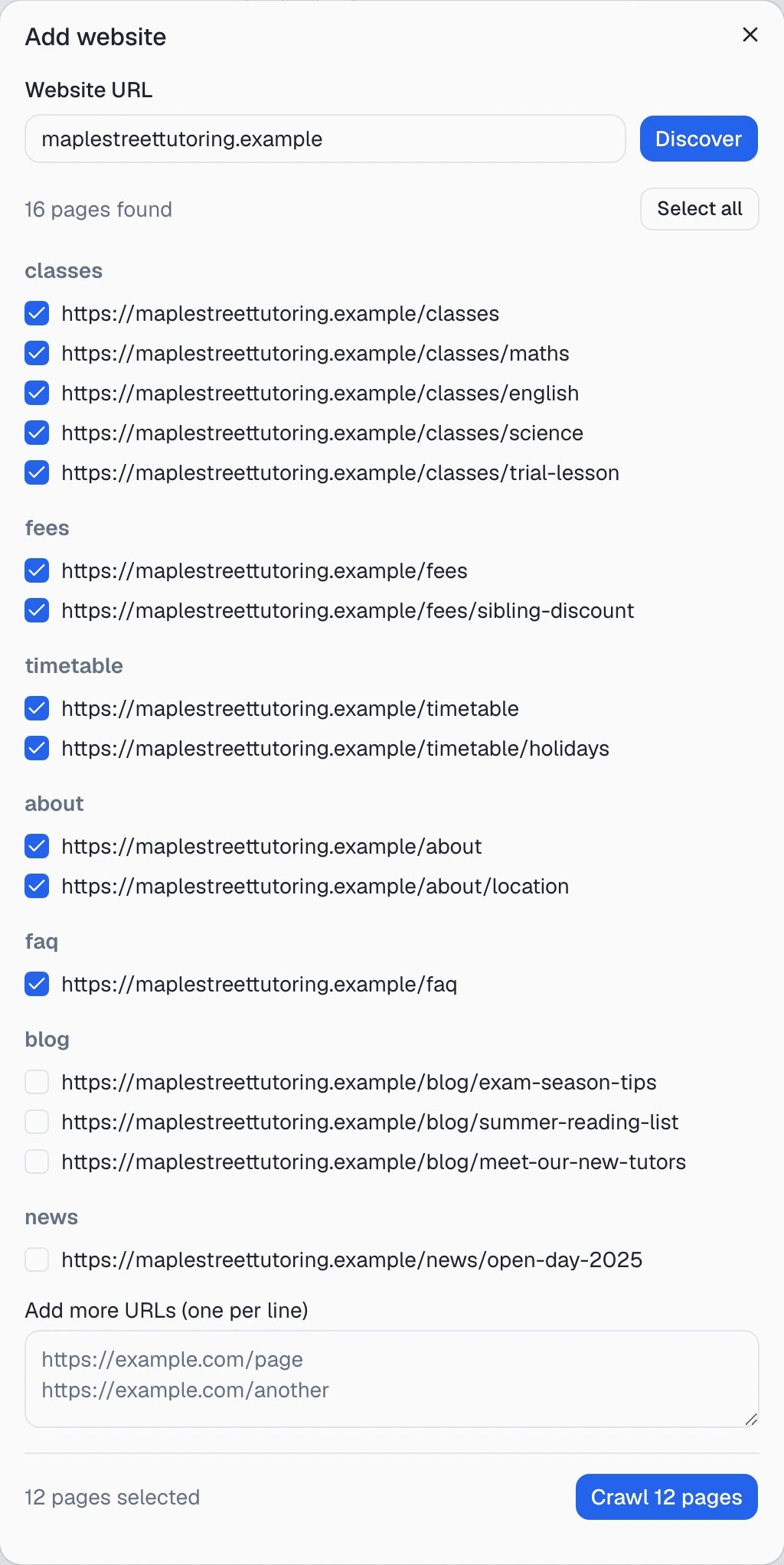
Add website opens a dialog with one field, Website URL, and a Discover button. What you type decides what happens:
- A bare domain —
maplestreettutoring.example— reads the site’s sitemap and lists every page it finds, grouped by section: classes, fees, blog… Sections that look useful for answering questions are ticked for you; the rest are not. - A single page —
maplestreettutoring.example/fees— lists just that page, ticked.
Untick what the agent does not need — old blog posts, news, tag pages — or use Select all / Deselect all. Pages the sitemap missed go in Add more URLs (one per line). The button at the bottom counts your choice, Crawl 12 pages, and starts the crawl. Select at most 500 pages per crawl; for a larger site, crawl it in parts.
If you see “No pages were discovered for that URL. Try a different address.”, the site has no sitemap to read. Enter the pages you want one at a time, as full page URLs.
The crawl runs in the background: the source shows a spinner, then Ready. Or ask Octo — “Crawl maplestreettutoring.example for the tutoring agent” — and it lists your pages ranked by likely usefulness, by section, for you to choose.
Upload your files
Drag files onto the drop zone — “Drag & drop files here, or” — or click Browse files. You can add several at once; each shows a tick when it is uploaded, and reading it continues in the background. Accepted:
PDF, DOCX, PPTX, XLSX, ODT, ODP, ODS, RTF, HTML, CSV, TSV, TXT, MD, JSON, YAML, TOML, SRT, VTT
Maple Street uploads its term timetable as a PDF. A file source is named after the file; open one of its documents and Download original gets it back.
Paste what only lives in your head
Some things are written nowhere: the holiday closures, what happens when a child misses a session, where parents park. Add document takes a Title and Content (Markdown) and adds it straight away. All pasted notes collect under one source, Pasted notes.
If the same text is already in the knowledge base, nothing is added twice: “That content is already in your knowledge base as “Refund policy”. No new document added.”
Write it so it can be found
The content box says how the agent reads what you give it:
Write or paste markdown. Use # headings to split the doc into searchable sections — each heading becomes a separate chunk the agent can cite.
The agent looks up the section that matches the question, so give each topic its own heading and keep one topic under each:
# Missed sessions
One make-up class per term. Tell us by 5pm the day before.

# Holiday closures
Closed for the two weeks of the winter school holidays.
A parent asking about a missed class finds Missed sessions, not a long page that mentions it somewhere in the middle. Put the fact first, in plain words.
Answer email from your website and your documents shows the email side: every draft names the documents it drew on.
Keep it accurate
Click any document to open it. The preview shows where it came from — a page address, “from: timetable.pdf”, or Manual note — its size in tokens and any flags. Edit changes the title and text; Save keeps the change.
Watch for flags on a document:
| Flag | What it means | What to do |
|---|---|---|
| Low content | Almost no text came out — often a page that draws itself with JavaScript, or a scanned PDF | Open the document, Edit, and paste the real text; or add it with Add document |
| Garbled | It reads like code or data rather than sentences | Edit it down to the useful text, or delete it and paste a clean version |
| Truncated at 3M chars | The text past the limit was not stored | Split the file into smaller documents and upload those |
A source with flagged documents says so — “2 flagged” — so you can find them without opening every page.
When your website changes, refresh it. The More options menu on a website source has Re-crawl — “This will re-index all pages from this source. It may take a few minutes.” — and each crawled document has its own Re-crawl for one page. A re-crawl replaces those documents with what is on the site now, so change the site first; a fact that belongs only to the agent goes in its own document with Add document.
Delete source removes a source and all its documents; Delete on a document removes just that one. Neither can be undone.
Fill the knowledge gaps
Knowledge gaps lists each page or file the crawl or upload could not read, marked Web page or File, with a sentence underneath saying why — “The page could not be reached.”, or “The file has no text layer — it looks like a scanned image.” The fix is the same for all of them: open the page yourself, copy the text, and click Paste content. The title is filled in with the page address or file name; add the text and click Add. The gap closes and the content becomes a document.
If the page does not matter, the × — “Dismiss — remove this reminder” — clears it. With nothing left, the section reads “No open gaps. Every page and file added to this knowledge base could be read.”
A large knowledge base
When the knowledge base grows past what the agent can read in one go, the documents list shows:
Large knowledge base (~180,000 tokens). The full KB won’t fit in the agent’s context, so it answers by searching for relevant passages per question rather than seeing everything at once. This affects voice agents more than text because search introduces more obvious delays in voice interaction.
A smaller knowledge base is read whole on every conversation; a larger one is searched for each question. Searching is what the headings are for. For a phone agent, keep the knowledge base to what callers actually ask — the pages you untick are the ones it no longer has to search.
Answers your team gives on outbound calls
On an outbound voice campaign, the agent can ask your team a question mid-call and keep the answer. Turn it on in the campaign’s Advanced settings, under OPERATOR INPUT GATHERING: tick Enable operator input gathering, then choose where answers go under “When the operator answers, save the answer to:” — Campaign FAQ only (default), or the agent’s knowledge base.
On the campaign’s page, questions wait under Needs Input. Type the answer and send; Save to agent KB (all campaigns) decides whether it also goes into the agent’s knowledge base. Answers collect in the FAQ column, and each one has Push to KB to add it later. Once it is there the button reads Pushed to KB ✓; click it again to Remove from KB.
In the Knowledge tab these documents show “From” and the campaign name, and clicking one opens the campaign. Click a pushed question in the FAQ to jump the other way — the knowledge base opens with that entry highlighted.
Ask Octo
Octo can do all of this in the chat: list an agent’s sources, review which documents are flagged and which gaps are open, add notes, edit a document, and re-crawl a site once you confirm — “What in the tutoring agent’s knowledge base needs fixing?”, “Our fees page changed this morning — re-crawl it.”
Next
Test it before your customers do — ask the questions parents ask and check each answer against your documents. What the agent should do, rather than know, belongs in its instructions.