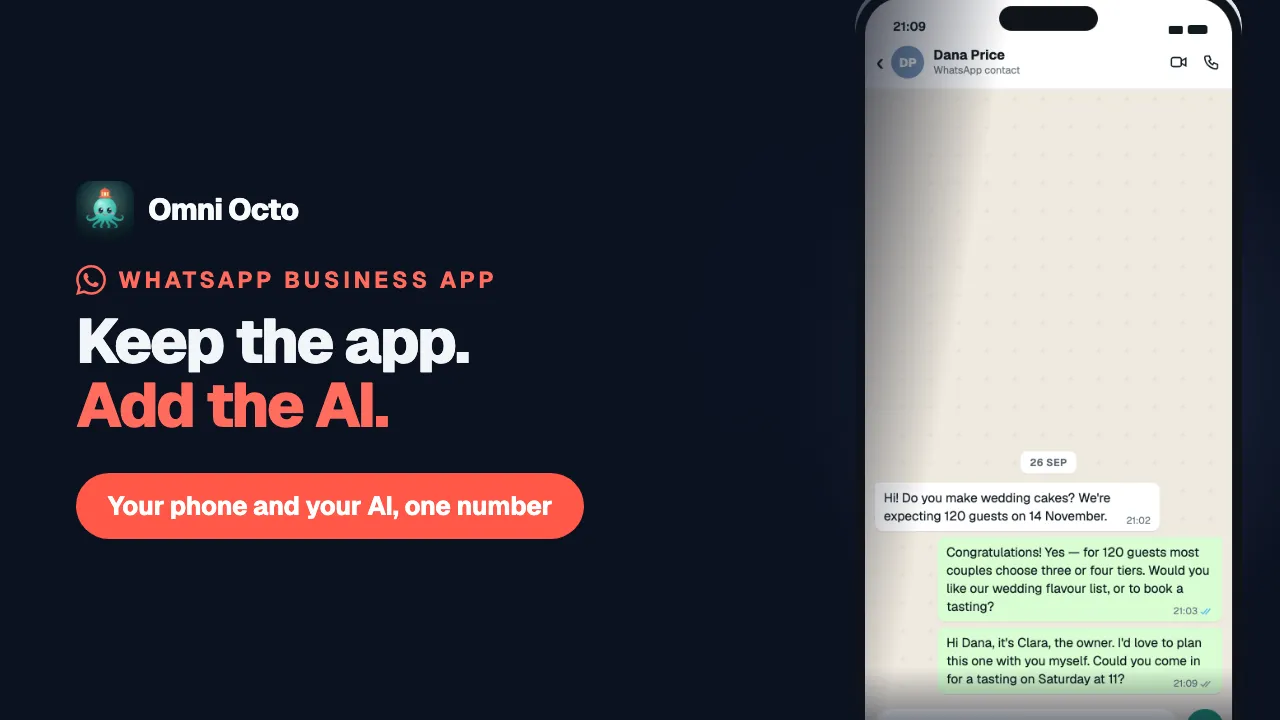
On a number you kept in the WhatsApp Business App, two people can answer the same customer: the AI agent in Omni Octo, and you, on your phone. They never answer over each other, because of one rule:
When you reply to a customer from the app, the AI pauses in that chat.
It pauses in that one chat only. Every other customer keeps getting AI replies. And it does not stay paused forever: by default, the chat comes back to the AI after 15 minutes without a reply from you or your team.
Take Fernhill Cake Studio. At 9pm a customer asks the AI about a wedding cake for 120 guests. The owner sees the chat in the app, and answers it herself — she wants to talk tiers and tasting dates personally. From that moment the AI leaves the chat to her. When she has gone quiet for 15 minutes, it is the AI’s again, and it answers the customer’s next message.
What counts as a reply from the app
| You do this in the app | The AI in that chat |
|---|---|
| Send a reply — text, a photo, a file, a voice message | Pauses |
| Send a reply from a device linked to the app, such as WhatsApp Web | Pauses |
| React to a message with an emoji | Keeps answering |
| Delete or edit a message you sent | Keeps answering |
Only a real reply counts. A thumbs-up on “Thanks, see you Saturday!” is not you taking over the conversation, so the AI is not stopped by it.
If the AI happened to be writing a reply at the moment yours went out, its reply is not sent: the customer gets your answer, not two.
What the inbox shows
Open the conversation in /conversations. Conversations on this number are labelled WhatsApp Business App.
Your message from the phone sits in WhatsApp’s green, with the WhatsApp Business App’s icon beside it and the line Sent from the WhatsApp Business App on the account owner’s phone — so anyone on your team reading the thread can see it was typed in the app, not by the AI and not from the inbox.
The conversation’s status changes to Needs human, and a banner above the thread says who paused it:
The account owner replied from the WhatsApp Business App, so the AI is paused in this chat.
with a countdown under it —
Returns to AI in 15 minutes without a team reply.
— and a Return to AI now button on the right.
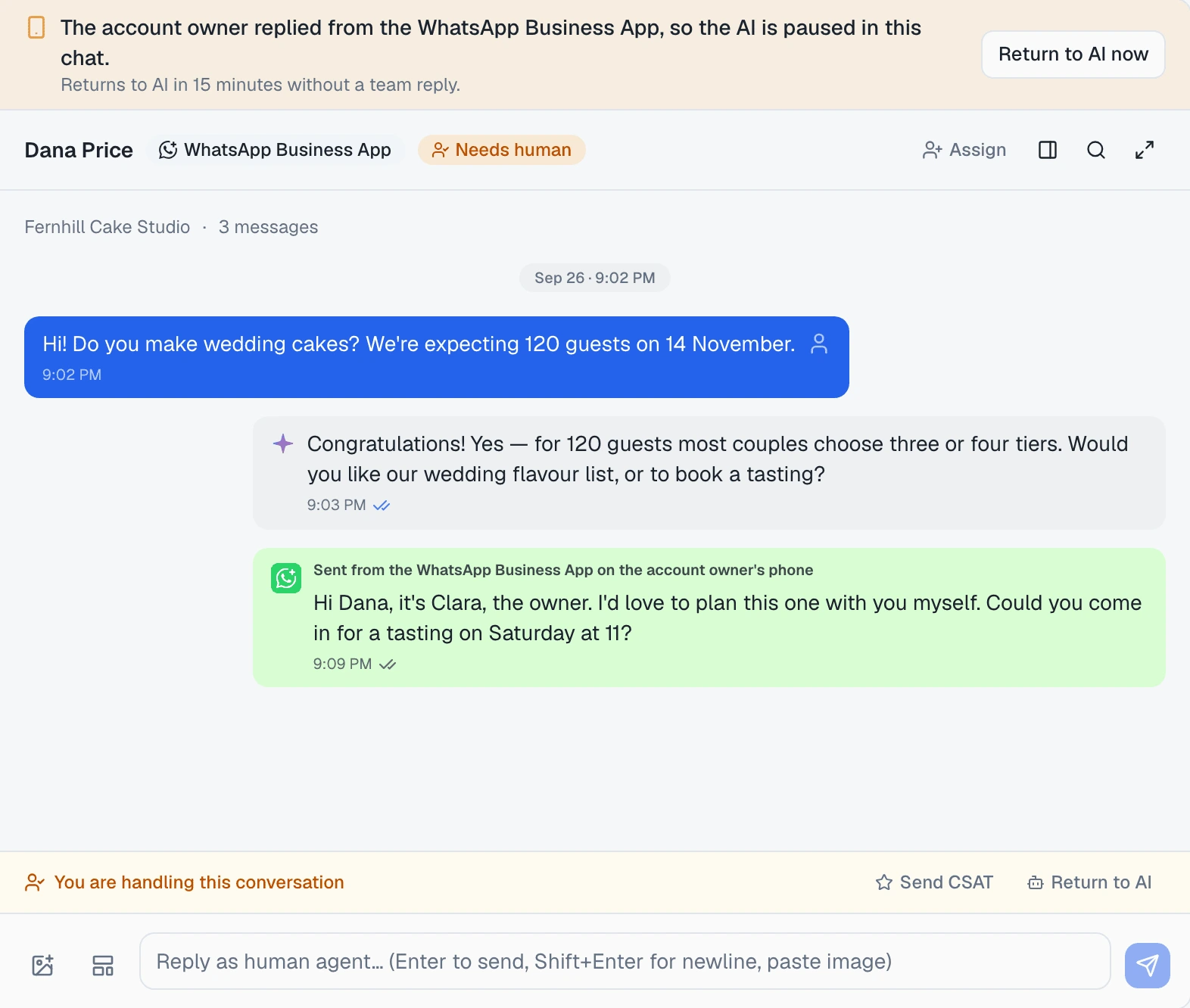
The banner, Return to AI now and the countdown work the same way as for a teammate taking over in the inbox. Everything about them — each line the banner can show, handing back now, the automatic setting and asking Octo — is in hand a conversation back to the AI.
Back to the AI after 15 quiet minutes
A WhatsApp Business App number connects with Return to AI automatically on, at 15 minutes. So after you answer a chat from the phone and go quiet, the AI takes it back on its own:
- Each new reply from the app restarts the 15 minutes, as does a reply a teammate sends from the inbox.
- The customer’s messages do not. If you are reading a chat on the phone but not answering, the AI takes it back when the minutes run out, rather than leaving the customer waiting on you.
- Nothing is sent to the customer at that moment. The AI answers their next message.
When the AI picks the chat back up, it reads your messages from the app as yours — written by a person at the business, not by itself — so it carries on from what you promised instead of contradicting it.
To hand a chat back sooner, press Return to AI now. To give yourself longer — anything from 10 to 60 minutes — or to keep chats with you until you hand them back, change Return to AI automatically on the channel’s page — hand a conversation back to the AI shows where.
Things worth knowing when you answer from the phone
- A message Omni Octo cannot show. Now and then WhatsApp tells Omni Octo that a customer wrote, without passing on what they wrote. The thread then shows “Message not shown here. Open the WhatsApp Business App on the account owner’s phone to read it.” The AI does not answer it. Read it in the app and answer from the phone. If WhatsApp sends the content later, it replaces that line in the thread.
- Customers who opted out. If a customer has opted out, the inbox will not let your team message them, and the reply bar says “This customer opted out. Messages sent from the WhatsApp Business App aren’t blocked.” Check that line before you reply to them from the phone.
- What you send from the app is free. “Messages you send from the WhatsApp Business App stay free. Messages sent through Omni Octo — including your AI agent’s replies — are charged at WhatsApp’s Cloud API rates.”
Ask Octo
Octo can tell which messages you typed in the app. Ask it:
Which of today's WhatsApp conversations did I answer from my phone?For each conversation, Octo knows:
- Whether it is on a WhatsApp Business App number.
- Who wrote each message — the customer, the AI, a teammate in the inbox, or you in the app — and which messages were brought in by the import.
Octo can also say why the AI is paused in a chat and when it comes back, and hand it back for you — hand a conversation back to the AI covers what to ask.
Where to go next
- Hand a conversation back to the AI — the banner, Return to AI now, the automatic setting, and Octo.
- Bring your chats and contacts across — the import, and what imported chats look like.
- When WhatsApp disconnects your number — when the AI stops on the whole number, not just one chat.
- Send a template from a conversation — for a customer whose 24-hour window has closed.