An alert tells you a customer asked. It doesn’t tell you, an hour later, whether anyone called them back. At Willow Creek Animal Clinic the front desk works through the callback requests between patients, and the vet takes the medication questions after surgery. Both need one answer from the inbox: who is still waiting on us?
Every request on a Live field stays open until someone marks it handled. This guide covers where open requests show up and how to close them. Fields that aren’t Live have no requests: their labels work as they always have.
Find the conversations that still need someone
Open /conversations.
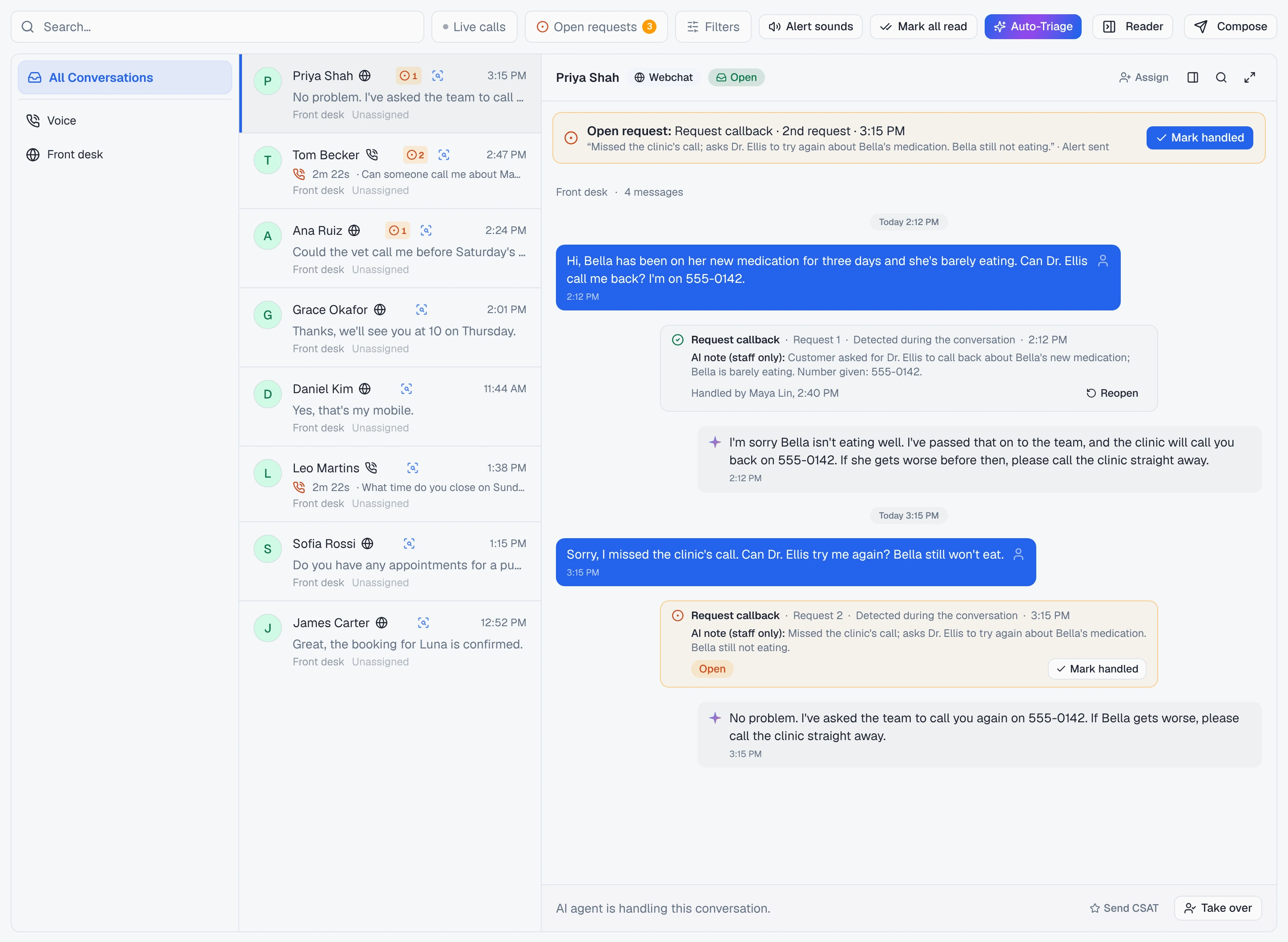
- A badge on the row. A conversation with an open request shows Open request at the front of its badges, or 2 open, 3 open when there are several. It is never folded into the labels’ “+N”, and it disappears when the last request is handled.
- The Open requests filter. The toolbar has an Open requests chip with a count. Click it and the list shows only conversations with an open request: a to-do list for the front desk. The count follows Hide campaigns, so it always matches the list you would get. The chip is hidden when nothing is open.
Both update on their own. When a colleague marks a request handled, or a new one comes in, the badges and the count change without a reload.
The banner above the conversation
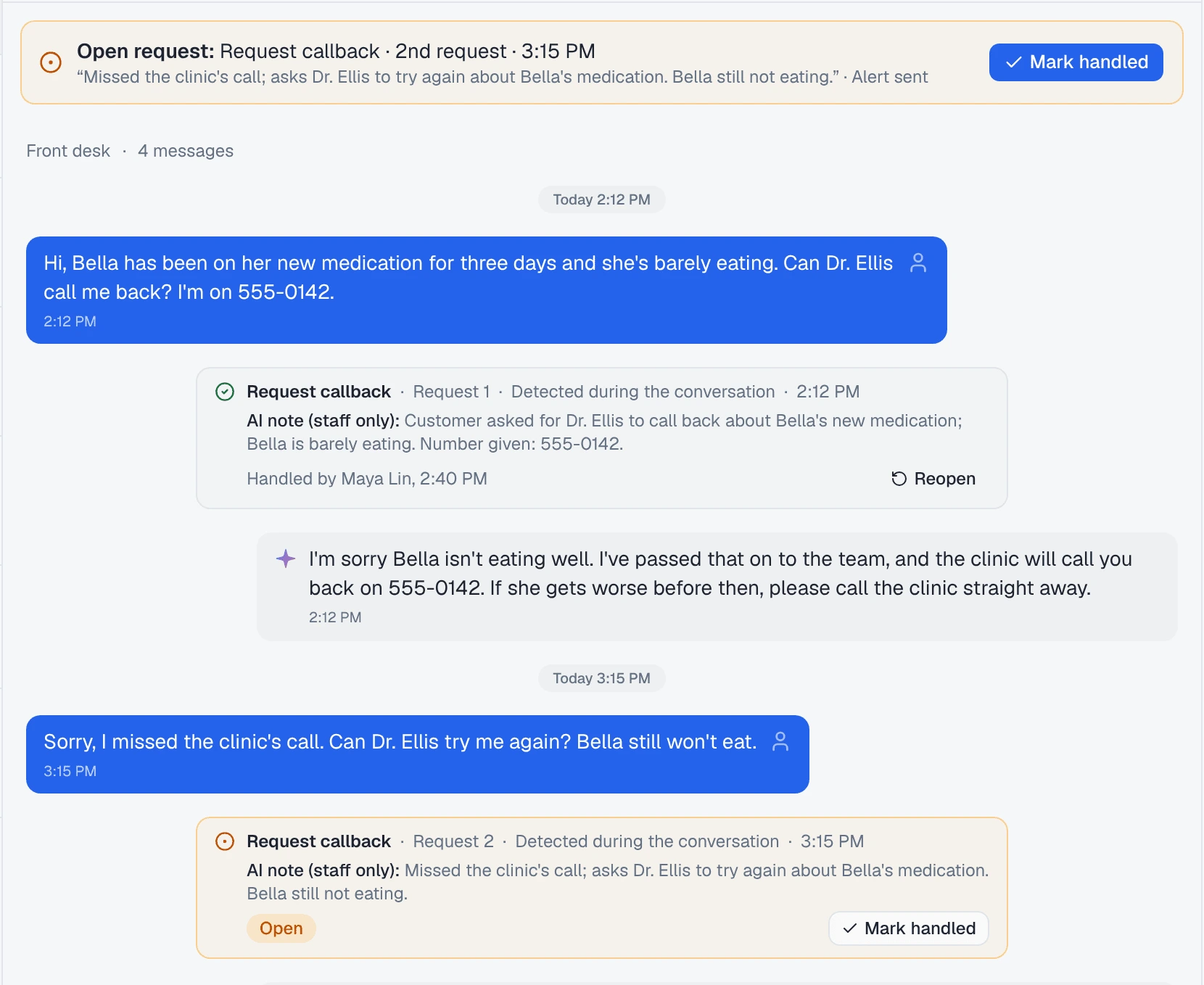
Open one of those conversations and the open request is pinned above the transcript, so it is the first thing you read rather than something you scroll to.
One open request reads as one line, with the request’s label, which request it is, and the time:
Open request: Request callback · 2nd request · 10:42
Under it are the AI note (what the agent wrote when it flagged the request), Alert sent when the alert went out, and a Mark handled button.
Several open requests collapse into a summary, such as 2 open requests · Request callback, Medication question, with Show. Show lists one line per request, each with its own Mark handled.

The request rows in the timeline
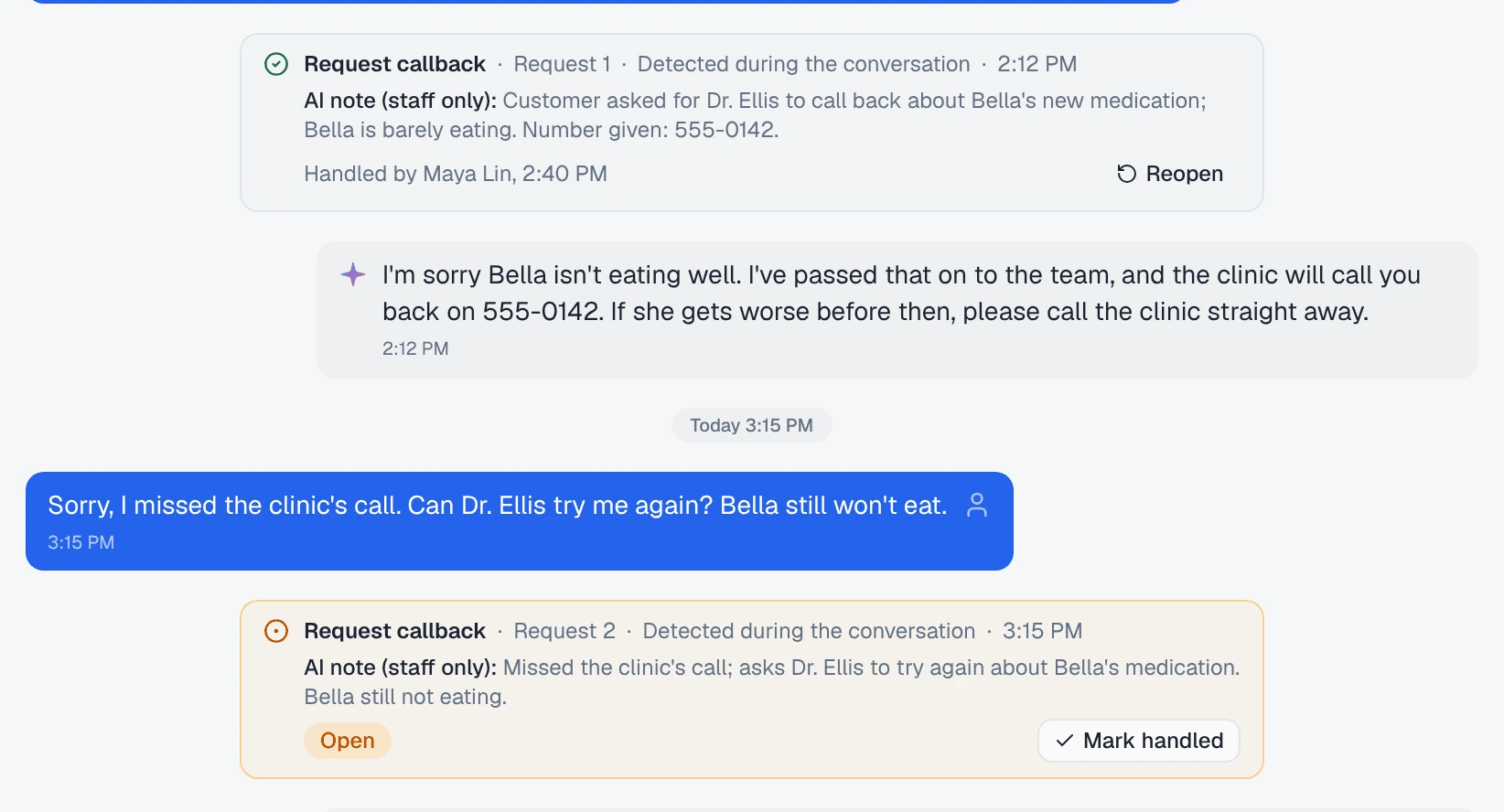
Each request also has a row in the conversation’s timeline, at the point the customer asked:
| On the row | What it tells you |
|---|---|
| Request 1, Request 2 | Which request, in order |
| Detected during the conversation / Detected after the conversation | Whether the agent flagged it live, or the check after the conversation found it |
| Asked again at 4:12 PM, merged into this request | The customer asked again within 30 minutes, so it stayed one request with one alert |
| AI note (staff only): | What the agent wrote about the request. Customers never see it |
| Alert limit reached, Alert not sent | The alert didn’t run for this request, and why |
| Handled by Maya Lin, with the date / Handled via Octo / Handled when the label was removed | Who closed it, and how |
Mark handled
Press Mark handled on the banner or on the request’s row. The banner line reads Handled with Undo for a few seconds, and a toast confirms “Request 2 marked handled”.
- Nothing is sent to the customer. Handling is a note for your team, not a message.
- Reopen on the row brings a handled request back later. The toast says “Request 2 reopened. No alert was sent.”: reopening never runs the alert.
- Anyone who can open the conversation can mark its requests handled.
The label comes off with the last request
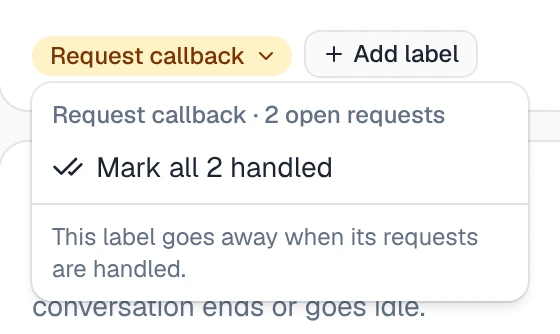
While any request is open, the label stays on the conversation. A Live label with open requests has no × to remove it. Clicking it opens a menu instead:
- the label and its count, such as Request callback · 2 open requests;
- Mark all 2 handled;
- “This label goes away when its requests are handled.”
When the last open request is handled, the label comes off, exactly as if someone had removed it. A workflow set to run when that label is removed runs then.
Mark handled from the alert email
The alert email has two buttons: Open conversation and Mark handled.
Mark handled opens the conversation on that request. The banner shows that request even if others are open too, and its row is highlighted for a moment. One click on Mark handled there closes it.
The button in the email never changes anything by itself. Mail scanners and link previews open every link in an email, so a link that handled the request would close it before anyone had read the alert.
If someone got there first, the banner says so, “Already handled by Maya Lin at 4:20 PM”, with no button, and still lists whatever else is open in that conversation.
Ask Octo
Octo can close requests too:
Mark Priya's callback handled.Octo marks that request handled, or every open request on the label when you name the label rather than one request. The row then says “Handled via Octo”. It sends nothing to the customer, and Reopen in the inbox undoes it.
Octo can’t remove other labels. For a label that isn’t Live, remove it in the inbox with the × on the label.
What handling changes for the next alert
That depends on how the alert workflow runs, which the field’s card under Configure → During the conversation shows:
| The alert runs | Handling a request |
|---|---|
| For each new request | Changes nothing for the next alert: every new request alerts, handled or not |
| When the label is added | Matters. The next alert comes only after every request is handled and the label has come off, so the next request puts it back |
Either way, a request asked again within 30 minutes of an open one is merged into it and doesn’t alert again.
Where to go next
- Real-time email alerts when a customer asks for a callback during a chat or call — turning a field Live, and what the alert says.
- Hand a conversation back to the AI — when your team takes over a conversation to answer a request.