An integration on its own does nothing for your customers. It is a connection, saved under /integrations, with tools in it: look up a repair, create a calendar event, add a row to a sheet. An agent uses a tool only after you add that tool to the agent, and every agent gets its own list.
Copperleaf Bike Works is a fictional bike repair shop. It has connected its workshop system, which holds the repair orders, and its Google Calendar, which holds the bookings. Now its front-desk agent should be able to tell a customer whether their bike is ready, and book them in for a service.
The Integrations tab
Open the agent from /agents and pick Integrations. The top of the tab reads “Tools Copperleaf Front Desk can use in your other systems.”, with two buttons:
- Add integration — add tools from integrations you have already connected.
- Manage integrations — go to /integrations, to connect a new one or change a tool.
An agent can have up to 128 tools. When it gets close, a count such as 103 of 128 appears beside the buttons.
A new agent’s tab is empty: “No integrations yet.” If the tool you need does not exist yet, Make a new tool in Integrations takes you to where you build it — see make your own tool and check it.
Add tools
Click Add integration. The dialog, “Add an integration to Copperleaf Front Desk”, lists every integration in the workspace with its tools under it:
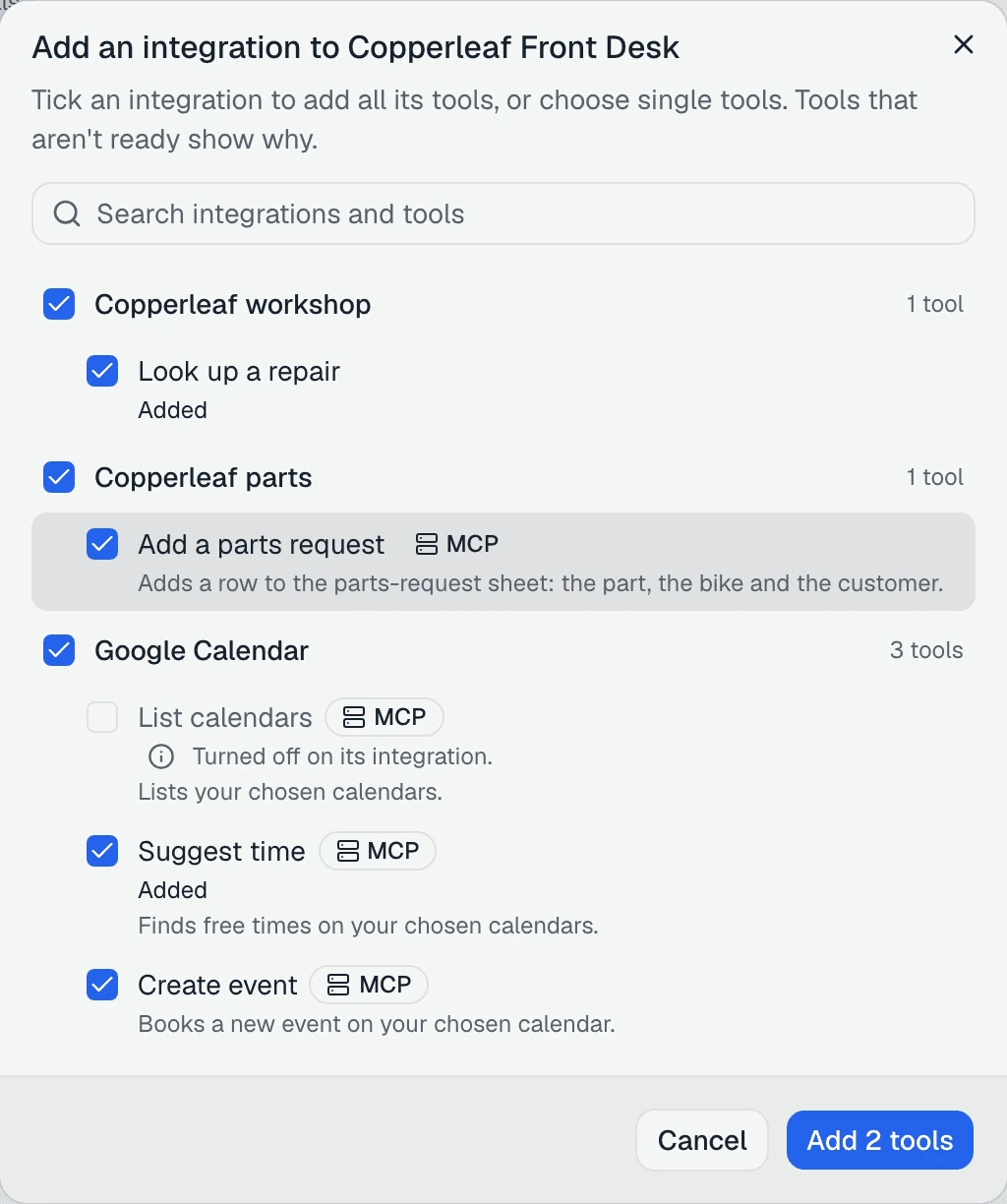
“Tick an integration to add all its tools, or choose single tools. Tools that aren’t ready show why.”
Search with Search integrations and tools. Ticking All tools from Copperleaf workshop adds the whole integration; ticking single tools adds just those. Tools already on this agent say Added; untick one and it says Comes off when you save. The button counts what you are about to do — Add 2 tools, or Save 1 change.
Some tools cannot be ticked, and say why:
| What it says | What to do |
|---|---|
| ”Turned off on its integration.” | Turn the tool back on, on the integration’s Tools tab |
| ”Paused: it changed on its server. An owner reviews it on the integration first.” | An owner reviews the change on the integration |
| ”Its integration is turned off.” | Turn the integration back on, on its Settings tab |
| ”This agent’s model can’t use tools.” | Choose another model for the agent |
| ”Turned off for AI agents.” | Under Integrations, the tool, Tools, Who can use it, tick AI agents |
One card per integration
The tools you added are grouped by integration. Each group’s header names the integration, counts its tools, and shows whether it is Ready or how many steps it still needs: “Needs 1 more step”.
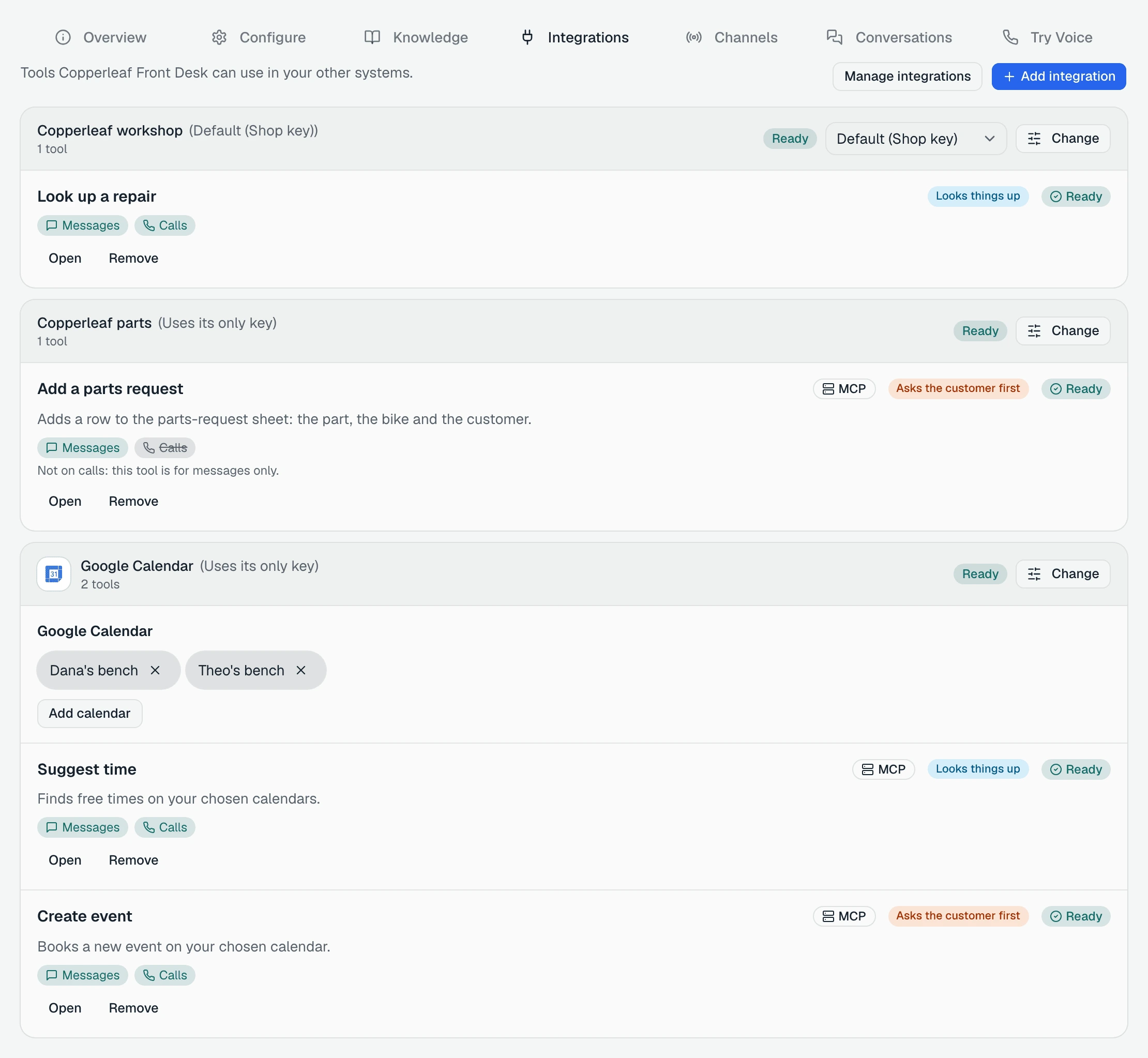
To change which of an integration’s tools this agent has, click Change in the header:
“Tick the tools Copperleaf Front Desk can use. Untick one to take it off this agent; it stays on Copperleaf workshop.”
Taking a tool off an agent never deletes it. Other agents keep it, and you can add it back.
Which account the agent uses
An integration can hold more than one key or sign-in — two Google accounts, a test key and a live one. The account menu in the header picks one for this agent. Default (Shop key) follows whatever the integration’s default is; choosing a named key pins this agent to it. When the integration has only one key, the header says Uses its only key.
If the integration has no default, the header asks you to choose:
“Google Calendar has no default key, so choose one for this agent. Until then its Google Calendar tools are off.”
So two agents can use the same integration and never touch each other’s accounts: the shop’s front desk books into the shop’s calendar, and a second agent for the shop’s rental business uses a different sign-in.
Each tool’s row
Under the header, every tool has a row with its name, what it is used for, and two coloured labels:
| Label | Meaning |
|---|---|
| Looks things up | It only reads. The agent uses it without asking |
| Asks the customer first | It makes a change. The agent says what it is about to do and waits for the customer’s yes |
| Acts right away | It makes a change without asking the customer. Only a tool from an app or MCP server can do this, when you unticked Ask the customer first while choosing its tools |
What “the customer’s yes” looks like on each channel is in changes the customer confirms.
Next to the label, Messages and Calls show where the agent uses the tool. A tool set to messages only shows “Not on calls: this tool is for messages only.” On some voice setups a tool that makes changes shows “On calls with this voice setup, this agent can look things up but not make changes.” To change where a tool is used, open it and change Use on, under Safety and availability.
The row ends with Open, which opens the tool on its integration, and Remove, which takes it off this agent only.
Values this agent fills in
Some tools need a value that differs from agent to agent: which sheet to write to, which calendar to book into, a store ID. You fill those in on the integration’s card, under its tools:
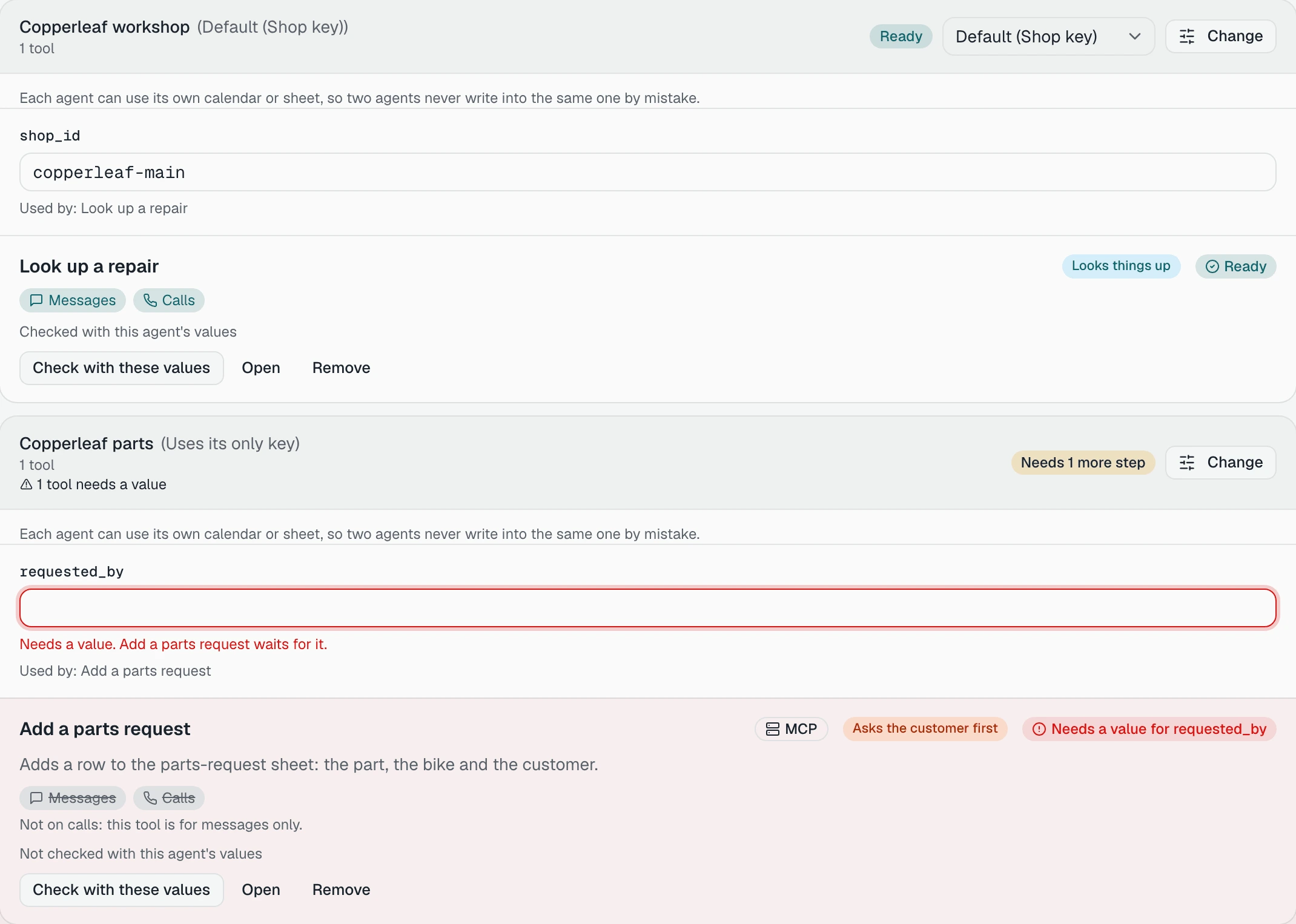
“Each agent can use its own calendar or sheet, so two agents never write into the same one by mistake.”
A value is saved when you leave the field. Each value says which tools use it — “Used by: Look up a repair” — and a tool that is waiting for one says “Needs a value. Add a parts request waits for it.” Where the tool knows what kind of value it is, the box says so (“A Google Sheet ID, or paste its link”) and refuses one that does not look right. Paste a key here and it stops you: “This looks like a key. Put it in the integration’s Authentication tab.”
Changing a value that is already in use asks first — “Change what Copperleaf Front Desk uses?” — and names the tools that will use the new one.
Google calendars and files
A Google integration’s card asks for something you pick, not a value you type: which calendars, sheets or files this agent may use. Until you pick, the card says so:
“Choose at least one calendar. This agent can’t use Google Calendar until you do.”
Add calendar lists the calendars of the signed-in Google account. Copperleaf ticks Dana’s bench and Theo’s bench, and the front desk’s Suggest time and Create event use only those two. For Sheets, Docs, Slides and Drive, Choose files opens Google’s file picker. How to pick, and what to do when the picker won’t open, is in connect Google.
Check a tool with this agent’s values
A tool that was checked on its integration may still fail for one agent: a different account, a sheet that account cannot open, a value with a typo. So a tool that depends on this agent’s own values shows one of:
- Checked with this agent’s values
- Not checked with this agent’s values
- Edited, check again — you changed a value since the last check
Check with these values runs it with this agent’s account and values. You see “Look up a repair passed with this agent’s values.”, or “…didn’t pass:” and the reason.
Checking is optional. A tool you have not checked still works for the agent.
When a tool isn’t ready
A tool that is on the agent but cannot be used says Off for now and why. The reason names the fix, and the row has the button for it — Review, Reconnect, Replace or Open:
| It says | What to do |
|---|---|
| ”Paused: the sign-in expired” | Reconnect the account on the integration |
| ”Paused: changed on the server” | An owner reviews the change on the integration |
| ”Needs a value for store_id” | Fill it in under Values this agent fills in |
| ”Choose a calendar first” | Pick one in the Google card, with Add calendar |
| ”Not available on this agent’s channels” | Change Use on on the tool, or put the agent on a channel the tool works on |
| ”Integration turned off” / “Tool turned off” | Turn it back on under /integrations |
| ”Account revoked” | Choose another account in the integration’s header |
When everything is set, the top of the tab says All set. — “Copperleaf Front Desk can use every tool you added.”
How many tools to give one agent
Every tool’s description goes to the AI with each message, and together they can fill only so much room. When they take 80% of it, the tab says how much — “Tools use 85% of the space” — and when it is full you remove a tool before adding another. Past about fifty tools it also says:
“Agents pick the right tool less reliably with many tools. Keep the ones this agent needs.”
Copperleaf’s front desk has four: Look up a repair on its workshop system, Suggest time and Create event on Google Calendar, and Add a parts request, which adds a row to the parts-request sheet.
Before customers reach it, test the tools safely.