An integration holds one or more keys or sign-ins, and the tools that use them. Everything about the keys is on the integration’s Authentication tab. Turning things off and deleting them is in the ⋯ menus.
Copperleaf Bike Works connected its workshop system as Copperleaf workshop. Its first key is the live one, Shop key. Now the shop wants a second key for testing, without touching what customers use.
Only owners and admins can change integrations. Anyone else sees “Owners and admins manage integrations”: “Integrations hold this workspace’s keys and sign-ins. Ask an owner or admin to add or change one.” Every key belongs to the workspace, whoever added it, so any owner or admin can replace, check or revoke it.
The Authentication tab
Open the integration from /integrations and pick Authentication. Under Keys:
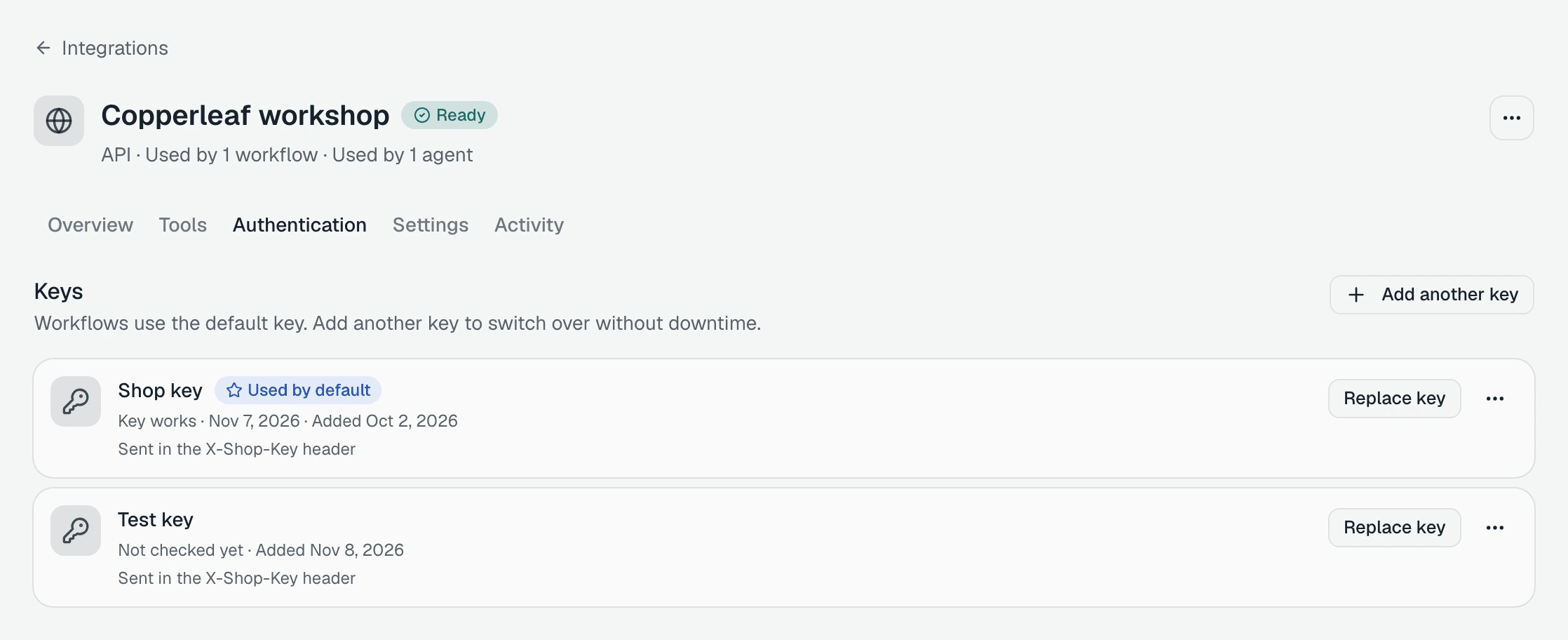
“Workflows use the default key. Add another key to switch over without downtime.”
Each key has its own card: its label, Used by default on the default one, when it last worked (“Key works” and the date) or “Not checked yet”, and when it was added. A key sent in a named header says so: “Sent in the X-Shop-Key header”.
On the right of each card is the direct action: Replace key, or Reconnect for a sign-in. The card’s ⋯ menu has:
- Check this key: try it against the system now.
- Make default
- Rename
- Revoke…
A key’s first label is the name you gave the integration. Rename it so the keys are easy to tell apart. “The label only helps you tell keys apart. Workflows keep using the same key.” Copperleaf renames it to Shop key: “Renamed to “Shop key”.”
More than one key or sign-in
Click Add another key. The dialog is “Add another key to Copperleaf workshop”:
“Workflows keep using the default key. You can make this one the default afterwards.”
Give it a Label (“For example: Front desk”; “A name so you can tell the keys apart. It’s never sent anywhere.”), paste the Key, and click Add key. We check the key before saving when we can. When we can’t: “We can’t check this key automatically. Make sure it’s right, then save it anyway.”, with Add anyway.
““Test key” was added. The default key hasn’t changed.”
The first key on an integration works differently: “It becomes the default key: workflows use it, and so do agents that haven’t chosen a key.”
| Integration | How you add another |
|---|---|
| API with a key | Add another key, as above |
| App you sign in to | Sign in with another account, and sign in in the popup |
| MCP server whose address holds its key | Add another key. “Paste the server address of another account on this server. We list its tools with it before saving.” |
An app with several sign-ins says so in the list on /integrations, for example “2 accounts”.
Which key each agent uses
Each agent uses the default key unless you pin it to another. You do that on the agent’s Integrations tab, in the integration’s header: see give an agent tools from your other systems. So the front desk can stay on Shop key while a test agent uses Test key.
The default key
In the key’s ⋯ menu, click Make default: ““Test key” is now the default key.” Workflows switch to it, and so do agents that follow the default. Agents pinned to a named key keep it.
The Overview tab shows which key is the default, “Default key: “Shop key””, with Manage keys.
An expired key can’t be the default: “Expired keys can’t be the default. Replace it first.”
Replace a key
When a key changes on the other system, click Replace key on its card. “Replace “Shop key” on Copperleaf workshop”:
“We check the new key before switching when we can. Until then, your current key stays in use.”
Paste the New key and click Check and replace. If it can’t be checked, Replace anyway. ““Shop key” was replaced. Workflows use the new key from now on.”
For an MCP server whose address carries the key, the button is Replace address: “Paste the server’s new address. We list its tools with it first; if that fails, the current address stays in use.”
Revoke a key
In the key’s ⋯ menu, click Revoke…. The dialog says what happens next, before anything happens:
| The key you revoke | What the dialog says |
|---|---|
| Not the default | ”Workflows use the default key, so they are not affected.” |
| The default, with another key | ”It’s the default. “Shop key” becomes the default, so workflows keep working.” |
| Chosen by agents | ”Agents use this key for their tools: Copperleaf Front Desk. Those tools stop until each agent is given another key.” |
| The last key | ”No other key can become the default. Workflows can’t use Copperleaf workshop until you add a key.” |
Every revoke ends with “The key is destroyed. This can’t be undone.” The button is Revoke key, or Revoke and pause when something will stop.
““Test key” was revoked.”
AI model keys and the ElevenLabs key
Two more kinds of key live on /integrations. Click Add integration; they are under Save a key.
| Card | What it says |
|---|---|
| AI model key | ”OpenAI, Anthropic, Gemini, xAI or DeepSeek. Model calls bill your own account.” |
| ElevenLabs | ”Your own and cloned voices for voice agents. ElevenLabs bills your account for the speech.” |
On the list, both sit under Keys, “used by workflows, AI models and voices”.
AI model key
“Save an AI model key”:
“AI model calls for this provider use your own account instead of the platform’s. We check the key with the provider before saving it.”
Choose the Provider: OpenAI, Anthropic, Google Gemini, xAI or DeepSeek. The form says where to get a key, for example “Find one at console.anthropic.com.” Paste the API key and click Check and save. Its row on /integrations then says “AI model calls use this key”.
Each provider holds one key. Saving a second says “Anthropic already has a key.”, with Replace that key. To change it, use Replace key on its Authentication tab.
Revoking it: “AI model calls will use the platform key until you add a new key on this page.”
ElevenLabs key
“Save an ElevenLabs key”:
“Agents that speak with a voice from your ElevenLabs account use this key, and ElevenLabs bills you for that speech. We check the key with ElevenLabs before saving it.”
“The key needs two permissions: Text to Speech and Voices: read.” The form links to “Create one on the ElevenLabs API keys page”.
Once saved, its Overview tab lists “Voices in your ElevenLabs account”. Tick the ones you want and click Import selected, or paste one under “Not listed? Paste a voice ID”. Imported voices can then be chosen for an agent.
If the key fails on a call, the list says “Failed on a call” and calls use a backup voice until it is fixed. Revoking the key: “Calls that use an ElevenLabs voice will use a backup voice until you add a new key on this page.”
Turn a tool off
To stop one tool without deleting it, open the integration’s Tools tab. In the tool’s ⋯ menu, click Turn off: “Agents stop using it. You can turn it back on.” “List calendars is turned off.” On the agents that have it, it shows Tool turned off until you click Turn on in the same menu.
For finer control, each tool’s card has three switches under Who can use it:
| Switch | When it is off |
|---|---|
| AI agents | ”AI agents can’t use this tool. Turn it on to let you add it to an agent.” |
| Octo | ”Octo won’t run this tool. Turn it on to let Octo run it when you ask.” |
| Workflows | ”Workflows can’t use this tool. Turn it on to let a workflow step call it.” |
Who can use all tools, at the top of the tab, sets a switch for every tool at once, for example Turn off every tool for AI agents.
To delete a tool, click Delete… in its menu. “Delete List calendars?” names the agents that stop using it first, then “This can’t be undone.”
Turn an integration off
Turning an integration off keeps everything and stops it being used. In its row on /integrations, or in the ⋯ menu on its page, click Turn off: “Workflows, AI models and Octo stop using it. You can turn it back on.”
If anything uses it, you are asked first. “Turn off Copperleaf workshop?” lists what stops:
- “1 agent’s tools will stop working.”
- “2 workflows will fail before they start.”
- for an AI model key, “AI model calls will use the platform key instead of this one.”
Click Turn off, or Keep it on. The message that follows has Undo. While it is off, its page says:
“Turned off. Workflows, AI models and Octo don’t use it, and workflow steps that use it stop with a clear error. Its keys and settings are kept.”
Click Turn on to bring it back.
To keep an integration on but out of Octo’s reach, use Settings, Octo can use this integration: “Octo won’t use this integration.”
Delete an integration
In the ⋯ menu on the integration’s page, click Delete…. The menu already warns you, for example “Used by 1 agent. You’ll see its tools stop first.”
“Delete Copperleaf workshop?” then lists what it takes with it:
- “1 agent uses it. Its tools from this integration stop working and are deleted with it:”, and the agent’s name
- the workflows that use it, which “will fail before they start”
- for an AI model key, “AI calls will use the platform key.”
- “Its keys are destroyed. This can’t be undone.”
If you only need it to stop for now, click Turn off instead. Otherwise click Delete: “Copperleaf workshop was deleted.”
When something on an integration stops working by itself, an expired sign-in or a key the system refuses, see when an integration needs you.