Not everything needs you while the customer is still there. When a pet owner is unhappy with a visit, Willow Creek Animal Clinic’s practice manager, Maya Lin, wants to read the whole conversation, with a summary, before she calls them. Mid-conversation would be too early: the complaint may still be unfolding.
That is an alert after the conversation. A Dialog Insight reads the conversation once it ends, a label goes on when it finds what you asked about, and a workflow on that label emails you everything you need to act without opening the app.
For a request you want to hear about while the customer is still talking, such as a callback, see real-time email alerts instead.
What sends the email
Three pieces, each one a step you can check:
- A field on the agent’s Dialog Insight. Willow Creek’s Front desk follow-ups has a Yes / No field called Complaint, with extraction guidance saying when the answer is Yes: the customer is unhappy with a visit, a bill or how they were treated.
- Emit as label on that field. When the answer is Yes, the conversation
gets the label
Complaint. - An alert workflow that starts when the label
Complaintis added, and sends the email.
An Enum field works too: its label is the value the AI picked, such as
Urgent, and the workflow listens for that value.
When the email arrives
The email goes out when the Dialog Insight runs, which is once the conversation is over:
| Channel | The Dialog Insight runs |
|---|---|
| Phone call | When the call ends |
| Website chat | About 3 to 4 minutes after the visitor leaves the page. Closing the tab, or leaving the agent’s test page, counts as leaving |
| WhatsApp and the other messaging channels | After 30 minutes with no new message, or as soon as someone closes the conversation |
| Every channel | A sweep every 30 minutes catches anything the paths above missed |
So the email reaches Maya a few minutes after a chat and right after a call. If a website visitor comes back before then, the conversation simply carries on.
Build it by asking Octo
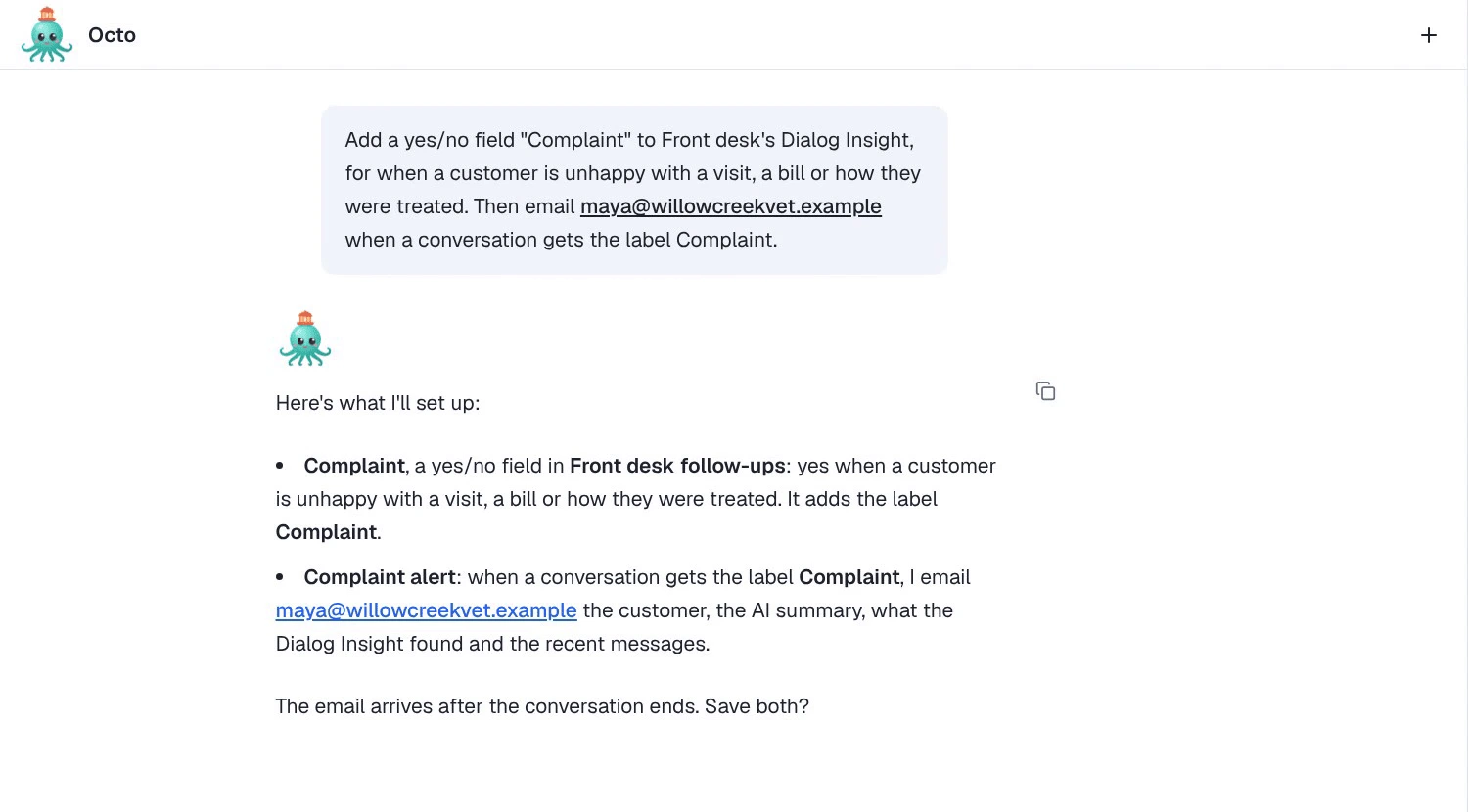
Tell Octo what to look for and who to email. If the field doesn’t exist yet, ask for both at once:
Add a yes/no field "Complaint" to Front desk's Dialog Insight, for when a
customer is unhappy with a visit, a bill or how they were treated. Then email
maya@willowcreekvet.example when a conversation gets the label Complaint.
Octo shows you the field and the workflow before saving either. The workflow it builds:
- starts when the label
Complaintis added to a conversation; - reads the conversation with its context: the customer, the summary, what the Dialog Insight found and the recent messages;
- sends that as the email, with the customer’s name, or “a website visitor”, in the subject.
Sending to someone outside your workspace? When an address isn’t a member of the workspace, Octo asks before saving and says what will be sent: the customer’s phone number, email and messages.
What the email contains
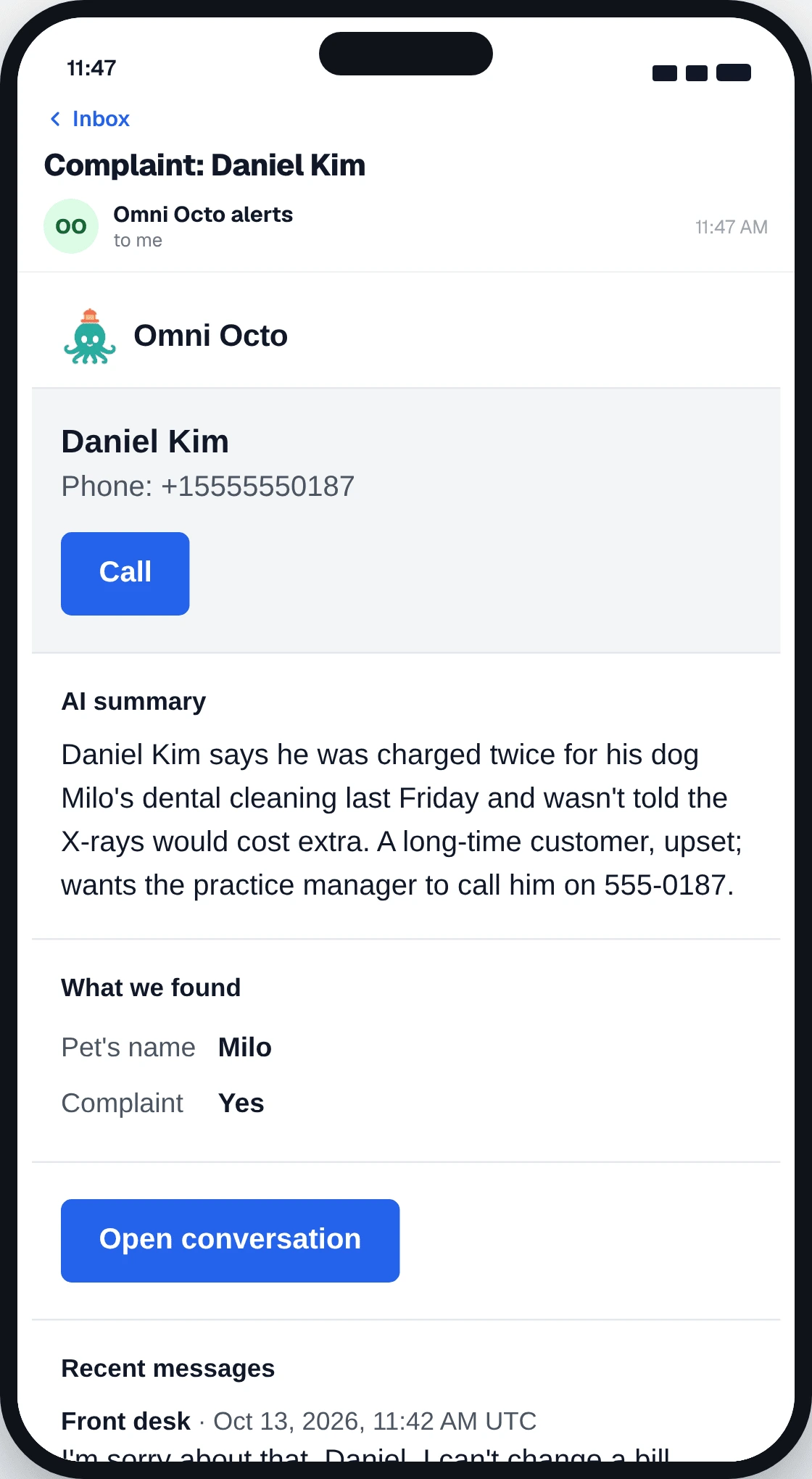
The email is written to be acted on from a phone:
- Who the customer is: their name, or “a website visitor” when the chat didn’t give one, with their phone number and email. A number that opted out says “Opted out of calls and texts”. With neither on record, the email says so instead of leaving a gap.
- Call and Email buttons, when there is a number or an address to use.
- AI summary: a few sentences on what the conversation was about, in the agent’s language.
- What we found: the Dialog Insight’s answers, field by field.
- Recent messages from the conversation, each under who wrote it and when: the customer’s name (Customer when there is none), the agent’s name for an AI reply (Front desk), or Staff for your team, then the time, such as Oct 13, 2026, 2:12 PM UTC.
- Open conversation, which goes straight to it in the inbox.
When the summary is older than the conversation, the email says so: “Written before the last message”, or “From an earlier analysis”.
In the inbox: the summary and the alert row
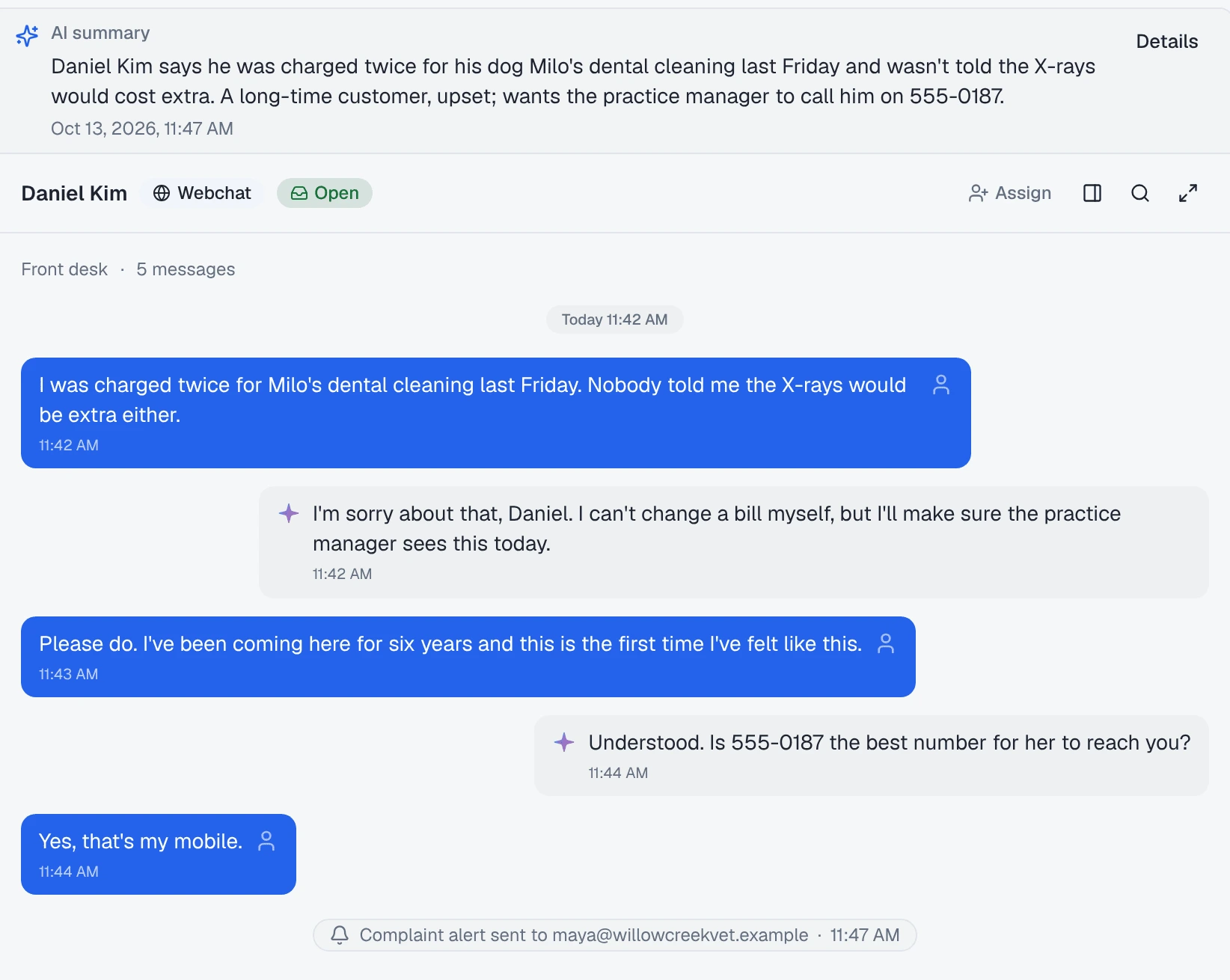
The same conversation in /conversations shows two things the alert left behind:
- The AI summary at the top of the conversation, labelled AI summary, with More, Re-analyze and Details.
- An alert row in the timeline, with a bell, at the moment the email went out:
| The row says | What happened |
|---|---|
| Complaint alert sent to maya@willowcreekvet.example | The email went out |
| Complaint alert: email not delivered | The email was handed off but never reached the inbox |
| Complaint alert failed | The workflow stopped with an error. Open the run to see why |
| Complaint alert stopped: AI budget reached | The workspace’s AI budget ran out before it finished |
Workflows that only label, tag or draft don’t add rows, so the timeline shows what reached a person, not every automation that ran.
It runs once per label
The workflow starts when the label is added. Once Complaint is on a
conversation, a second complaint later in the same conversation finds it
already there, and no second email goes out.
On messaging channels a conversation can be analysed more than once, as the customer keeps writing over days. If a later analysis answers No, the label comes off; if a newer one answers Yes again, it goes back on and the alert runs again.
When each request should alert on its own, and right away, that is what Live is for.
Keep test conversations out
Conversations on the agent’s test page and in Try Voice are analysed like any other, so they send real alerts. That is useful once, to see the email. After that, ask Octo:
Only alert on real conversations.It adds a filter on where the conversation came from, so the test page, Try Voice and test batches no longer start the alert.
Where to go next
- Reading a Dialog Insight result on a conversation — the answers behind the email, and how to correct one.
- Real-time email alerts when a customer asks for a callback during a chat or call — when the alert can’t wait for the conversation to end.