Most of the time an integration runs without you. A few things can only be settled by a person: a sign-in that ran out, a tool that changed on the other side, a booking the other system never confirmed. Omni Octo tells you where each one is, and pauses what it has to until you answer. Owners and admins can answer all of them.
Copperleaf Bike Works is a fictional bike repair shop. Its front-desk agent, Copperleaf Front Desk, looks up repairs in the shop’s workshop system, the integration Copperleaf workshop, and books services in Google Calendar.
Where you see it
On /integrations

Open /integrations. Anything that needs you shows above the list as a banner, most urgent first, each with the button that fixes it. Up to three show; after that one line counts the rest: “2 more integrations need attention.” An integration you turned off raises none.
| The banner says | The button | What to do |
|---|---|---|
| ”Copperleaf workshop needs a key. Workflows and AI models can’t use it until you add one.” | Replace key | Add a key on the Authentication tab |
| ”Copperleaf workshop needs you to sign in again. Workflows can’t use it until you reconnect.” | Reconnect | Sign in again |
| ”A sign-in on Copperleaf workshop expired. Reconnect it.” | Reconnect | Sign in again with that account |
| ”Copperleaf workshop can’t renew its sign-in. It stops working when the current sign-in runs out. Reconnect to fix it.” | Reconnect | Sign in again before it runs out |
| ”Copperleaf workshop’s sign-in changed. Sign in again.” | Reconnect | The other system no longer knows the old sign-in. Sign in again |
| ”Copperleaf workshop needs more permission. Reconnect the account and grant it.” | Reconnect | Sign in again and allow everything it asks for |
| ”The last key check for Copperleaf workshop failed. Check the key again or replace it.” | Check the key | Check it, and replace it if it changed |
| ”The last connection check for Copperleaf workshop failed. Check it again, or reconnect if the sign-in expired.” | Reconnect | Check it again from the integration’s menu, or sign in again |
| ”We couldn’t check Copperleaf workshop’s tools since November 3, 2026. Changes on its server aren’t being noticed. Check its key.” | Open | An MCP server we can’t list. Check its key, then Refresh tools |
| ”Copperleaf workshop has no server address. Workflows that use it fail until you enter it again.” | Enter the server address | Type the address on the Settings tab |
| ”Copperleaf workshop’s sign-in app expires soon. Change the sign-in settings to renew it.” | Open | Renew it under Sign-in settings on the Settings tab |
| ”Failed on a call: ElevenLabs. Calls are using a backup voice. Fix the key, then check it again.” | Check the key | Fix the voice key, then check it |
Each button opens the integration on its Authentication tab, or on Settings for the server address.
Labels on each integration
The same problems show as small labels beside each integration’s status, in the list and at the top of the integration’s own page. Some have no banner, so look for these:
| Label | Meaning |
|---|---|
| Sign-in expired | An account’s sign-in ran out |
| Sign-in not refreshing | The sign-in can’t renew itself |
| Sign-in changed | The other system no longer knows the old sign-in |
| Needs more permission | An account is missing a permission the tools need |
| Sign-in app expiring | The app you sign in through expires soon |
| Last check failed | The last key or connection check failed |
| 2 tools paused | Tools changed on their server and wait for your review |
| Tools not checked | We can’t list the MCP server’s tools |
| No server address | The MCP server’s address is missing |
| 1 lesson to review | A tool learned something from a failure. Click it to open the Tools tab |
| Failed on a call | A voice key failed while a call was speaking through it |
In your notifications
Some of these also send you a notice: in Notifications, the bell at the top of every page, and by email. They are at the end of this guide.
A sign-in expired
Apps you signed in to, such as Google Calendar or HubSpot, stay connected by renewing the sign-in on their own. When that stops working, the account’s row on the integration’s Authentication tab says Sign-in expired, and the banner above offers Reconnect.
Click Reconnect and sign in with the same account. When you come back, the tools that use it start working again.
While it is expired, the agents that use that account stop using its tools. On each agent’s Integrations tab the tool says Off for now, “Paused: the sign-in expired”, with a Reconnect button of its own. An account that is missing a permission reads “Paused: the sign-in needs more permission”: reconnect it, and leave every permission ticked.
To check a sign-in without waiting for a customer, open the integration’s ⋯ menu and choose Check connection now:
| It says | Meaning |
|---|---|
| ”Copperleaf workshop is connected.” | All good |
| ”The sign-in for Copperleaf workshop expired. Reconnect it.” | Reconnect |
| ”Copperleaf workshop didn’t connect.” | Something else went wrong. The reason shows under it |
For an integration with a key instead, the menu says Check the key now, and answers “The key for Copperleaf workshop works.” or “The key for Copperleaf workshop didn’t work. Check it again, or replace it.”
An account an agent used was revoked
If someone revokes an account that an agent was set to use, that agent’s tools stop. They do not switch to another account on their own. The agent’s tab says “Account revoked”, and every owner and admin gets a notice naming the agents: “Copperleaf workshop: an account was revoked and agent tools stopped”. Open each agent named and choose another account in the integration’s header there.
A tool changed on its server
Tools you added from an MCP server with Choose tools belong to that server, and its owner can change them: reword what a tool is for, add an input, remove one. Omni Octo lists the server’s tools about once a day, and you can ask for it now from the integration’s ⋯ menu: Refresh tools.
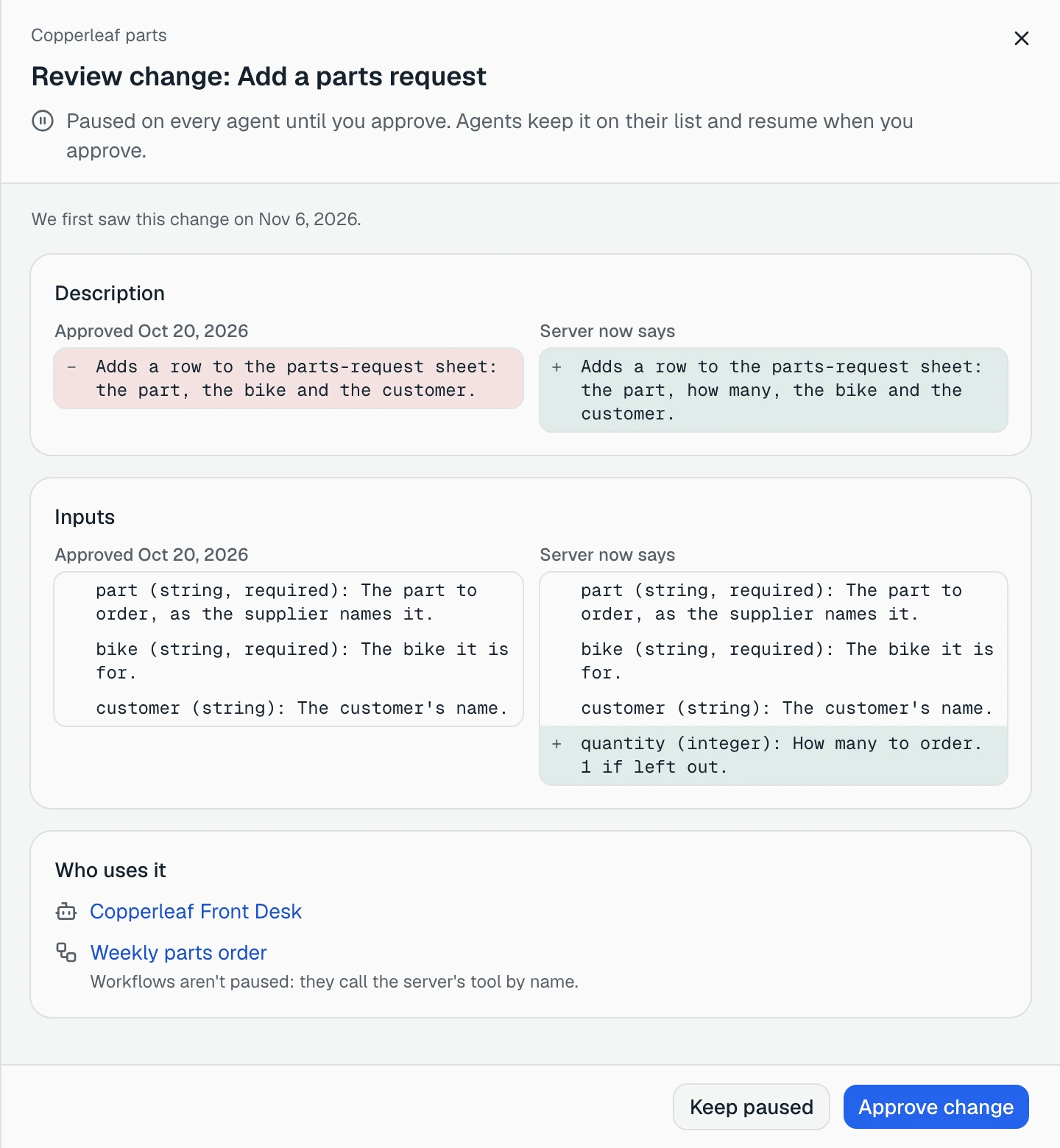
When a tool comes back different from the version you approved, it is paused on every agent that has it. On the integration’s Tools tab the tool says “Paused: changed on the server”, with Review change beside it. The integration shows 1 tool paused.
Click Review change:
“Paused on every agent until you approve. Agents keep it on their list and resume when you approve.”
The panel shows the Description and the Inputs side by side: what you Approved on a date, against what the Server now says. Each changed line is marked − or +; a part that did not change says Unchanged. “We first saw this change on Nov 6, 2026.” says when it appeared.
Under it, Who uses it lists the agents that have the tool and the workflows that use the integration. Workflows are not paused: “Workflows aren’t paused: they call the server’s tool by name.”
Then choose:
- Approve change: “Approved. Add a parts request is back on for its agents.” If the new version dropped an input you used to fill in, the message says which: “Inputs it no longer has were dropped: bike_model.”
- Keep paused: “Add a parts request stays paused.” It stays off until you approve it.
Some versions cannot be approved. The panel then says why, and that “The tool stays paused.” If the tool changes again while you are looking, you see “It changed again on the server. Review the latest version.”
A tool that disappears from the server is turned off instead, and Refresh tools says so: “1 tool is gone from the server and was turned off.”
A change that may not have gone through
When the agent makes a change for a customer, like Create event on Google Calendar, the other system usually answers and that is that. Sometimes it doesn’t answer in time. Then nobody knows whether the booking was made, and making it again could book the customer twice. A tool that only looks things up never ends up here: nothing can have changed.
So Omni Octo stops and asks you. The agent tells the customer plainly that the system didn’t reply in time and that it can’t tell yet whether it went through. It does not try again on its own. In the conversation the line reads “Create event may not have gone through”.
What happened?
Every owner and admin gets a notice: “Create event may not have gone through”, “Google Calendar didn’t answer in time. Check it there and say what happened.” The email’s button, Say what happened, opens the integration’s Activity tab.
At the top of the tab, above the calls, is 1 change needs attention. Each item names the tool, when it happened and the agent, with Open conversation to read what the customer was told, and says:
“The other system didn’t answer in time, so this may or may not have happened. Check it there.”
Look in Google Calendar for the booking. Then answer What happened?:
| Answer | When |
|---|---|
| It went through | The booking is there |
| It didn’t happen | There is no booking |
| I fixed it by hand | You made or corrected it yourself in Google Calendar |
Note (optional) keeps a line with your answer, such as “Booked Dana’s bench for Saturday 10 am, called the customer”. Your answer is final. If a colleague answered first, you see “Couldn’t save that. The list was refreshed; try again.” and the item is gone.
How your answer is used
- The item leaves Needs attention. An unanswered one never expires; it waits for you.
- Until someone answers, the agent will not make that same change again in that conversation. After you answer, it can offer it again, and the customer has to say yes again.
- The other system may still answer later. If nobody has answered yet, Omni Octo records the real result, the item leaves the list on its own, and you get “Create event went through after all” or “Create event did not go through after all”. If the late answer disagrees with yours, you are told: “This differs from what was recorded earlier. Check it again.”
What this tool learned
When a call to a tool fails because the other system refused it, and its error says why, Omni Octo turns those words into a short note that could stop the agent making the same mistake. Nothing reaches the agent until you use it.
Open the tool from the integration’s Tools tab, or click 1 lesson to review on the integration or on the tool. Under When should the agent use this? is What this tool learned:
“When a call to this tool fails in a way a note could help with, we suggest one. The agent sees nothing until you use it.”
Each suggestion is labeled Suggested and says how often it happened, “Failed 2 times this week”, and what the other system said: “The other system said: “repair_id must be 6 digits””. Edit the Note for the agent if you like, then:
| Button | What it does |
|---|---|
| Use this note | Every agent that uses the tool reads the note each time it calls it, including agents you add later. Its label becomes In use |
| Dismiss | The note isn’t useful. It won’t be suggested again |
| Stop using | On a note in use: take it off the tool. Agents stop reading it from their next call |
| Restore | Bring back a dismissed note. Find them under Show dismissed (1) |
Write it as advice for the agent: “Repair numbers have 6 digits. Ask the customer for the number on their ticket.” Agents read at most three notes per tool: the three you approved most recently.
Before anything has failed, the section says:
“Nothing yet. If a call to this tool fails in a way a note could help with, a suggestion appears here for you to use.”
Suggestions, approvals and dismissals also show on the integration’s Activity tab, among the calls.
Notifications
These go to every owner and admin, in Notifications and as one email. If you are in Omni Octo when one arrives, it also pops up, and the ones that need you stay until you close them. Open takes you to the fix.
| The notice | What to do |
|---|---|
| ”Create event may not have gone through” | Answer What happened? on the Activity tab |
| ”Create event went through after all” / “…did not go through after all” | Nothing, unless it says it differs from your answer |
| ”Copperleaf workshop: an account was revoked and agent tools stopped” | Choose another account on each agent it names |
| ”Copperleaf workshop was deleted: agent tools stopped” | The agents it names can no longer use those tools |
| ”Copperleaf workshop: an account needs more permission” | Reconnect it and grant every permission |
| ”Copperleaf workshop: your key was removed” | Sent only to you, when the server’s address changed and your own key went with it. Add it again if you still use the server |
| ”ElevenLabs: your key failed on a call” | Fix the voice key and check it again |
A personal account’s permission notice goes only to its owner, and reads “your account needs more permission”.
To see what the tools did before and after, see what a tool did.