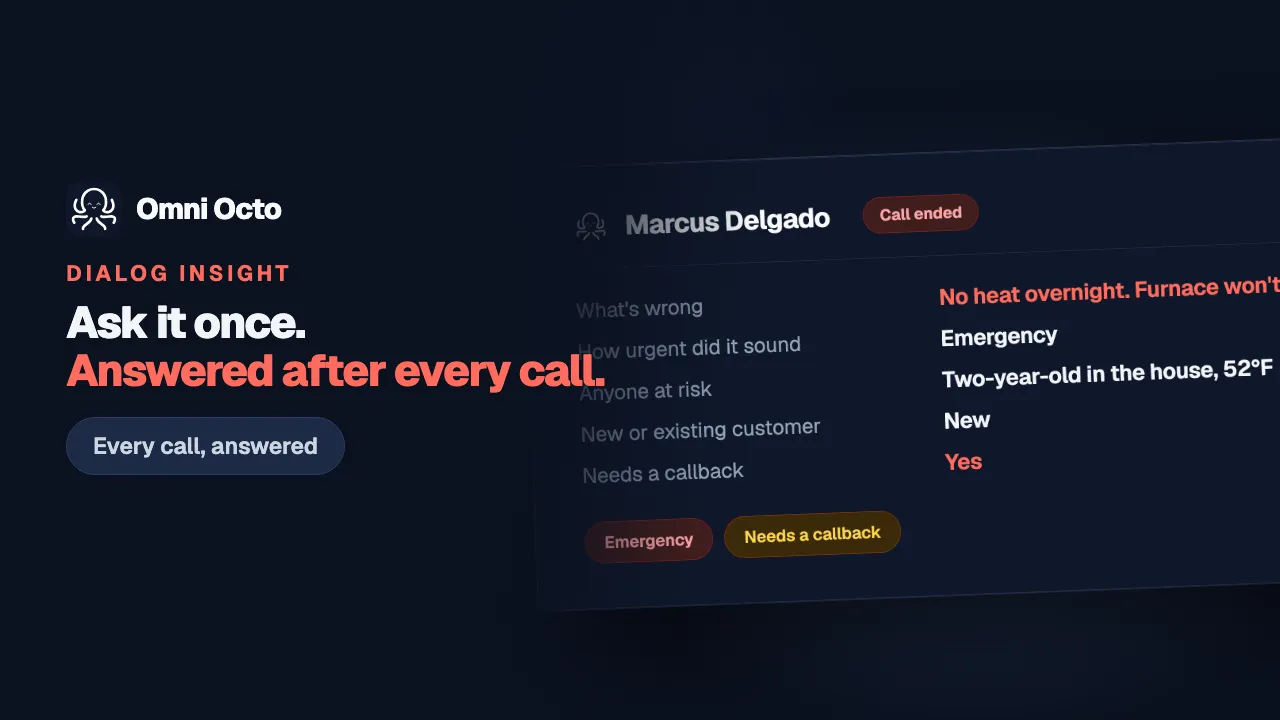
Three ways in
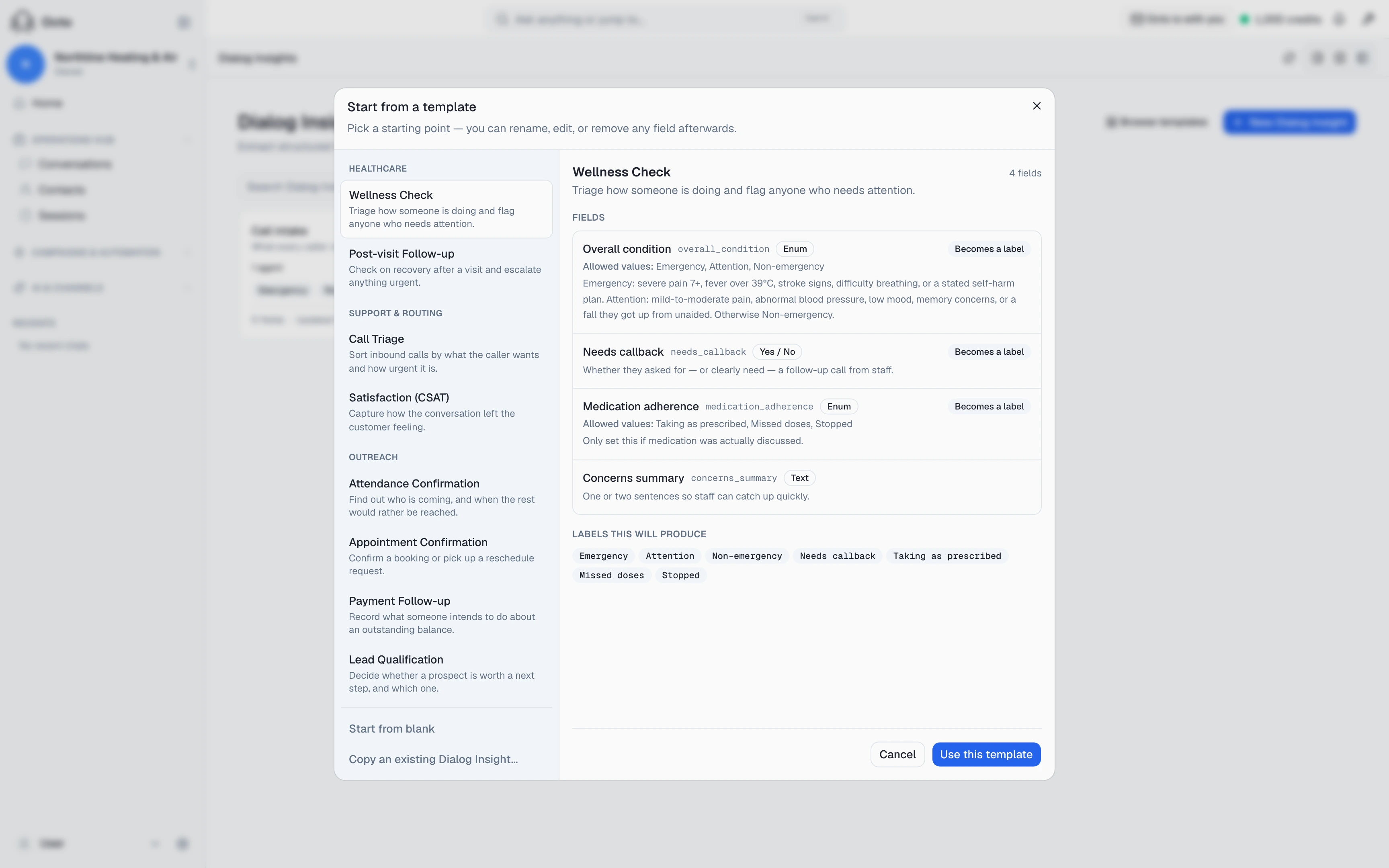
- The Dialog Insights list — Browse templates opens “Start from a template”, a picker over eight built-in presets (Wellness Check, Call Triage, Lead Qualification, Appointment Confirmation, Attendance Confirmation, Post-visit Follow-up, Payment Follow-up, Satisfaction). Each has a one-line description of what it’s for, and choosing one shows every field it comes with before you commit to it. New Dialog Insight, beside it, skips straight to a blank one; Copy an existing Dialog Insight… starts from one you already built.
- An agent’s own page — a Generate Dialog Insight button that reads that agent’s system prompt. Covered below.
- Octo, in chat — the same create/edit/attach operations are ordinary tools Octo can call, so “set up a Dialog Insight that asks X, Y and Z” is a sentence, not a form.
None of these produce a different kind of Insight. A template just fills in a first draft — “you can rename, edit, or remove any field afterwards.”
The fields
Each field is a name, a type — Text, Number, Enum, or Yes / No — and Extraction guidance: “Tell the AI exactly when to set this, and when to leave it out.” That sentence is the actual instruction the model runs on, not a label for your own reference, so a vague guidance line is a vague extraction. “Emergency if anyone is at risk or something stopped working entirely, Routine otherwise” gets a consistent answer; “how urgent it sounds” does not. It has room for real detail — up to 8,000 characters — so a multi-tier triage rule with its own symptom list and tie-breaks does not have to be abbreviated down to a sentence.
An Enum field lists its allowed values, and each one gets its own name, its own colour, and — separately from the field’s guidance above — its own line of extraction criteria (for a value named “Emergency” that’s “When does Emergency apply?”), up to 2,000 characters per value. That is deliberately a second, per-value box rather than one shared paragraph: three severity levels sharing a single guidance field gives the model a few words each and it starts guessing between them, which is the actual failure this exists to prevent. A colour left unset does not stay neutral — it renders amber, not grey, so every enum label reads as chosen unless you pick something else. An enum with no values “constrains nothing”, so at least one is required, not optional polish.
Emit as label turns a field’s answer into a label on the conversation — “Only a person can pick a colour, so a coloured label is shown ahead of the ones auto-triage applies.” If the value you’d emit is one auto-triage already applies too, the editor says so before you save: a workflow triggered on it “will fire from two sources.”
You are not starting from nothing even on a blank Insight. Every extraction already has, with no setup: the full transcript, call duration, end reason, whether voicemail was detected, whether it was handed to a human, the channel and direction, and any contact details already on file. Fields are for what those don’t already answer.
Test run — before it costs anything for real
Test run runs the same extraction against a conversation you pick, so you can see what today’s guidance actually produces before it’s live. Two sources: Use a past conversation or Paste a transcript. A saved conversation “uses the same model as that conversation’s live analysis”; a pasted one uses the platform’s default. Either way, “Test runs count toward your workspace LLM usage. They never write data or apply labels.” — it costs real money and changes nothing.
Saving
Save, and an Insight that isn’t attached to anything says so plainly: “Saved. It won’t run until you attach it to an agent or campaign.” A saved draft is not a running one.
Where to attach it — an agent by default, or a specific campaign to override that default — is its own decision with two failure modes worth knowing before you pick. Read that in “What happens after the call.”
Generating one from what the agent already asks
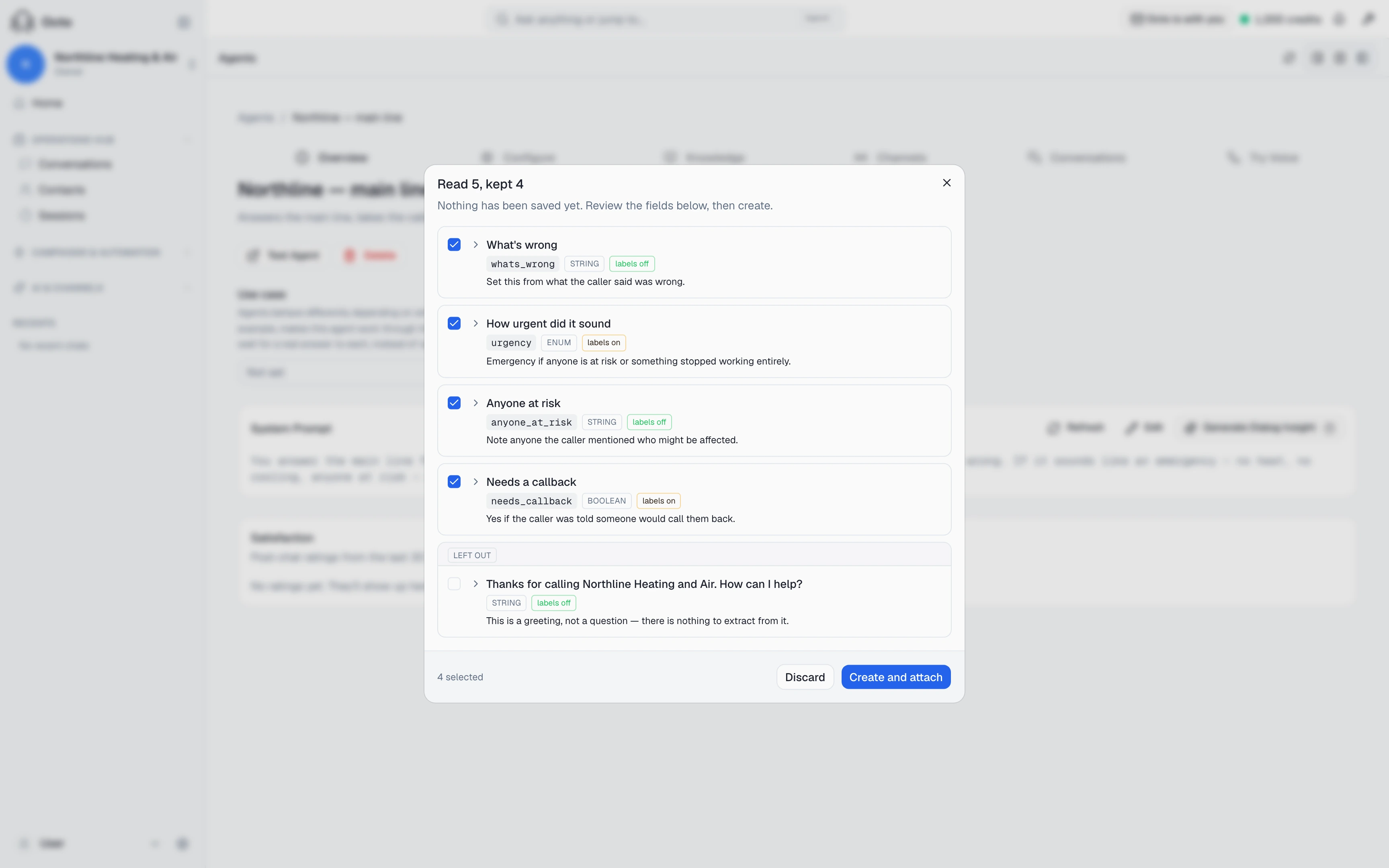
Every agent’s page carries a Generate Dialog Insight button — not only agents built for surveys. It reads this agent’s own system prompt, and turns whatever it’s already asking callers into fields, so you are not re-typing your own questions into a second form.
It is two separate steps, not one click that changes anything:
- Generate reads the prompt and proposes fields. Nothing is saved yet — “Nothing has been saved yet. Review the fields below, then create.” The dialog’s own title says exactly what it found: “Read 5, kept 4” is 5 candidates proposed, 4 that survived whatever the reviewer excluded.
- You review the list — each proposed field can be kept or dropped — and only then press Create and attach. If you’re regenerating over an existing Insight, the dialog compares old against new side by side, and warns you by count before you confirm if any of your current fields would be left behind.
Nothing runs on a conversation that already ended — “Extraction starts on the next conversation. Conversations that have already ended are not backfilled.” And because the prompt can change after you generate from it, the button remembers: edit the system prompt later and the Insight’s page says the two may no longer match, with the option to regenerate or edit the fields by hand instead.