The fastest path in the set. No administrator, no permissions to request, and the only thing that reliably goes wrong is a checkbox on Google’s own screen.
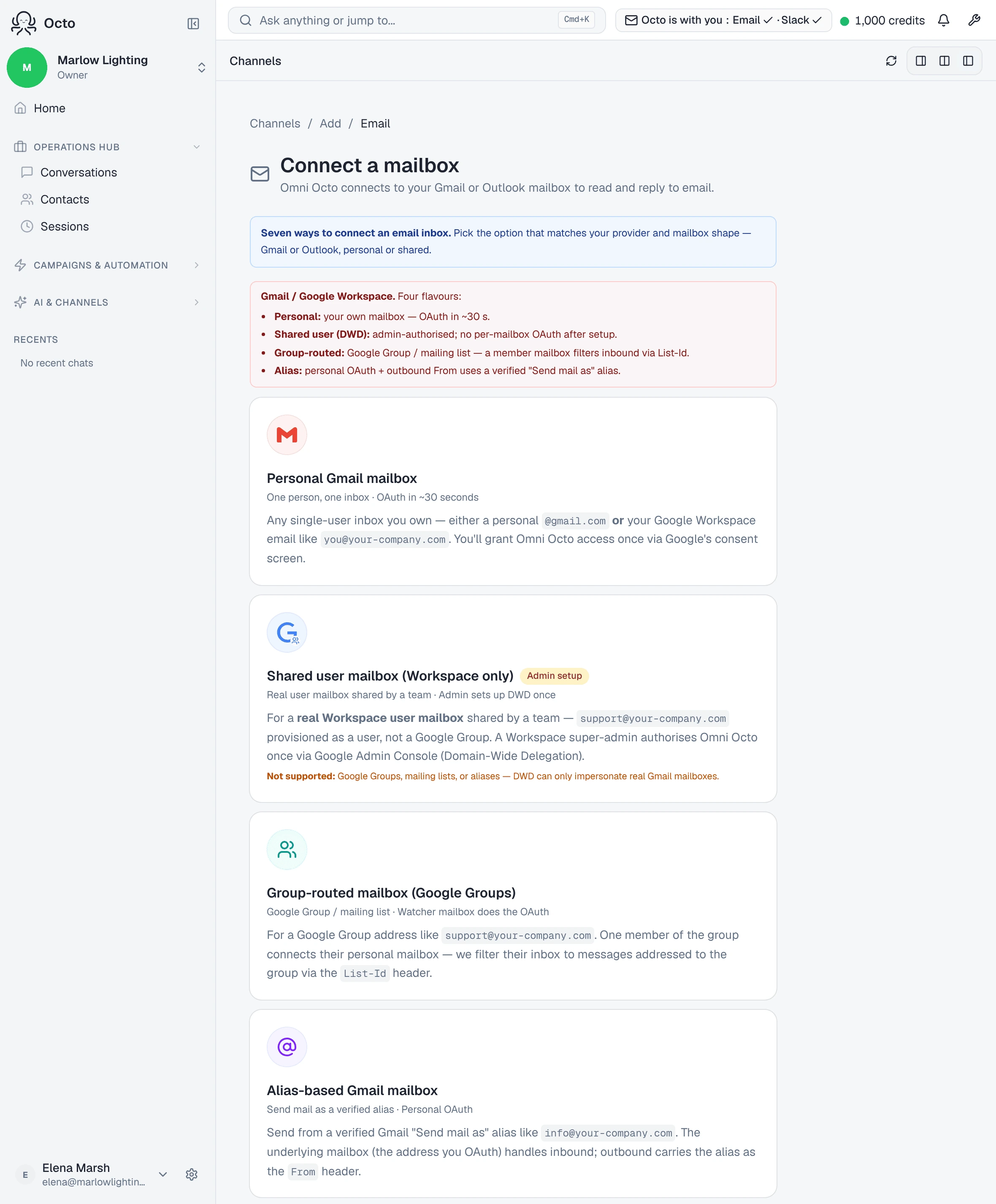
This is the right guide for “any single-user inbox you own — either a personal
@gmail.com or your Google Workspace email like you@your-company.com.”
If several people answer the address, you want
a shared inbox or
a Google Group instead.
The screens
Channels → Add → Email → /channels/email/new.
| Screen | What it says |
|---|---|
| Connect a mailbox | ”Omni Octo connects to your Gmail or Outlook mailbox to read and reply to email.” |
| Connect a Gmail mailbox | ”Authorize Omni Octo through Google’s consent screen.” |
| Google’s consent screen | Google’s own — see below |
| Verify mailbox setup | ”Round-trip a test message to confirm inbound and outbound delivery.” |
| Finish your mailbox setup | ”Pick an agent, default reply mode, and signature.” |
Gmail keeps that last screen. The Microsoft flows do not — they collect the same fields earlier — so if you have connected an Outlook mailbox before, this one has an extra step and that is expected.
The checkbox that breaks it
Google does not grant permissions in a block. It shows them as individually tickable boxes, defaulted off, and the wizard warns you before you get there:
Google will ask you which permissions to grant. Omni Octo needs both Gmail permissions to read inbound email and reply on your behalf. Click “Select all” (or tick both boxes individually) before clicking Continue.
And it says what happens if you do not:
If you skip either checkbox, sending or receiving won’t work and you’ll have to re-do this flow.
This is the single most common failure on the Gmail path, and it fails silently — the connection appears to succeed, and then nothing arrives, or nothing sends. Tick both.
What the two permissions are
| Scope | What it covers |
|---|---|
gmail.modify | Reading your mail, writing drafts, changing labels, and sending |
gmail.settings.basic | Reading your signature and basic mailbox settings |
Two broad scopes rather than a long list of narrow ones — that is how Google’s
API is shaped. gmail.modify includes sending, so the permission to send exists
from the moment you connect. What decides whether anything sends by itself is
the reply mode, and Draft holds everything for approval.
The verification round trip
The verify step sends a message from the mailbox to itself. It proves reading and sending in one move, which is the point — a consent screen where one box went unticked passes the sign-in and fails here.
If it does not come back, the wizard names the usual cause rather than shrugging:
This usually means the Pub/Sub push subscription isn’t configured correctly — see the runbook or contact support.
That is an infrastructure fault on our side, not something you mis-clicked.
What it will not do
It does not import your existing mail. The watch starts at connect.
It only watches the inbox. The Gmail watch is armed on the INBOX label
specifically. Mail that skips the inbox — filtered straight to a label, or
archived on arrival — is not seen. If you run aggressive filters, check that the
mail you expect the AI to handle actually lands in the inbox.
A reply you send from Gmail yourself is not counted as answered. The platform credits replies that went out through it. Answer a thread from Gmail on your phone and it can still show as waiting here.