WhatsApp gives a business two ways to write to someone, and the rules for each are Meta’s, not ours:
- A free-text message — anything you type — only inside the 24-hour window.
- An approved template — a message you wrote in advance and Meta reviewed — at any time, inside the window or outside it.
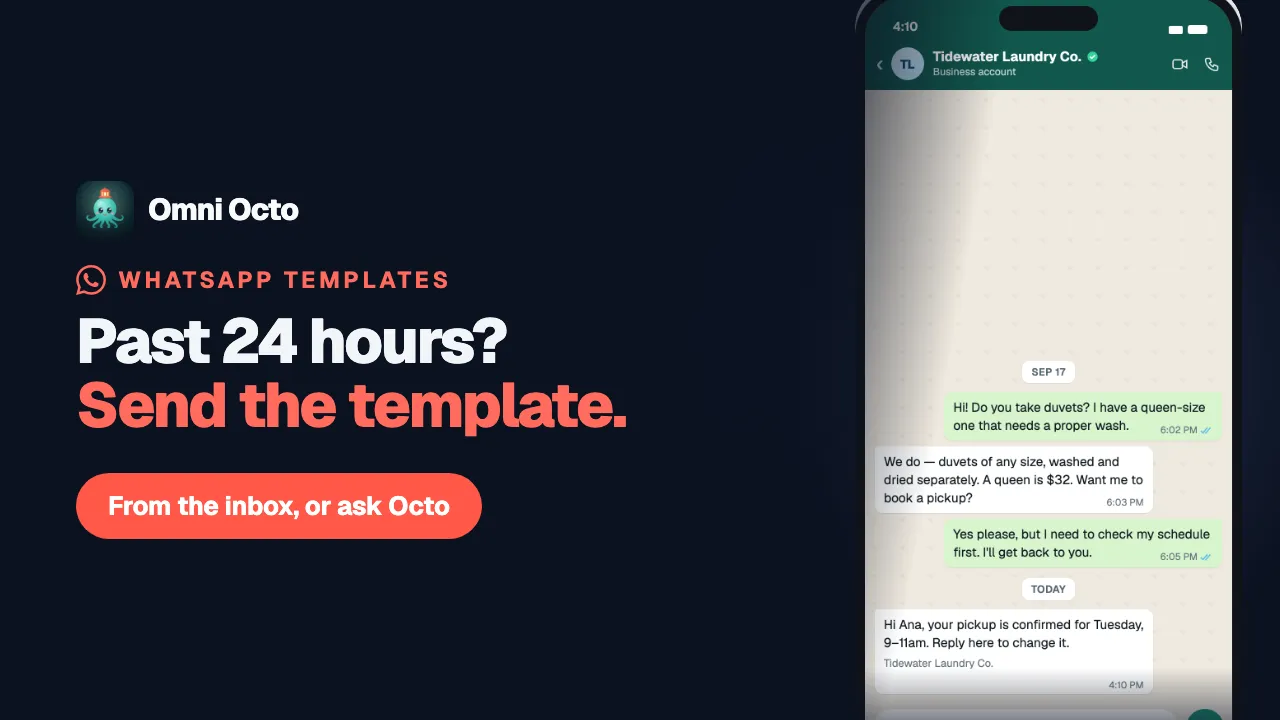
Everything else in this section follows from that split. Take Tidewater Laundry Co., a pickup-and-delivery laundry: a customer who wrote at 8pm asking whether duvets are included can get a typed answer until 8pm the next day. A customer who has not written for a week can only receive a template — “Your pickup is confirmed for Tuesday, 9–11am” — however urgent the news is.
The 24-hour window
The window opens when the customer messages you, and runs for 24 hours from their last message. Every new message they send restarts it. Your own messages never do — replying does not buy you another day.
Two consequences people miss:
- Someone who has never written to you has no window at all. Your first message to a new number is always a template.
- The clock is theirs, not yours. A thread that was busy this morning can be closed by tomorrow’s lunch without anyone touching it.
What the inbox does when the window closes
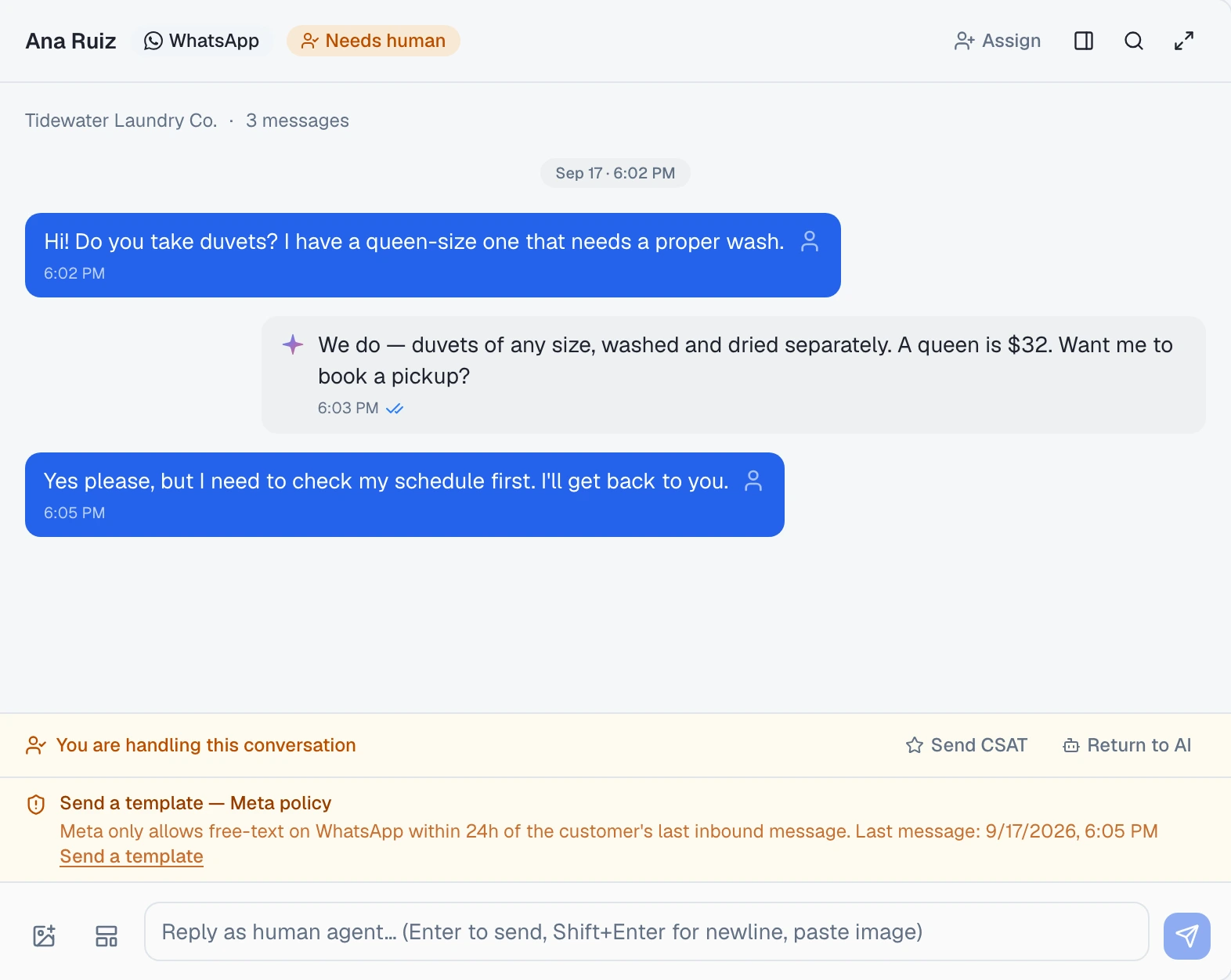
Open a WhatsApp conversation in /conversations after the window has closed and the reply bar changes:
- A banner appears: Send a template — Meta policy, with the line “Meta only allows free-text on WhatsApp within 24h of the customer’s last inbound message.”
- The reply box becomes read-only. Anything you had already typed stays where it is, so you can copy it — it just cannot be sent as free text.
- The banner carries a Send a template button, which opens the template picker. Sending a template from a conversation walks through it.
The window is WhatsApp’s, Messenger’s and Instagram’s — all three are Meta channels — but only WhatsApp has templates. On a Messenger or Instagram thread the same banner reads Wait for the customer to reply — Meta policy, and there is nothing to send until they do.
Octo follows the same rule. Ask it to message someone on WhatsApp outside the window and it will not send your text as free text: the send is refused with the window as the reason, and a template is the way through.
Templates work inside the window too
A template is not only the fallback. It can be sent at any time, and the picker says so when the window is open: “Approved templates can be sent at any time, inside or outside the 24-hour window.”
That matters when the message has to look the same every time — an order confirmation, a pickup slot, a receipt — or carry a button.
What a template is made of
A template is written once, submitted to Meta, and only usable after Meta approves it. It can have:
| Part | What it holds |
|---|---|
| Header | A short line of text, or an image, video or document |
| Body | The message itself — required |
| Footer | A short fixed line under the body |
| Buttons | A link, a copy-code button, or quick-reply buttons |
The parts that change per person are variables — {{1}} and {{2}}, or
named ones like {{customer_name}}. Tidewater’s pickup template,
pickup_confirmation, has a body of
Hi {{1}}, your pickup is confirmed for {{2}}. Reply here to change it.; the
name and the time slot are filled in each time it is sent. Buttons can have variables too: a tracking link
ending in the order number, or a discount code to copy.
Only an approved template can be sent, and templates are kept per WhatsApp number: a second number shows nothing until its own templates are synced. What each status means, and how syncing works, is in getting your templates in.
The three categories
Every template has a category, and Meta treats them differently. The picker shows it as a badge next to each template.
| Category | For | Tidewater example |
|---|---|---|
| Utility | Something about a transaction the person started | ”Your pickup is confirmed for Tuesday, 9–11am.” |
| Marketing | Promotions, offers, anything the person did not ask for | ”20% off duvet cleaning this week — code FRESH20.” |
| Authentication | One-time login or verification codes | ”493817 is your verification code.” — Meta fixes this wording |
A marketing template can fail to arrive
Meta decides whether a marketing template is delivered, per recipient. When you pick one, the picker says so before you send:
Marketing template. Meta may decide not to deliver it: it limits how many marketing messages a person receives and honours their marketing opt-out. If Meta declines, the message shows as failed in this thread.
We cannot override that decision, and a failed marketing message is not a fault in your template or your number. What follows from it:
- Do not put anything the customer needs in a marketing template. A pickup time, a receipt, a code — those are utility or authentication.
- In the inbox, a failed marketing message stays in the thread as failed. Nothing resends it; if it matters, send a utility template instead.
Where to go next
- Get your templates into Omni Octo — creating them in Meta, syncing them in, and reading their status.
- Then one of the four ways to send: from a conversation, from your own system, by asking Octo, or to a whole list.
- How fast one number can send — the limits every one of those four shares.