A new agent is switched on but reachable by nobody. Putting it where customers are is one step per channel, and it all happens on the agent’s Channels tab — or in a sentence to Octo.
Maple Street Tutoring’s agent is written and tested. Now it goes on the website’s chat bubble, the centre’s phone number, and its WhatsApp.
The Channels tab
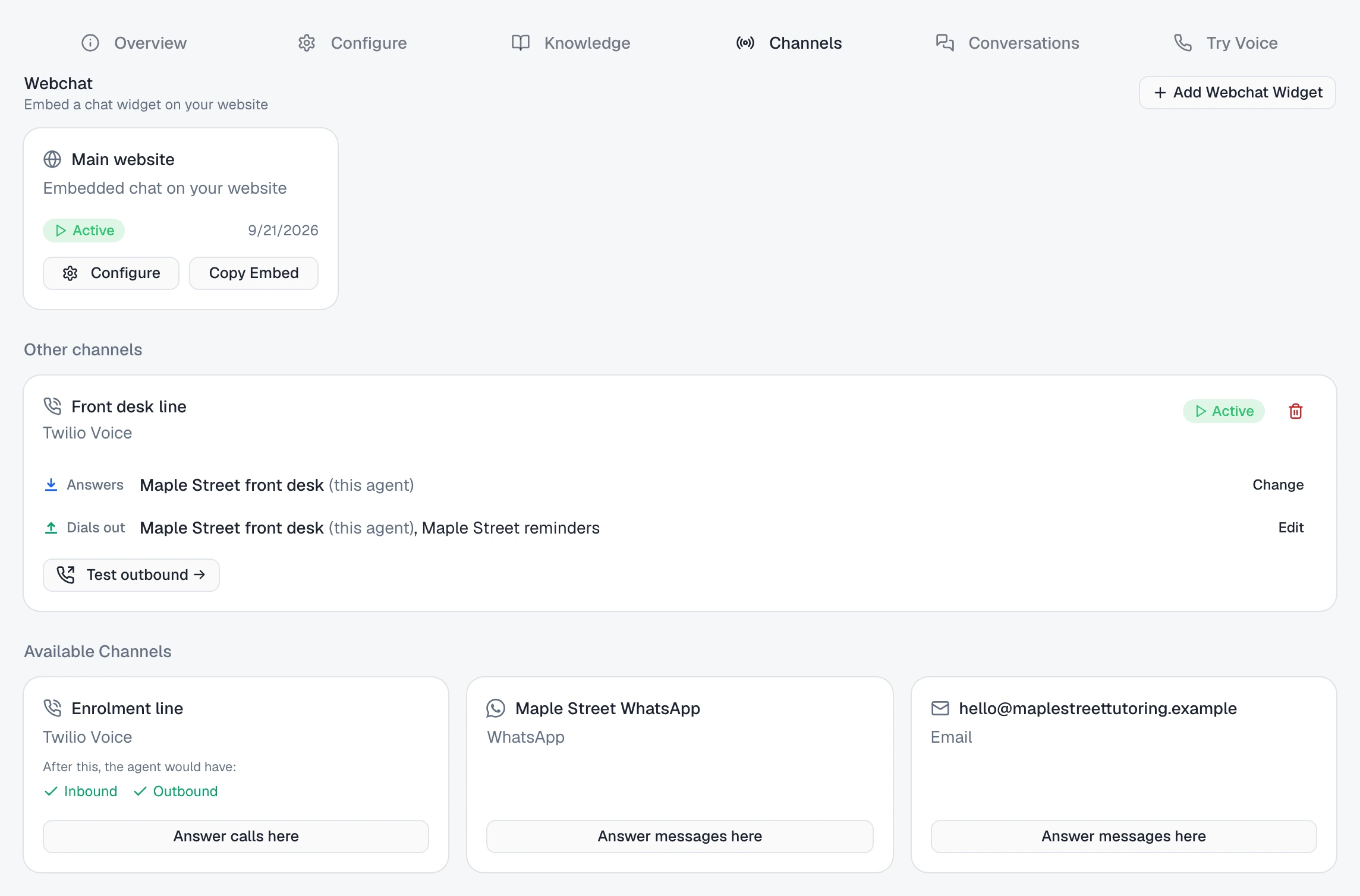
Open the agent from /agents and pick Channels. From top to bottom:
| Section | What it holds |
|---|---|
| Webchat | ”Embed a chat widget on your website” — one card per widget, and Add Webchat Widget |
| Other channels | The phone numbers, WhatsApp numbers and mailboxes this agent is already on |
| Trial number | A shared number for outbound test calls, when your workspace has one |
| Available Channels | Every connected, active channel in the workspace that this agent is not on yet |
Available Channels lists channels you have already connected. If your number or mailbox is missing, connect it first — set up an AI phone receptionist for a phone number, what you need for email — and it appears here.
Put it on a channel
Each card in Available Channels has one button, and its label tells you what clicking it does:
- Answer calls here / Answer messages here — nobody answers this channel yet. Click it and this agent answers it and can send from it. You see “Deployed to” and the channel’s name.
- Take over calls / Take over messages — another agent answers here already, and the card names it: “Front Desk currently answers calls here”.
A phone number’s card previews the result under “After this, the agent would have:” — Inbound, and Outbound once the number is verified.
One agent answers, several can send
A channel has exactly one agent that answers it, and any number of agents that can send from it. So Maple Street can have its receptionist agent answer the phone while a reminders agent places calls from the same number.
Take over calls opens Replace inbound route: the channel, a Now row with the agent answering today, an After row with this one, and:
“Only answering calls moves. Both agents keep outbound and can still place calls from this channel.”
On a messaging channel it reads “Only replying to messages moves…” and “…can still send messages from this channel.” Click Replace inbound; the confirmation names both agents — the new one answers, the previous one keeps outbound.
The card once it is on
The channel moves up to Other channels, as a card with the channel’s name, its status, and two rows:
| Row | What it shows | To change it |
|---|---|---|
| Answers | The one agent that answers, marked (this agent) when it is this one | Change (or Assign) — pick any agent, or Nobody — receive and log only |
| Dials out (phone) / Sends (other channels) | Every agent that can send from it | Edit — tick or untick agents |
With nobody answering, the card says “Calls to this channel are received and logged, but no agent replies.” (“Messages…” on a messaging channel). The answering agent’s tick in Edit is locked: “This agent answers the channel, so it stays reachable.” To take it off, give Answers to someone else first.
A verified phone number also gets Test outbound →, which opens a call from /conversations.
Take it off a channel
The bin icon on the card opens Remove deployment:
“Remove the Front desk line deployment? The channel stays configured, but the agent will stop answering calls on it and will no longer be able to place calls from it.”
The number or mailbox stays connected, ready for another agent. Remove confirms.
Or ask Octo
Tell Octo “put the Maple Street agent on our WhatsApp number”, or name the phone number. If nobody answers that channel, the agent answers it and can send from it.
If another agent already answers there, Octo puts yours on to send only and tells you so — it does not move live traffic away from a working agent unless you ask. Say “make it answer instead” and it takes over answering; the other agent keeps sending, exactly as with Replace inbound.
For WhatsApp templates, see when WhatsApp needs a template.
On your website
Click Add Webchat Widget, give it a Label — “A name to identify this widget deployment.”, such as Main website — and click Create Widget. You land on the widget’s page, Widget Configuration:
| Tab | What it covers |
|---|---|
| Appearance | ”Colors, icons, and visual style — make it match your brand.” |
| Content | ”What your chat says — header text, welcome messages, and system responses.” |
| Settings | ”Language, input limits, allowed domains, and analytics — configure how the widget behaves.” |
The Preview beside it “Updates live as you edit”; Save Changes keeps them. Under Settings, choose your Website Platform to get step-by-step install instructions for it. The embed code sits under the tabs with a Copy button — paste it into your site once and later changes to the widget reach the site without pasting again.
Each widget then has a card on the Channels tab with Configure and Copy Embed. Or ask Octo to “put it on my website” and it builds the widget in your site’s colours.
A trial number for outbound tests
If your workspace has the shared trial number, it appears as a Trial number card listing the countries it reaches, and “Outbound only — nobody can call this number and reach this agent.”
Click Use for outbound calls to let this agent dial from it. It serves one agent at a time: when another agent is using it the button is Use this agent instead, and the card says “One agent at a time — choosing this one releases the other.” Stop using hands it back. See what outbound calling requires before real calls.
Tell callers it is an AI
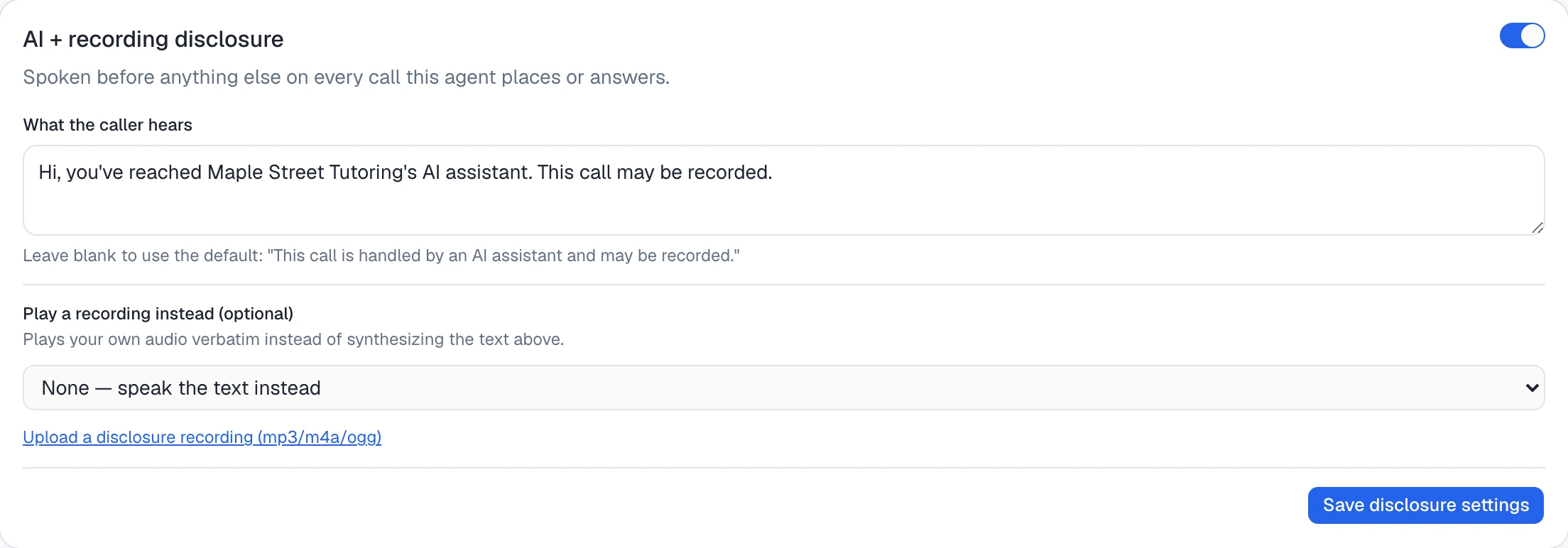
On the Try Voice tab, the AI + recording disclosure card sets what a caller hears first — “Spoken before anything else on every call this agent places or answers.” It is on for a new agent. Keep it on.
- What the caller hears — leave it blank to use the default, “This call is handled by an AI assistant and may be recorded.” Or write your own, up to 500 characters: “Hi, you’ve reached Maple Street Tutoring’s AI assistant. This call may be recorded.”
- Play a recording instead (optional) — pick or upload an mp3, m4a or ogg to play your own audio word for word. On a realtime voice pipeline the card recommends it, because those models reword text instead of reading it exactly.
Click Save disclosure settings. If you switch it off, the card warns:
“Many jurisdictions require callers to be told they’re speaking with an AI and that the call is recorded, and two-party-consent regions require agreement before recording at all. You remain responsible for complying with the law wherever you call.”
Pause it
The switch at the top of the Overview tab reads Enabled or Disabled. Turning it off asks:
“Disable this agent? It will stop responding on every channel — chat, SMS, email and phone calls — and campaigns using it will skip their remaining calls.”
Its channels stay as they are; switch it back on and it answers on them again. Switch an agent on before putting it on a new channel.
When it isn’t answering
Check three things, in this order:
| Check | Where to look |
|---|---|
| It is on the channel | Channels tab: the channel is under Other channels, not Available Channels |
| It is the one that answers | That card’s Answers row names this agent (this agent), not another one or a dash. If not, Change |
| It is switched on | The switch at the top of Overview reads Enabled |
For a phone agent that still is not picking up, voice agent not working goes further.
Everything it handles shows up on its Conversations tab — click one to open it in /conversations. There, the Agent filter narrows the full inbox to this agent alongside your other filters.
Before it goes live anywhere, test it before your customers do; to change what it says once it is live, teach it what to say and how to behave.