Omni Octo does not write templates behind your back, and Meta approves every one of them. There are two ways to make a template and one way to bring it in:
- Write it in Meta’s WhatsApp Manager, then sync it into Omni Octo.
- Ask Octo to write it. Octo submits it to Meta for you, and it shows up in Omni Octo straight away, with the status Meta gave it on submission.
Either way, the template lives on /templates/whatsapp, and only an approved one can be sent. If you have not read when a WhatsApp message has to be a template, start there — it covers the categories and the parts of a template.
The templates page
/templates/whatsapp lists every template Omni Octo knows about, with its Display name, Name, Status, Category, Language, Channel and when it was Created. Under the heading:
Manage approved templates for outbound campaigns. Create new templates in Meta Manager.
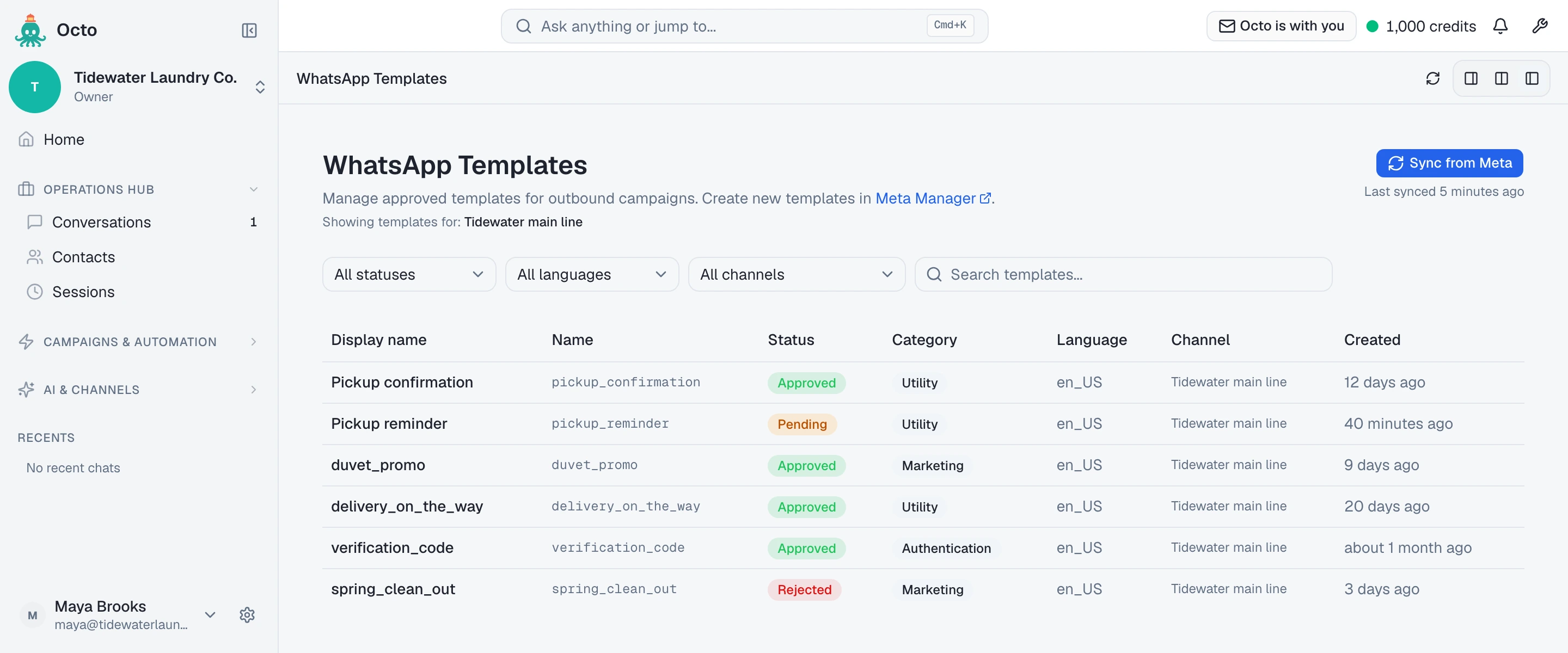
Meta Manager is a link to Meta’s WhatsApp Manager. There is no editor on this page: you cannot write a template here, and you cannot change a template’s text here either. To change the wording, edit it in WhatsApp Manager (Meta reviews it again) and sync.
The filters narrow the list by status, language, WhatsApp number and a search over the display name and name. A line under the heading — Showing templates for: — names the number or numbers you are looking at.
Click a row to open the template: its header, body with the variables highlighted, footer, buttons, and the dates it was created and approved. The panel has Use in Campaign, View in Meta Manager and Delete.
Way 1: write it in WhatsApp Manager
This is the way to use when a template needs anything beyond text — an image, video or document header, a copy-code button — or when it is an authentication template, whose wording Meta fixes. WhatsApp Manager has Meta’s own editor and preview; Omni Octo does not replace it.
Submit it there, and Meta reviews it. Omni Octo does not know it exists until you sync — see below.
Way 2: ask Octo to write it
Octo can build and submit a template from a sentence. For Tidewater Laundry Co.:
Create a utility template called pickup_reminder on our WhatsApp number:
"Hi {{customer_name}}, a reminder that your pickup is {{pickup_slot}}. Reply here if you need to change it."
Add a quick-reply button "Change time".
What Octo can put in a template:
| Part | What Octo can build |
|---|---|
| Header | Text only |
| Body | Text, with named variables like {{customer_name}} |
| Footer | Text |
| Buttons | A link (the URL can end in one variable), a phone number, or quick replies |
It cannot add an image, video or document header, or a copy-code button — use WhatsApp Manager for those.
A few things Octo does for you, and a few it refuses:
- Named variables become numbers. Octo sends
{{1}}and{{2}}to Meta and remembers that{{1}}wascustomer_name. When you ask Octo to send it, you can give values by name. Everywhere else — the inbox, the API, a campaign — it is a positional template:{{1}},{{2}}. - The name must be lowercase letters, digits and underscores —
pickup_reminder, notPickup Reminder. Octo also gives it a readable display name for the templates page. - It refuses a body Meta would reject, before anything is sent to Meta: a body that starts with a variable, one with a variable at or right before the end, or two variables with only a space between them. Octo tells you which rule the body broke.
- A phone-number button needs a real number. Meta rejects made-up ones.
When it has submitted the template, Octo tells you the status Meta gave it and links to the template on /templates/whatsapp. There is nothing to sync: a template Octo created is already on the page.
Octo can also list your templates, show one in full, sync a number, and delete a template, if you ask it to.
Sync from Meta
Sync from Meta is the button at the top right of /templates/whatsapp. For each WhatsApp number it syncs, it asks Meta for every template in the WhatsApp Business Account behind that number, and then:
- adds the templates Omni Octo does not have yet,
- refreshes the ones it has — status, category, content, and Meta’s rejection reason,
- removes the ones that are no longer in Meta, for example because someone deleted them in WhatsApp Manager. Meta does not tell us about deletions, so a sync is the only way they disappear here.
When it finishes, a line reports what happened:
Synced from Meta — 2 new, 6 updated (8 total)
new counts templates that were not here before. updated counts only the ones where something actually changed — a template Meta still has exactly as it was is left alone and not counted. N removed is added when the sync deleted any. When nothing changed, the line reads Synced from Meta — no changes, followed by the total.
Under the button, Last synced says how long ago the templates were last pulled in — Last synced 5 minutes ago.
A template brought in by sync uses its Meta name as its display name, because Meta has no separate one.
Which numbers it syncs
Templates are kept per WhatsApp number, and the Channel filter decides which numbers the button syncs:
- All channels — every active WhatsApp number in the workspace, one after another, with one result line adding them up. A number that is disabled, has an error, or is still being set up is skipped, because Meta cannot be asked about it.
- One number picked in the filter — that number only, whatever its state.
If one number fails and the others work, you get the result line for the ones that worked, and a separate notice for each failure, naming the number: Couldn’t sync Tidewater main line: … followed by Meta’s error.
Last synced follows the same filter. On one number, it is that number’s last sync. On All channels, it is the oldest last sync among the active numbers — so a number that has fallen behind is not hidden by one that was just synced. If any number in view has never been synced, the line is not shown at all.
From inside a conversation
The template picker in /conversations has the same Sync from Meta button, beside the list and in its empty state. It syncs the number that conversation is on, and shows the same result line under the button. Use it when you have just finished a template in WhatsApp Manager and do not want to leave the thread.
What each status means
| Status | What it means | Can you send it? |
|---|---|---|
| Pending | Meta is still reviewing it | No |
| Approved | Meta approved it | Yes |
| Rejected | Meta refused it | No |
| Paused | Meta has paused it | No |
| Disabled | Meta has disabled it | No |
Only Approved can be sent — from a conversation, through the API, by Octo, or in a campaign. A template in any other status does not appear in the conversation picker at all, and in its panel Use in Campaign is greyed out with the line:
Template must be approved by Meta before launching a campaign. Current status: Pending.
If Meta reports a state Omni Octo does not have a name for, the template shows as Pending until Meta moves it on.
When Meta rejects a template
Open the template. If Meta gave a reason, the panel shows it in a box headed
Rejected by Meta, above the template’s content. Meta’s reason is a short
code rather than a sentence — INCORRECT_CATEGORY, for example, when Meta
thinks a promotion was submitted as utility. Omni Octo shows the code as Meta
sent it; it does not interpret it.
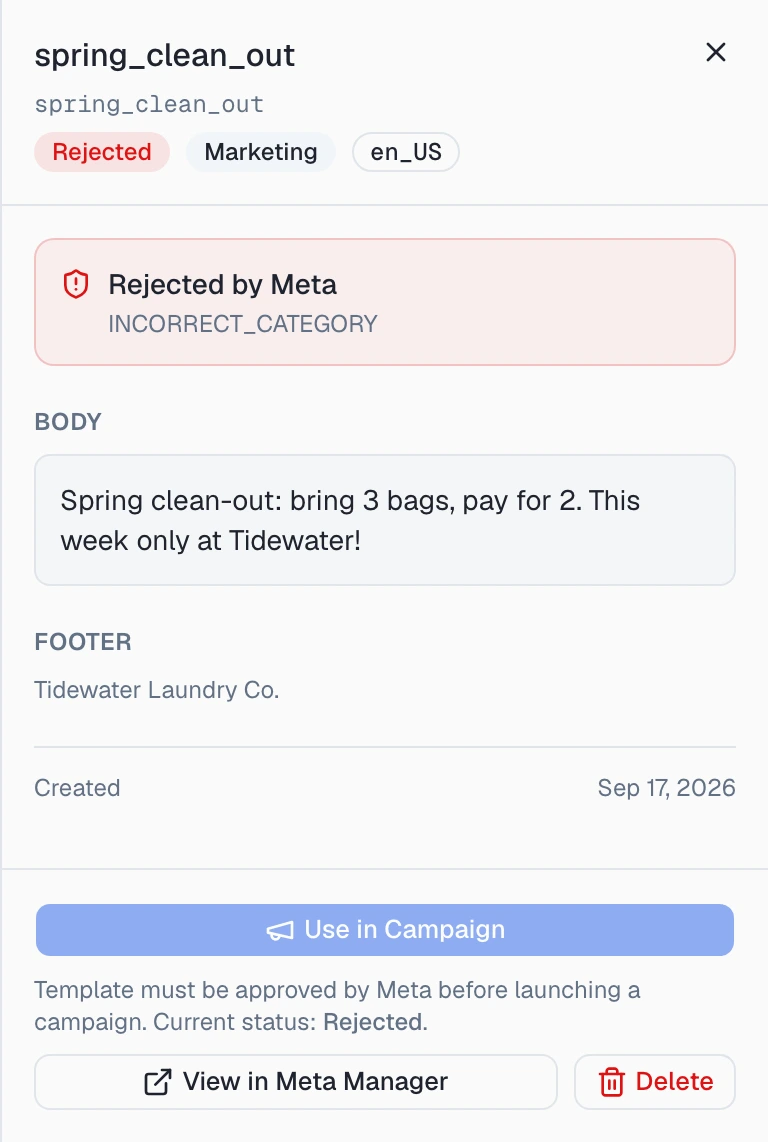
A rejected template cannot be fixed in Omni Octo. Edit it in WhatsApp Manager and resubmit it there, or ask Octo to create a corrected one under a new name.
Watching a template get approved
Leave /templates/whatsapp open and you do not need to refresh it. When Meta tells us it has approved, rejected, paused or disabled a template that Omni Octo already has, the row changes by itself and a notice appears: Template is now Approved.
That only works for a template Omni Octo already knows — one Octo created, or one you synced while it was still pending. A template you wrote in WhatsApp Manager and never synced is not on the page yet, so there is nothing to update: sync it.
Deleting a template
Delete in the template’s panel asks first:
Delete template “pickup_confirmation”? This removes it from Meta as well.
It is not only removed from Omni Octo — it is deleted in Meta itself. Deleting from WhatsApp Manager instead removes it in Meta, and it leaves Omni Octo at your next sync.
”I approved it in Meta and it’s not here”
Work down the list:
- Sync. Press Sync from Meta. A template written in WhatsApp Manager is never pulled in on its own.
- Check the number is active. On All channels, only active numbers are synced. If the template belongs to a number with an error or still being set up, pick that number in the Channel filter and sync it on its own — the error Meta returns will say what is wrong. In a conversation, the picker syncs that conversation’s number only.
- Check the filters. A status, language or search filter can hide it. With filters on and nothing matching, the page says No templates match your filters.
- Check the WhatsApp Business Account. Sync reads the account the number is connected through. A template created in a different business account in WhatsApp Manager will not come in.
- Read the error. If Meta refuses the sync, the error is shown where you pressed the button — on the page as a notice (on All channels, one per number that failed, with the number’s name), in the picker under the button.
Once it shows Approved, it is ready for any of the four ways to send.
Where to go next
- Send a template from a conversation
- Send a template from your own system
- Ask Octo to send a template
- Send a template to a list
- How fast one number can send — the sending limits all four share.