An agent can be tested the moment Octo creates it — before it is on the phone, WhatsApp or your website, and before any customer can reach it. There are five ways in. Each one proves something the others do not, so the quick ones come first and the real phone call comes last.
The example is still Maple Street Tutoring: parents ask about classes, timetable and fees on the website and WhatsApp, call in, and get reminder calls before sessions.
The test chat
Three ways to open it, all the same page:
- Test Agent on the agent’s Overview tab opens it in a new browser tab.
- Open Test Chat on the Agent Created Successfully card in Octo’s chat.
- The test link Octo gives you after it creates the agent — a page under
/test/.
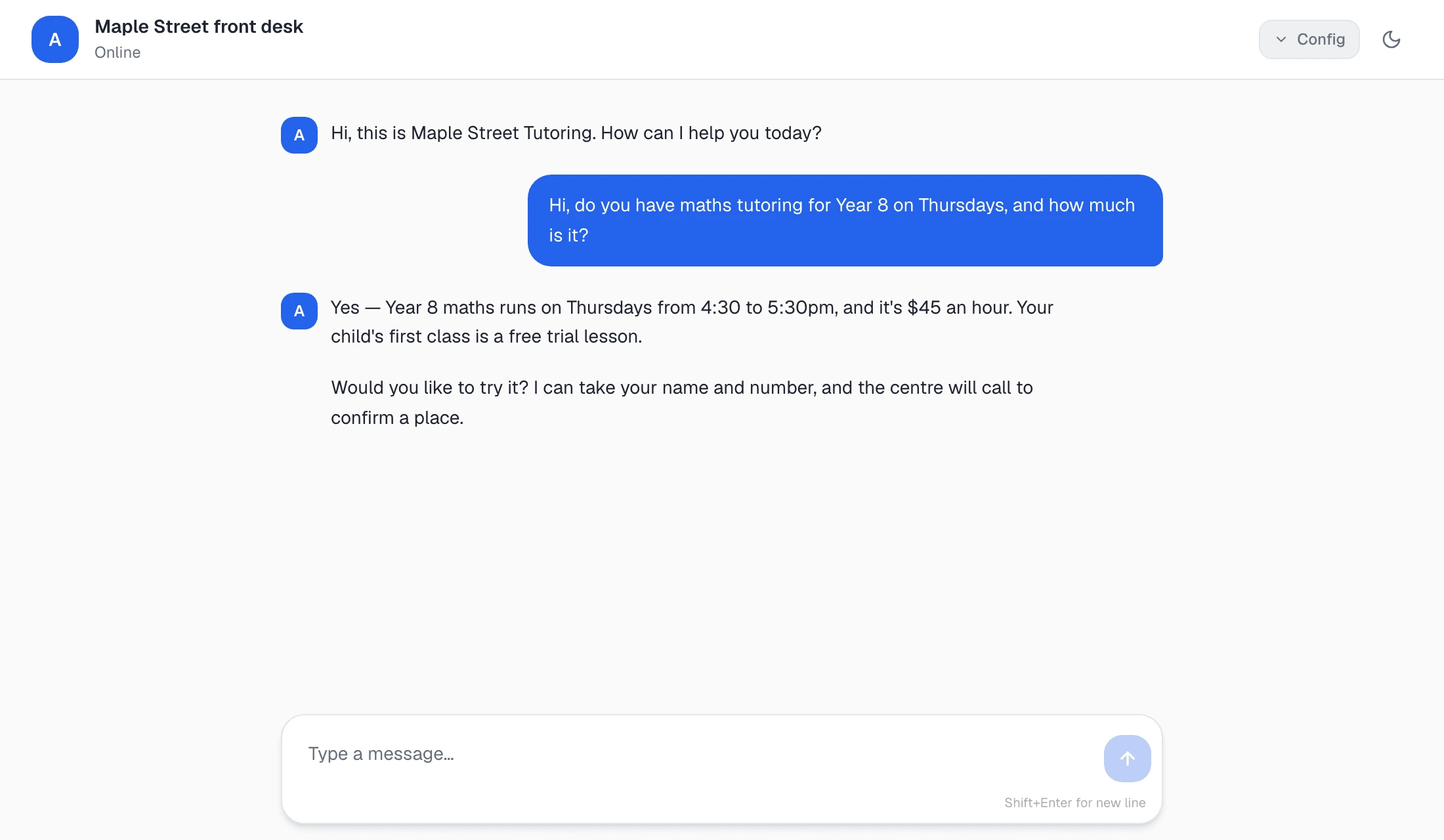
The chat opens with the agent’s greeting, exactly as a customer would see it, and the header shows the agent’s name. Type as a parent would:
Hi, do you have maths tutoring for Year 8 on Thursdays, and how much is it?
It answers with the model on the agent’s Configure tab, the same one your customers get, so what you read here is what they would read.
It works before the agent is on any channel. Anyone in your workspace can open the link while signed in, so a colleague can try it too.
The conversation is kept in your browser for a day, so reloading the page picks up where you left off. To start again from the greeting — after you have changed it, say — open the test link in a private window.
The test chat is the fastest loop there is: change a sentence in the instructions, send your next message, read the answer.
Try Voice
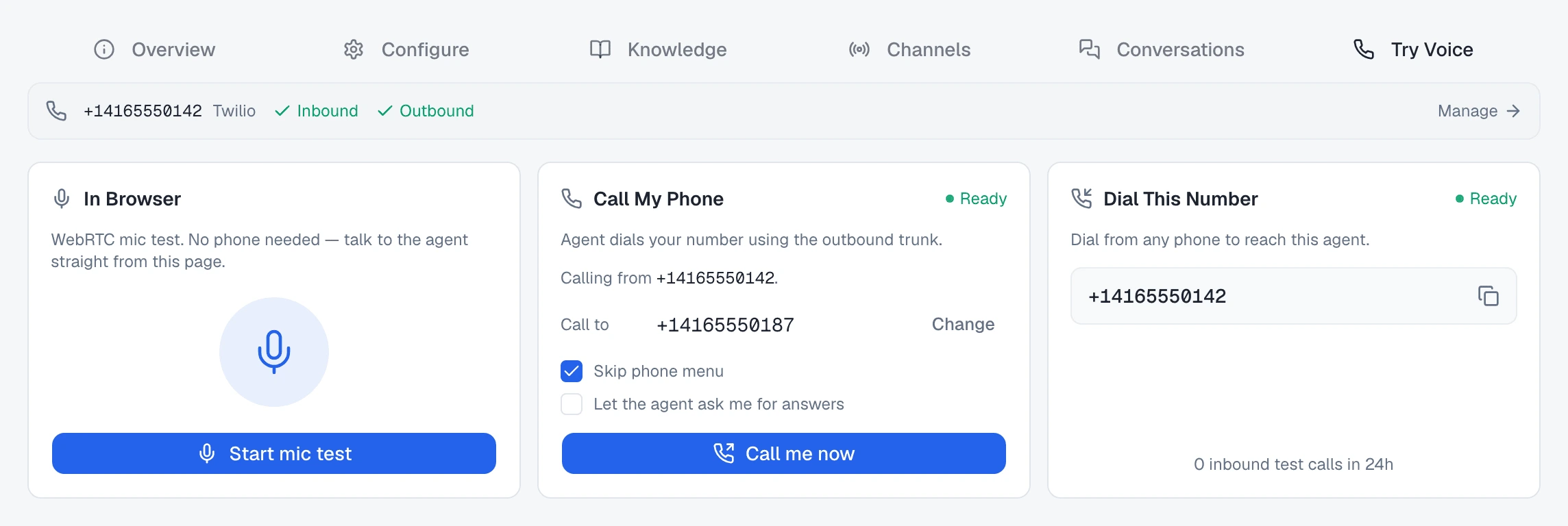
Voice tests live on the agent’s Try Voice tab. A row across the top shows the agent’s phone setup — its number, with Inbound and Outbound ticked when each is ready, and Manage to open the number. With no number yet it says No voice channel — “WebRTC works for browser testing. Phone routes need a number.” — and Set up takes you to the agent’s Channels tab.
Below it are three cards.
In Browser
“WebRTC mic test. No phone needed — talk to the agent straight from this page.” Press Start mic test, allow the microphone when the browser asks, and speak. The agent greets you and answers out loud. Stop mic test hangs up. If the agent ends the call itself, the card says “This call is ended. Start a new mic test to keep talking.”
While you talk, a transcript appears under the cards, marked Live, one line
per turn — user: for you, assistant: for the agent. It stays after the call
so you can read it back, and View conversation → opens the saved call.
This is the test to run first for any phone agent. It needs nothing but a microphone.
Call My Phone
The agent rings your mobile, so you hear it on a real phone line.
- Call from — the number the agent dials out from. When the agent can use the shared trial number, it is marked shared trial number, and the card notes that the person called sees Omni Octo’s caller ID, not yours.
- Call to — your own number. The first call saves it to your account: “Saved to your account. Free calls reach this number.” Change edits it later. When you are calling from the trial number, a line under it counts the free calls you have used.
- Skip phone menu — on by default. Leave it on when the call goes to a mobile; uncheck it only to point the agent at a business line with a real menu.
- Let the agent ask me for answers — off by default. Turn it on only when a second person is watching the dashboard to answer the agent’s questions during the call.
Press Call me now. The page moves to the call on /conversations, where you follow it while you talk.
If the card says needs setup, the agent needs a number to call from first. Either:
- Open the agent’s Channels tab and, under Trial number, choose Use for outbound calls. One agent in the workspace uses it at a time.
- Or put the agent on your own number — the card’s button reads Verify this number → or Deploy to a number →, depending on which step is left. Set up an AI phone receptionist walks through it.
Dial This Number
“Dial from any phone to reach this agent.” The card lists every number that routes to this agent, each with a copy button. Ring one from any phone — this is exactly what a parent calling Maple Street will hear.
It needs a number set to answer with this agent. Set up inbound → takes you to the Channels tab. If the number currently answers with a different agent, the card says “Inbound calls aren’t routed to this agent right now.” and Route to this agent moves it here.
Ask Octo to test it
You can also ask for a test in the conversation that built the agent.
- A real call to your phone. For a phone agent, Octo asks for your mobile number while it builds the agent, and after creating it offers to ring you. Say “call me now” any time after that. The call is the same as Call My Phone and lands in /conversations the same way.
- A simulated call, in text. Ask Octo to “start a simulation” and it gives you two links. The End User Simulator is a phone screen: choose Pick up immediately (or Go to voicemail, Answer with IVR…, Put on hold first, Reject call) and type what the person on the phone says. The Admin Panel shows the call’s Mission, Known Information and Agent Reasoning, and lets you send the agent an instruction mid-call — Immediate or When appropriate. Use it to rehearse the awkward calls: a parent who hangs up, a voicemail, a question the instructions do not cover.
What each test proves
| Test | What it proves | What it needs |
|---|---|---|
| Test chat | The instructions, greeting and knowledge give the right answers in writing | Nothing — works as soon as the agent exists |
| In Browser | How the agent sounds, how it handles being interrupted, its language on a live voice | A microphone |
| Call My Phone | The whole outbound call on a real phone line, caller ID included | Your mobile number, and the agent on the trial number or its own verified number |
| Dial This Number | What a caller hears when they ring you | A number that answers with this agent |
| Simulated call from Octo | How the agent handles voicemail, hold, hang-ups and mid-call instructions | Nothing but the chat |
Where test calls show up
Every voice test — the mic test, Call My Phone and Dial This Number — is saved as a conversation. You find it on /conversations and on the agent’s own Conversations tab, alongside real ones, with the transcript. A mic test is listed as a WebRTC voice test.
If you build a workflow that alerts staff about calls, tell Octo to leave test conversations out, so your own test call does not page anyone.
When it gets something wrong
Read the transcript, find the first reply that is wrong, and decide which of three things caused it.
| The agent… | Change | Where |
|---|---|---|
| Says something you would not say, skips a question, or goes off-script | The instructions | Teach it what to say and how to behave |
| Gets a fact wrong, or says it does not know | The knowledge | Give it your business knowledge |
| Sounds wrong, mishears callers, or answers in the wrong language | A voice or language setting | Voice pipeline options |
The quickest fix is usually to tell Octo what happened, in the same words you would use with a colleague: “When a parent asked about Thursday maths, it quoted last term’s fee. The fee is now $45 an hour.” Octo can rewrite the instructions or add to the knowledge for you.
Then test again — the same question, the same way. A change to the instructions applies to the next message in the test chat and the next call on Try Voice. When the same question gets the right answer twice in a row, move on to the next one.
For a phone agent that will not connect at all, why your voice agent isn’t working goes through the screens to check.
Next
When the agent answers the way you want, put it to work — on the phone, on WhatsApp or on your website.