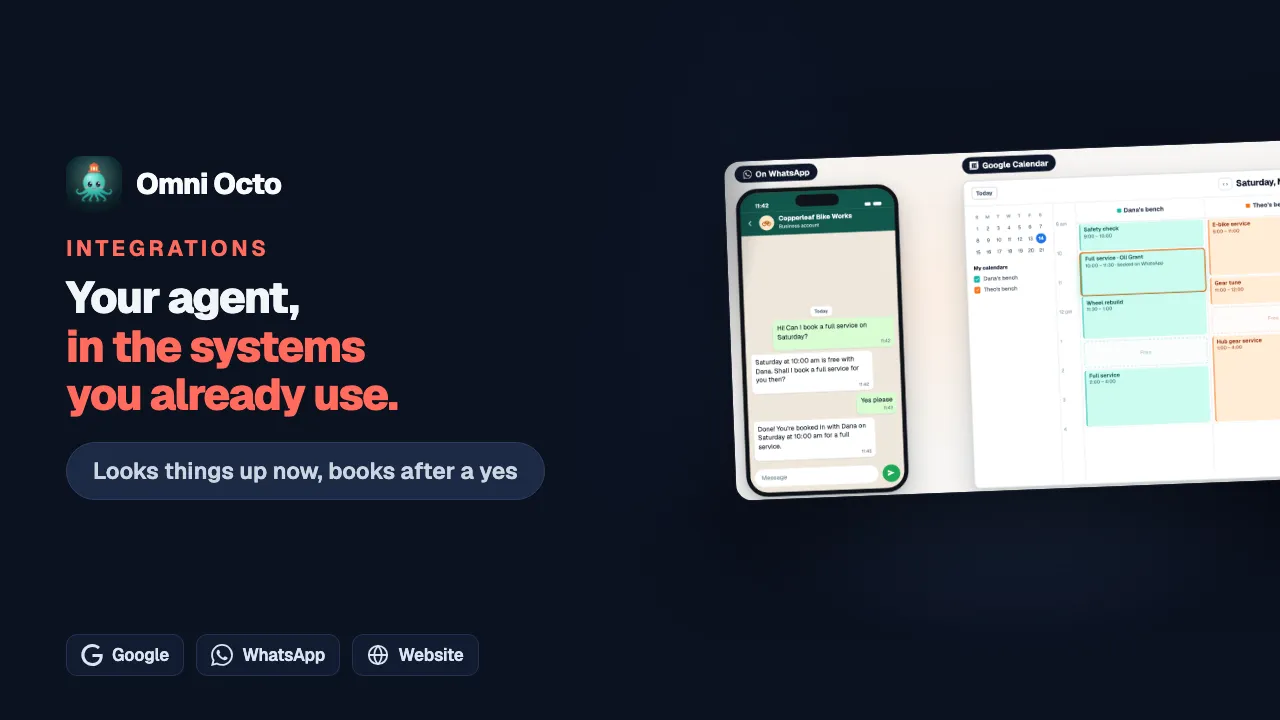
An integration is a saved connection from your workspace to one of your other systems: an app you sign in to, an MCP server, an API, or a key. Inside it are tools, the single things it can do: look up a repair, suggest a time, add a row to a sheet. Your agents, your workflows and Octo use those tools.
Copperleaf Bike Works is a fictional bike repair shop. It wants its front-desk agent, Copperleaf Front Desk, to tell customers whether their bike is ready, book them in with one of its two mechanics, and log parts requests in a Google Sheet. That takes three integrations: its own workshop system (Copperleaf workshop), which holds the repair orders; Google Calendar, which holds the bookings; and Google Sheets.
The Integrations page
Open /integrations. The page reads:
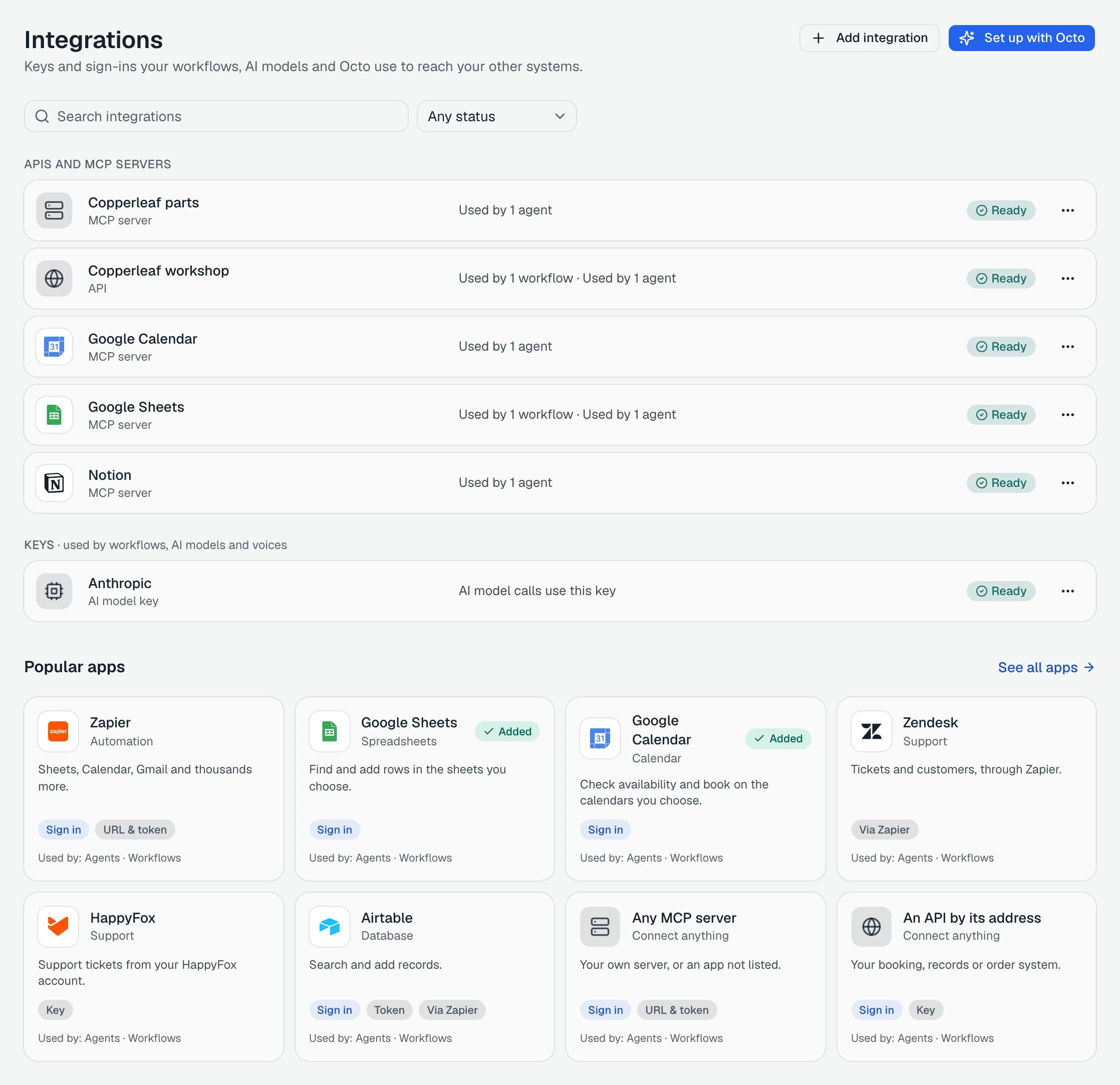
“Keys and sign-ins your workflows, AI models and Octo use to reach your other systems.”
Only workspace owners and admins see it. Everyone else sees “Owners and admins manage integrations” and “Integrations hold this workspace’s keys and sign-ins. Ask an owner or admin to add or change one.”
On a first visit the page is a short directory, headed Connect the tools your agents use:
“Pick an app and sign in. Agents look things up right away and ask your customer before changing anything.”
Under it are the most-used apps, See all apps, and three links: Connect any MCP server, Connect an API and More options.
Once you have an integration, the page becomes a list, grouped into APIs and MCP servers, Apps and Keys (“used by workflows, AI models and voices”). Google’s cards and Notion connect as MCP servers, so they are listed under APIs and MCP servers; Apps holds apps you sign in to directly, such as Slack. Each row says what kind it is and who uses it, for example “Used by 1 agent” or “Not used yet”. Search with Search integrations, or filter by status: Ready, Saved, Needs a key or Turned off. Popular apps stays under the list, so you can add another one from there.
Two buttons sit at the top: Add integration and Set up with Octo.
The app directory
Add integration opens “Add an integration”:
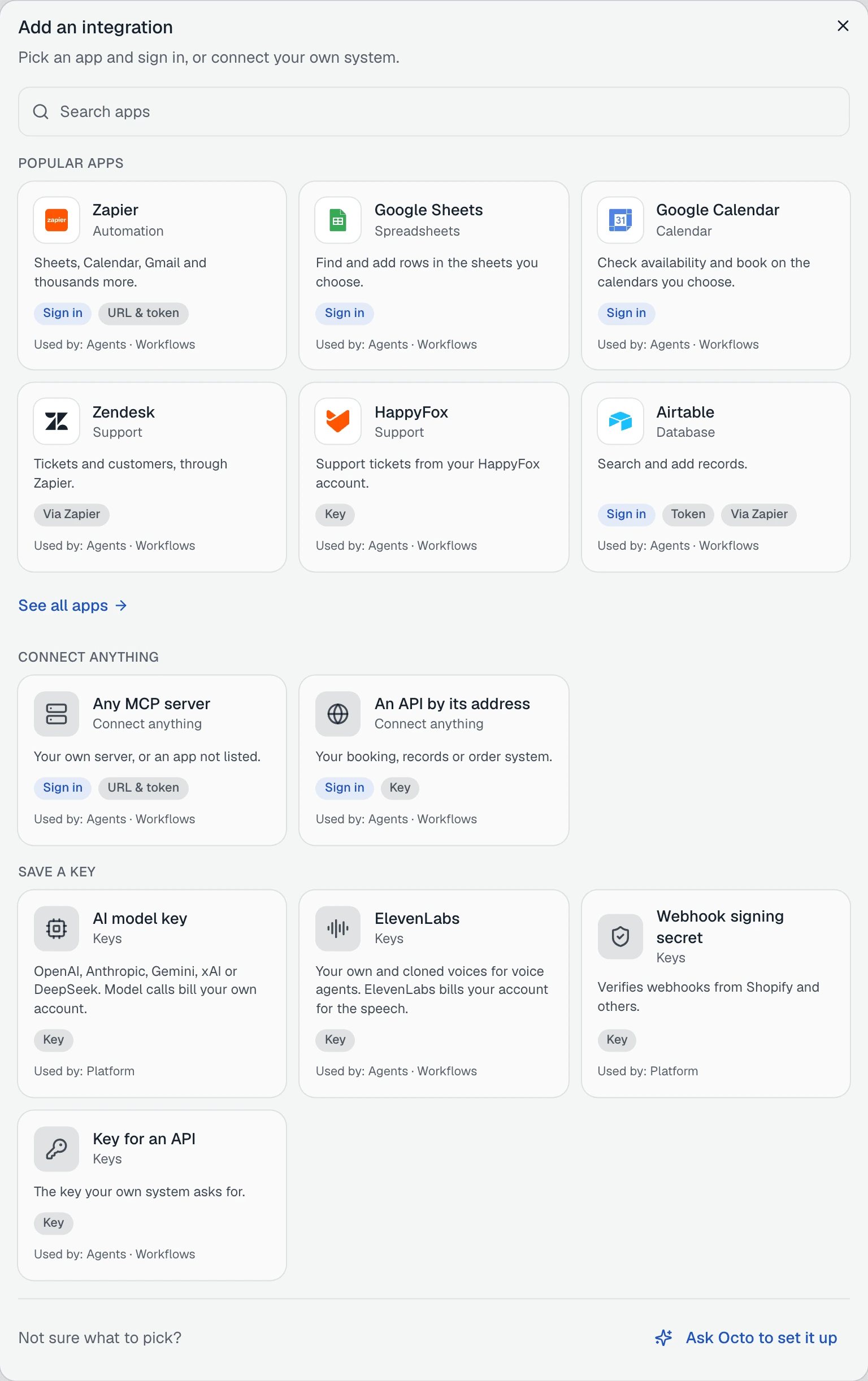
“Pick an app and sign in, or connect your own system.”
Type in Search apps to search by name, category or what the app does. The dialog has three parts: Popular apps (with See all apps), Connect anything and Save a key. See all apps goes to /integrations/apps, the full directory, with a tab for each category: Automation, Spreadsheets, Calendar, CRM, Payments, Support and the rest.
Every app is one card: its name, its category, one line on what it does, labels for how it connects, and who can use it.
| Label on the card | How you connect |
|---|---|
| Sign in | You sign in to the app in a window that opens. Nothing to copy |
| URL & token | You paste a server address that has its token in it |
| Token | You paste a token you made in the app |
| Via Zapier | You set it up through your Zapier account, with steps on screen |
| Key | You paste a key |
| Line at the bottom of the card | Who can use it |
|---|---|
| ”Used by: Agents · Workflows” | Agents and workflows can use its tools |
| ”Used by: Workflows” | Only workflows. Agents don’t use it |
| ”Used by: Platform” | Omni Octo itself uses it, for example to call AI models on your own account |
A card for an app you already have says Added. Picking it again takes you to that integration, where you can sign in with another account, instead of connecting the app twice.
If nothing matches, the dialog says “Nothing matches “bike shop software”. Try another word, or ask Octo.”
The kinds of connection
| What you have | What to pick | Guide |
|---|---|---|
| An app in the directory that signs in: Notion, HubSpot, Stripe, Airtable and others | Its card, then Sign in with the app | Connect an app by signing in |
| Google Sheets, Calendar, Docs, Drive or Chat | The Google card | Connect Google Sheets, Calendar, Docs, Drive and Chat |
| A Zapier account, or an app the directory reaches through Zapier | The Zapier card, or a card labeled Via Zapier | Connect through Zapier |
| Any other MCP server | Any MCP server under Connect anything | Connect any MCP server or API by its address |
| Your own system with an API, such as a booking, records or order system | An API by its address under Connect anything | Connect any MCP server or API by its address |
| A key the platform uses: AI model key, ElevenLabs, Webhook signing secret, or Key for an API | Its card under Save a key | Manage keys, accounts, and turning integrations off |
A few apps have their own form instead. HappyFox, for example, asks for your Subdomain, API key and Auth code.
Copperleaf’s workshop system is its own, so it connects it as An API by its address and saves its key as Shop key. Google Calendar and Google Sheets come from the Google cards.
What a tool is
A tool is one thing an integration can do, with a name, a line on when to use it, and the inputs it needs. You see them on the integration’s Tools tab:
“Tools let your agents look things up in this system. Open one to edit it.”
Every tool is one of two kinds:
| Label | What it means for an agent |
|---|---|
| Reads data | It only looks things up, so the agent uses it without asking |
| Makes changes | It changes something in the other system, so the agent says what it is about to do and waits for the customer’s yes. For a tool from an app or MCP server you can turn that off with Ask the customer first |
How the customer says yes on chat, messaging and calls is in Changes the customer confirms.
Where tools come from depends on the connection. An app or MCP server already has tools, and you tick the ones you want. For an API you make each tool yourself: see Make your own tool and check it.
Copperleaf’s front desk ends up with four tools. Look up a repair is on Copperleaf workshop, which keeps the repair orders. Suggest time and Create event are on Google Calendar, which keeps the bookings. Add a parts request adds a row to the parts-request sheet. Look up a repair and Suggest time only read; the other two make changes.
Who can use an integration
Three things can use an integration’s tools.
Agents. An agent uses a tool only after you add it to that agent, on the agent’s Integrations tab. Every agent has its own list, and can use its own account and values. See Give an agent tools from your other systems.
Workflows. A workflow step can call a tool, and a workflow can use an integration’s key. See Use integrations in workflows, or set them up with Octo.
Octo. On the integration’s Settings tab, Octo can use this integration is on for a new integration:
“Octo can look things up here when you ask it to. It asks before making changes.”
Each tool also has its own switches under Who can use it: AI agents, Octo and Workflows. Turn one off and, for example, “Workflows can’t use this tool. Turn it on to let a workflow step call it.” Who can use all tools sets them for every tool at once.
What to have ready
- Owner or admin in Omni Octo. Members can’t open /integrations.
- An account on the other system that can see what your agents need: the calendars, the sheets, the bases. The agent can reach only what that account can.
- For some apps, your own app there. HubSpot and Asana may ask you to create an app first. When they do, Omni Octo shows the address to paste into it, and asks for its App ID and App secret.
- A token or address, if the card asks for one. Airtable can take a personal access token, GitHub takes a fine-grained token, and Make, n8n and Zapier can take a server address. Each card says where to find it.
- For your own API: its base address, such as
https://api.example.com/v1, and its key, if it takes one.
Keys and tokens you paste are “Stored encrypted. Nobody, including Octo, can read it back.”
If you are not sure which card fits, Ask Octo to set it up at the bottom of the Add dialog opens Octo with what you searched for. Set up with Octo at the top of the page does the same with “I want to connect one of my other systems to Omni Octo. Help me set it up.”