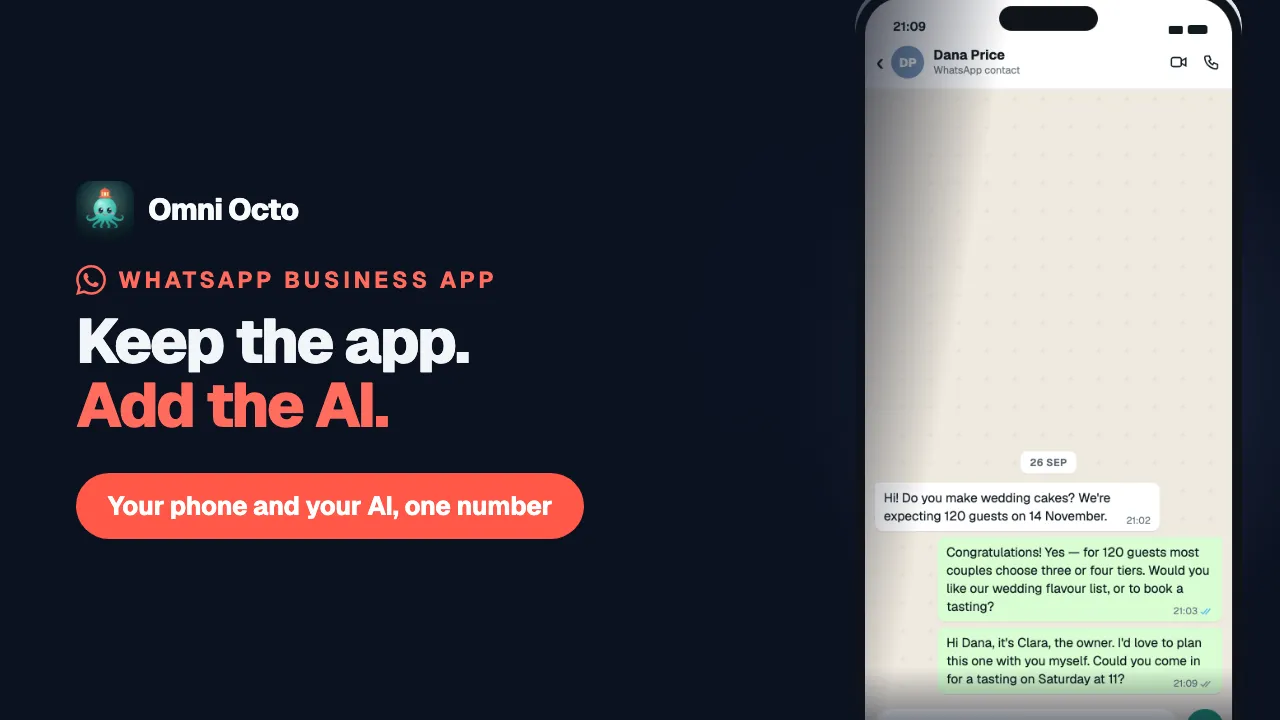
Plenty of small businesses already run on one phone: the number is on the printed menu, customers have it saved, and the WhatsApp Business App is where every order comes in. You do not have to give that up to put an AI agent on the number. Omni Octo can connect a number while it stays in the WhatsApp Business App — Meta calls this coexistence — and from then on:
- customers write to the same number they always have;
- your AI agent answers them from Omni Octo;
- you can still answer from the phone whenever you want, and the AI steps back in that chat when you do.
Take Fernhill Cake Studio, a custom-cake bakery that has taken orders on the WhatsApp Business App for years. Its owner wants the AI to handle the evening questions — “Do you do gluten-free?”, “Can I collect on Saturday?” — and still reply herself when a wedding order comes in. That is the set-up this section walks through.
Connecting a WhatsApp Business App number is available in every workspace.
Before you start
Three things to have ready:
- The phone with the WhatsApp Business App on it, unlocked and nearby. WhatsApp asks you to confirm the connection in the app partway through.
- WhatsApp Business App 2.24.17 or later. The connect page says where to check: “in the app: Settings → Help → App info”. Update it from the app store first if it is older.
- The Facebook login for the business. The connection runs through Meta’s own sign-in window, the same one any WhatsApp number connects through.
Step 1: open the WhatsApp connect page
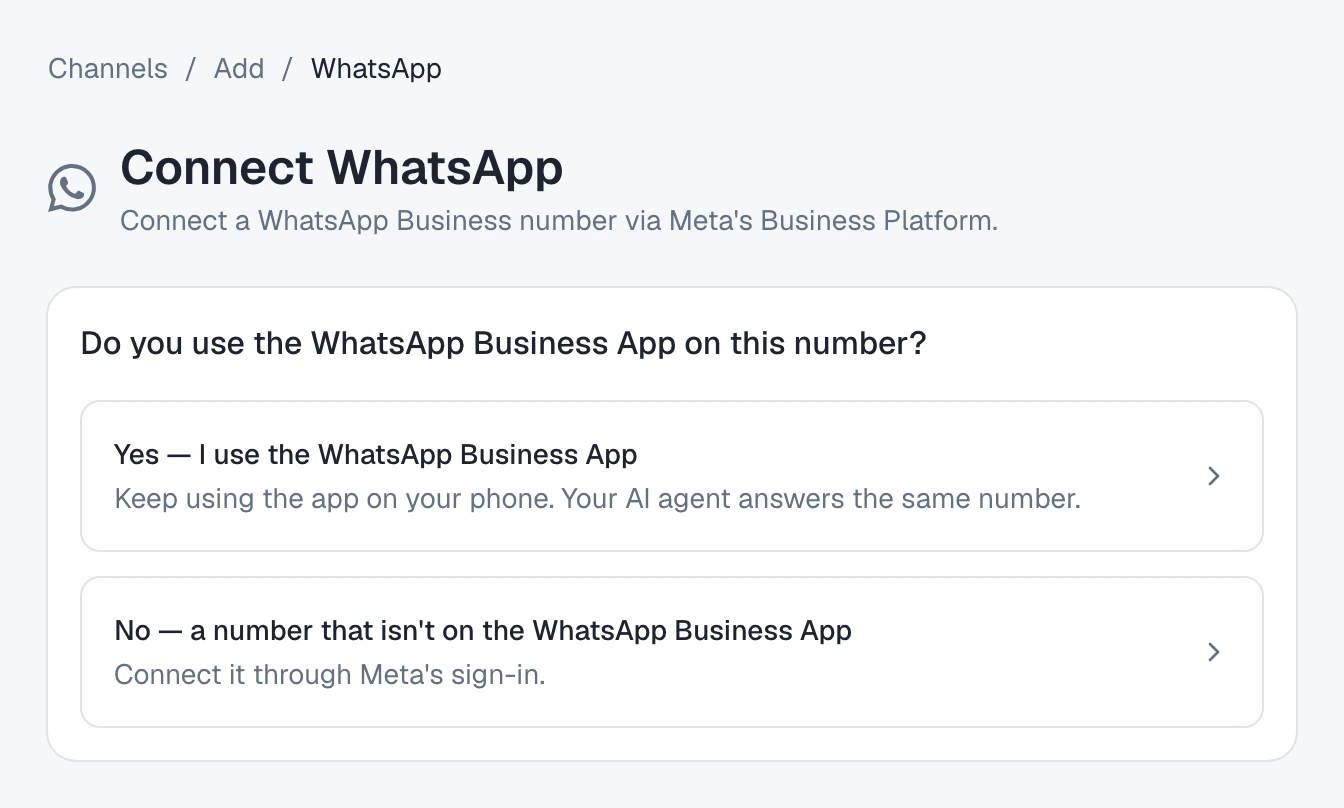
Go to /channels, press Add Channel, and pick WhatsApp. The page that opens is headed Connect WhatsApp, and before anything else it asks one question:
Do you use the WhatsApp Business App on this number?
There are two answers:
| Answer | What happens next |
|---|---|
| Yes — I use the WhatsApp Business App | ”Keep using the app on your phone. Your AI agent answers the same number.” — the path this guide follows |
| No — a number that isn’t on the WhatsApp Business App | ”Connect it through Meta’s sign-in.” — the ordinary connection, with Connect with Meta |
Choose Yes. If you picked the wrong one, Change answer puts the question back.
Step 2: read the card before you press the button
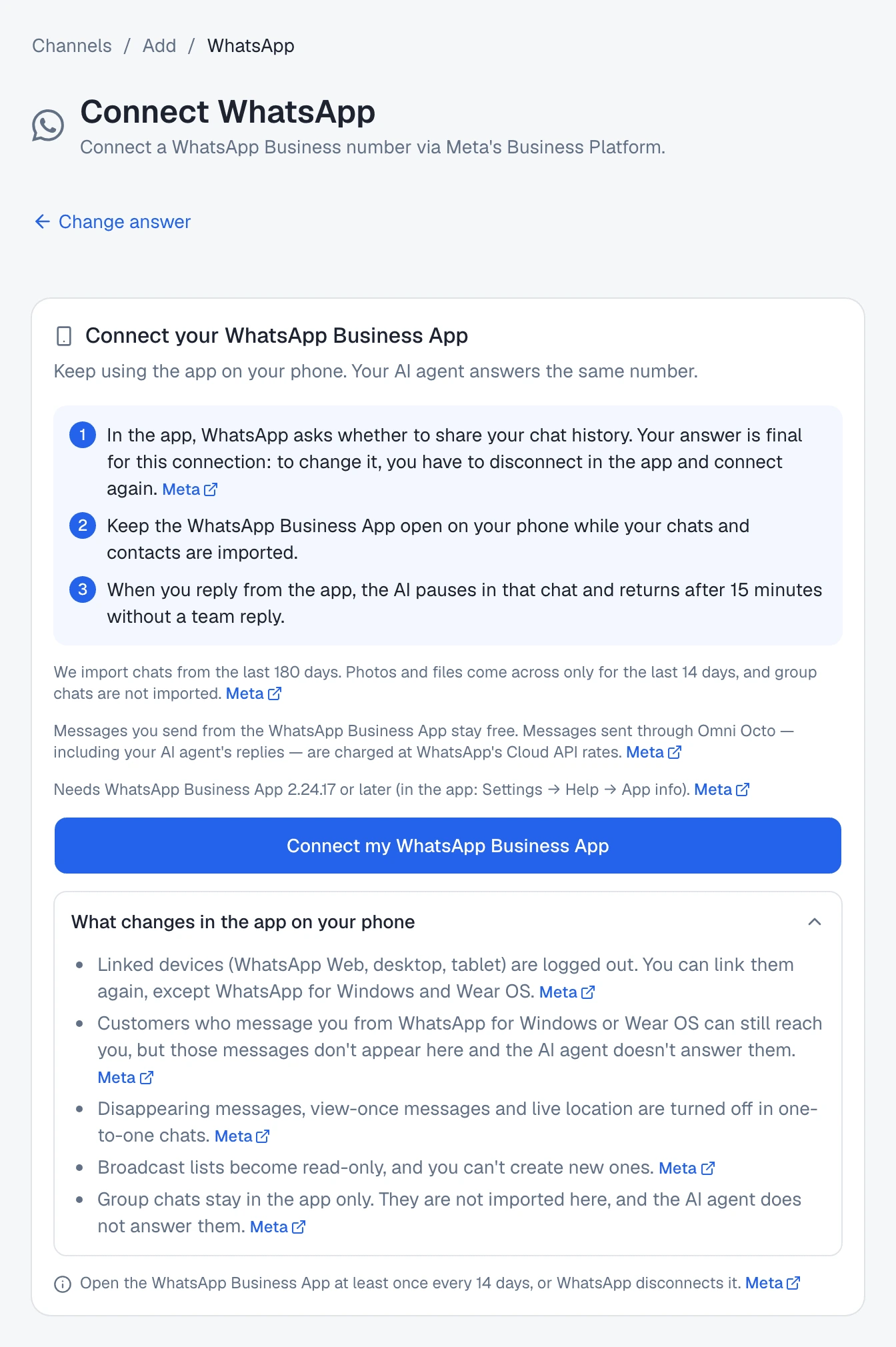
The Yes answer opens a card headed Connect your WhatsApp Business App. Everything on it is something you would rather know now than find out later, so it is worth reading top to bottom. The numbered part says:
- “In the app, WhatsApp asks whether to share your chat history. Your answer is final for this connection: to change it, you have to disconnect in the app and connect again.”
- “Keep the WhatsApp Business App open on your phone while your chats and contacts are imported.”
- “When you reply from the app, the AI pauses in that chat and returns after 15 minutes without a team reply.”
Below that, three more lines:
- “We import chats from the last 180 days. Photos and files come across only for the last 14 days, and group chats are not imported.” — what the import brings is covered in bringing your chats and contacts across.
- “Messages you send from the WhatsApp Business App stay free. Messages sent through Omni Octo — including your AI agent’s replies — are charged at WhatsApp’s Cloud API rates.”
- “Needs WhatsApp Business App 2.24.17 or later (in the app: Settings → Help → App info).”
Lines that state one of Meta’s rules carry a small Meta link to the part of Meta’s documentation that says so.
What changes in the app on your phone
Under the button is a collapsed row, What changes in the app on your phone. Open it. These are Meta’s rules for a number that is in the app and connected to a platform at the same time:
| In the app | What happens |
|---|---|
| Linked devices | ”Linked devices (WhatsApp Web, desktop, tablet) are logged out. You can link them again, except WhatsApp for Windows and Wear OS.” |
| Customers on Windows or Wear OS | ”Customers who message you from WhatsApp for Windows or Wear OS can still reach you, but those messages don’t appear here and the AI agent doesn’t answer them.” |
| Disappearing, view-once, live location | ”Disappearing messages, view-once messages and live location are turned off in one-to-one chats.” |
| Broadcast lists | ”Broadcast lists become read-only, and you can’t create new ones.” |
| Group chats | ”Group chats stay in the app only. They are not imported here, and the AI agent does not answer them.” |
So after you connect, link WhatsApp Web or your tablet again from the app’s Linked devices screen, the way you linked them the first time. Answer group chats from the phone, as you do today.
At the foot of the card is the one rule that keeps the connection alive:
Open the WhatsApp Business App at least once every 14 days, or WhatsApp disconnects it.
Opening the app is enough — you do not have to send anything. If it does happen, when WhatsApp disconnects your number covers how to reconnect.
Step 3: connect through Meta
Press Connect my WhatsApp Business App. Meta’s window opens over the page:
- Sign in with the Facebook login for the business, and choose the business it should connect.
- When WhatsApp asks, confirm the connection in the WhatsApp Business App on your phone.
- In the app, WhatsApp asks whether to share your chat history. This is the once-only choice from the card: share it now if you want your past chats in Omni Octo.
When Meta’s window closes, Omni Octo asks Meta which of the business’s numbers are in use on the WhatsApp Business App, and offers only those. With one such number it moves straight on; with more than one you get Select a phone number and pick the one you confirmed.
Step 4: name the channel and connect
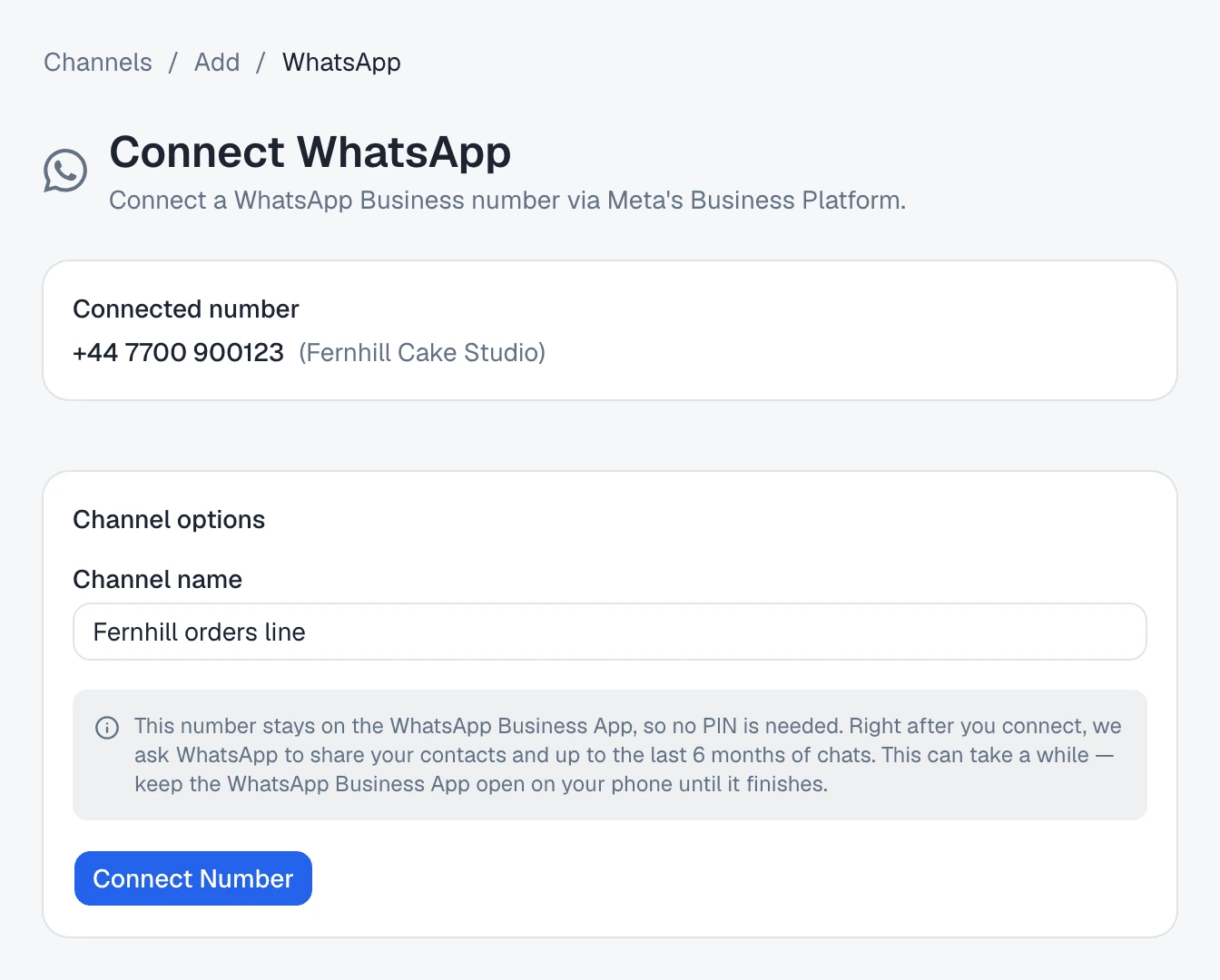
The next screen shows the Connected number and Channel options:
- Channel name is filled in as WhatsApp — +44 7700 900123. Change it to something your team will recognise — Fernhill orders line.
- A note explains what happens next: “This number stays on the WhatsApp Business App, so no PIN is needed. Right after you connect, we ask WhatsApp to share your contacts and up to the last 6 months of chats. This can take a while — keep the WhatsApp Business App open on your phone until it finishes.”
Press Connect Number.
Step 5: the connected screen
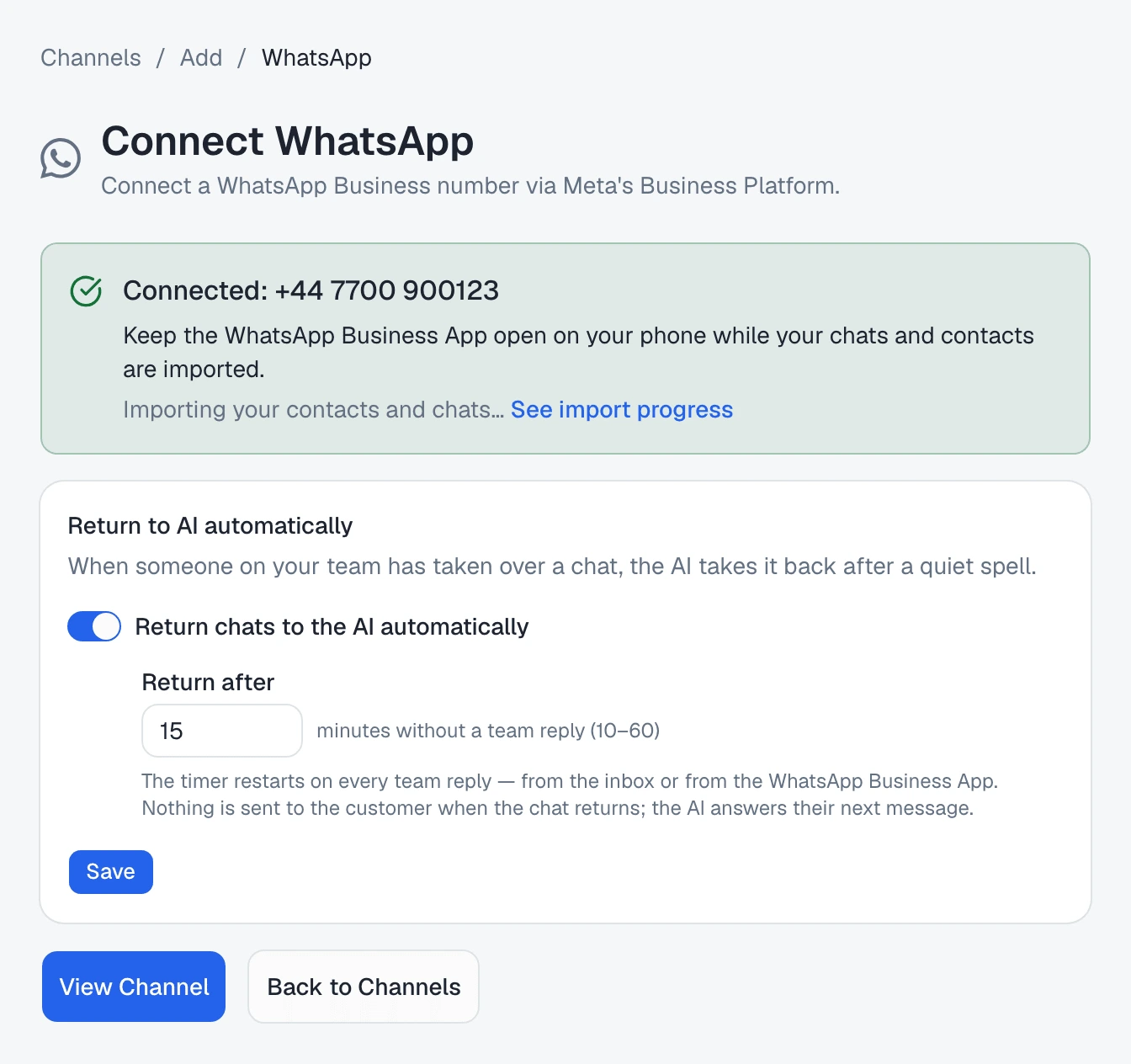
The page now reads Connected: +44 7700 900123, with one instruction under it:
Keep the WhatsApp Business App open on your phone while your chats and contacts are imported.
Under that is where the import stands — Importing your contacts and chats… at first — and a See import progress link to the channel’s page, where the full status lives.
Below it sits the Return to AI automatically card, already switched on at 15 minutes for this number. That is the setting that hands a chat back to the AI after you have answered it from the phone and gone quiet. You can change it here or any time later on the channel’s page; hand a conversation back to the AI explains what it does.
View Channel opens the channel; Back to Channels returns to the list.
What you see afterwards
- On /channels, the channel’s page has a card headed WhatsApp Business App: “This number stays on the WhatsApp Business App on your phone. After you connect, we ask WhatsApp once to share your contacts and up to the last 6 months of chats. The status of each is below.” Its last line repeats the 14-day rule.
- In /conversations, conversations on the number are labelled WhatsApp Business App rather than plain WhatsApp, and what you type in the app shows in the thread as yours.
- The AI starts answering once an agent is put to work on the number, the same as on any WhatsApp channel — put it to work covers that step.
If the connect page stops you
| What the page says | What to do |
|---|---|
| ”This number is still in use on the WhatsApp Business App. To connect it and keep using the app, start over and choose “Connect my WhatsApp Business App”.” | You answered No for a number that is in the app. Press Start over and answer Yes. |
| ”None of the numbers you shared with us is in use on the WhatsApp Business App. Try again and confirm the connection in the WhatsApp Business App on your phone, or use “Connect with Meta” for a number that is not on the app.” | Meta did not report the number as in the app — usually because the confirmation on the phone was not finished. Start again and confirm it in the app. |
| ”This number is already connected in another workspace. Disconnect it there first, or contact support if you don’t recognise it.” | One number connects to one workspace. Remove it from the other workspace first. |
Ask Octo instead
You can start from a sentence too. Tell Octo something like:
I want the AI to answer our WhatsApp, but I still need the WhatsApp Business App on my phone.Octo explains the same things the card does — the linked devices, the features that switch off, the group chats, the 14 days, and that the AI pauses when you reply from the app — and gives you the link to the connect page with Yes already chosen. The connection itself is always made by you, in Meta’s window: Octo cannot confirm anything on your phone.
Where to go next
- Bring your chats and contacts across — what the one-time import brings and how to read its status.
- When you reply from the phone, the AI steps back — what happens to a chat when you answer it in the app.
- Hand a conversation back to the AI — Return to AI now, the automatic setting, and asking Octo.
- When WhatsApp disconnects your number — each reason, and how to reconnect.
- The 24-hour rule still applies to Omni Octo’s messages: when a WhatsApp message has to be a template.