When a customer’s 24-hour window has closed, a template is the only message WhatsApp will deliver to them, and the inbox is the quickest place to send one. You pick the template, fill in its variables, check the preview and press Send, all without leaving the thread. When a WhatsApp message has to be a template explains the window and the categories. This guide covers the picker.
The running example: a Tidewater Laundry Co. customer asked about washing a
duvet last week, said she would get back to you, and has not written since. You want to confirm Tuesday’s slot with
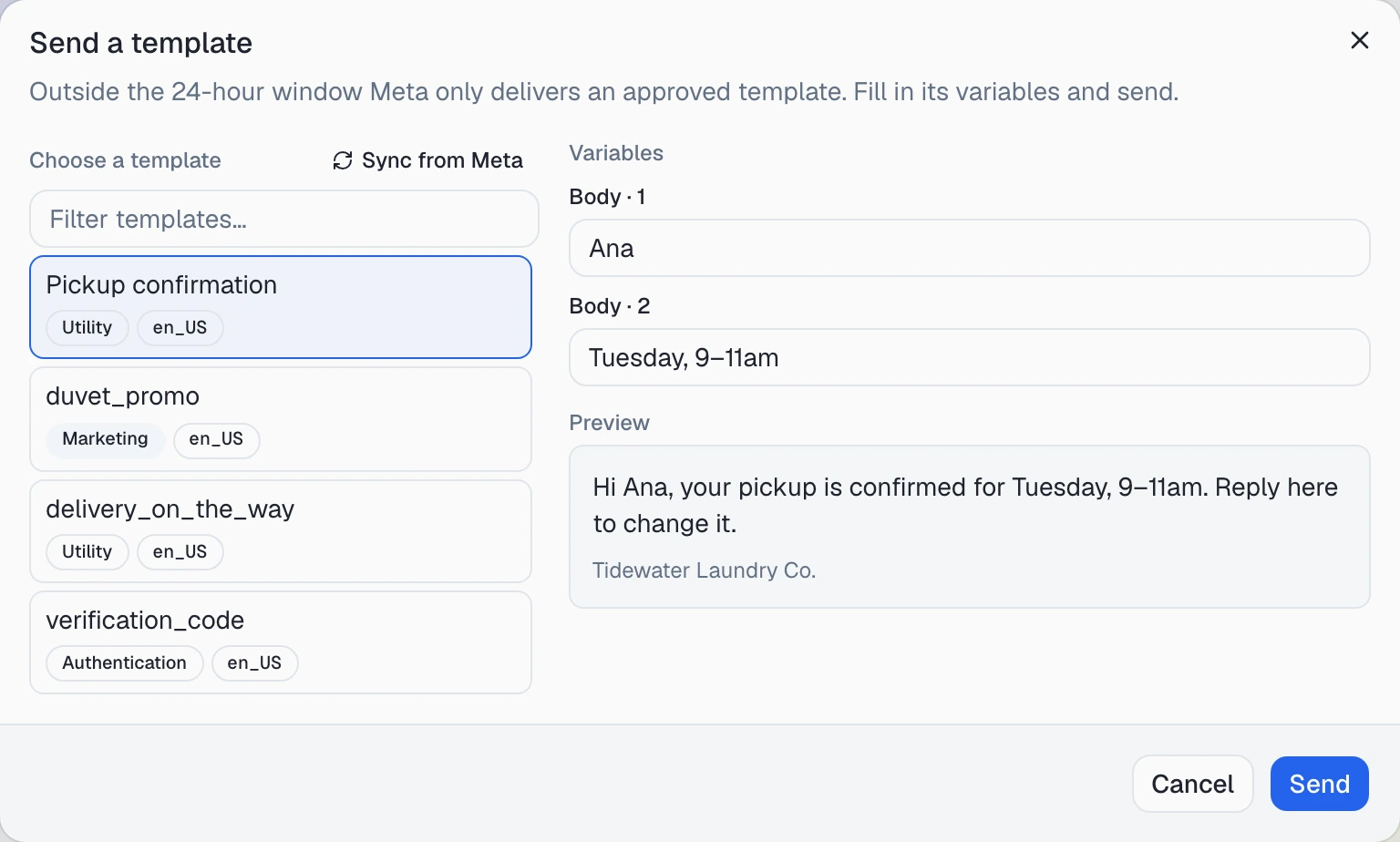
the approved utility template pickup_confirmation, whose body is
Hi {{1}}, your pickup is confirmed for {{2}}. Reply here to change it.
First, take over the conversation
The template controls sit in the human reply bar, and that bar only appears once a person is handling the thread. If an AI agent is handling it, the bottom of the conversation in /conversations shows “AI agent is handling this conversation.” and a Take over button. Press it.
The bar then shows “You are handling this conversation” with a Return to AI button beside it, and the reply box and its buttons below. From now on the AI agent does not answer this thread: the customer’s replies land in it for you to answer, until someone presses Return to AI.
Two ways to open the picker
Both open the same Send a template dialog.
- The template icon next to the reply box. It sits beside the attach button, and hovering over it shows Send a template. It appears on every WhatsApp conversation tied to one of your WhatsApp numbers, whether the window is open or closed. It is greyed out while a message is sending, when the contact has opted out, and while the channel is pending verification.
- The Send a template button on the closed-window banner. When the window has closed, the banner Send a template — Meta policy appears above the reply box and ends with a Send a template link.
The line under the dialog title changes with the window. When it is closed you see “Outside the 24-hour window Meta only delivers an approved template. Fill in its variables and send.”, and when it is open you see “Approved templates can be sent at any time, inside or outside the 24-hour window. Fill in the variables and send.” Why you might send one inside the window is in the first guide.
Choose a template
The left column, Choose a template, lists this conversation’s WhatsApp
number’s approved templates and nothing else. Pending, rejected and
paused templates do not appear, and neither do templates that belong to your
other numbers. Each row shows the template’s name, then two badges: its
category (Utility, Marketing or Authentication) and its language
code, such as en_US.
- Filter templates… narrows the list by name. If nothing matches you see “No templates match that filter.”
- Sync from Meta sits beside the list heading. If you have just finished a template in Meta’s WhatsApp Manager and Meta has approved it, sync pulls it in without leaving the thread. The result appears under the heading, for example Synced from Meta — 1 new, 5 updated (6 total). The template you picked and the values you typed are kept, unless the sync removed that template from the approved list.
- If the number has no approved templates, you see “No approved templates on this WhatsApp number yet.”, an Open templates → link to /templates/whatsapp, and the same Sync from Meta button. Get your templates into Omni Octo covers that side.
- Keyboard: the list is a single Tab stop. The arrow keys move through the rows and select as they go, and Home and End jump to the first and last rows.
Fill in the variables
Until you pick a template, the right column says “Pick a template on the left to fill in its variables.” Once you pick one, it lists a field under Variables for each part that needs a value:
| Field label | What to type |
|---|---|
Header · 1 | The text for a variable in a text header |
| Header image link (https) (or video, or document) | A public link to the file. It must start with https://, and anything else shows Must be an https:// link under the field |
Body · 1, Body · 2 … | One field per body variable. A named variable shows its name, as in Body · customer_name — only for a template written with named variables in WhatsApp Manager |
Button “Track pickup” · 1 | The end of a link button whose URL has a variable, such as an order number |
| Copy code for “Copy offer code” | The code a copy-code button hands to the customer |
For Tidewater’s pickup template, that means filling Body · 1 with
Ana and Body · 2 with Tuesday, 9–11am.
An authentication template’s code button has no field of its own. It
sends the same code you typed into the body, so you type
493817 once and the two cannot disagree.
Send stays greyed out until every field is filled and any header link
starts with https://.
Check the preview
Below the fields, Preview lays the message out the way WhatsApp does:
- Header: bold text, or the image loaded from your link. A video or document header shows a placeholder with the file name taken from the link.
- Body: your values filled in. Any field you have not filled yet still
shows as
{{2}}so you can see what is missing. - Footer: the template’s fixed line, in small text.
- Buttons: every button, in order, shown as pills under the message.
Marketing templates
If you pick a Marketing template, a note appears under the preview saying Meta may decide not to deliver it. You can still send it. When a WhatsApp message has to be a template explains why, and why a pickup time or a code belongs in a utility or authentication template instead.
Send, and what you see next
Press Send. The dialog closes, and the message appears in the thread as yours:
- The bubble shows the body text with your values filled in. The header, footer and buttons go to the customer but are not drawn in the bubble.
- Under it is a small tag, Template ·
pickup_confirmation, which marks the message as a template send and names the template it came from. - Next to the time is the usual delivery status. A single tick means sent, meaning Meta accepted it. A double tick means delivered, and it turns blue once the customer has read it. Hover over the tick to see which one it is.
The conversation stays with you. Returning it to the AI is up to you.
When a send is refused
The reason appears in red at the bottom of the dialog. The dialog stays open with the template you picked and the values you typed, so you can fix the problem and send again.
| What you see | What happened | Is a message left in the thread? |
|---|---|---|
| This number is sending too fast right now. Try again in 12 seconds. | The number’s short burst limit is full | No |
| This number has reached today’s WhatsApp template limit. Free-form replies still work; templates resume in 5 hours. | The number’s daily template cap is used up | No |
| Template ”…” is …, not approved; Meta will not deliver it. (with the template’s name and current status) | The template’s status changed after the list loaded | No |
| That template belongs to a different WhatsApp number than this conversation. | The template is not on this thread’s number | No |
| A sentence naming the part that did not fit, such as body expects 2 parameters, got 1 | The values do not match the template’s variables, header or buttons | No |
| Billing setup required | The workspace’s billing is not set up for sending | No |
| Recipient has opted out of this channel | The contact is on the Do Not Contact list | Yes, marked Blocked (opted out) |
| Meta’s own error text | Meta rejected the send | Yes, marked Blocked (the carrier rejected this message) |
The two sending-limit messages above are shown with example numbers. The real seconds and hours are counted from your number’s limits, which How fast one number can send explains. Every refusal marked “No” was stopped before anything reached Meta, so sending again is safe. When a blocked message is left in the thread, look at it before you press Send again, because another press is a new send.
A message can also fail later, after Meta accepted it. Its tick then turns into a red warning icon, and hovering over it shows Failed — this message was not delivered. That is how a marketing template Meta decided not to deliver shows up. Nothing is resent automatically.
What the picker will not do
- Upload a file. A media header takes an
https://link to a file that is already hosted somewhere. There is no upload in the dialog. - Mix a template with your own text or an attachment. The template is the whole message.
- Show templates that are not approved, or templates from your other WhatsApp numbers.
- Create or edit templates. That happens in Meta, and Sync from Meta brings the result in.
- Schedule a send. It sends now. To reach many people at once, see Send a template to a list.
Where to go next
- Send a template from your own system — the same send, from a script.
- Ask Octo to send a template — the same send, by asking in chat.
- How fast one number can send — the limits behind the two sending-limit refusals.