If support@ is a Google Group — an address that forwards to several people
rather than a mailbox somebody signs into — this is the path, and it is the one
Gmail option that asks nothing of your Workspace administrator.
How it works, because the shape explains the setup
There is no mailbox to authorise. A group is a distribution list, so the connection watches a member’s inbox instead and filters it:
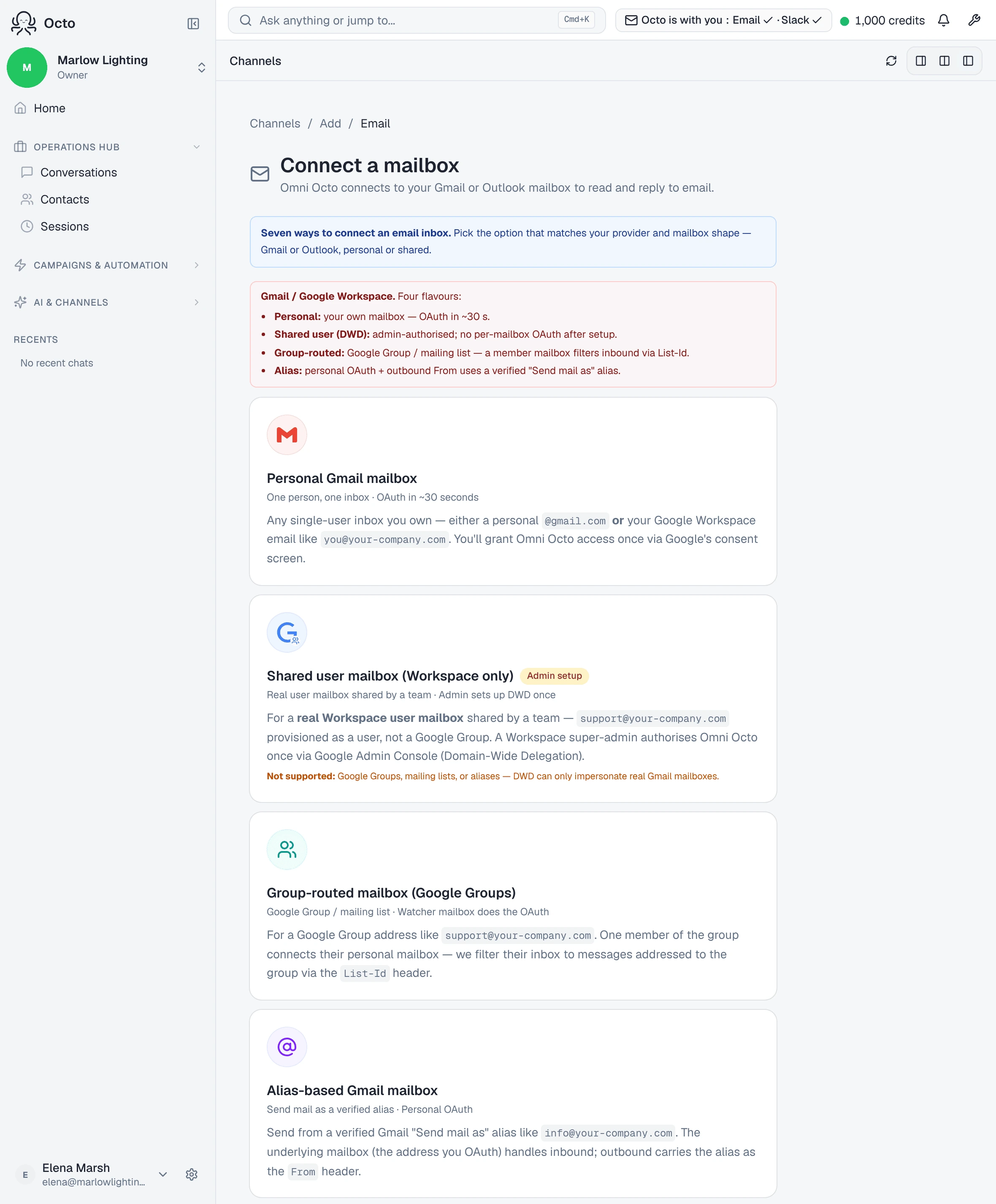
For a Google Group address like
support@company.com. One member of the group connects their personal mailbox — we filter their inbox to messages addressed to the group via theList-Idheader.
The step itself puts it in one line: “Monitor a Google Group via a member’s mailbox. Inbound is filtered by the List-Id header.”
Every message Google delivers to the group carries a List-Id naming the group.
That header is what separates group mail from the member’s own mail, so their
personal correspondence is not pulled into the dashboard.
The one requirement
The wizard cannot arrange this for you and says so:
Requirement: the member mailbox you connect MUST already be a member of the Google Group. If it isn’t, add it in Google Admin (or ask your Workspace admin) before continuing — the wizard can’t add it for you.
Adding a member to a group is an ordinary Google Groups action, not a Domain-Wide Delegation grant. If you manage the group yourself, you need nobody.
Which mailbox to connect
You can use any member’s mailbox, but there is a better answer:
Best when you want this mailbox to handle only group mail. We’ll OAuth it, mark it as a watcher, and suppress its personal mail from the dashboard. Works with personal Gmail (@gmail.com) and Google Workspace addresses.
A dedicated mailbox created solely to watch the group is the clean version: no personal mail to suppress, and nobody’s inbox gets tangled up in a shared workflow. If you use a real person’s mailbox, their own mail is suppressed from the dashboard rather than shown — but that mailbox is still the connection, so it leaving the company takes the connection with it.
What you type
Two addresses, and confusing them is the common mistake. The field is labelled Google Group address (what people email), and the hint is explicit:
The Google Group address (not the member’s personal address). You can paste “Name
<addr@host>” — we’ll extract the address.
The member’s address is the one you signed in with. The group address is the one customers write to.
Replies have to leave as the group
A reply that goes out as the member’s personal address defeats the point, so the member mailbox needs the group address configured as a verified “Send mail as” alias in Gmail. When it is not, the diagnostic is exact:
The member mailbox does not have the group address configured as a “Send mail as” alias.
Add it in Gmail Settings → Accounts on the member’s mailbox, verify it the way Gmail asks, and come back.
What it will not do
It does not import your existing mail. The watch starts at connect.
It only sees what Google delivers to that member. If the group is configured so a member does not receive copies, there is nothing in their inbox to watch and nothing will arrive.
Mail that skips the inbox is not seen. The watch is armed on INBOX, so a
filter that archives group mail on arrival hides it from the AI as effectively as
deleting it.