Every WhatsApp number in Omni Octo has a sending limit, and every way of sending from that number obeys it: the inbox, the API, Octo, workflows, surveys and campaigns. This page is what that limit is, who sets it, and what happens when a send meets it.
Tidewater Laundry Co. is the example again. It has one WhatsApp number. On a Monday morning it runs a campaign reminding 1,800 customers that pickups resume after the holiday, while two people in the inbox answer questions about duvets. Both keep working, and the reason is the split described below.
The defaults
A number nobody has configured sends at these rates:
| Window | Default | Counts |
|---|---|---|
| Per second | 5 | Every message |
| Per minute | 250 | Every message |
| Per day | 2,000 | Templates only |
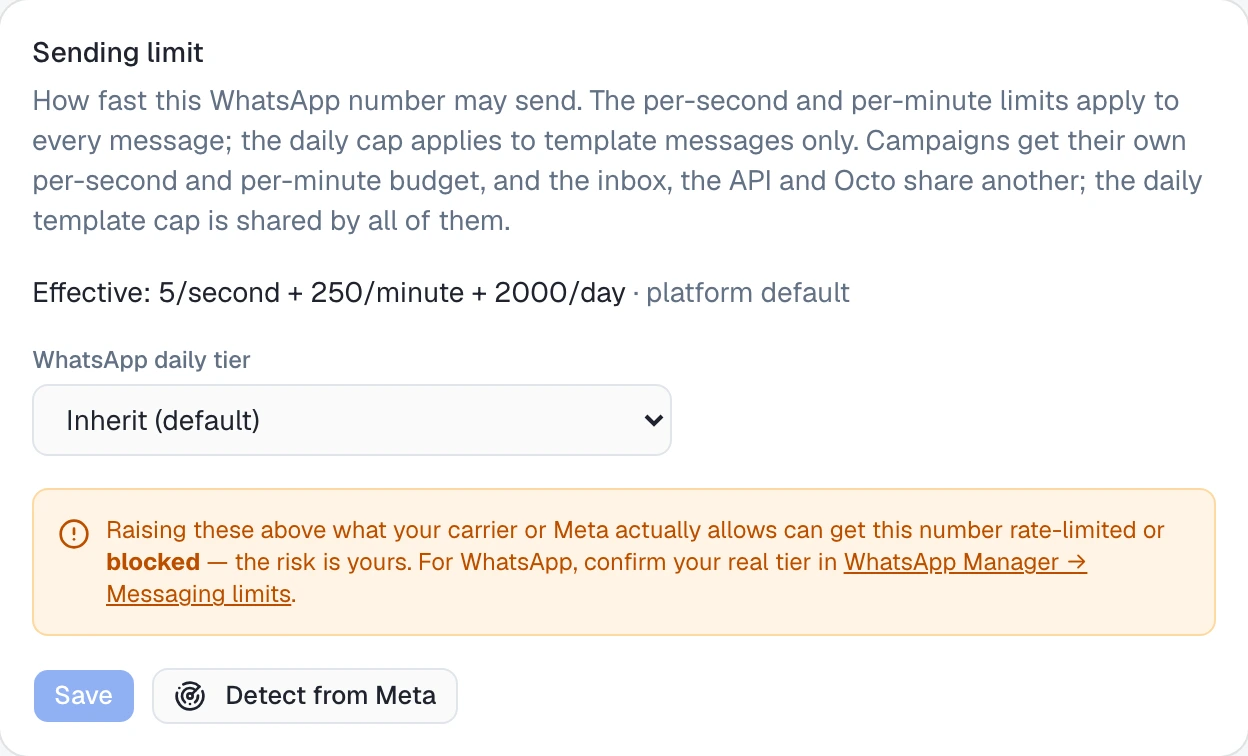
On the channel page this reads as Effective: 5/second + 250/minute + 2000/day · platform default. A platform rule for your number can also add a per-hour limit; it works like the per-minute one.
The per-second and per-minute limits are our pacing, applied to anything the number sends. The daily limit counts templates only, and it exists to follow Meta’s messaging tier (next section). A free-form reply inside the 24-hour window never counts toward it, so a number that has used its day of templates can still answer the people who write to it.
The daily cap and Meta’s messaging tiers
Meta limits how many people a number may start conversations with in 24 hours, and the limit depends on the number’s messaging tier. The tier Meta reports for a number is one of 50, 250, 1,000, 10,000, 100,000 or unlimited.
2,000 is not a Meta tier. It is the value we use when we do not know your number’s tier — high enough not to get in the way of ordinary use, low enough to stop a runaway send. If your real tier is 250, 2,000 is too generous; if it is 10,000, it is too tight. Either way, set it to your tier.
The daily cap is chosen from WhatsApp daily tier:
| Option | Meaning |
|---|---|
| Inherit (default) | Use a platform rule for this number if there is one, otherwise 2,000 |
| 250 / day … 100,000 / day | That many templates per day (250, 1,000, 2,000, 10,000, 100,000) |
| Unlimited | No daily cap; the per-second and per-minute limits still apply |
A value set some other way (a detected tier of 50, for example) shows as its own option, such as 50 / day.
Changing the daily tier changes the daily cap only. The per-second and per-minute limits stay as they were; there is no field for them in the app.
Where to change it
A number connected straight from Meta. Open it in /channels. The Sending limit card shows the effective limit and where it comes from: platform default, set on this channel, or from platform rule … when Omni Octo has a rule for your number’s prefix. Pick a WhatsApp daily tier and click Save.
Or click Detect from Meta. It asks Meta for the number’s current tier and saves the matching daily cap — Meta tier TIER_1K applied, for instance. If Meta does not return a tier, an error says so and nothing changes. Detection runs when you click it; it does not follow your tier afterwards, so click it again when your tier changes.
A number you bought through Omni Octo. The channel card says This number is one of your phone numbers. Set its sending limit on its phone number page. There, under Sending limits, the same WhatsApp daily tier list sits beside the SMS and call limits; Save limits stores it and Reset to default removes it. A limit set on the phone number wins over everything else.
Asking Octo. “Raise our WhatsApp number’s daily limit to 10,000” works too, for either kind of number.
Only a workspace owner or admin can change the limit, on any of these. On the channel page everyone else sees it read-only, with Only a workspace owner or admin can change the sending limit.; on the phone-number page their save is refused.
Both editors carry the same warning, and it is the one to take seriously:
Raising these above what your carrier or Meta actually allows can get this number rate-limited or blocked — the risk is yours. For WhatsApp, confirm your real tier in WhatsApp Manager → Messaging limits.
Raising the cap here does not raise Meta’s. It only stops us refusing first.
Two budgets for speed, one for the day
A campaign and everything else draw on separate per-second and per-minute budgets, each the size of the configured limit:
- Campaigns have one.
- Direct sends — the inbox, the API, Octo, surveys and workflows — share the other.
So Tidewater’s campaign sending as fast as the number allows does not slow a reply in the inbox by a second. The cost is that the two together can send at twice the configured rate: 10 a second at the default of 5.
The daily template count is one total per number. Every template counts toward it whichever door sent it. If the Monday campaign sends 1,800 templates on a 2,000-a-day number, the inbox has 200 templates left that day — and unlimited free-form replies to anyone whose window is open.
The warning above 40 a second
Meta’s default throughput for one number is 80 messages a second. When a number’s per-second limit is above 40, both editors show:
This number may send 50 messages a second. Campaigns and direct sends (the inbox, the API and Octo) each get this rate, so together they can exceed Meta’s default of 80 messages a second per number.
At the defaults you will not see it.
What each door does at the limit
| Where the send starts | At the per-second or per-minute limit | At the daily template limit |
|---|---|---|
| Campaign | Waits, and carries on when the window reopens | Waits for the next day |
| Inbox | ”This number is sending too fast right now. Try again in 12 seconds." | "This number has reached today’s WhatsApp template limit. Free-form replies still work; templates resume in 5 hours.” |
| API | 429, code rate_limited, Retry-After header | 429, code daily_limit_reached, Retry-After header |
| Octo | Tells you when to try again, instead of retrying on its own | The same, with the hours until reset |
| Workflow step | Retried automatically after the wait | Fails the step: “This number reached its daily WhatsApp template limit; it resets in N h” |
| Survey question | Asked again after the wait | Asked again after the wait |
A few details behind the table:
- The inbox keeps your text. The message appears under the reply box and the draft stays there, ready to send again.
- A short wait is absorbed. Outside a campaign, a per-second or per-minute limit that reopens within two seconds is waited out and the send goes through. Anything longer, and the daily limit, is refused straight away.
- A workflow waits up to five minutes. A refusal that clears within 300 seconds is retried after exactly that wait; anything longer — in practice the daily limit — fails the step.
- Both API codes carry
retryAfterSecin the body, equal to theRetry-Afterheader. Sending from your own system has the full response, and the API’s own per-workspace rate (300 calls a minute by default), which the inbox, Octo and campaigns never touch.
A refused send leaves no message
When the limit refuses a send from the inbox, the API or Octo, nothing reached Meta and nothing is recorded: no message appears in the thread, and there is nothing marked failed to clean up. If it was the first message to that number, the conversation itself is still created, empty. A refused template also uses up none of the day’s count.
What the limit does not do
- It counts messages, not people. Meta’s tier counts the people you start conversations with; we count every template. Three templates to one customer are one against Meta’s limit and three against ours. That errs on the safe side, but a number that often messages the same people will meet our cap before Meta’s.
- The day is a UTC day. It resets at midnight UTC, not at midnight where you are, and not 24 hours after your first send. Meta’s own window is a rolling 24 hours.
- A send Meta rejects still counts. The count is taken before the message goes to Meta. If Meta then refuses it — a marketing template it decides not to deliver, a bad variable — it has used a place in the day.
- It does not raise Meta’s limits. Meta can still refuse or throttle a number that is inside ours.
Where to go next
- When a WhatsApp message has to be a template — the 24-hour window and why free-form replies are exempt from the daily cap.
- Send a template to a list — the campaign that shares the daily count with everything else.
- Send a template from a conversation, from your own system, or by asking Octo.