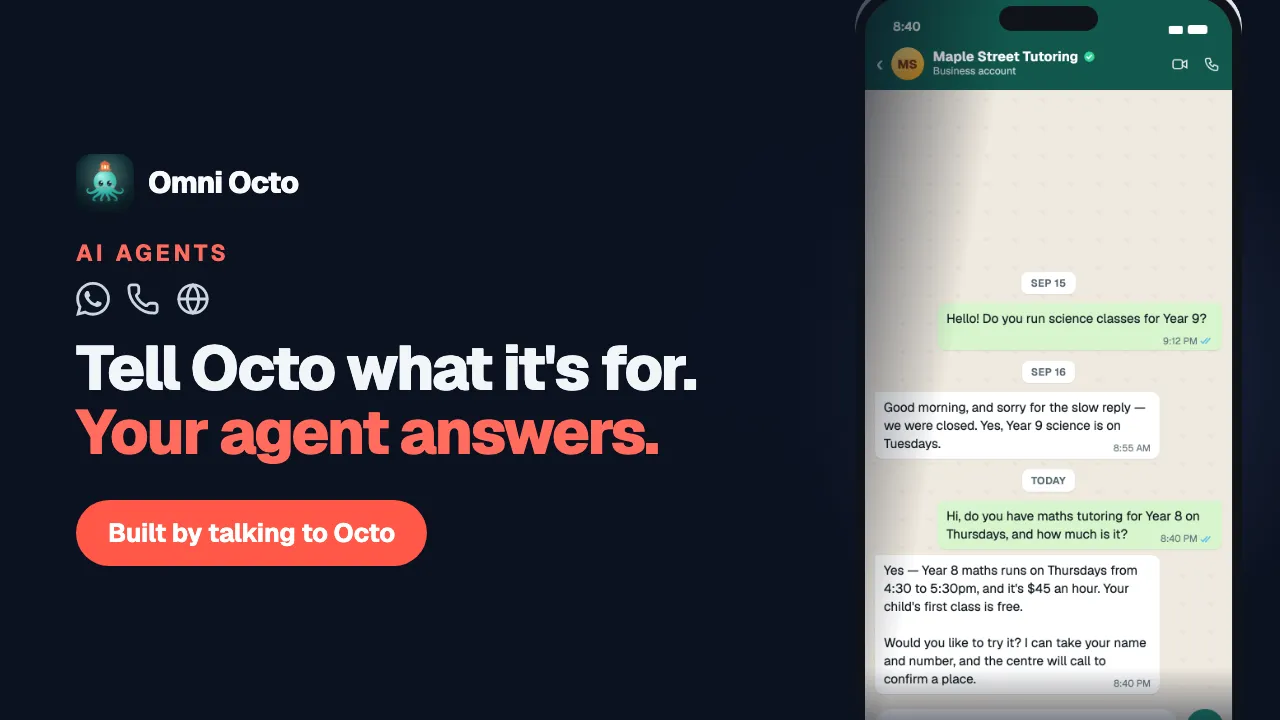
You do not fill in a form to make an agent. You tell Octo what it is for, the way you would brief a new member of staff, and it builds one with you — the instructions it follows, its greeting, its model — ready to test. The same conversation works whether the agent will answer the phone, WhatsApp or a chat bubble on your website.
The example is Maple Street Tutoring, an after-school tutoring centre: parents ask about classes and fees on the website and WhatsApp, call in, and get reminder calls before sessions.
Two ways in
| Where | What you click | What happens |
|---|---|---|
| /agents | Create New Agent | ”I want to create a new AI agent.” appears in Octo’s message box. Nothing is sent until you press send |
| /onboarding | a starting point, then Configure your agent | A short wizard with the fields already filled in. No conversation |
An empty /agents page shows the same button under No agents yet — “Chat with the meta-agent to create your first AI agent.” There is no blank form behind it.
/onboarding asks Welcome — what are you building? and offers four starting points — Outbound voice campaign, Inbound IVR / receptionist, Conversational support, Multi-channel agent. It then walks through a phone number or WhatsApp before Configure your agent, where Agent name, First thing your agent says and System prompt — how it should behave are already written for your business name. It gets you a working agent in a minute. Its instructions are a short starting paragraph, so afterwards tell Octo about your business, where you are, and your website, and it fills in the rest. The rest of this page follows the conversation.
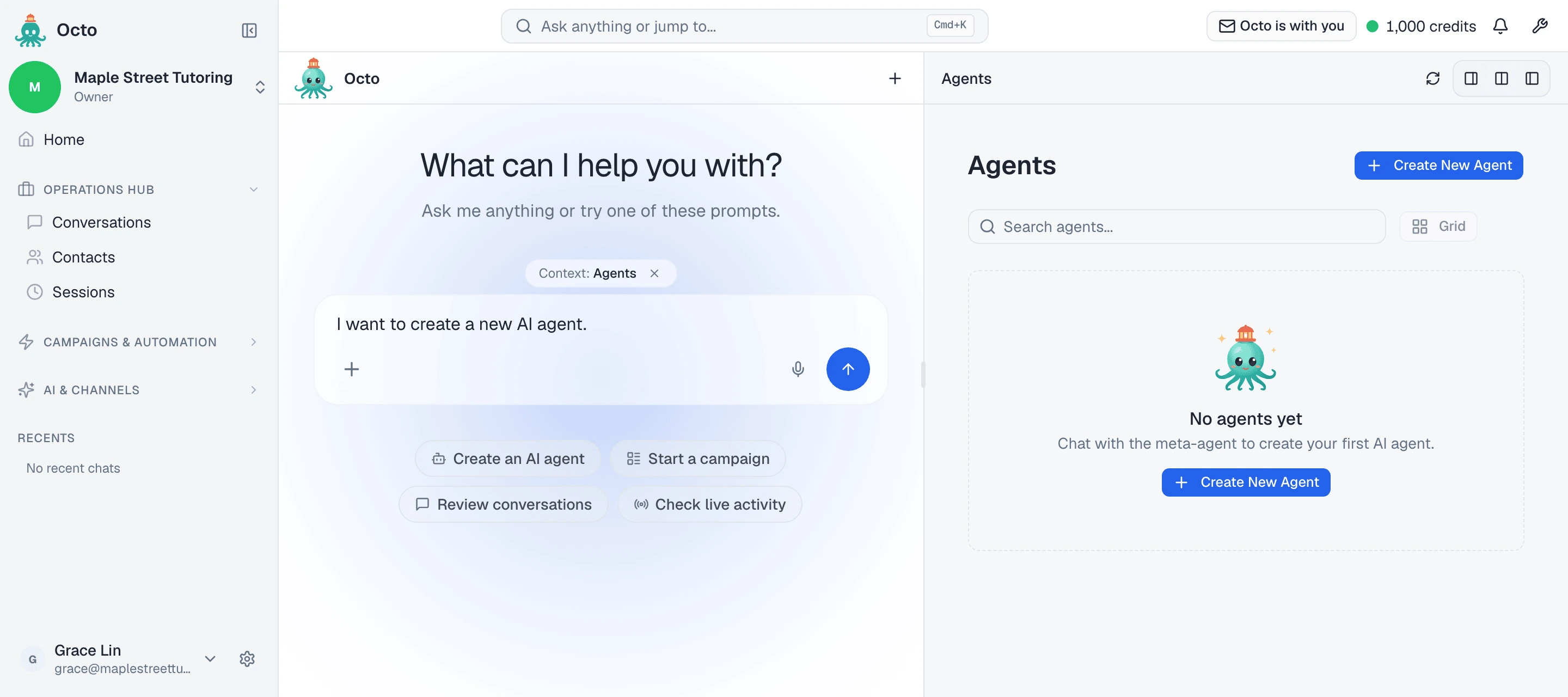
Say what it is for
One or two sentences is enough. Maple Street’s:
Answer parents’ questions about our classes, timetable and fees, and take their name and number if they want a call back about enrolling. Our website is maplestreettutoring.example.
Octo works through intake, design, configuration, generation and creation, telling you which part it is on. It asks two or three questions and decides the rest — a greeting, a model, sensible defaults — telling you what it chose rather than asking about each one.
What it asks about, when you have not already said:
- Your business and what the agent is for — support, reminders, qualifying enquiries, calling through a list, or something else.
- The language it should speak. For a phone agent, the language your callers speak — that sets how much a caller has to say before they can cut in while the agent is talking.
- Your website, if you want the agent to answer from it.
- Your mobile number, for a phone agent, so it can ring you for a test.
- Where you are.
The one thing it will not guess
Where you are. Octo asks for a city or a region on every agent, and it will
not fill it with a default. Answer with a place — Toronto, not
America/Toronto. If your country spans several time zones, you will be asked
which city.
It skips the question only when you have already made the answer obvious — an address in your first message, say — and then it tells you which zone it used.
On a phone call, that is how the agent works out what “tomorrow” and “next Wednesday” mean for the person on the line.
Read the instructions before anything is created
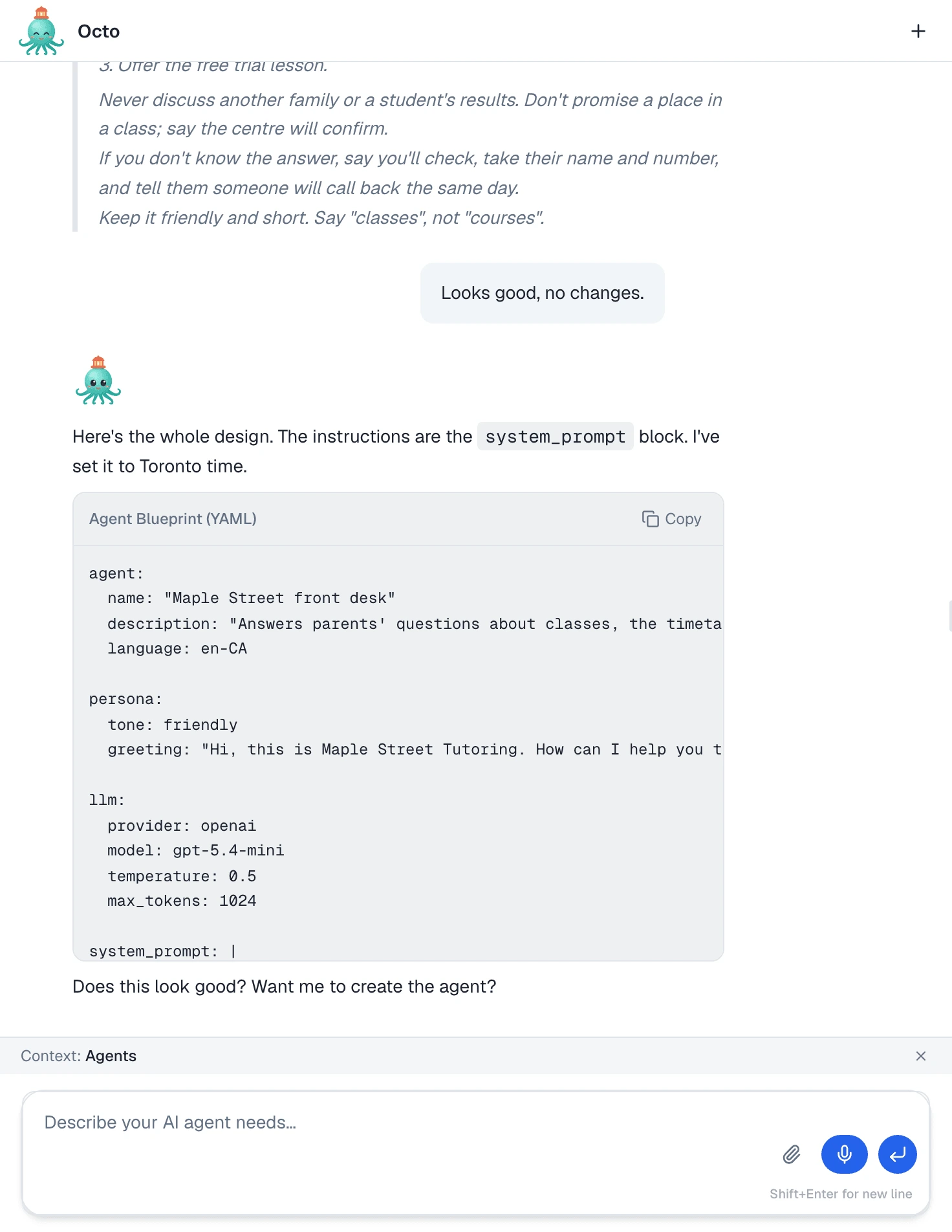
Octo will not create the agent until you have seen its instructions. It first writes a full draft of them in the chat, along with the greeting it has in mind, and asks whether you want anything changed. Say what is wrong in plain words; it redrafts.
When you are happy, it shows the whole design in one card, Agent Blueprint (YAML), with a Copy button, and asks whether to create it. The card is read-only. To change something, tell Octo; to go ahead, say yes.
Read the long block under system_prompt properly. That text is the
System Prompt — on the agent page it is described as “This drives every
reply.” Most surprises in a first test trace back to a sentence in it, or a
sentence missing from it.
Anything the agent should say or do goes in those instructions — that Maple Street closes at 7pm, how to answer a question about fees, what never to discuss. If it is not written there, or in the agent’s knowledge, the agent does not know it.
What comes back
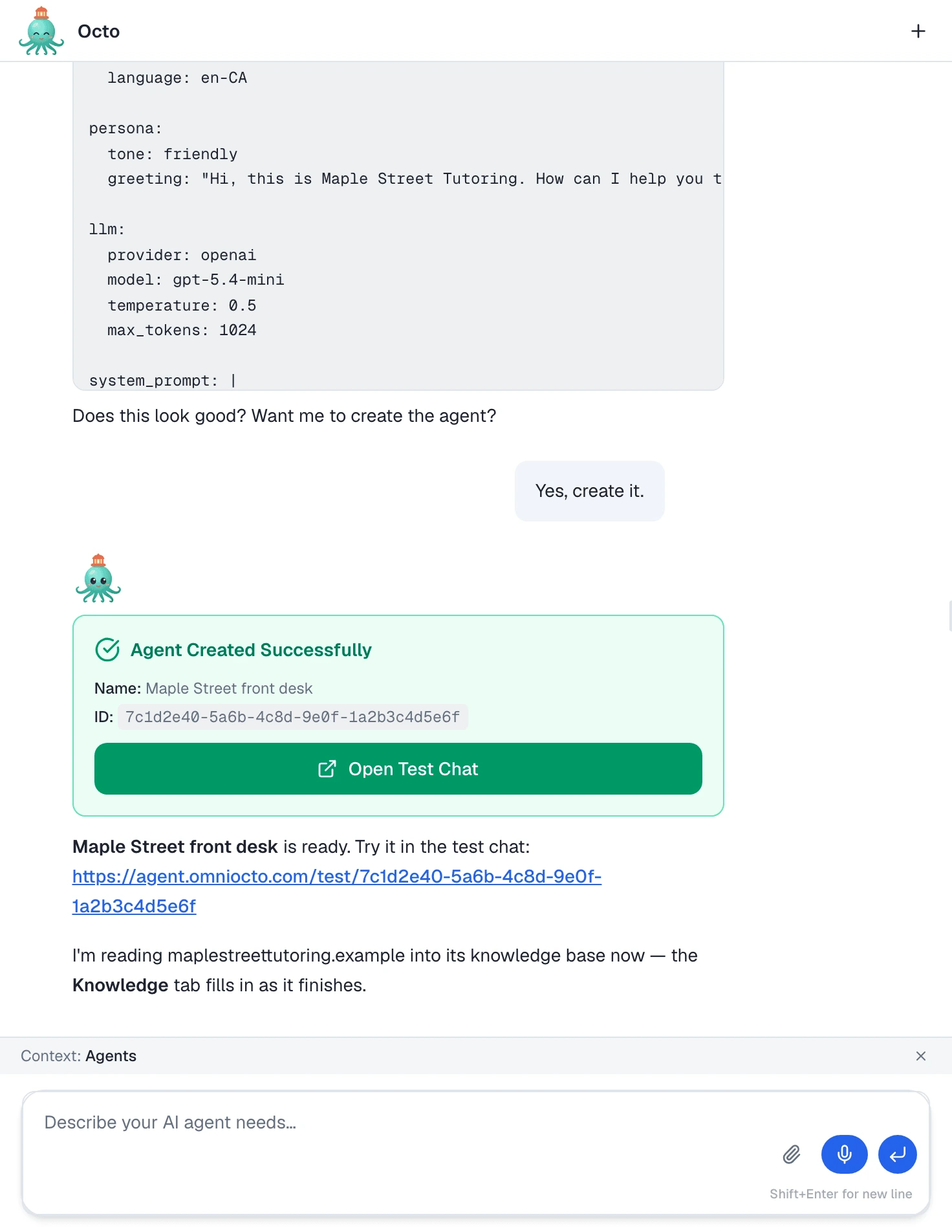
Say yes and Octo creates the agent. In the chat you get an Agent Created Successfully card with its name, its id, and an Open Test Chat button, and Octo gives you a test link to the same chat page. If the dashboard is open beside the chat, it moves to the new agent’s page on /agents.
Depending on what you told it, Octo then carries on:
- You gave a website — it starts reading it into the agent’s knowledge base. That runs in the background; the agent page’s Knowledge tab fills in as it finishes.
- The agent is for your website — it asks which platform your site is built on, builds a chat widget in your site’s colours, and gives you a preview link and the code to paste.
- The agent is for the phone — it can ring the mobile number you gave it, so you hear the agent on a real call rather than reading about it.
A new agent starts Enabled; that is the switch at the top of its page. It is not yet on any channel, so no customer can reach it — putting it on the phone, WhatsApp or your website is its own step.
Where everything landed
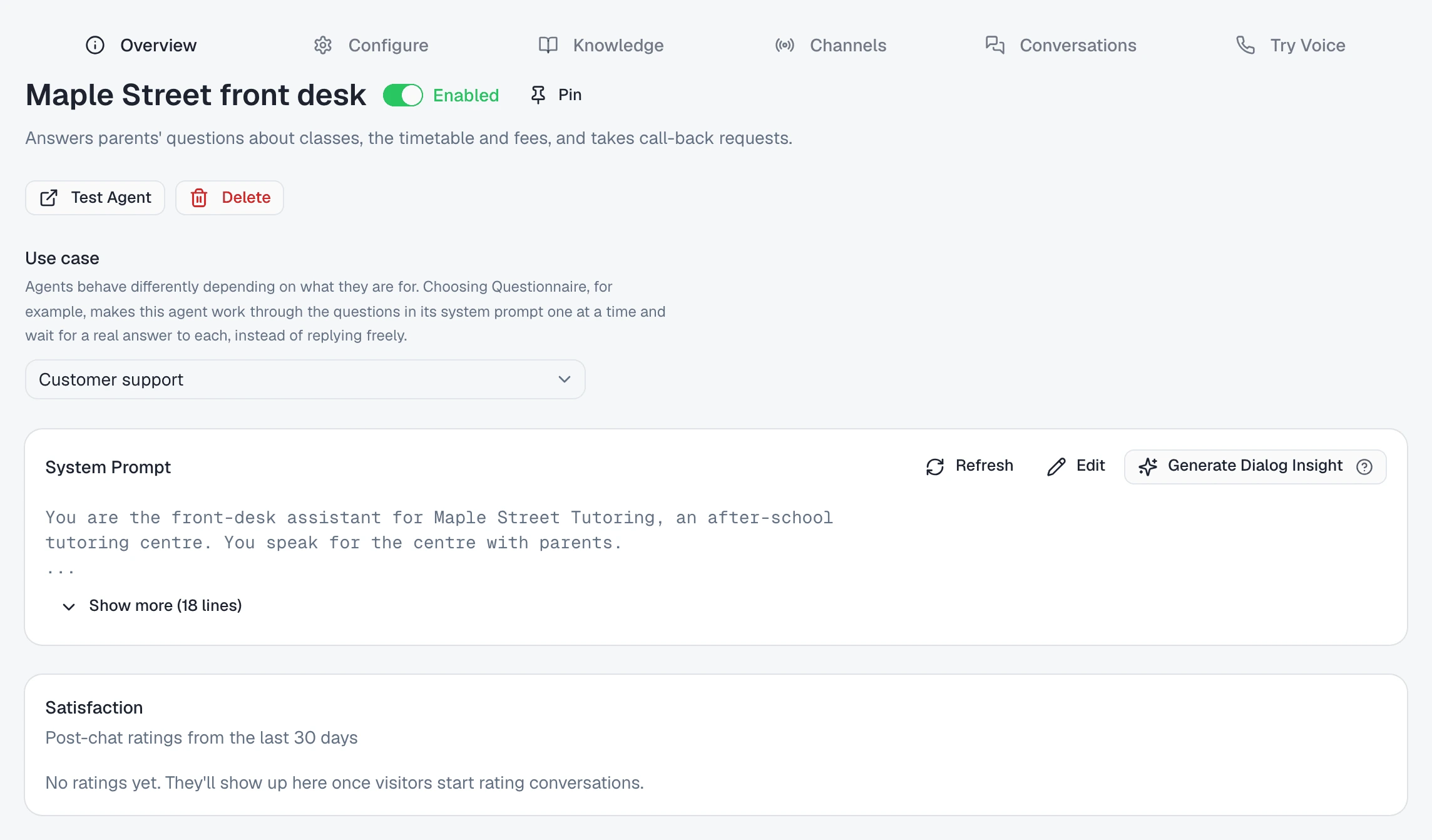
Open the agent from /agents. Its page has six tabs:
| Tab | What is there |
|---|---|
| Overview | The on/off switch, Test Agent, Delete, Use case, the System Prompt card with Edit and Generate Dialog Insight, and Satisfaction |
| Configure | Agent Name, Greeting, Tone, Text Chat LLM, Voice Chat Settings, and After a conversation ends for Dialog Insight. Save Changes saves the form |
| Knowledge | The pages and files it answers from — your crawled website, if you gave one |
| Channels | Where it is deployed: website chat widgets, phone numbers, other channels |
| Conversations | ”End-user conversations for this agent will appear here.” |
| Try Voice | Start mic test in the browser, Call My Phone, Dial This Number |
Most of it can also be changed by asking Octo — “make the greeting shorter”, “mention the free trial lesson”. After Octo edits the instructions, Refresh on the System Prompt card shows the new version.
Next
The rest of this set picks up from the agent page:
- Teach it what to say and how to behave — writing the instructions and the greeting, and changing them as you go.
- Give it your business knowledge — timetables, fees, policies, and the website it was built from.
- Test it before your customers do — the test chat, the mic test, and a real call.
- Put it to work — on the phone, on WhatsApp or on your website.
For a phone agent end to end, set up an AI phone receptionist follows the same conversation with the phone-specific steps.