Most apps in the directory connect by signing in. You click a card, sign in to the app in a window that opens, and tick the tools your agents may use. There is nothing to copy and no key to paste.
Copperleaf Bike Works keeps its service price list in Notion. Its front-desk agent, Copperleaf Front Desk, should be able to look up what a service costs while it talks to a customer.
Apps that sign in
These cards carry the Sign in label. Open them from Add integration on /integrations, from Popular apps, or from See all apps (/integrations/apps).
| App | What the card says |
|---|---|
| Notion | ”Look up and update pages and databases.” |
| HubSpot | ”Find contacts and deals, log notes.” |
| Airtable | ”Search and add records.” |
| Stripe | ”Customers, payments and invoices.” |
| Square | ”Orders, customers and bookings.” |
| Make | ”Your Make scenarios as tools.” |
| Linear | ”Create and track issues.” |
| Asana | ”Tasks and projects.” |
| Jira & Confluence | ”Issues and team pages.” |
| Slack | ”Post updates to your channels.” |
Zapier signs in too, and so does Zendesk through it: see Connect through Zapier. The Google cards have their own guide: Connect Google Sheets, Calendar, Docs, Drive and Chat.
Sign in
Click the card. A panel opens, titled “Connect Notion”, with the card’s line under it and one question:
“How do you want to connect?”
Each way the app offers is a card. For Notion there is one, Sign in with Notion — “A window opens. Nothing to copy.” Some apps offer more:
| Card | Apps | What you do |
|---|---|---|
| Sign in with the app | All of the above | Sign in to the app in the window that opens |
| Personal access token | Airtable | Paste a token you made in the app: “Create one at airtable.com/create/tokens with access to the bases your agents need.” |
| Server URL with token | Make | Paste the server address, with its token in it |
| Through Zapier | HubSpot, Airtable | ”Guided steps with your Zapier account.” See Connect through Zapier |
Press Sign in with Notion at the bottom of the panel. The app’s own sign-in page opens in a window. Sign in with the account whose pages your agents should reach, and allow access. The window then says “Connected. You can close this window.”, and the panel moves on to choosing tools.
The integration takes the app’s name, Notion. You can rename it later on its Settings tab.
When the app asks for your own app
HubSpot and Asana may not register an app for us. The panel warns you first:
“HubSpot may ask you to create your own app first. If it does, we show the address to paste into it.”
If it does, the panel asks you to create an app in HubSpot, and shows Address to add to your app’s allowed redirect addresses with a Copy button. Add that address to your app, then fill in App ID and, if your app has one, App secret (“Leave empty if your app has no secret.”). Press Sign in with HubSpot again.
When sign-in doesn’t finish
Nothing is connected until the window says so. What it can say instead:
| It says | What to do |
|---|---|
| ”The sign-in was cancelled. Nothing was connected.” | Start again and finish signing in |
| ”The app didn’t accept the sign-in. Nothing was connected. Try again from Integrations.” | Try again; check the account has access to what you are connecting |
| ”This sign-in link has expired or was already used. Nothing was connected. Start again from Integrations.” | Start again from the card |
| ”Finish signing in from the browser where you started, signed in as the same person. Nothing was connected.” | Sign in from the same browser and Omni Octo account you started in |
| ”This server’s sign-in doesn’t meet the security we require.” | The app can’t connect by signing in; use another way on its card if it has one |
| ”The server didn’t answer within 15 seconds. Try again.” | Try again in a minute |
If you closed the window halfway, the app may already be in your list with nobody signed in. Its card now says Added, and opens the integration’s Authentication tab: “No one has signed in to Notion yet.” Press Sign in there.
Choose the tools to keep
Once you are signed in, the panel lists everything the app offers. It is titled Choose tools:
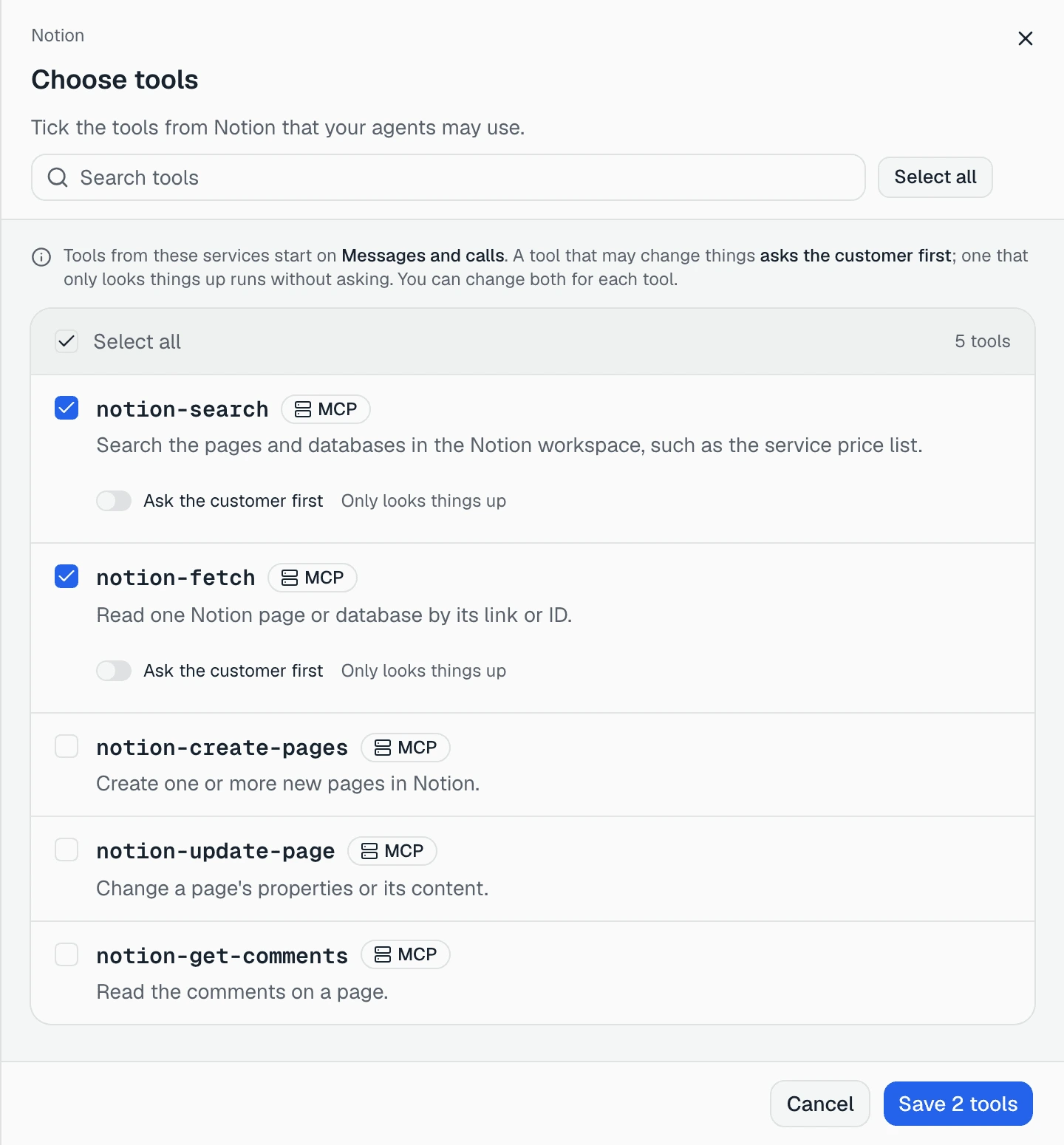
“Tick the tools from Notion that your agents may use.”
Each tool shows the app’s own name for it and what it does. Search tools narrows the list, and the box’s header ticks or clears all of them at once. One line explains how they start:
“Tools from these services start on Messages and calls. A tool that may change things asks the customer first; one that only looks things up runs without asking. You can change both for each tool.”
Under each ticked tool is a switch, Ask the customer first. A tool that just reads says Only looks things up. Turn the switch off on a tool that may change things and it warns you:
“This tool may change things in Notion. The agent will run it without asking the customer.”
Leave it on unless you are sure. How the customer says yes is in Changes the customer confirms.
Some tools can’t be ticked, and say why, for example “This tool’s inputs can’t be described to the AI model, so an agent can’t use it.” You can add up to 100 tools at a time.
The button counts what you ticked: Save 2 tools. Copperleaf keeps two Notion tools that search and read pages, and nothing that edits them.
If the app has no tools yet, the panel says “The server has no tools yet. Add tools to it where you manage the server, then check again.”, with Check again. You can also close the panel without choosing. The app stays connected, and you choose tools later on its Tools tab.
Give the tools to an agent
The last step says “Notion is ready” — “2 tools added. Give them to an agent next.” — and “Connected as Notion.”
Under Give these tools to an agent is a button for each of your agents. Copperleaf Front Desk opens that agent’s Integrations tab with the Add dialog already open on Notion. Tools do nothing until an agent has them: see Give an agent tools from your other systems.
Done closes the panel and opens the new integration.
The integration’s page
Every integration has the same five tabs.
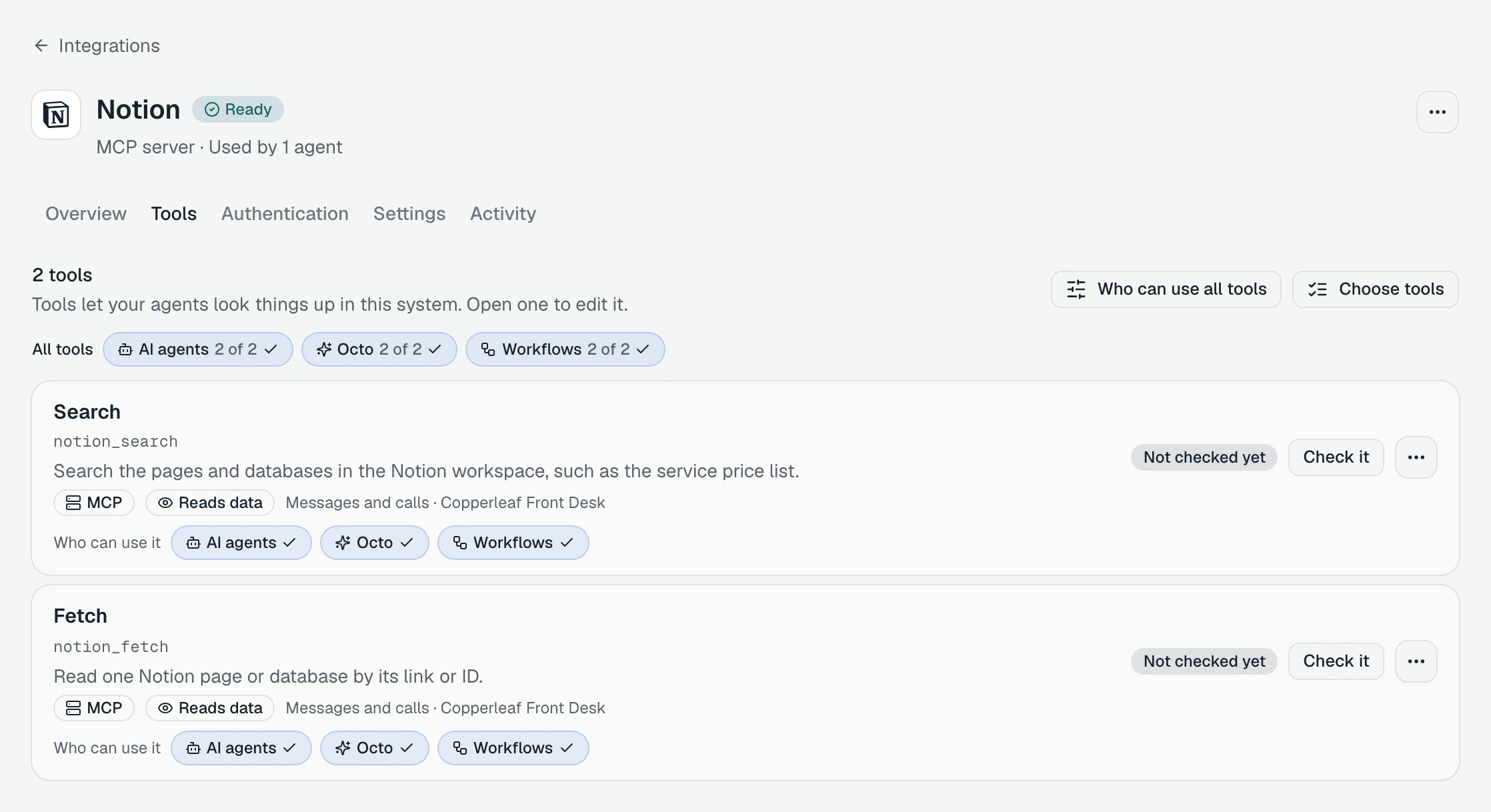
| Tab | What it shows |
|---|---|
| Overview | Key: whether the sign-in works, and the default account. Used by: how many agents and workflows use it. Whether Octo uses it |
| Tools | Every tool you kept, what it does, where it is used and which agents have it |
| Authentication | The accounts signed in, Check connection now, and Sign in with another account |
| Settings | Name, Server address, Sign-in settings, and Octo can use this integration |
| Activity | Calls: each time an agent, a workflow, Octo or a check used a tool, over the Last 7 days. Changes: “The last 50 changes, newest first.” |
The menu beside the integration’s name has Refresh tools (“List the server’s tools now. A changed tool pauses until you review it.”), Check connection now, Turn off and Delete….
Turn tools on or off
On the Tools tab, each tool is a card with its name, the app’s own name for it, a Reads data or Makes changes label, where it is used (Messages and calls), and which agents have it, or “not on any agent”.
| To | Do this |
|---|---|
| Add more of the app’s tools, or drop some | Choose tools. Untick a tool you have and it says Comes off when you save |
| Stop agents using a tool for now | The tool’s menu, Turn off — “Agents stop using it. You can turn it back on.” |
| Remove a tool for good | The tool’s menu, Delete… |
| Keep a tool from agents, Octo or workflows | The tool’s AI agents, Octo or Workflows switch, or Who can use all tools |
Dropping a tool that agents use asks first: “Remove a tool agents use?”, and names the agents.
Open a tool to change how it behaves: When should the agent use this?, and under Safety and availability, Ask the customer first and Use on (Messages, Calls). Under What the agent needs to ask for, Fill in automatically lets you give an input a fixed value, or an agent value, so the agent stops asking for it.
If the app changes a tool on its side, the tool says “Paused: changed on the server” with Review change. See When an integration needs you.
A second account
To add another account to the same app, open its card again. It now says Added, and opens the Authentication tab, where Sign in with another account adds it. Each agent can then use a different account: see Give an agent tools from your other systems.
Slack
Slack signs in the same way, with Sign in with Slack, but it is for workflows: “Workflows use this sign-in to reach Slack. Agents don’t.” Its card says “Used by: Workflows”. See Use integrations in workflows, or set them up with Octo.