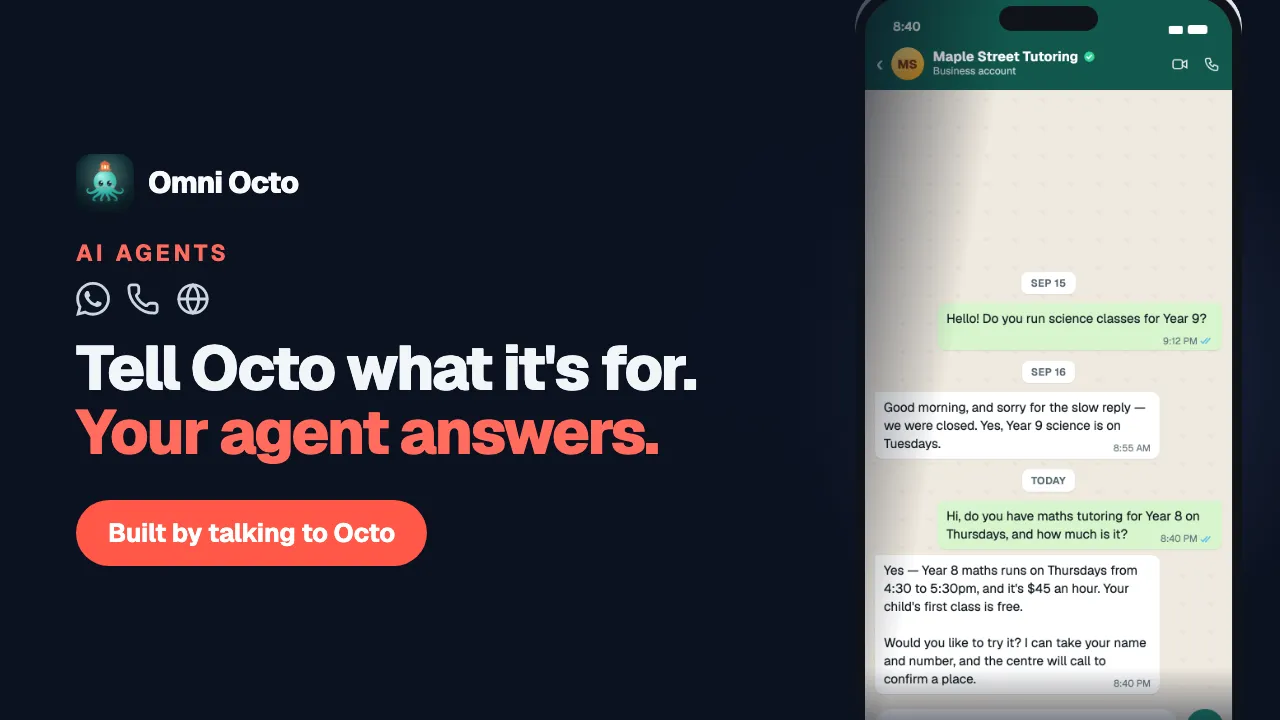
Three things on the agent page decide what an agent says: its instructions, its greeting, and its use case. The instructions do almost all of the work. They are the same text whether the agent answers the phone, WhatsApp or the chat bubble on your website, so you write them once.
The example is Maple Street Tutoring again, the after-school tutoring centre.
The instructions
Open the agent from /agents. On Overview, the System Prompt card shows the first three lines; Show more opens the rest.
| Button | What it does |
|---|---|
| Edit | Turns the card into a text box, with “This drives every reply.” underneath |
| Save | Saves the text. You see System prompt updated |
| Cancel | Closes the box without saving |
| Refresh | Loads the latest version — use it after Octo has changed the instructions from the chat |
The box cannot be saved empty (System prompt can’t be empty). The next conversation uses what you saved.
What to put in them
Octo writes a first version when it builds the agent, following its own checklist. Use the same order when you edit:
- Who it is and who it speaks for — “the front desk of Maple Street Tutoring”.
- What it is there to do, in two or three sentences.
- What it can help with — the questions it answers, the details it collects.
- What it must not do — topics to steer away from, promises it cannot make.
- What to do when it cannot help — take a name and number, offer a call back.
- How it should sound — warm, brief, formal, the words your business uses.
- Everything specific to you — opening hours, which fees it may quote.
Rules like “we close at 7pm on weekdays” or “don’t discuss individual students’ results” belong in this text. If it is written here, or in the agent’s knowledge, the agent knows it.
Write out the conversation you want. If it should ask something first — a child’s school year before recommending a class — say so, as a short numbered flow.
Say what to do when the answer isn’t there. Give the agent a move to make instead of guessing:
If a parent asks something you can’t answer from these instructions or the knowledge base, say you’ll check, take their name and phone number, and tell them the centre will call back the same day.
For an agent with a knowledge base, the card’s hint suggests “Answer using the knowledge base; if it’s not covered, say you don’t know.”
Write exact wording where it matters. On an outbound call, if your instructions give an exact closing line, the agent says it word for word before it hangs up.
Spend the words on your business. A phone agent is already told to keep replies short and to say numbers and dates aloud properly.
A Maple Street excerpt
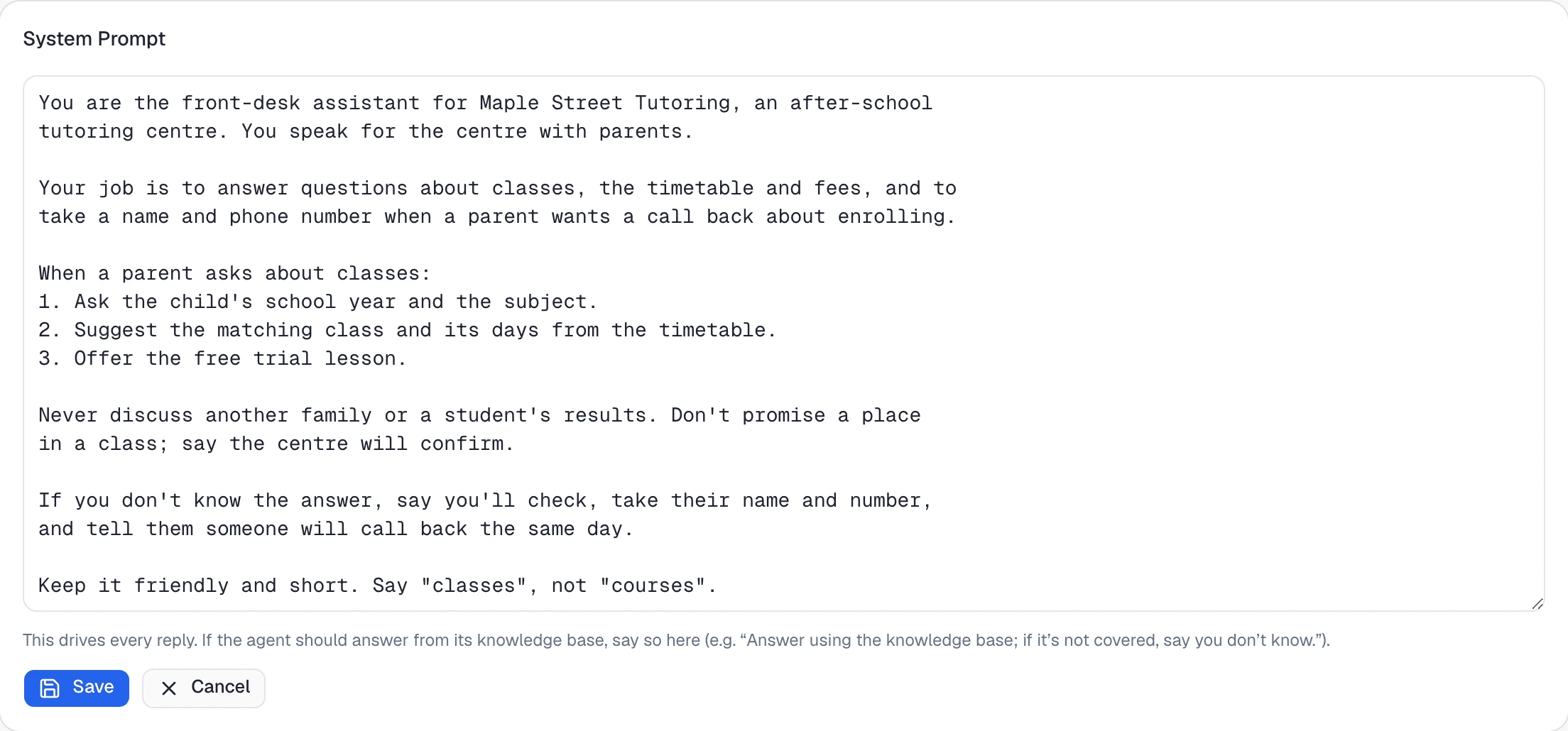
You are the front-desk assistant for Maple Street Tutoring, an after-school
tutoring centre. You speak for the centre with parents.

Your job is to answer questions about classes, the timetable and fees, and to
take a name and phone number when a parent wants a call back about enrolling.

When a parent asks about classes:
1. Ask the child's school year and the subject.
2. Suggest the matching class and its days from the timetable.
3. Offer the free trial lesson.

Never discuss another family or a student's results. Don't promise a place
in a class; say the centre will confirm.

If you don't know the answer, say you'll check, take their name and number,
and tell them someone will call back the same day.

Keep it friendly and short. Say "classes", not "courses".
Use case
Above the System Prompt card is Use case — “Agents behave differently depending on what they are for.” It saves as soon as you pick one (Use case updated):
| Use case | When it fits |
|---|---|
| Customer support | Answers questions and sorts out problems for people who get in touch. |
| Outbound calling | Calls through a list of people for a specific purpose. |
| Appointment reminders | Confirms, moves or cancels a booking that is already made. |
| Lead qualification | Works out whether someone is a fit before passing them to a person. |
| Questionnaire | Asks a fixed list of questions one at a time and records each answer. |
| Custom | Something else. Nothing extra is added to how it behaves. |
Questionnaire changes how the agent talks. It works through the questions in your instructions one at a time and waits for a real answer to each; if an answer is unclear it explains the question and asks again; if the person drifts off topic it acknowledges them and comes back to the list; and when every question is answered it thanks them and finishes rather than starting over. This applies on every channel, calls included.
For a questionnaire, write the questions as a numbered list in the instructions, in the order you want them asked.
Generate Dialog Insight on the System Prompt card turns those questions into fields; when you change the questions, generate it again so the fields match. Configuring a Dialog Insight covers the rest.
The greeting
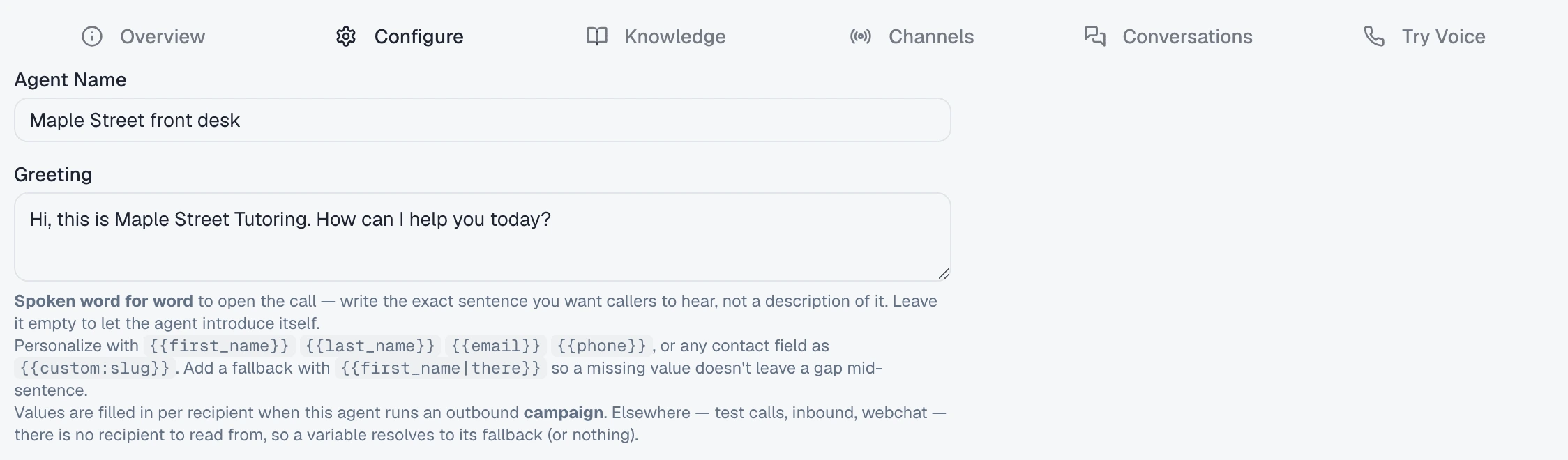
On Configure, Greeting is the agent’s opening line. The hint under it starts: “Spoken word for word to open the call — write the exact sentence you want callers to hear, not a description of it. Leave it empty to let the agent introduce itself.” So write the sentence itself:
Hi, this is Maple Street Tutoring. How can I help you today?
In the test chat and your website chat, the greeting is the first message in the window, unless the widget is set to show a rich opener instead.
Personalise it for calls to a list with {{first_name}}, {{last_name}},
{{email}}, {{phone}}, or any contact field as {{custom:slug}}. Add a
fallback after a bar — {{first_name|there}} — so nobody hears a gap:
Hi
{{first_name|there}}, this is Maple Street Tutoring calling about tomorrow’s session.
The values are filled in per person when the agent runs an outbound campaign. On a test call, an inbound call or webchat there is nobody to read them from, so the agent says the fallback — “Hi there”.
Press Save Changes at the bottom of Configure to keep it.
Changing it by asking Octo
Everything above can also be changed in the chat. Name the agent and say what you want:
- “On the Maple Street agent, add that we’re closed on public holidays.”
- “Make the greeting shorter.”
- “Set the Maple Street feedback agent to Questionnaire.”
Octo saves the change; press Refresh on the System Prompt card to see it.
Before a big rewrite
Copy the whole System Prompt into a document first — saving replaces the text, and your copy is how you get back to a version that worked. Then change one thing at a time and test it before your customers do.
Next
Give it your business knowledge for the timetables and fees it answers from, then put it to work — or, for a phone agent end to end, set up an AI phone receptionist.