Bayside Express Car Wash texts its customers most weekends: $5 off any wash this weekend, or Unlimited Wash Club: first month $19.99. One message, the same for everybody apart from the first name, to a list of 1,240 people. In Omni Octo that is an SMS campaign. This page follows one from an empty draft to the report.
You can build it two ways. They end in the same place, and neither sends anything until you confirm the exact count and cost:
- Ask Octo. Describe the send in the chat. Octo drafts the campaign and shows you a confirmation card.
- Use the editor. /campaigns → New Campaign → SMS / MMS, and fill in the sections yourself.
Before the first send
Three things have to be in place. A missing one is the usual reason a first campaign will not start.
- A number that can text. Text campaigns send from a phone number that is Cleared to send under /phone-numbers. A number marked Registration in review cannot send campaigns yet. US carriers usually take 1–3 weeks to review it. A separate guide in this set covers getting a texting number, either through 10DLC registration or by bringing your own Twilio number.
- Contacts with phone numbers. In /contacts, as a saved list, or as a segment in /segments if the audience is a rule (“washed in the last 90 days”) rather than a fixed list.
- Credits, and a card on file if you send from the trial number or want a test text.
Start from Octo
Open the Showroom at /showroom. It is also in the command palette (Cmd+K). Pick Text messages, “Text your customers in one go, and your agent answers what they text back”. The first card is Text a promotion to your customer list:
One message to a list. You see the cost before it goes out, and replies come back to Conversations.
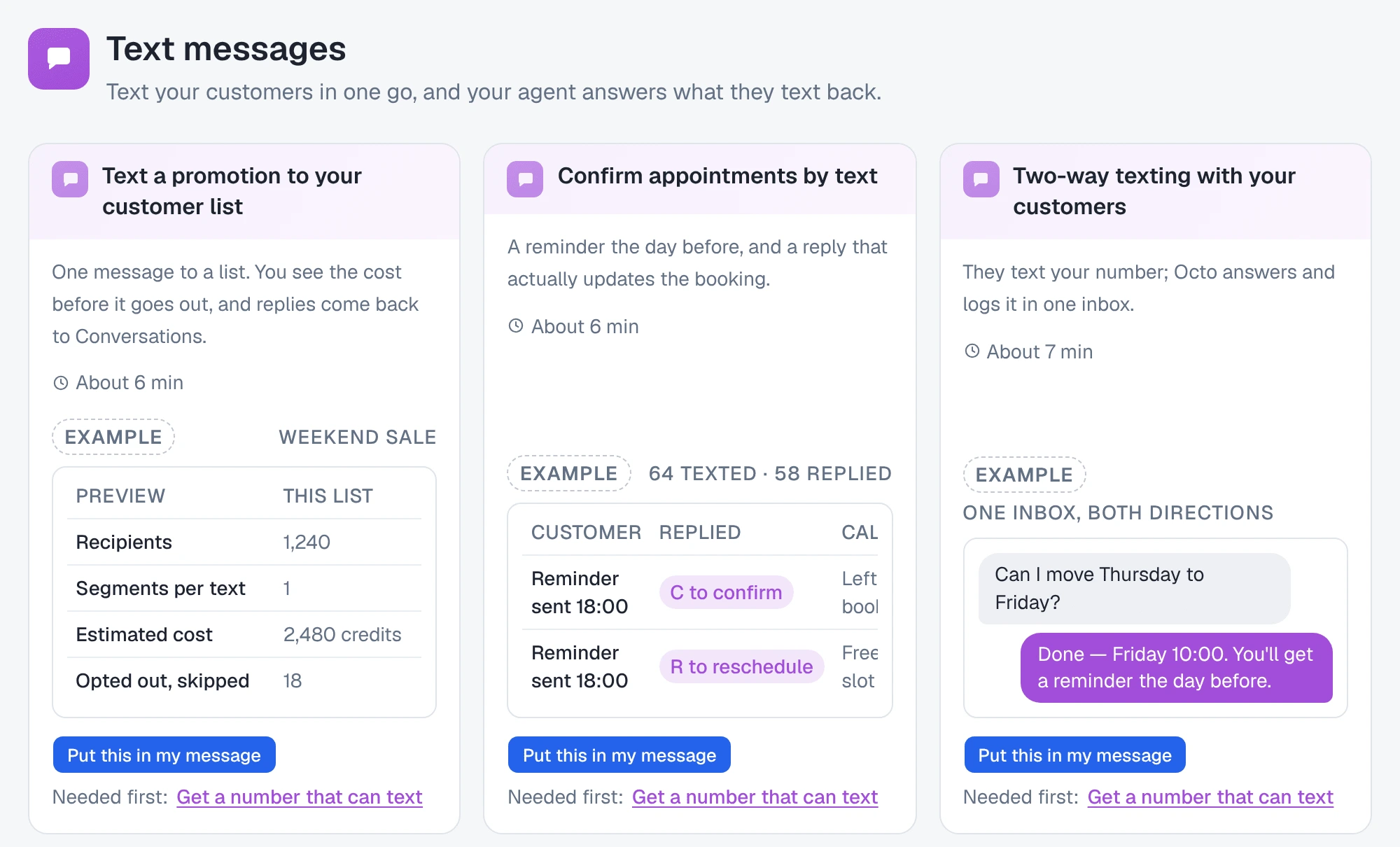
Press Put this in my message. This writes a sentence into Octo’s message box and stops there. Nothing is sent to Octo until you send it yourself:
Text my customer list about this weekend’s sale, and show me what it costs before it goes out.
Edit it so it says what you mean before you send it. For Bayside:
Text the Weekend Regulars list: “Hi
{{first_name|there}}, $5 off any wash at Bayside Express this weekend, Sat-Sun. Show this text at the pay station. Reply STOP to opt out.” Show me what it costs before it goes out.
If the workspace is missing something the card needs, a Needed first: link appears beside the button. For texting it is usually Get a number that can text, which opens /phone-numbers. You can still put the sentence in the box and let Octo walk you through it.
Octo creates an ordinary draft campaign. It appears under /campaigns, and you can open it in the editor below at any time. To send it, Octo asks you on a card, covered in Confirming with Octo.
Start from the editor
Go to /campaigns, press New Campaign, and pick SMS / MMS:
“Send text messages via SMS or MMS”. You land on a draft at
/campaigns/draft/<id>, and it saves as you type.
A text campaign has five sections:
Name → Message → Sender → Recipients → Schedule
The message comes first, right under the name. There is no Advanced section: when texts may go out is set under Schedule, and how fast they go is set by your number.
To start from a message you have used before, go to /campaigns/templates and press Use on a text template, or press Use a saved template inside the Message section.
Message
Type the text into Message text. The ruler under it changes as you type.
Segments. A text is billed in segments. A plain message fits 160 characters in one segment. A longer one is split into 153-character parts. The ruler shows the segment count, the characters used out of what the segments hold, and how many are left in the current segment.
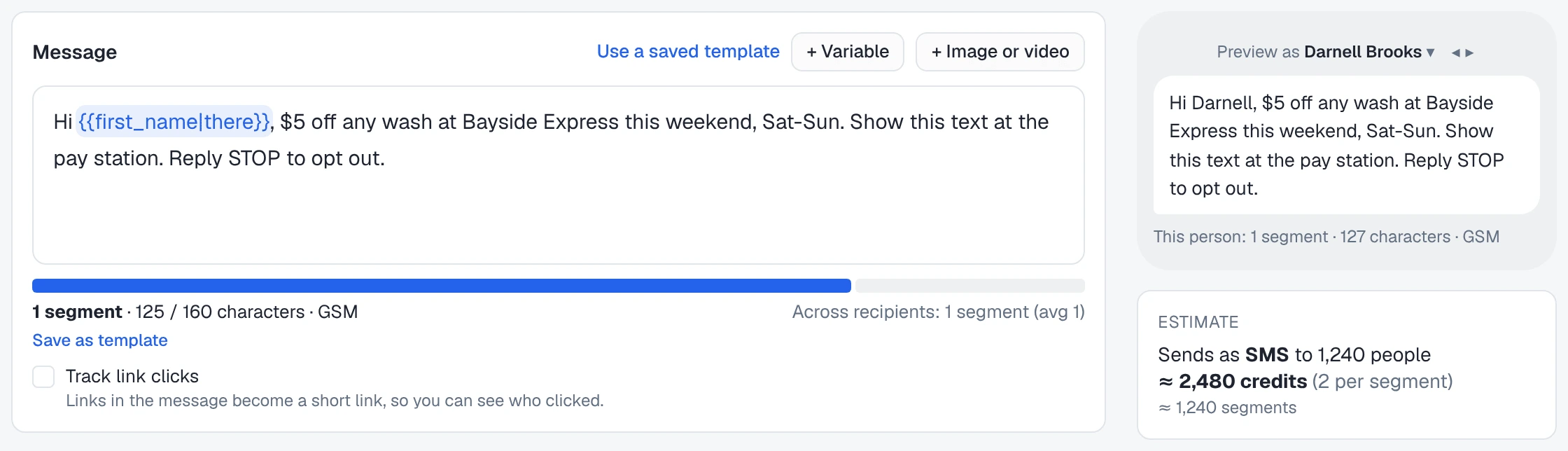
Unicode. One emoji or one character outside the basic SMS alphabet switches the whole message to Unicode, and the editor tells you:
Unicode: up to 70 characters per segment instead of 160.
It names the characters that caused it and gives you a one-press fix: Remove emoji, Replace accents, Replace punctuation, or Keep as is. With a 🚗 added, Bayside’s message is 2 segments instead of 1. That doubles the cost for all 1,240 people, and the banner tells you so: Without the emoji this message fits in 1 segment.
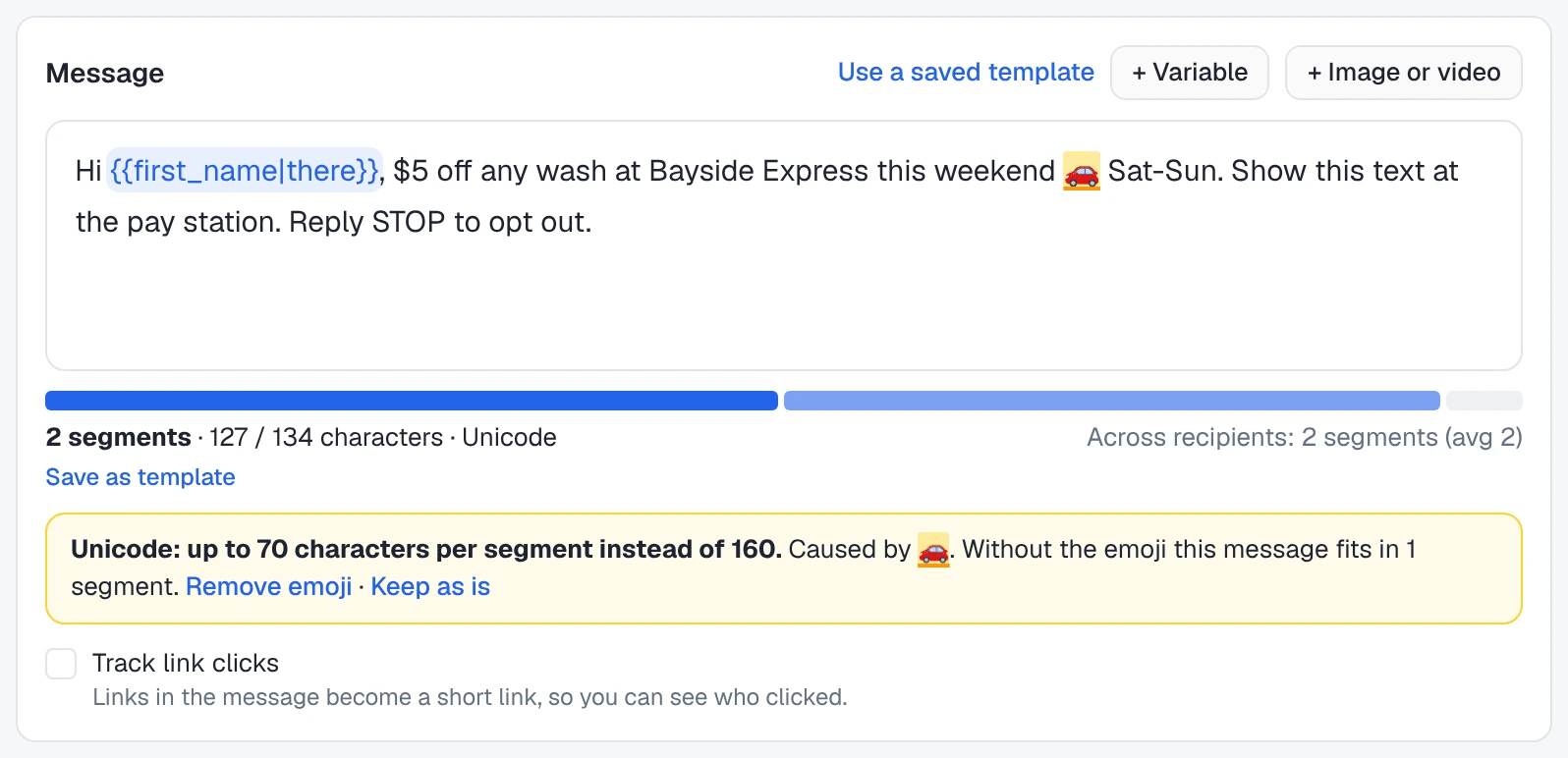
Personalisation. Press + Variable to insert a field: First name, Last name, Full name, Email, Phone, a custom contact field, or a Campaign constant… (one value, the same for everyone). In the text a variable looks like this:
Hi {{first_name|there}}, $5 off any wash at Bayside Express this weekend.The part after | is the fallback. A contact with no first name gets “Hi
there”. The Variables table under the message sets it per field:
Fills from, If empty, use, and a count such as 38 of 1,240 get
“there”. A variable with no value and no fallback is not sent blank. That
person is skipped, and the table warns you first: “N have no value and will
be skipped”.

Preview as a real person. Preview as … steps through actual recipients, so you can read the message with their name in it. Under the preview, Across recipients gives the segment range. A long name or a name with accents can make one person’s text longer than the rest.
Picture or video (MMS). + Image or video attaches a JPEG, PNG or GIF up to 5 MB, or a video up to 50 MB (MP4, MOV or WebM, around 10 seconds at most). The campaign then sends as MMS: one message of up to 1,600 characters, priced per message instead of per segment. Two limits:
- Pictures and videos go only to +1 numbers (US, Canada, Puerto Rico and other +1 regions). Everyone else in the audience is skipped, and the editor counts how many.
- For a long text, MMS can be the cheaper option. The estimate says so when it is: “cheaper for this long a text”.

Link tracking. Track link clicks turns links into short links, so the report can show who clicked. It is off by default. The third guide in this set covers it in detail.
Nothing is added to your text for you. If you want “Reply STOP to opt out” in the message, type it. STOP works either way (see STOP, START and the same text twice).
To keep the message for next time, save it as a template. It appears in /campaigns/templates as a text template.
Sender
Pick the number the text comes from. Each number shows its texting state. Only a number that is Cleared to send can start a campaign, and a number that is not cleared links you to its registration.
Today, campaigns send only from Twilio numbers. A Telnyx or Vonage number in the workspace is refused with “Campaigns can only send from Twilio numbers for now”.
Use a number your customers will recognise. Replies come back to the number that sent the text.
Recipients
Pick one source:
| Source | Use it when |
|---|---|
| Saved list | The list is already in /contacts (Bayside’s Weekend Regulars) |
| Segment | The audience is a rule, kept in /segments |
| By tag | Everyone with one or more tags |
| CSV upload | The list came out of your point-of-sale system |
| Quick rows | You are typing three numbers to test |
| Magic input | You would rather describe the audience than build it |
A text campaign has one source. Picking another one replaces the first, and a message says which one it replaced.
Schedule
The default is Send immediately: “Campaign dispatches as soon as you click Launch.” To send on Saturday morning instead, choose Schedule and set a start date, an optional time window, the allowed days and the timezone.
The window is your sending hours. Outside it the campaign waits and sends nothing, then carries on when the window opens. If you set an end date and it passes, the people who have not got the text yet are skipped (Schedule ended). They are not sent the text late.
Review and send
Press Launch →. For a text campaign this opens Review and send. The figures in it come from a count of the actual audience made at that moment, not from the editor’s estimate:
| Part | What it shows |
|---|---|
| Who | 1,240 people, then everyone who is skipped and why: 18 opted out, invalid numbers, duplicates, people with no value for a variable, and, for MMS, people without a +1 number. Download skipped gives you the list. |
| What they’ll get | The message, and its segment count per text. |
| Cost and time | The total in credits, and roughly how long it takes at your number’s sending rate. |
| Options | See below. |
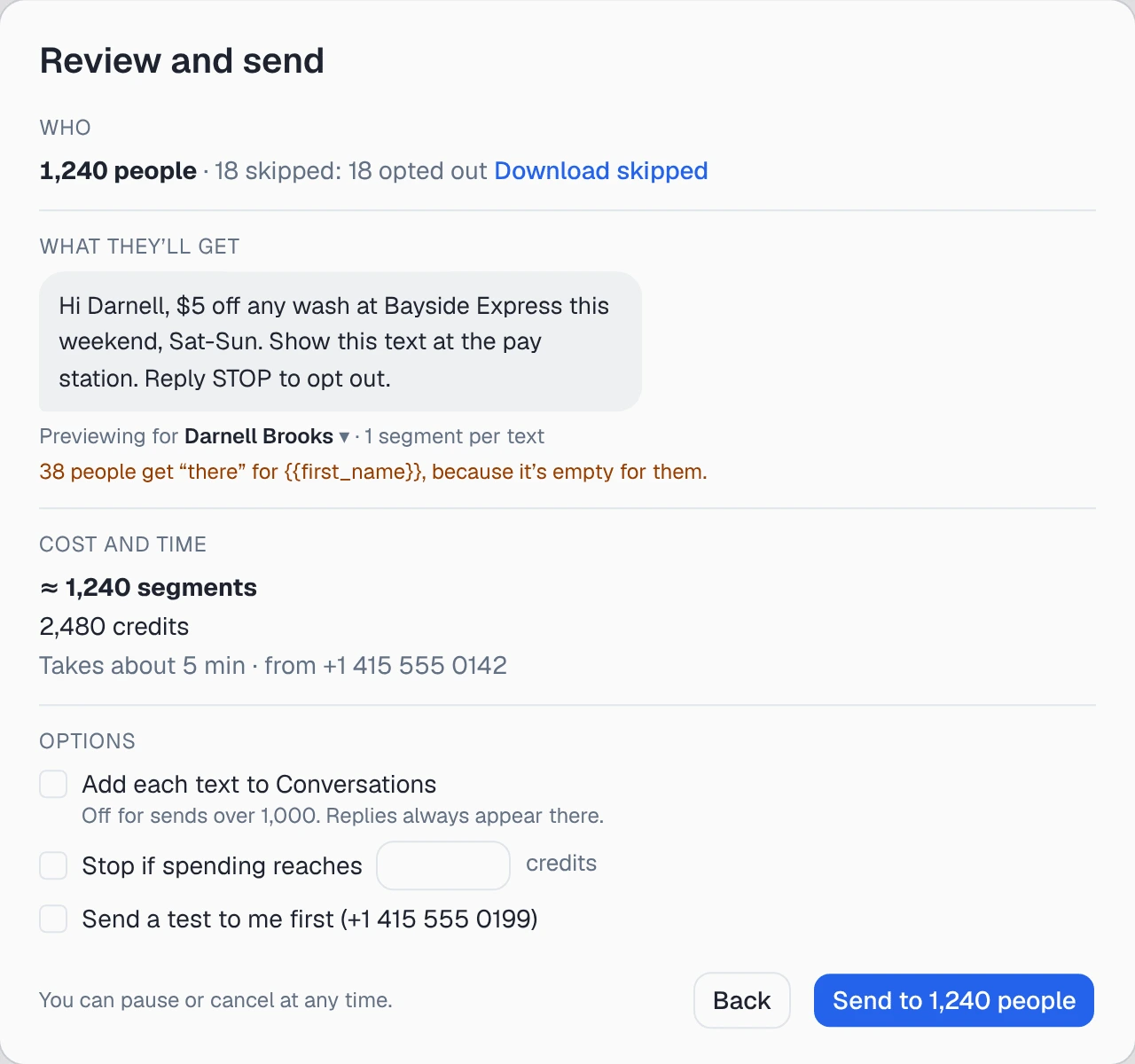
The cost. On an Omni Octo number, a text to the US or Canada costs 2 credits per segment, and a picture message costs 4 credits per message. Other countries cost more, and review shows the exact figure. Bayside’s one-segment text to 1,240 people is about 2,480 credits. If you send from your own Twilio number, Omni Octo charges 0.1 credit per segment or message, and Twilio bills your Twilio account for the text itself. Review says so: “Twilio also charges your Twilio account for these messages.” If the balance is too low, it tells you how many credits you are short and shows Add credits.
Options:
- Send a test to me first. One test text to your own number before the real send. It needs a card on file, and it is billed like any other text.
- Stop if spending reaches … credits. The campaign pauses when it reaches this amount. Texts already handed to the carrier when it pauses can add a little more, so treat the limit as a pause point, not an exact ceiling.
- Add each text to Conversations. On by default for 1,000 recipients or fewer, and off above that. Replies appear in Conversations either way. See Replies, in the same thread.
The button reads Send to 1,240 people. You can pause or cancel at any time. The first time a workspace sends a text campaign, pressing it opens an acknowledgment first: “Before this workspace sends its first text campaign, please confirm you understand your obligations.” Its button is Accept and launch. This happens once per workspace, not once per campaign.
The audience is fixed when you review. The count you confirm is the list that gets sent. If the figures change before the send starts, the sheet shows This changed since you reviewed it with the old and new people, segments and credits, and you confirm again. A count is good for half an hour. After that it is made again before anything sends. A contact added to the list after the campaign has started does not get the text: This campaign keeps the recipients it started with.
Confirming with Octo
If Octo drafted the campaign, ask it to send. In the dashboard chat a card appears, headed Send this SMS campaign?. It shows the same figures as Review and send: people, skipped numbers, segments, credits, how long it takes, the sender, and whether replies and texts go to Conversations. Then press Send or Cancel.
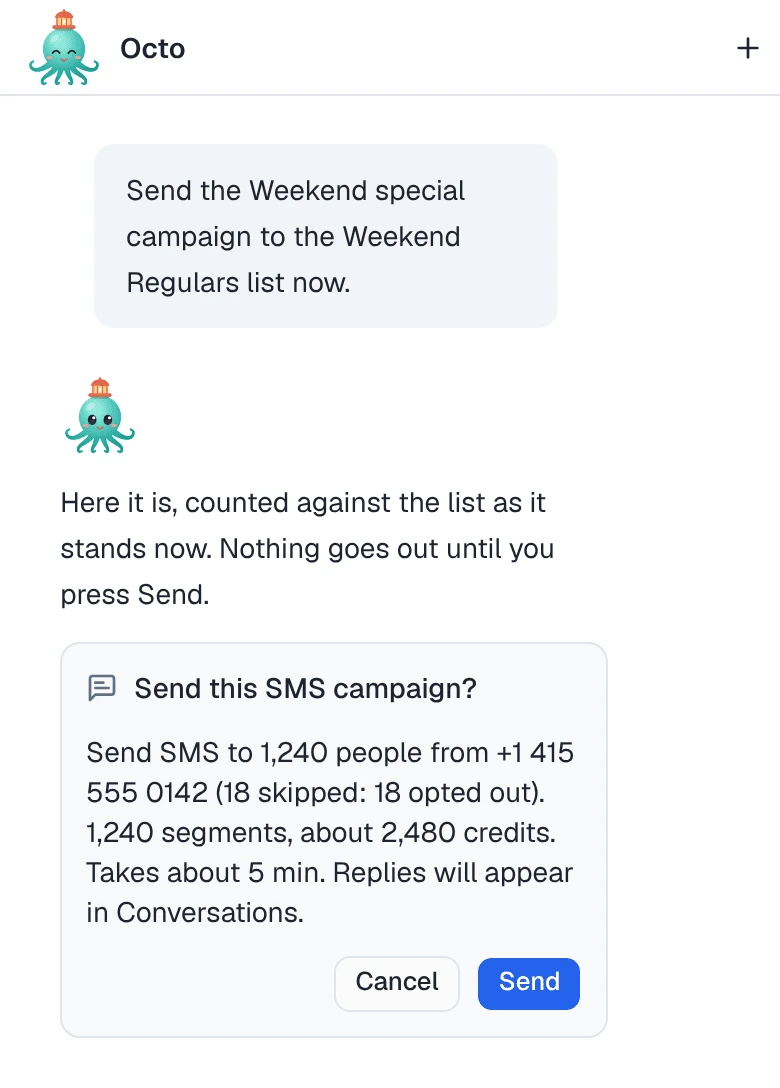
- Nothing is sent until you press Send, and Send starts exactly the count on the card. If the audience or the cost changed in the meantime, Octo shows a new card instead of sending.
- Cancel sends nothing: Cancelled — nothing was sent. An unanswered card expires: Expired — nothing was sent.
- You can ask Octo for a test text first. The test is its own confirmation, and the real send is a second one after you have seen the test.
- Only the person who asked Octo, or a workspace owner or admin, can confirm.
If you talk to Octo by email, WhatsApp or Slack, it asks in a message instead of a card, and you reply YES with the code it gives you. That code is tied to the counted audience it showed you. If anything changed, Octo asks again.
While it sends
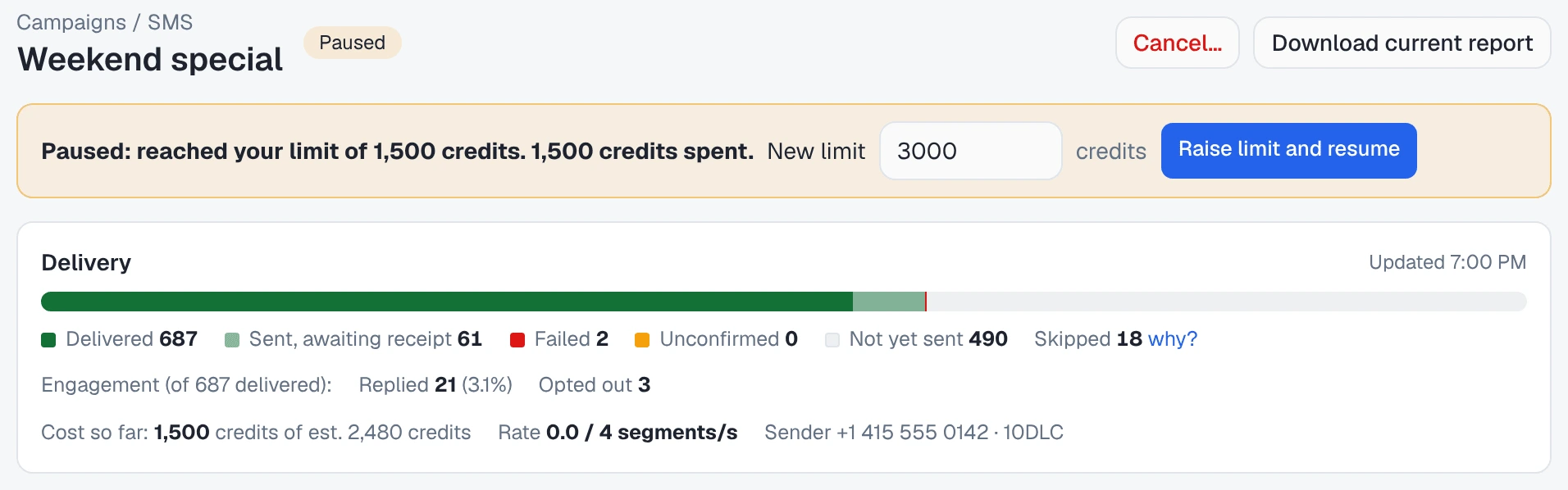
Open the campaign from its row in /campaigns (/campaigns/<id>). The Delivery panel updates
live: how many texts are not yet sent, sending, Sent, awaiting receipt,
delivered, not delivered, failed, unconfirmed or skipped, and the cost so far
against the estimate.
You can stop it at any point:
- Pause stops new sends. Texts already handed to the carrier may still arrive. While it is paused you can Edit message, and everyone who has not got the text yet gets the new version when you Resume.
- Cancel… ends the campaign. Texts not yet sent are skipped. The ones already with the carrier cannot be recalled.
The campaign can also pause itself, and the banner says why. The common reasons are reaching your spending limit (Raise limit and resume), running out of credits, the carrier’s daily limit for your registration (it resumes on its own and the banner shows when), or “Paused: N% of recent messages failed.” Why messages failed lists the carrier’s error codes and what each one means.
After it sends
The campaign page keeps the report:
Engagement (of 1,180 delivered): Replied · Clicked · Opted out
The percentages are of delivered, not of everyone you sent to, because a text that never arrived could not be answered. Clicked appears only when link tracking was on.

There is no open rate. SMS does not tell the sender when a text is read, so any open figure for a text message would be made up. Replies, clicks and opt-outs are the signals you have.
The Recipients table lists every person with their status, reply and clicks, and links to their Thread → and Contact →. Download report exports it.
What “Unconfirmed” means
Now and then a send’s outcome is never confirmed: the request to the carrier was made, and no answer came back. That recipient shows Unconfirmed: “We couldn’t confirm this went out. We didn’t resend it, so it was never charged twice.” It is not billed unless the carrier later confirms it was sent. Do not resend it. If the person says it never arrived, send them a new message.
A text that went out but was Not delivered is billed, because the carrier charges for it.
Replies, in the same thread
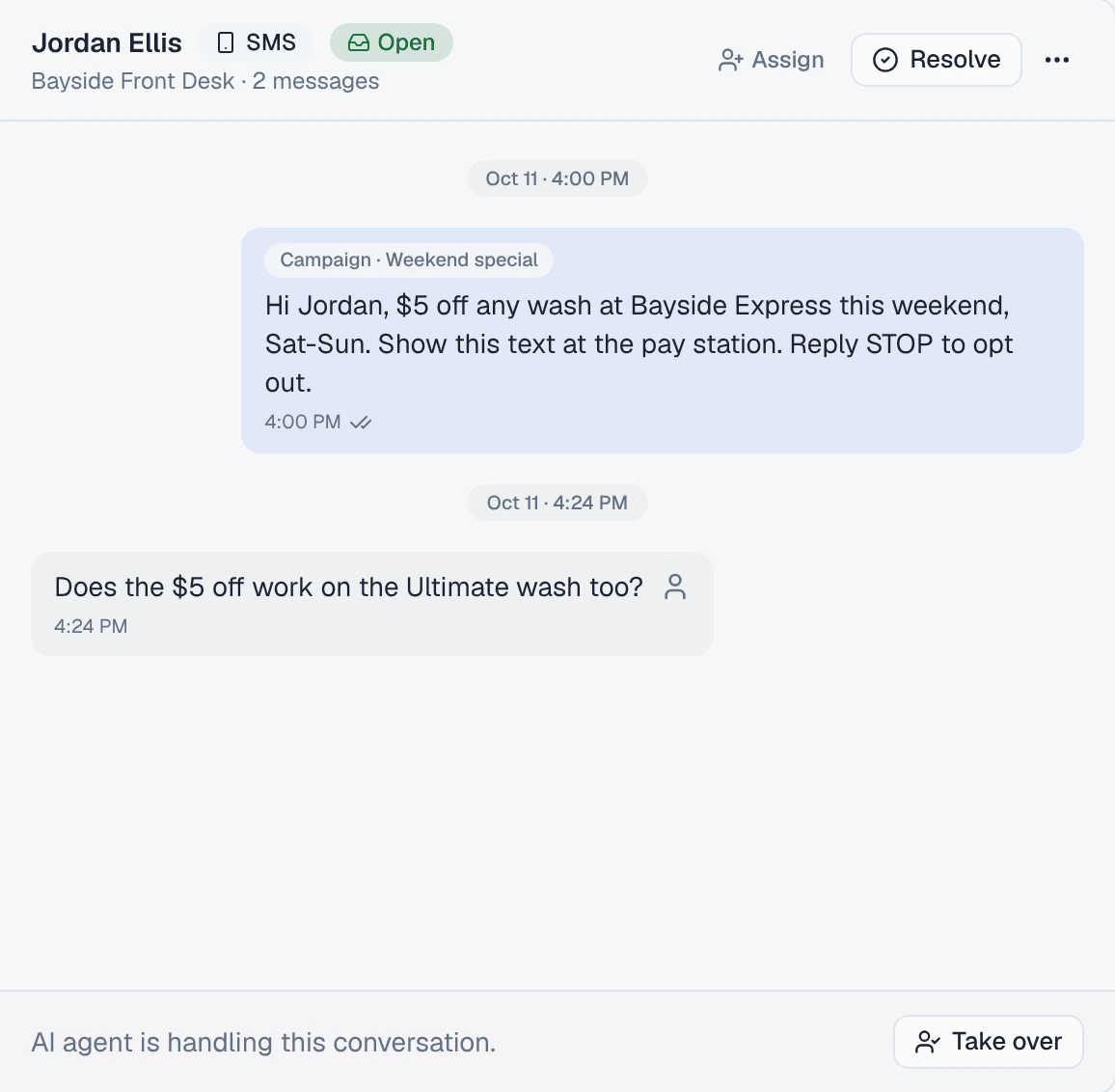
When a customer replies, the reply lands in Conversations, in the thread for your number and theirs, with the campaign text above it. That happens whether or not Add each text to Conversations was on. The setting decides whether everyone’s text gets a thread straight away, or only the people who reply.
STOP, START and the same text twice
- STOP is handled for you. A reply of
STOP,UNSUBSCRIBE,CANCEL,END,QUITand the other standard words opts that number out of texts from your whole workspace, not just the number it texted. A second number of yours cannot text them either. The next campaign counts them as opted out and skips them. This is stricter than the carrier’s own rule, which blocks only the one sending number. - Only they can undo it. The opt-out lifts when the person texts
START(orUNSTOP; on a local number,YESworks too). Nobody in your team can switch it back on for them. - A text STOP does not stop calls. It covers texting only.
- Nobody gets the same text twice. A number that is in the audience twice, for example on two contacts, is sent one text and counted once as a duplicate. A send that might not have gone out is never retried automatically. That is what Unconfirmed means.
What it will not do
- Send without your confirmation. Not from the editor, and not from Octo. A program calling Octo with an API key gets a link to Review and send, not a sent campaign.
- Send from a number still in carrier review, or from a Telnyx or Vonage number.
- Send pictures or video outside +1 numbers. Those recipients are skipped.
- Report an open rate.
- Add an opt-out line to your message. STOP works anyway, but the wording in your text is up to you.
- Add people to a running campaign. Start a new one for them.