A number you kept in the WhatsApp Business App is connected to Omni Octo for as long as WhatsApp allows it. WhatsApp can end that connection — most often because the app on the phone has not been opened for two weeks — and when it does, the AI stops answering on the number until you reconnect it.
The app itself keeps working. Customers can still message the number, and you can still see and answer them on your phone. What stops is everything on the Omni Octo side.
How you find out
In four places at once:
- The Notifications bell in the dashboard: Your WhatsApp Business App number was disconnected, with the reason and the line “Messages to this number are no longer answered here.”
- An email to the workspace owner, with the same subject. It explains what this means now, gives the steps for the reason, and carries a button to reconnect.
- /channels: the number’s row shows Disconnected where its status normally is.
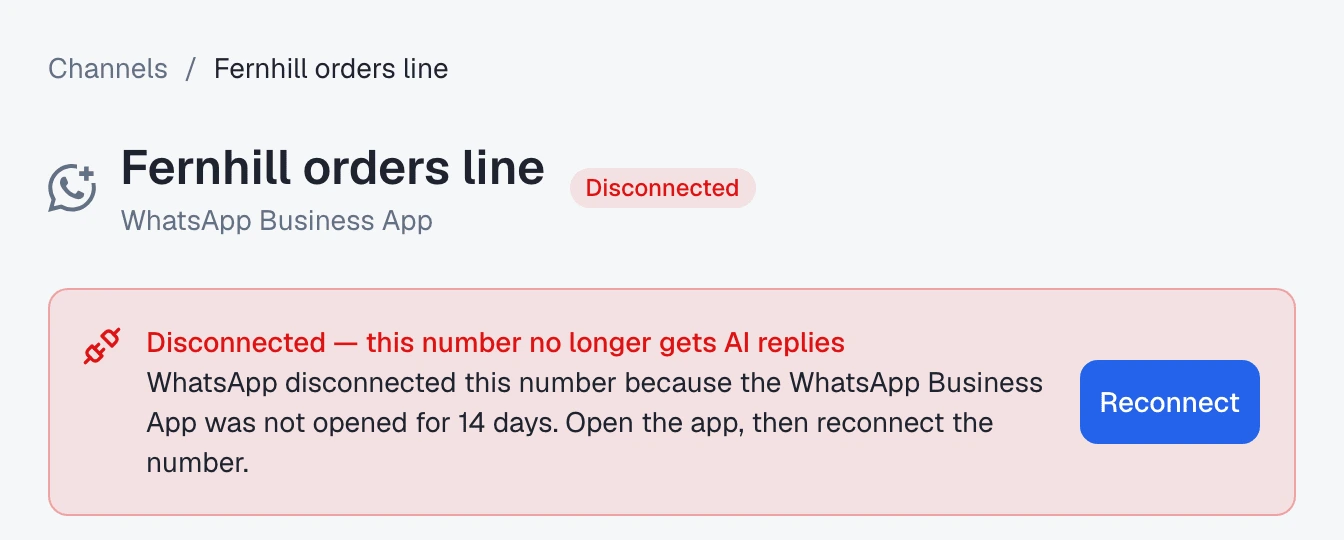
- The channel’s page, under the header: a red banner, Disconnected — this number no longer gets AI replies, with the reason and the button for what to do next.
You are told once per disconnect.
Each reason, and what to do
WhatsApp says why it disconnected the number, and the banner words it by that reason:
| The banner says | What to do |
|---|---|
| WhatsApp disconnected this number because the WhatsApp Business App was not opened for 14 days. Open the app, then reconnect the number. | Open the app on the phone, then press Reconnect |
| WhatsApp disconnected this number because a device linked to the WhatsApp Business App was inactive for about 30 days. Open the app, then reconnect the number. | Open the app, then press Reconnect |
| This number was disconnected in the WhatsApp Business App (Settings → Account → Business Platform). Reconnect it to receive messages here again. | Someone disconnected it in the app. If that was not on purpose, press Reconnect |
| WhatsApp disconnected this number because the WhatsApp Business App was set up again on a phone. Reconnect the number to receive messages here again. | The app was set up again — a new phone, or a reinstall. Press Reconnect |
| WhatsApp disconnected this number because it was registered on the regular WhatsApp app. Move it back to the WhatsApp Business App, then reconnect it. | Register the number in the WhatsApp Business App again first, then press Reconnect |
| This number was changed to a new one in the WhatsApp Business App, so it was disconnected. Connect the new number to keep answering here. | Press Connect your new number — see below |
| WhatsApp disconnected this number because its WhatsApp account was deleted or restricted. Check the WhatsApp Business App on the phone. | There is no button: “There’s nothing to reconnect until WhatsApp restores the account.” Once WhatsApp restores it, connect the number again |
| WhatsApp disconnected this number from the platform. Reconnect it to receive messages again. | WhatsApp gave no reason we can name. Press Reconnect |
The email says the same, a little longer, with numbered steps.
When the business changed its number
If you moved the business to a new number inside the app, the old number is disconnected and the banner offers Connect your new number instead of Reconnect:
This number’s conversations and contacts stay here. The new number connects as its own channel.
Press it and connect the new number the same way you connected the first one. The old channel and its history stay where they are.
While the number is disconnected
-
The AI does not answer. If a customer’s message still reaches Omni Octo, it is stored in the conversation and left for you; no AI reply is written.
-
Nothing can be sent from Omni Octo on that number — not a reply from the inbox, not a template, not a message Octo or your own system sends. Each one is refused before it reaches WhatsApp, and the refusal says:
This number was disconnected from the WhatsApp Business App, so nothing was sent. Reconnect it from Channels to send again.
-
A template campaign from that number stops instead of sending, and the messages it had not sent yet are not sent. Relaunch it after you reconnect — sending a template to a list covers campaigns.
-
Your conversations and contacts stay exactly as they were.
In the meantime, answer customers from the app on your phone.
Reconnect
- Open the WhatsApp Business App on the phone — or, for the reasons above that need it, register the number back in the app first.
- On the channel’s page, press Reconnect on the banner (or the button in the email). It opens the WhatsApp connect page with Yes — I use the WhatsApp Business App already chosen.
- Go through the same steps as the first time — Connect my WhatsApp Business App, Meta’s window, confirming in the app — as in keep using the WhatsApp Business App.
The number comes back as the same channel, with its conversations and contacts, and the banner goes away. The AI answers again as soon as it is connected.
Use Reconnect, not the credentials fields: a WhatsApp Business App channel’s credentials cannot be edited by hand, and trying says so — “This channel is connected to the WhatsApp Business App, so its credentials can’t be changed here. Reconnect it through “Connect my WhatsApp Business App” instead.”
What reconnecting does to the import
Reconnecting after a disconnect is a new connection, so WhatsApp allows a new one-time import:
- Omni Octo asks WhatsApp again for your contacts and chat history, and the WhatsApp Business App card on the channel’s page starts over.
- WhatsApp asks again, in the app, whether to share your chat history — you can answer differently this time.
- Messages already in Omni Octo are not stored a second time, and contacts already here are matched, not duplicated.
- Linked devices are logged out again, the same as the first time. Link WhatsApp Web or your tablet again from the app afterwards.
Bringing your chats and contacts across covers how to read the import’s progress.
Disconnecting on purpose
You can end the connection yourself, in the app: Settings → Account → Business Platform. Omni Octo is told, and you get the same notice and banner as above, worded “Someone disconnected the number in the WhatsApp Business App (Settings → Account → Business Platform).”
The usual reason to do this is to run the import again — for example, to share the chat history you declined the first time. Disconnect in the app, then reconnect here. Do it in the app rather than by deleting the channel in Omni Octo: deleting and restoring a channel does not ask WhatsApp for a new import.
Keep the connection alive
- Open the WhatsApp Business App at least once every 14 days. The channel’s page says it under the import status: “Open the WhatsApp Business App on your phone at least once every 14 days, or WhatsApp disconnects this number.”
- Open WhatsApp on each device linked to the app — WhatsApp Web, a desktop, a tablet — at least once a month: a linked device inactive for about 30 days can get the number disconnected too.
Ask Octo
Is our WhatsApp still connected?For a WhatsApp Business App number that WhatsApp has disconnected, Octo tells you so, when it happened and why, and gives you the link to reconnect.
Where to go next
- Keep using the WhatsApp Business App on the same number — the connect steps, which reconnecting repeats.
- When you reply from the phone, the AI steps back — once the number is back.