Every conversation in /conversations is answered either by the AI agent or by a person on your team — never both at once. When a person takes a conversation, the AI pauses in that one conversation: the customer’s new messages still arrive in the inbox, and the AI leaves them to you. Every other conversation keeps getting AI replies.
This guide covers what pauses the AI, how the inbox tells you, and how the conversation comes back: by pressing a button, on a timer you set per channel, or by asking Octo. The banner, the buttons and the setting are the same whichever channel the conversation came in on.
What pauses the AI
A paused conversation has the status Needs human — “Handed off — a human reply is needed.” Five things put a conversation there:
- A teammate replies from the inbox. The reply goes out first; once it has been accepted, the conversation moves to Needs human. A reply that fails to send does not pause anything.
- A teammate takes it over by hand. Under an open conversation the reply bar says “AI agent is handling this conversation.” with a Take over button. Or click the status badge at the top of the conversation and choose Needs human.
- The AI hands it over. An agent whose instructions say when to hand off — or the automatic triage deciding a person is needed — passes the conversation to your team.
- A workflow hands it over, with a step that transfers the conversation to a person.
- The account owner replies from the WhatsApp Business App, on a WhatsApp number that stays in the app on the owner’s phone. That case has its own guide: when you reply from the phone, the AI steps back.
To see every conversation waiting on a person, filter /conversations by the status Needs human.
The banner says who paused it
Open a paused conversation and a banner sits above the thread. Its first line says who took the conversation off the AI:
| First line of the banner | What happened |
|---|---|
| Someone on your team took over this chat, so the AI is paused here. | A teammate replied from the inbox, pressed Take over, or set the status to Needs human |
| The AI handed this chat to your team, so it is paused here. | The AI agent, or the automatic triage, handed it over |
| A workflow handed this chat to your team, so the AI is paused here. | A workflow step handed it over |
| The account owner replied from the WhatsApp Business App, so the AI is paused in this chat. | The owner answered from the app on their phone |
| This chat is with your team, so the AI is paused here. | Anything else — for example a workflow step that gave its own reason |
The second line says when the conversation comes back:
| Second line | Meaning |
|---|---|
| Returns to AI in 12 minutes without a team reply. | Return to AI automatically is on for this channel; the countdown moves on its own while the page is open |
| Returning to AI now — it answers the customer’s next message. | The time is up; the hand-back is happening |
| Return to AI automatically is off for this channel. The AI stays paused until someone returns it. | Only a person, or Octo, hands it back |
On the right of the banner is Return to AI now.
Return to AI now
Press Return to AI now on the banner. The status goes back to Open — “AI is handling this conversation.” — and:
- Nothing is sent to the customer. The AI does not announce itself or pick up mid-thought; it answers the customer’s next message.
- The pause starts over only on a new reply. If you or a teammate reply again later, the conversation pauses again, with a new banner.
The same hand-back is in two other places on the conversation: the Return to AI button on the reply bar, beside “You are handling this conversation”, and Open in the status badge’s menu. All three do the same thing.
Return to AI automatically
Each channel has a setting that hands paused conversations back on their own once your team has gone quiet.
- Open /channels and click the channel.
- Find the card Return to AI automatically — “When someone on your team has taken over a chat, the AI takes it back after a quiet spell.”
- Turn on Return chats to the AI automatically.
- Under Return after, enter the “minutes without a team reply (10–60)”.
- Press Save. Return to AI setting saved confirms it.
How each channel starts out:
| Channel | Return to AI automatically |
|---|---|
| Every channel you connect | Off. Switch it on and Return after starts at 10 minutes |
| A WhatsApp number that stays in the WhatsApp Business App | On, at 15 minutes, from the moment it connects |
Change either at any time; the setting is per channel, so a busy web chat and a quiet SMS number can each have their own.
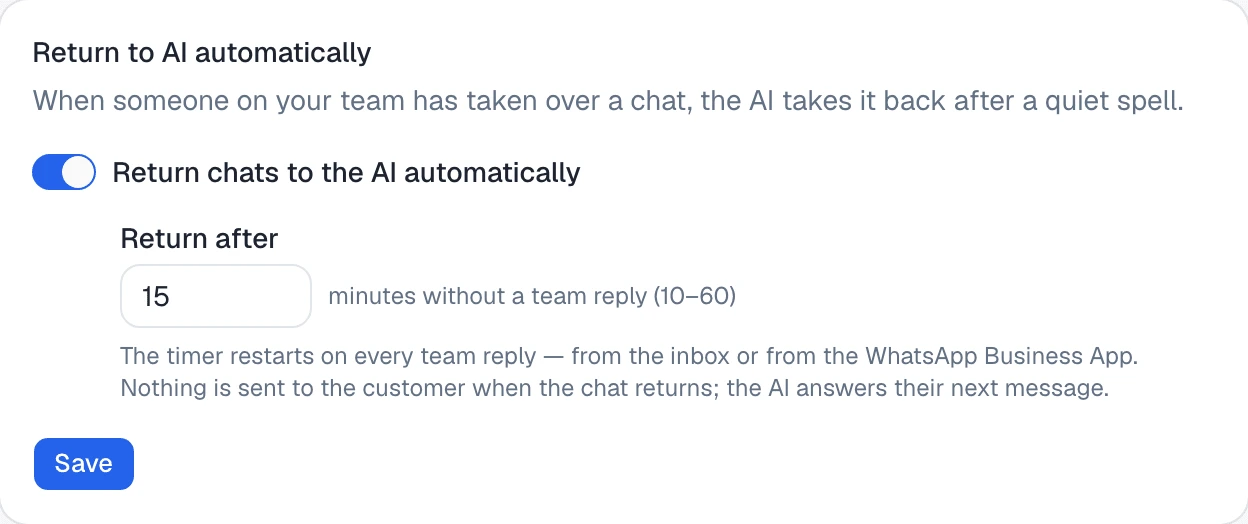
The setting covers every paused conversation on the channel, whoever paused it — a teammate, the AI, a workflow or the owner’s phone. If the AI hands a conversation to your team and nobody answers within the minutes you set, the AI takes it back and answers the customer’s next message.
What starts and restarts the clock
The clock starts when the conversation is paused. Under the setting the card says:
The timer restarts on every team reply — from the inbox or from the WhatsApp Business App. Nothing is sent to the customer when the chat returns; the AI answers their next message.
A team reply only counts once it has actually gone out to the customer:
| This happens | The clock |
|---|---|
| A teammate’s reply from the inbox is sent — text, a file, or a template | Restarts |
| The owner replies from the WhatsApp Business App | Restarts |
| The customer writes again | Keeps running |
| A reply that failed or was blocked, or a draft nobody sent | Keeps running |
| An emoji reaction in the WhatsApp Business App | Keeps running |
| A label is added, or a workflow runs on the conversation | Keeps running |
The customer’s own messages do not hold the AI off: a customer writing “hello?” to a conversation nobody is answering gets the AI back when the minutes run out, rather than waiting on your team.
The hand-back is checked once a minute, so a conversation returns within about a minute of its time running out.
If you would rather paused conversations stay with your team until someone says so, turn the switch off and press Save. The banner then says so, and Return to AI now — or Octo — hands each one back.
Ask Octo
Octo reads the same facts the banner shows. Ask it:
Why is the AI not answering Dana's conversation, and when does it come back?Hand Dana's conversation back to the AI.On our web chat, return chats to the AI after 30 minutes.What Octo can tell you about a paused conversation:
- Why the AI is paused — a teammate, the AI itself, a workflow, or the owner’s reply from the WhatsApp Business App.
- Since when, and when it comes back on its own — or that it will not, because Return to AI automatically is off on that channel.
What it can do:
- Hand a paused conversation back to the AI — the same as Return to AI now, sending nothing to the customer. When a person paused it, Octo asks you first. If the conversation was not paused, Octo tells you so and changes nothing.
- Turn Return to AI automatically on or off on a channel, or change its minutes (10 to 60). Only that setting changes; the rest of the channel’s settings stay as they are.
Where to go next
- When you reply from the phone, the AI steps back — the WhatsApp Business App case: what pauses the AI from the phone, and how those replies look in the inbox.
- Reading a Dialog Insight result on a conversation — what else the inbox shows beside a conversation.