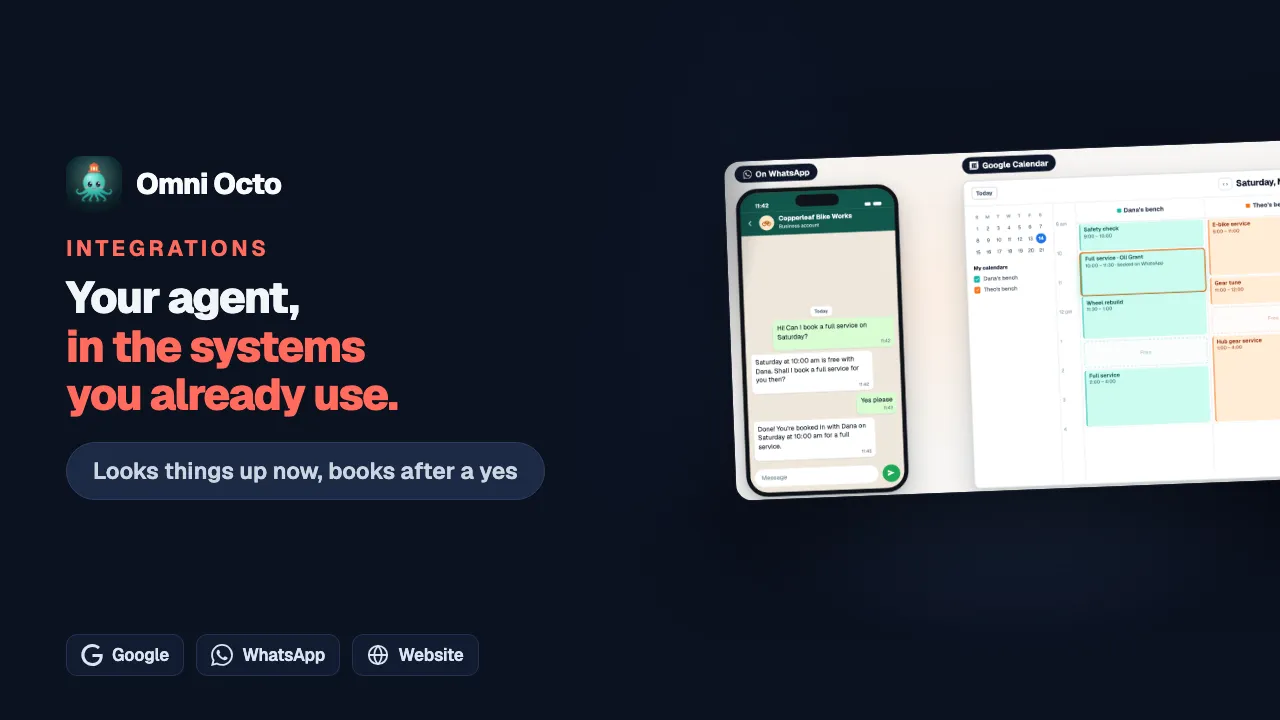
Before a customer talks to the agent, you want to see it use its tools: does it find the repair, does it ask before booking, does the booking land on the right calendar. You can do all of that without touching your real systems. Tools that only look things up run for real. Tools that make changes are stopped before they are sent, unless you choose otherwise.
Copperleaf Bike Works is a fictional bike repair shop. Its agent, Copperleaf Front Desk, has Look up a repair (on its workshop system) and Suggest time (on Google Calendar), which only read, and Create event (on Google Calendar) and Add a parts request, which make changes.
There are three places to test, from the smallest to the whole conversation:
| Where | What it tests |
|---|---|
| Check it, on the tool in /integrations | One request, with sample values |
| Check with these values, on the agent’s Integrations tab | The same tool, with this agent’s account and values |
| The test chat and Try Voice | The whole conversation: when the agent uses the tool, how it asks, what it says after |
Check it, on the integration
Open the integration under /integrations, then the tool on its Tools tab. The tool’s Check it section “Runs your unsaved draft with sample values that are only for this check.” Fill in the sample values, or pick From a sentence and type what a customer might write. The buttons depend on what the tool does:
| The tool | Buttons |
|---|---|
| Reads data | Run check sends the real request. Preview the request builds it and sends nothing |
| Makes changes | Check the request builds it and sends nothing. Run for real sends it once, after you confirm |
For a tool that makes changes, Check the request is enough:
“Check the request builds it and sends nothing; that’s enough to save the check. Run for real really sends it once, after you confirm.”
The result says “Checked, not run. Nothing was sent.”, shows the request we would send (keys hidden), and shows what the customer will be asked:
“The agent will read back, in the customer’s language: …”
Run for real asks first, “Really send this change?”. On a tool you built on an API it names the method and path, for example “This really sends POST /orders to the other system, once, with your sample values. It isn’t a test there: undo it afterwards if you need to.” A tool that deletes asks “Really delete?” instead. After a real run the panel reminds you: “That change really happened in the other system. Remember to undo it there if it was only a test.”
If the request uses a value each agent fills in, Agent values from picks whose values to use: “The check uses this agent’s values and the account it uses.” More on building and checking a tool is in make your own tool and check it.
Check with these values, on the agent
A tool that passed on its integration can still fail for one agent: a different account, or a value with a typo. So on the agent’s Integrations tab, a tool that uses this agent’s own values shows Check with these values. It runs the tool with this agent’s account and values:
- A tool that reads data really runs.
- A tool that makes changes, and any tool from an app or MCP server, is built with this agent’s values and checked, and nothing is sent.
You see “Look up a repair passed with this agent’s values.”, or “Look up a repair didn’t pass:” and the reason. The row then reads Checked with this agent’s values. Change a value afterwards and it reads Edited, check again.
Checking is optional. A tool you have not checked still works for the agent. See give an agent tools for the rest of the tab.
The test chat
On the agent’s Overview tab, Test Agent opens the test chat in a new tab. Talk to the agent the way a customer would. The chat works like website chat, with the same Confirm and Change buttons.
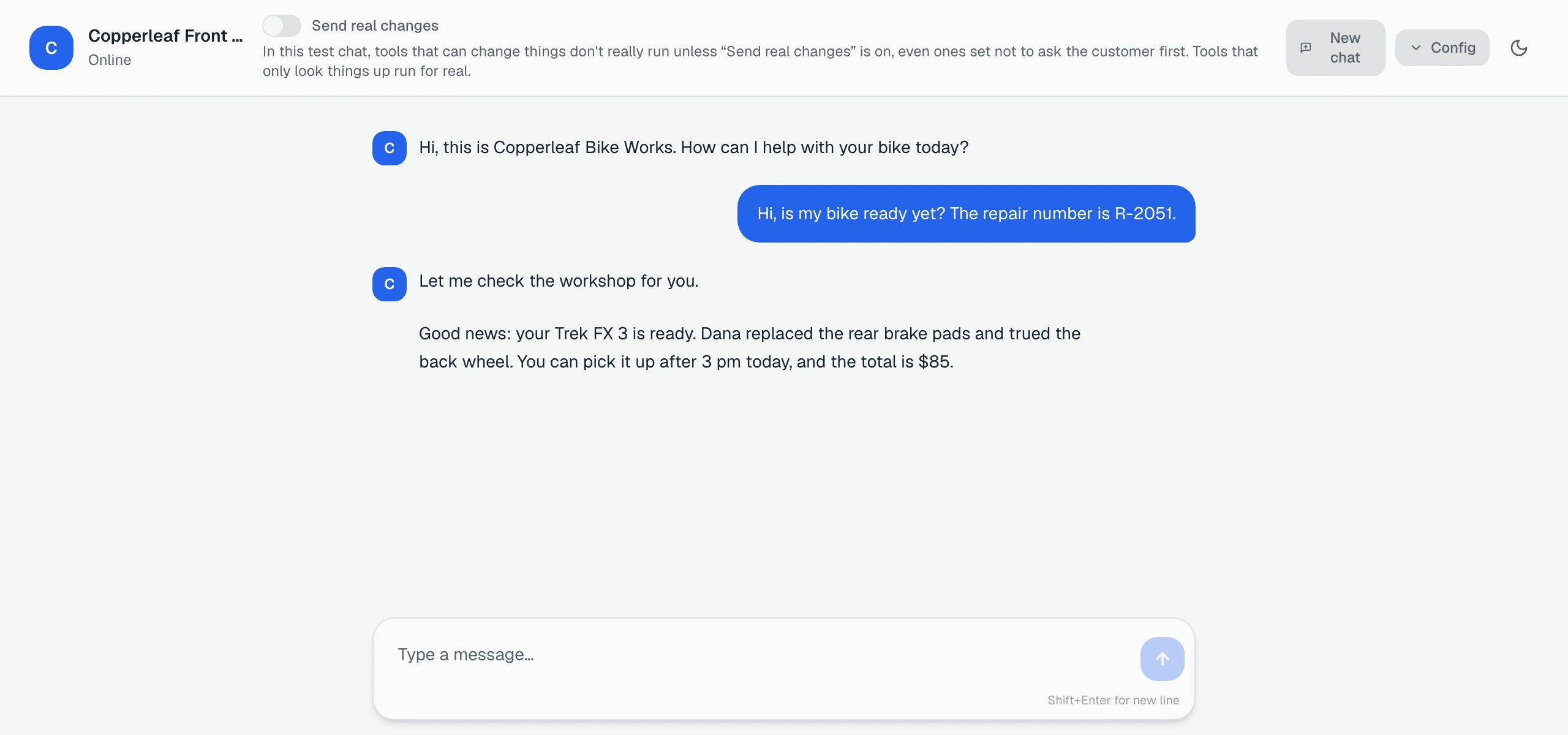
What happens to each tool
If the agent has tools that make changes, a line in the header, under the Send real changes switch, says how they behave:
“In this test chat, tools that can change things don’t really run unless “Send real changes” is on, even ones set not to ask the customer first. Tools that only look things up run for real.”
So in Copperleaf’s test chat:
| Tool | In the test chat |
|---|---|
| Look up a repair, Suggest time | Run for real, against the workshop system and Google Calendar |
| Create event | The agent asks, you press Confirm, the card says Done. Nothing is sent, so no event is added |
| A tool set to Acts right away | Runs without asking, as it would for a customer. Nothing is sent |
Under the agent’s reply, a change that was not sent shows one line. For a tool from an app or MCP server, such as Google Calendar’s Create event, it names the server:
Not sent (test chat) · Create event · calendarmcp.googleapis.com/…/v1 See request
A tool you built on an API shows its method and path there instead, such as POST /api/v1/orders.
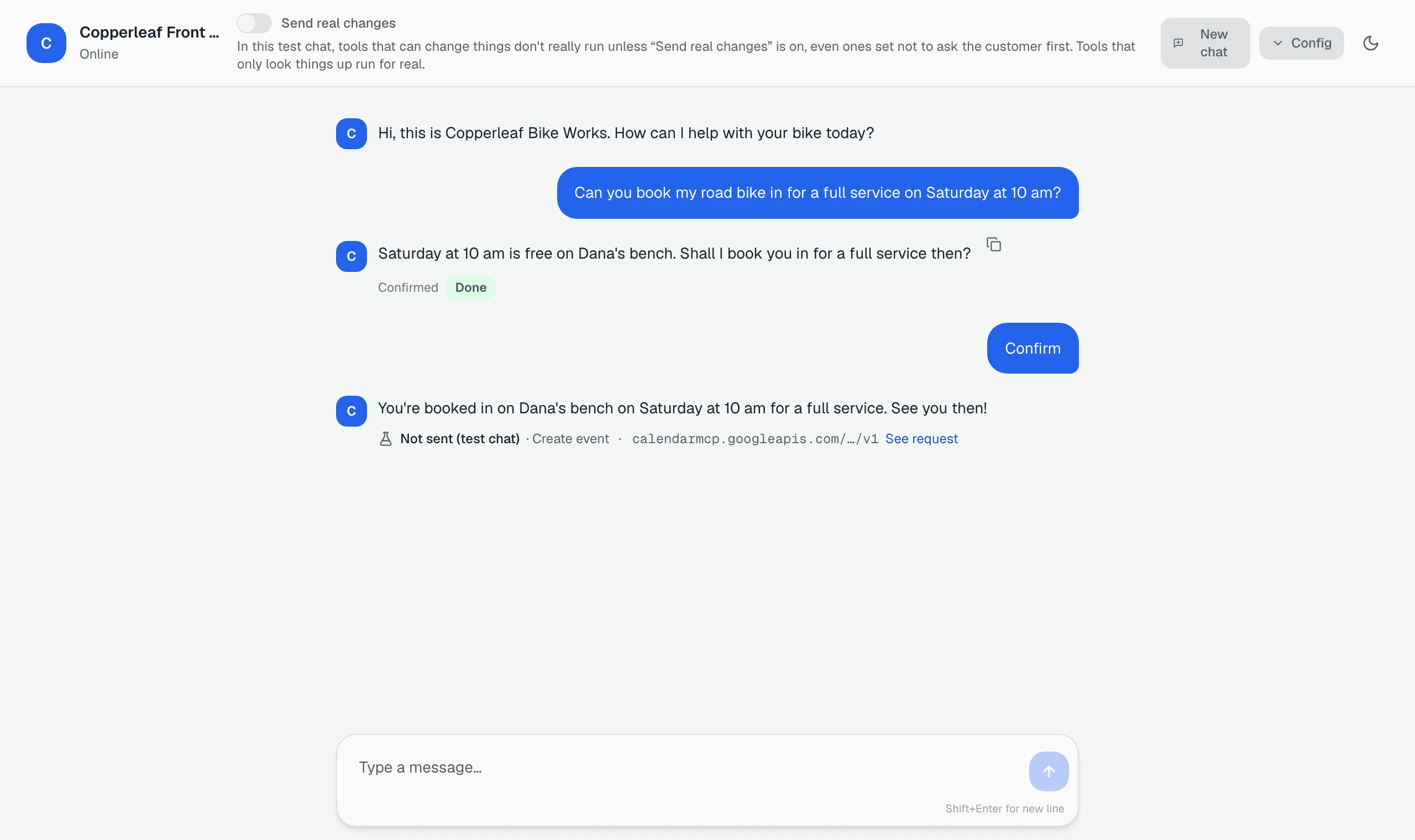
See request shows what would have gone out. For a tool from an app or MCP server, it lists the fields and their values; for a tool on an API, the exact request. The key is not in it:
“The account’s key is added only when a change is really sent.”
The agent is told nothing was sent, so you can test the whole flow — the question, the yes, the answer after it — as many times as you like. Changes that are not sent never count toward a conversation’s limit of five.
A proposed change waits 10 minutes in the test chat, as on website chat. Wait longer and the card reads No longer available. How each channel confirms is in changes the customer confirms.
Tools that aren’t ready
If a tool can’t run yet, the test chat says so at the top, for example:
“1 tool isn’t ready yet: Copperleaf parts needs a value.”
Fill in what it names on the agent’s Integrations tab, then start a New chat.
Send real changes
When the flow looks right and you want one real booking, turn on Send real changes in the test chat’s header. It asks first:
Send real changes from this test chat? “Changes in this test chat will really happen in Copperleaf parts, Google Calendar. Turn on for this session?”
Press Turn on. From then on a confirmed change is really sent, as it would be for a customer, and it counts toward the conversation’s five changes. Use a test record in the other system, and undo the change there afterwards.
A few things to know:
- Only owners and admins of the workspace see the switch, and only when the agent has a tool that makes changes. When other members of the workspace test the agent, its changes are never sent.
- It is off every time you open the test chat, and New chat turns it off again.
- The test chat is not the only place you count as a tester. If you are signed in to the workspace and chat with the agent on its own chat page, your changes are not sent either, unless you are an owner or admin and turned on Send real changes.
Test calls
On the agent’s Try Voice tab, In Browser and Call My Phone start a test call. They follow the same rule as the test chat:
“On a test call, tools that can change things don’t really run unless “Send real changes” is on, even ones set not to ask the customer first. Tools that only look things up run for real.”
Turning on Send real changes here asks “Send real changes from this test call?” and names only the integrations whose change tools are used on calls. While it is on, the panel says “Changes on this test call are really made in the other system.”
On a call, the agent reads the details back and waits for you to say yes, so you also hear how the read-back sounds.
Try it live is real
On the agent’s Channels tab, the website chat card has Try it live. It opens your real chat widget, installed the way your website installs it. It is not a test:
“Conversations here are real: they show up in your inbox, get an AI summary a few minutes after you close this page, and can trigger your alerts.”
Changes confirmed there are really sent. Use it last, once the test chat has done what you expect.
A safe order
- Check it on each tool, with Check the request for the ones that make changes.
- Check with these values on the agent, for tools that use its own values.
- The test chat, with Send real changes off. Try a yes, a no, and a change of details.
- One run with Send real changes on, against a test record. Undo it in the other system.
- Try it live, then put the agent in front of customers.
Afterwards, each call the agent made is listed in see what a tool did.