Connecting a bot takes its token and nothing else. You need the bot made first — what Telegram requires covers BotFather — and then it is one form.
Connect it
-
Open /channels and press Add Channel.
-
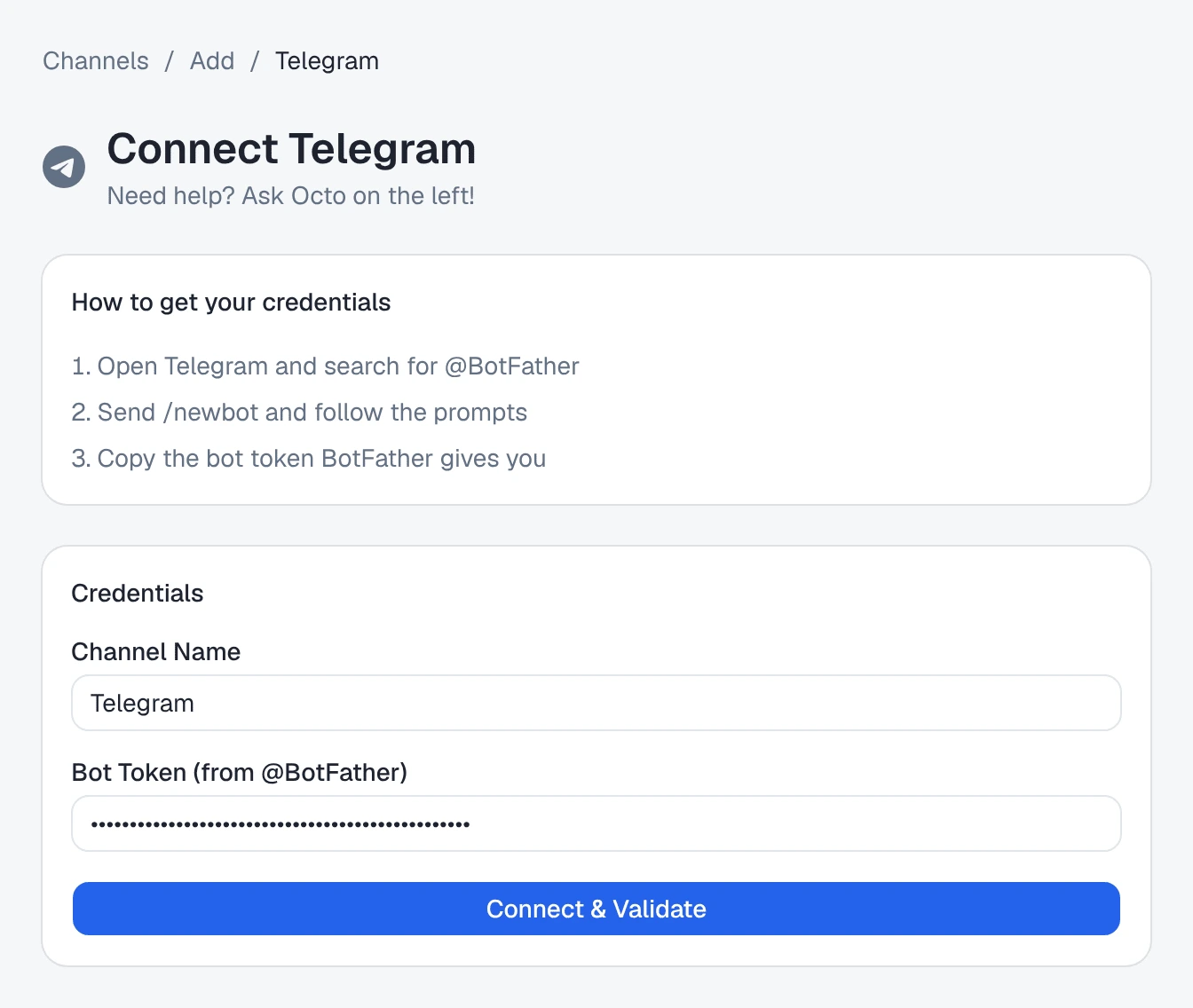
Choose Telegram. The page that opens is Connect Telegram, with BotFather’s three steps on it under How to get your credentials:
Open Telegram and search for @BotFather Send /newbot and follow the prompts Copy the bot token BotFather gives you
-
Under Credentials, fill in two fields:
- Channel Name — already filled with “Telegram”. Leave it, and the channel is named after the bot once it connects: Telegram — @BrightwaterBikesBot. Or type your own.
- Bot Token (from @BotFather) — paste the token.
-
Press Connect & Validate.
Channel connected successfully! You can now deploy an agent to this channel.
From that moment, messages customers send the bot arrive in Omni Octo. The next step is choosing who answers them — put an agent on your bot. Until you do, they still arrive, and wait in /conversations for your team.
What Connect & Validate does
Two things, in order:
- Checks the token with Telegram. A token that works tells Omni Octo the bot’s @username and name.
- Tells Telegram to send the bot’s messages to Omni Octo, with a secret that only Telegram and Omni Octo know. Every message Telegram delivers carries it, and anything arriving without it is refused, so nobody else can post fake customer messages into your inbox.
If either step fails, the page says Validation failed with the reason. The channel is still created, marked Error, and you can fix it from its page.
| The reason says | What it means |
|---|---|
| Health check failed: 401: Unauthorized | The token is wrong, or was revoked in BotFather. Copy it again — all of it, including the part before the colon. |
| … is already connected to another Omni Octo channel | This bot is connected somewhere else. Telegram sends a bot’s messages to one place only, so delete the other channel first, or make a second bot. |
| The bot token works, but Telegram could not be told to send this bot’s messages here | The token is fine; Telegram did not accept the second step. Wait a minute and press Validate on the channel’s page. |
The channel’s page
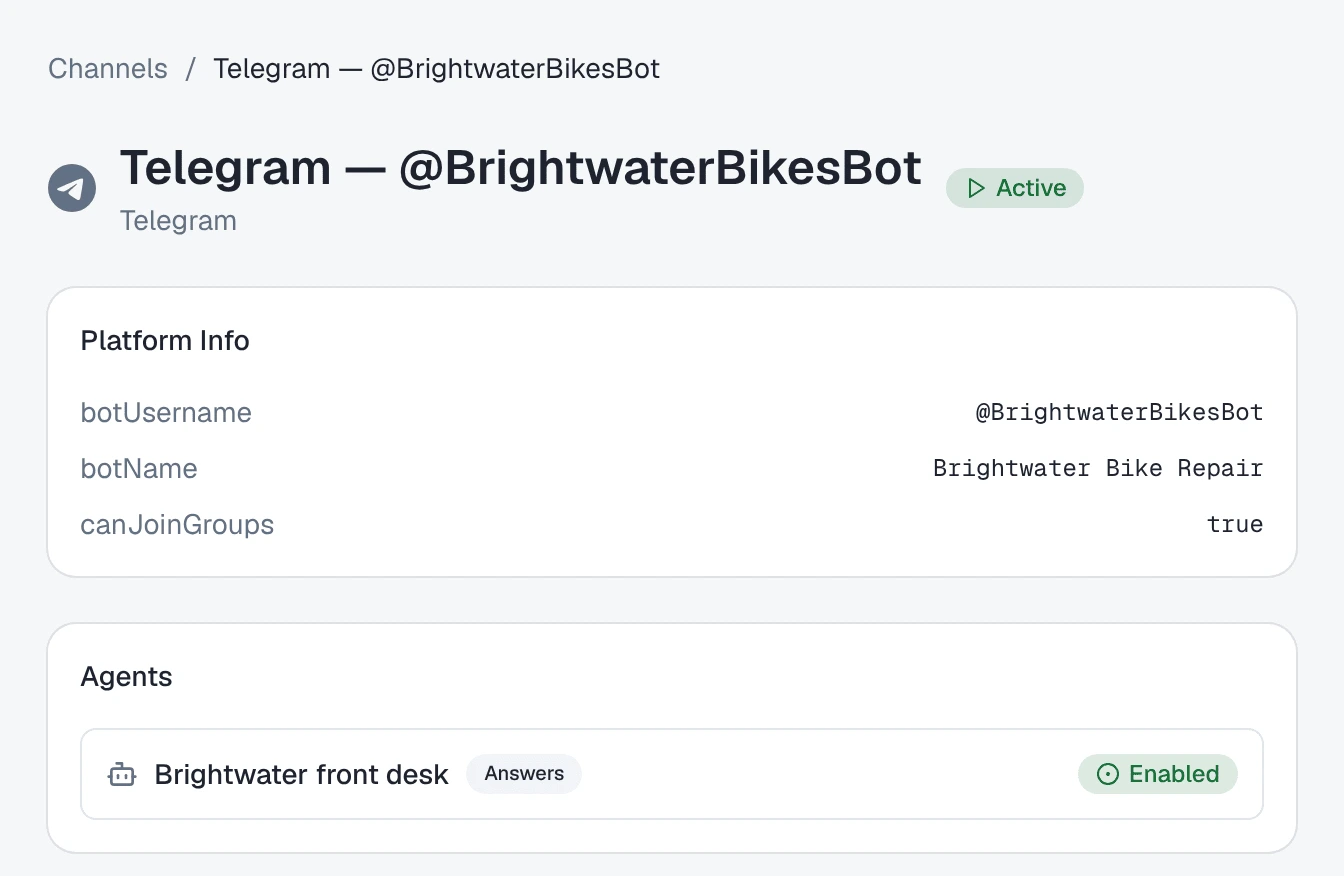
Open the channel from /channels. Next to its name are Telegram and its
status — Active when it is connected. Under Platform Info you will find
the bot’s botUsername and botName, as Telegram reported them, and under
Agents the agent that answers here, once there is one.
Validate appears when the channel is not Active. It runs both steps again: use it after fixing whatever the reason said.
Changing the token
If you revoke the token in BotFather, or move to a new bot:
- On the channel’s page, press Update Credentials.
- Paste the new token, then press Save & Validate.
Both steps run again with the new token, and Telegram is given a new secret. A new token for the same bot keeps the conversations you already have. A token for a different bot is a different bot to your customers: they will have to find and message the new one.
Deleting the channel
Delete on the channel’s page removes the channel and takes every agent off it (the agents themselves are kept):
… and all its deployments will be permanently removed. This cannot be undone.
The bot itself still exists in Telegram, and customers can still message it, but nobody answers. To connect it again, add it as a new channel.
Connecting it by asking Octo
Octo can do the same from a conversation. Tell it what you want, with the token:
Connect my Telegram bot and have the Brightwater receptionist answer it. The token is …Octo connects the bot, tells Telegram where to send its messages, and puts the agent on it, asking before the steps that change what customers see.
Where to go next
- Put an agent on your bot — choose which AI agent answers.
- Telegram bot not answering — what to check when messages do not arrive or nobody replies.