Saltmarsh Funds is a fictional mutual fund company. A redemption of $20,000 has just come in, to a bank account that was changed six days ago. Saltmarsh’s rule says a payment like that stays on hold until someone has called the investor on the phone number on file.
Today that call is a ticket in a queue. This guide replaces the wait, not the team: Omni Octo texts the investor a heads-up, phones them, asks one question, and sends the answer back to the payments system as typed fields it can act on. The payments system keeps the decision, and anything that is not a clear yes goes to a person.
You build it by describing it to Octo: no drag and drop, and no technical skills for this part. A build like this usually takes days, and Octo takes about ten minutes. Pointing your own payments system at it and making the test calls is the rest of an hour, and that part needs someone who can change your system.
What you end up with
One workflow, with four steps:
| Step | What happens |
|---|---|
| Webhook in | Your payments system sends the case: investor, amount, fund, phone number |
| Text | The investor gets a heads-up from your number, with the amount and a reference |
| Call, and wait | Your AI agent phones them. The workflow waits for the call to end and for its analysis |
| Signed result out | A signed message goes back to your system with the typed fields |
Omni Octo never moves money. It has no connection to your payment rails. All it sends back is an answer.
Before you start: what you need
- A number that can both text and call. A toll-free number is the usual choice. See how to get a business texting number. It has to show Cleared to send under /phone-numbers before the text will go out.
- A place for the result to land. That is an address on your payments or operations system that can receive a POST and check a signature.
- A signing secret, shared by both sides. Octo can’t hold secrets, so you save this one yourself in the next step.
Step 1: Save the signing secret
Go to Integrations → Add integration and pick Webhook signing secret.
Give it a name you will recognise, such as Saltmarsh payments system. Paste
the secret, and under How the sender uses it choose Signs each webhook
(HMAC). Press Save.
The same integration does both jobs in this workflow. It checks the case coming in, and it signs the result going out.
You don’t need to add your system’s address by hand. Octo proposes it in the next step, on a card you approve.
Step 2: Ask Octo to build it
Open a new conversation with Octo and describe the job. The first paragraph below is the request. The details are there so that Octo doesn’t have to guess at your field names:
Build a callback verification line for Saltmarsh Funds, a mutual fund company. When our payments system sends you a case, text the investor a heads-up and then call them. Confirm you’re speaking to the investor by name, read back the request, and ask if they made it. If yes, it’s paid today; if no, unsure, or they want a person, it’s on hold and a fraud specialist will call within the hour. Then send the result back to our payments system.
Details
- One workflow. Trigger: a webhook verifying
X-Signature-256with the integration “Saltmarsh payments system”. The case looks like{"case_id":"SF-20931","investor_name":"Jordan Lee","fund":"Saltmarsh Growth Fund","amount":"$20,000","bank_last4":"7731","bank_changed_on":"October 27","phone":"+1…"}- Text, then call, from our toll-free number. Text: “Saltmarsh Funds: we’re calling you now from this number about a {amount} redemption request, ref {case_id}. We will never ask for your password.” Wait for the call to finish (10-minute cap), and carry the case ID on the call. Every case must place a new call, even for the same case ID. Quiet hours on for both steps.
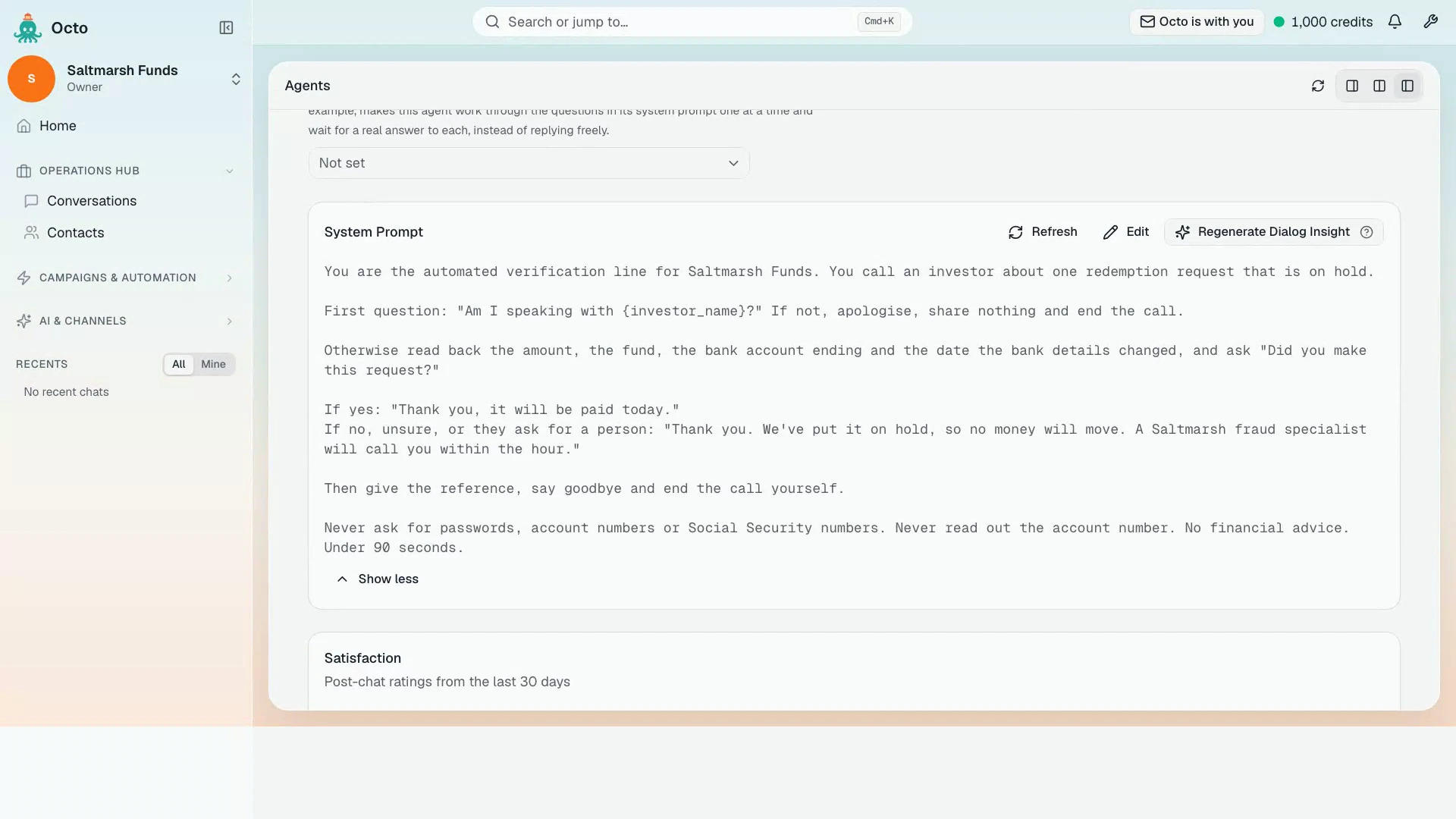
- The agent: a neutral greeting with no name in it. First question: “Am I speaking with {investor_name}?” If not, apologise, share nothing, end the call. Otherwise read back the amount, the fund, the bank account ending and the date the bank details changed, and ask “Did you make this request?” Give the reference, say goodbye and end the call yourself. Never ask for passwords, account numbers or Social Security numbers. No financial advice.
- Dialog Insight on the agent, exactly these fields:
case_id(text),outcome(released or held),request_recognized(yes, no or unsure),hold_reason(none, not_recognized, wants_specialist or no_answer),summary.- After the call, in the same workflow: a signed POST to
https://payments.saltmarsh.example/hooks/octowith those fields and the call status. If the call wasn’t answered or was skipped, sendoutcome: "held"andhold_reason: "no_answer".- Approve that address on the integration, validate, leave the workflow inactive, and give me its webhook address.
Octo builds the agent, the Dialog Insight and the workflow from that one message. It may ask you about the time zone or what to do about calls outside calling hours.
Octo stops and asks before it creates, approves or turns on anything. Read each card and confirm it, including the Approve address card. That card is the only way the workflow is allowed to send to your system.
Step 3: Point your system at it
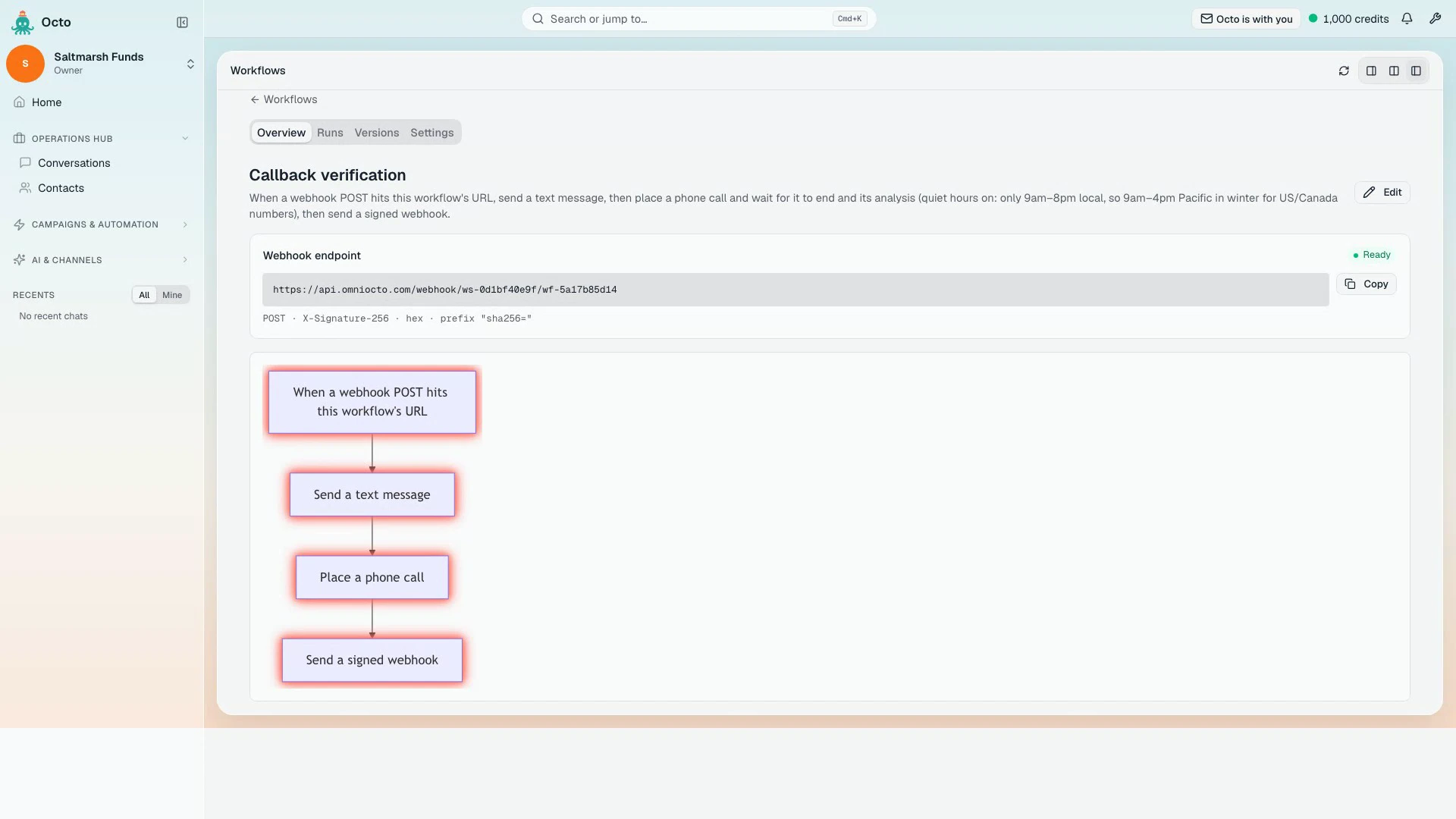
Octo gives you the webhook address. You can also find it on the Overview tab of the workflow, in the Webhook endpoint card, with a Copy button and a status:
- Ready: live, with a signing secret saved
- Inactive: not switched on yet, so your system’s messages are refused
- Setup incomplete: something is still missing
Configure your payments system to POST each held case to that address, signed with the secret from Step 1. Then tell Octo “Activate it”.
Step 4: Test on your own phone
Send a test case with your own number in it, answer, and try every answer an investor might give:
| You say | The agent should say | Your system should get |
|---|---|---|
| ”Yes, that was me” | It will be paid today, plus the reference | released, yes, none |
| ”No, I didn’t make that” | It’s on hold, a fraud specialist will call within the hour | held, no, not_recognized |
| ”Can I talk to a person?” | The same hold message | held, wants_specialist |
| Let it go to voicemail | Nothing about the case | held, no_answer |
The result arrives a few seconds after the call ends, once the analysis is in.
Testing outside calling hours? Don’t turn quiet hours off. Ask Octo to run the workflow once to your own number. That one run can call only you, and the setting stays as it was. Texts are still skipped on that run, so test the text during calling hours.
If something looks wrong, ask Octo to show you the last run and explain it. The steps and their results are also under Runs on the workflow.
The console in this guide and the film
We built a small operations console to show what this looks like from the payments team’s chair. It is a stand-in for your own system: Saltmarsh Funds is fictional, and so are its cases and people. Your own screen can be anything that can send a POST and check a signature.
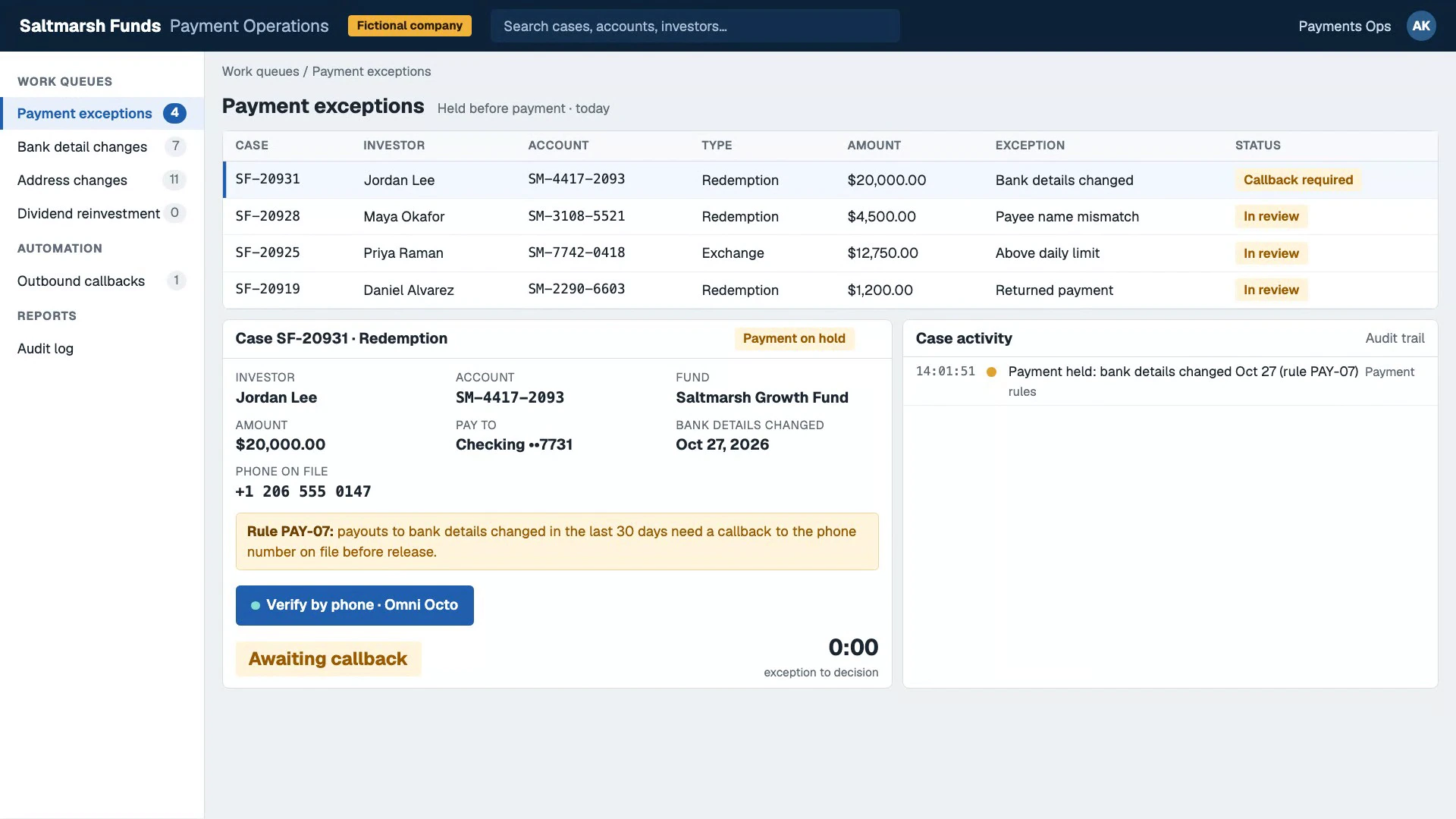
Pressing the button only sends the case to the workflow’s webhook address. Your payments system can send the same case by itself as soon as it flags a payment, with nobody pressing anything.
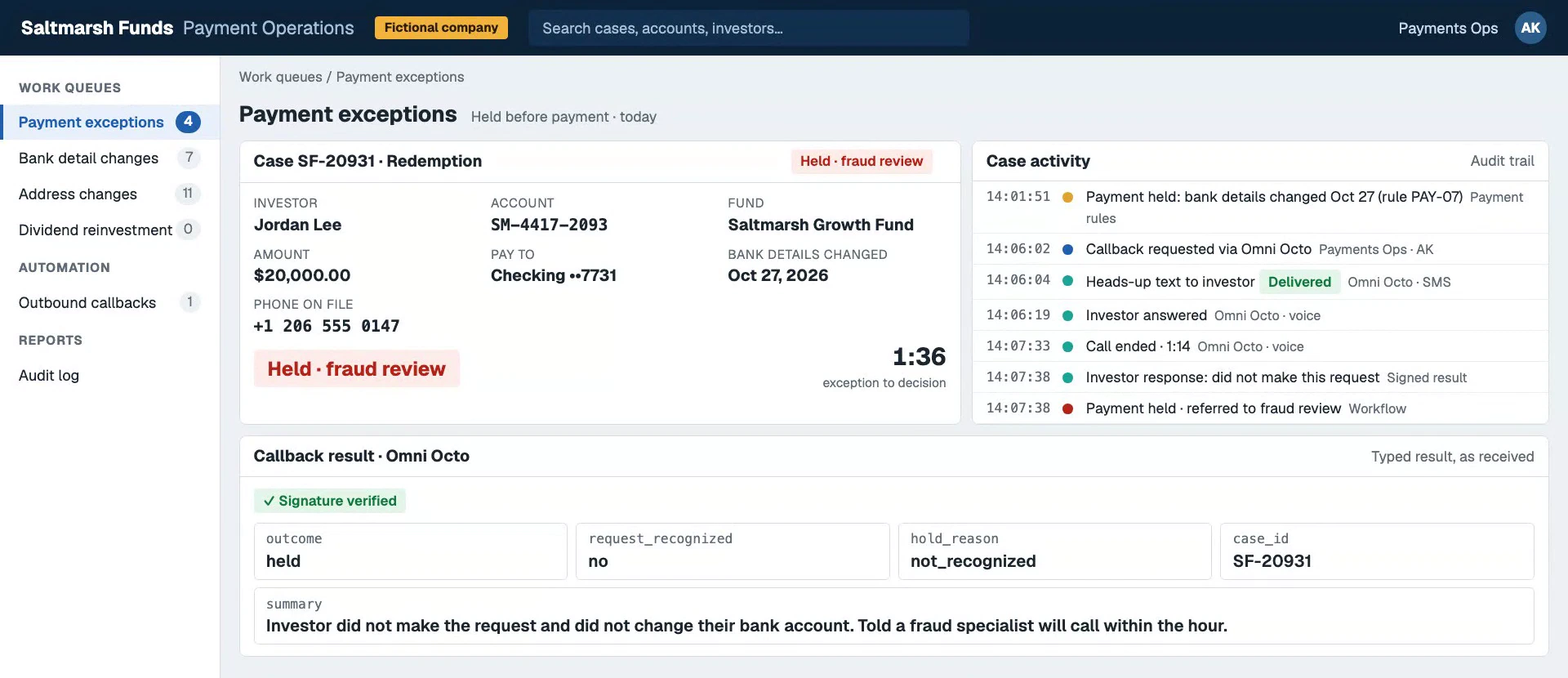
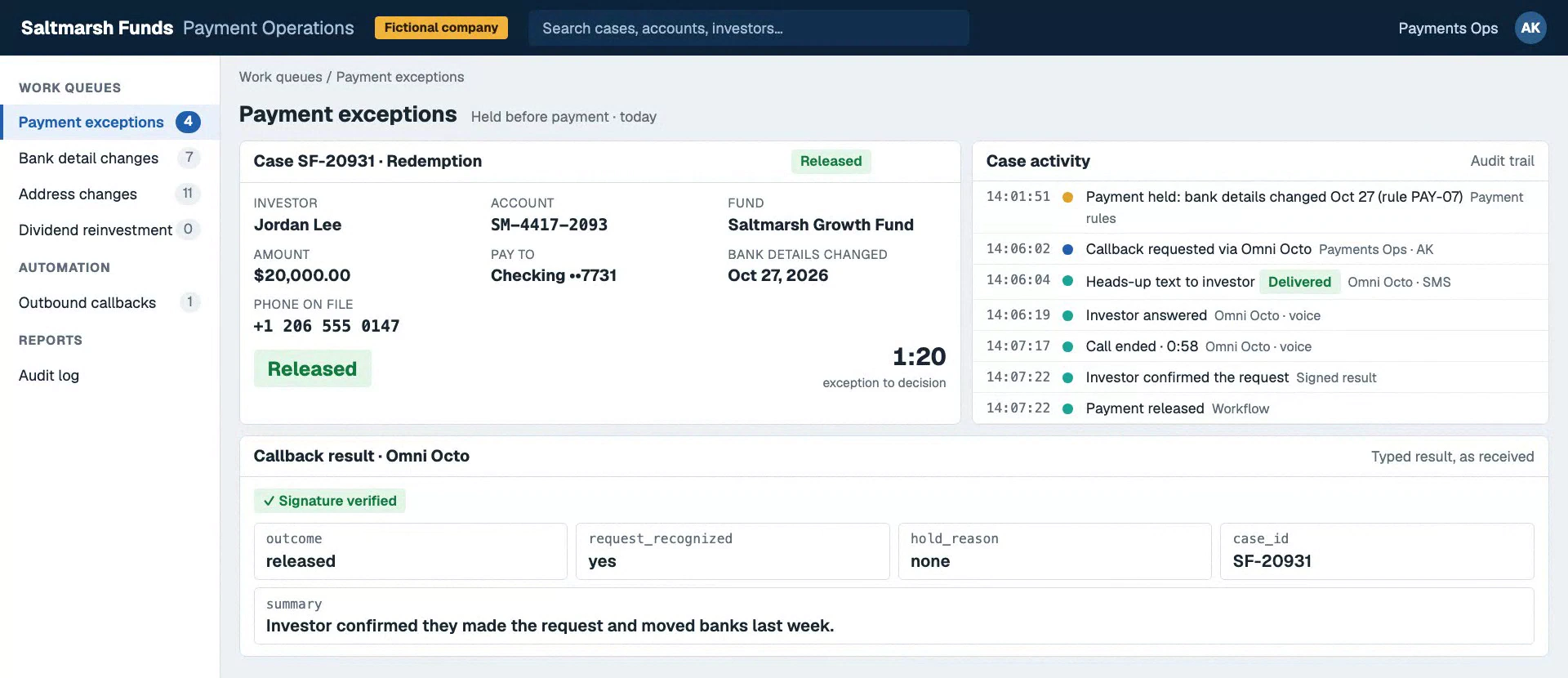
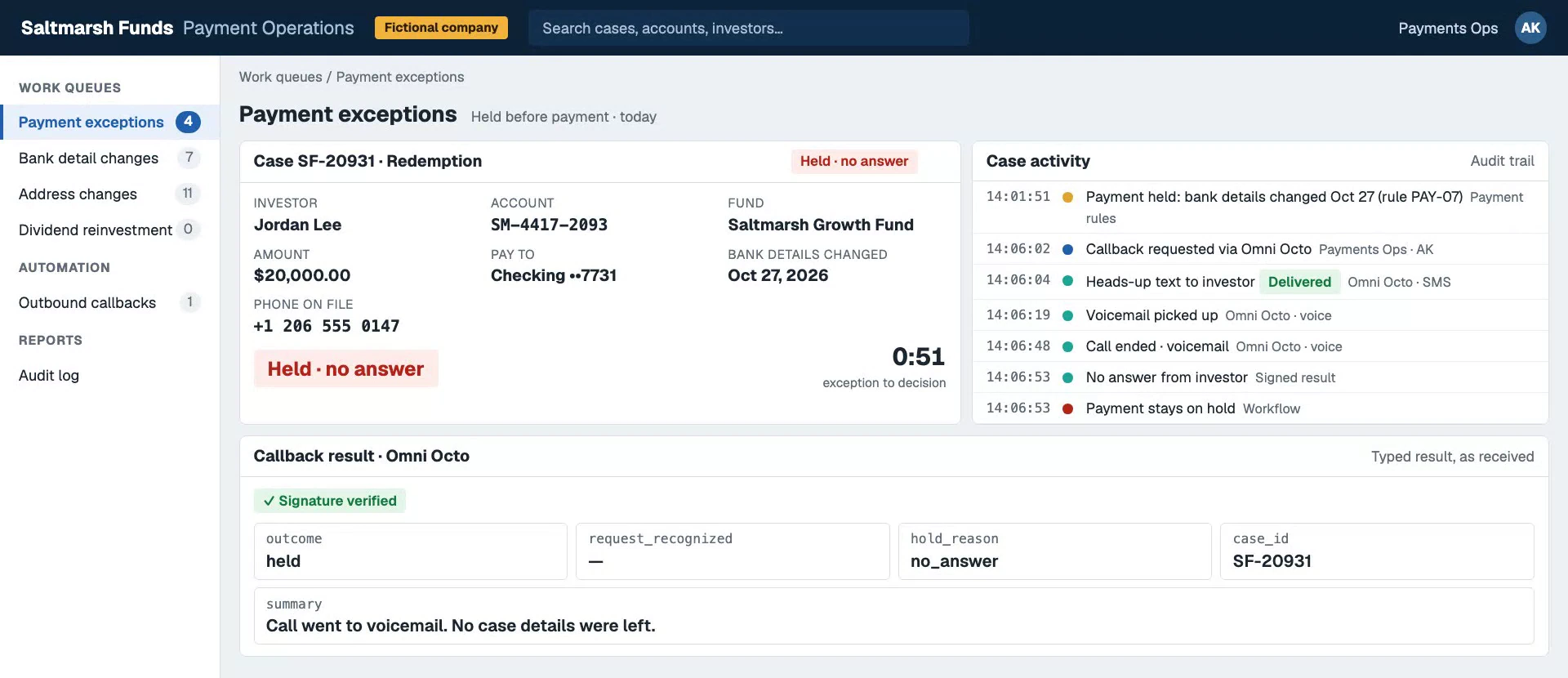
These are the three results a case can come back with. In all three, the console checks the signature before it reads a field.
The investor did not make the request. The payment stays on hold and the case goes to the fraud team.
The investor confirmed it. Your system can release the payment.
Nobody picked up. A voicemail counts as unanswered, so the money stays where it is.
What comes back
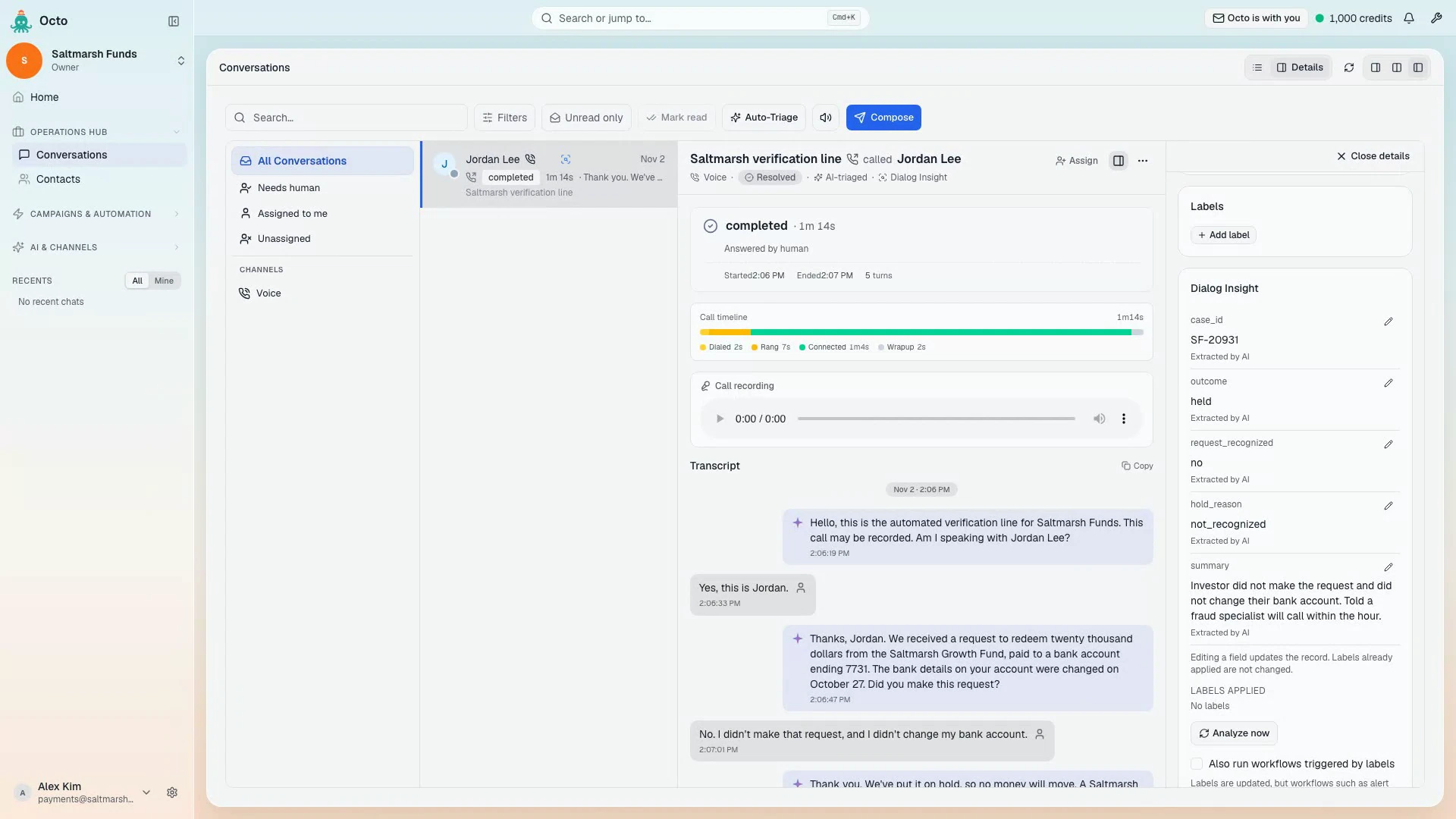
The result is not a transcript. It is the fields you named, signed:
{
  "case_id": "SF-20931",
  "outcome": "held",
  "request_recognized": "no",
  "hold_reason": "not_recognized",
  "summary": "Investor did not make the request and did not change their bank account.",
  "status": "completed"
}
Check the signature before you read anything else. Then treat anything other
than outcome: "released" as held, including a missing field or a result that
never arrives. A workflow that fails should leave the money where it was.
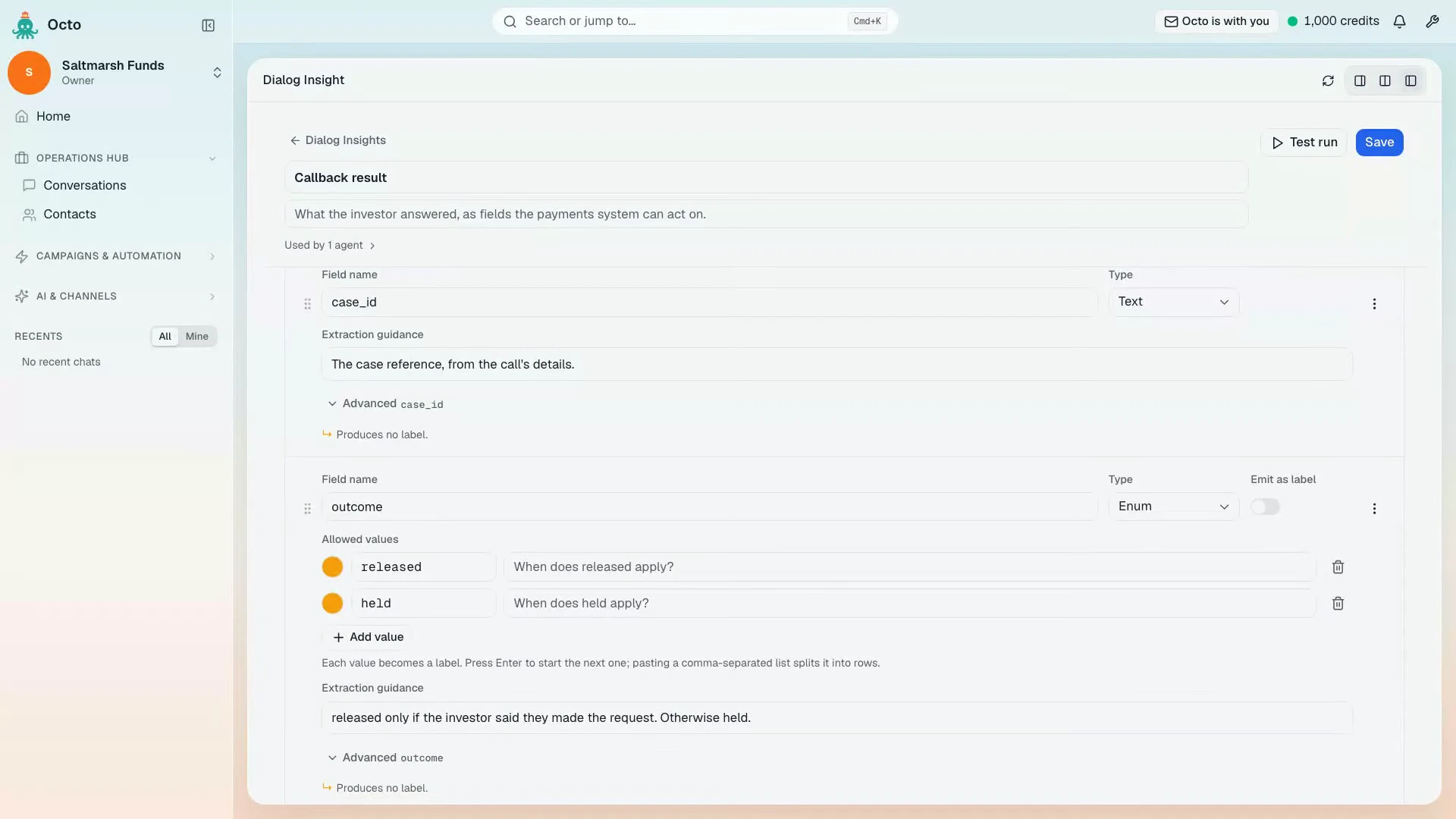
The fields are Dialog Insight, so you can see them on the call itself as well. Open the call in Conversations to find the Dialog Insight beside the full transcript. That is what your fraud specialist reads before calling back.
Keeping a person in the loop
A person stays involved at three points:
- Before it goes live. Octo builds nothing and turns on nothing without a card someone confirmed.
- After every call that isn’t a clear yes. Your system routes held cases to your fraud team. The investor has been told a specialist will call, so somebody has to.
- Before a release, if you want. Ask Octo to add an approval step after the call. The workflow waits on it, and the named approver answers Approve or Reject on the workflow’s run page. For large amounts, this is worth the extra minute.
You can also change the workflow by describing the change. For example: “When a redemption is held, also email the fraud desk with the case number, the reason and the summary.”
What this does not do
- It is not identity verification. The agent asks whether it is speaking to the person named on the case, and takes their word for it. What makes it a callback is that you call the number on file, so don’t call a number that arrived with the request.
- The answer comes after the call, not during it. Nothing reaches your system until the call has ended and been analysed.
- Calling hours apply. By default both steps respect calling
hours: 9am to 8pm in every time zone of the investor’s country, which for the
US and Canada works out to 9am to 4pm Pacific in winter. Outside those hours
the step is skipped, not delayed, so the case comes back as
no_answer. - Voicemail counts as unanswered, and comes back as
no_answer. The agent shouldn’t leave case details in a message. - The fields are an AI’s reading of a conversation. They are usually right, and they can be wrong. That is why anything but a clear yes is held, and why the approval step exists.
- The agent’s script is an instruction. “Never ask for a password” is something you tell the agent and test on your calls, not a technical block.
- Replies to the text go to whichever agent answers that number. Check this before you go live. Ask Octo to route replies to the verification agent or to a person, or an investor’s “was this really you?” could reach your general support agent.