Most abandoned-cart recovery is email. A phone call works differently, because a call is the one that needs judgement. Emailing someone who already bought is a shrug. Phoning them is a bad minute for both of you.
So most of this guide is not about dialling. It is about everything that has to be true first: that a real checkout exists, that they genuinely did not buy, that it is not the middle of their night, that they never asked you to stop calling, and that you know their name well enough to open with it.
Budget half an hour. Most of it is in Shopify, not here.
The short version
- Create a Shopify app, tick four permissions, and install it
- Copy two different secrets out of Shopify
- Save both in Omni Octo as connections
- Ask Octo to build the flow
- Copy the webhook address and paste it into Shopify, twice
- Test with a one-minute delay
Steps 1 and 5 are where people get stuck. They have their own sections.
Step 1 — Create the Shopify app and install it
In Shopify: Settings → Apps and sales channels → Develop apps → Create an app. Name it something you will recognise later.
Tick these permissions
Open Configuration → Admin API integration → Configure and grant:
| Permission | What it is for |
|---|---|
read_orders | Checking whether the shopper ended up buying |
read_all_orders | The same check on orders older than 60 days |
read_customers | Their name and phone number |
read_products | Reading what was in the cart |
You will look for a checkout permission and not find one. read_checkouts
exists, but Shopify treats it as protected: it is not in the list you can tick,
and asking for it needs Shopify’s own approval. If you call the checkout API
without it, Shopify answers:
This action requires merchant approval for
read_checkoutsscope.
That is fine, and it is why this flow never reads checkouts. It asks a better
question instead — did an order appear? — which needs only read_orders.
Install it
This is the step everybody forgets. Configuring an app does nothing until you press Install app on the app’s Overview page. Until you do, there is no Admin API access token to copy, and every later step fails in a way that looks like something else is broken.
Copy two secrets, and keep them apart
You need two different things, and they are easy to confuse because both look like random strings.
| What | Where | What it does |
|---|---|---|
| Admin API access token | The app’s API credentials tab, after installing. Starts shpat_ | Lets Omni Octo ask Shopify questions |
| Webhook signing secret | Settings → Notifications → Webhooks, at the bottom of the page | Lets Omni Octo verify messages Shopify sends |
One is for talking to Shopify. One is for checking that Shopify really sent something. Mixing them up is the single most expensive mistake in this setup, and the symptom looks nothing like the cause — see When nothing happens.
Step 2 — Save both secrets in Omni Octo
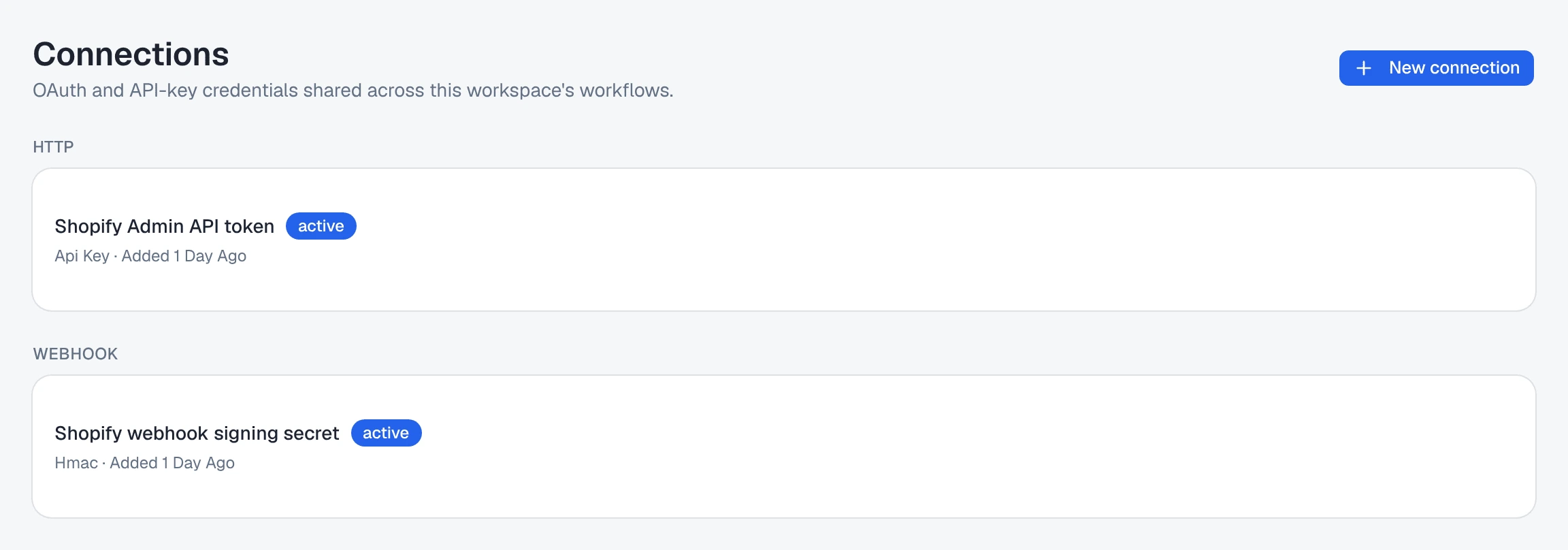
Go to the Connections page and add them one at a time.
The Admin API access token. Press New connection, then pick the HTTP /
API key card under Other. Paste the shpat_ token. Give the connection a name
you will recognise in a list — “Shopify Admin API token” is better than
“Shopify”.
The webhook signing secret. Press New connection again and pick Signing secret, then paste the secret from the Notifications page. The form says the thing worth remembering:
The secret the sender signs with, not a key you call them with.

Two connections, two directions. Save them both before you build anything.
Step 3 — Ask Octo to build the flow
You do not write the automation. Open the chat and describe what you want, including the part about saving the shopper as a contact:
When someone abandons their cart on my Shopify store, wait about thirty minutes and then call them. Save them as a contact first, with their name and phone number, so the agent can greet them by name. Call from +1 555 0100 using my Shopify Cart Recovery agent.
Say the contact part out loud. Octo will build a working flow without it, but the agent opens with “Hi there” instead of “Hi Sarah”, because the greeting gets the name from your contact record rather than from the Shopify message. Asking for it is the difference between a recovery call and a cold call.
Octo will read your connections, find your agent, and may ask which signing secret to use if you saved more than one. Answer with the signing secret, not the Admin token.
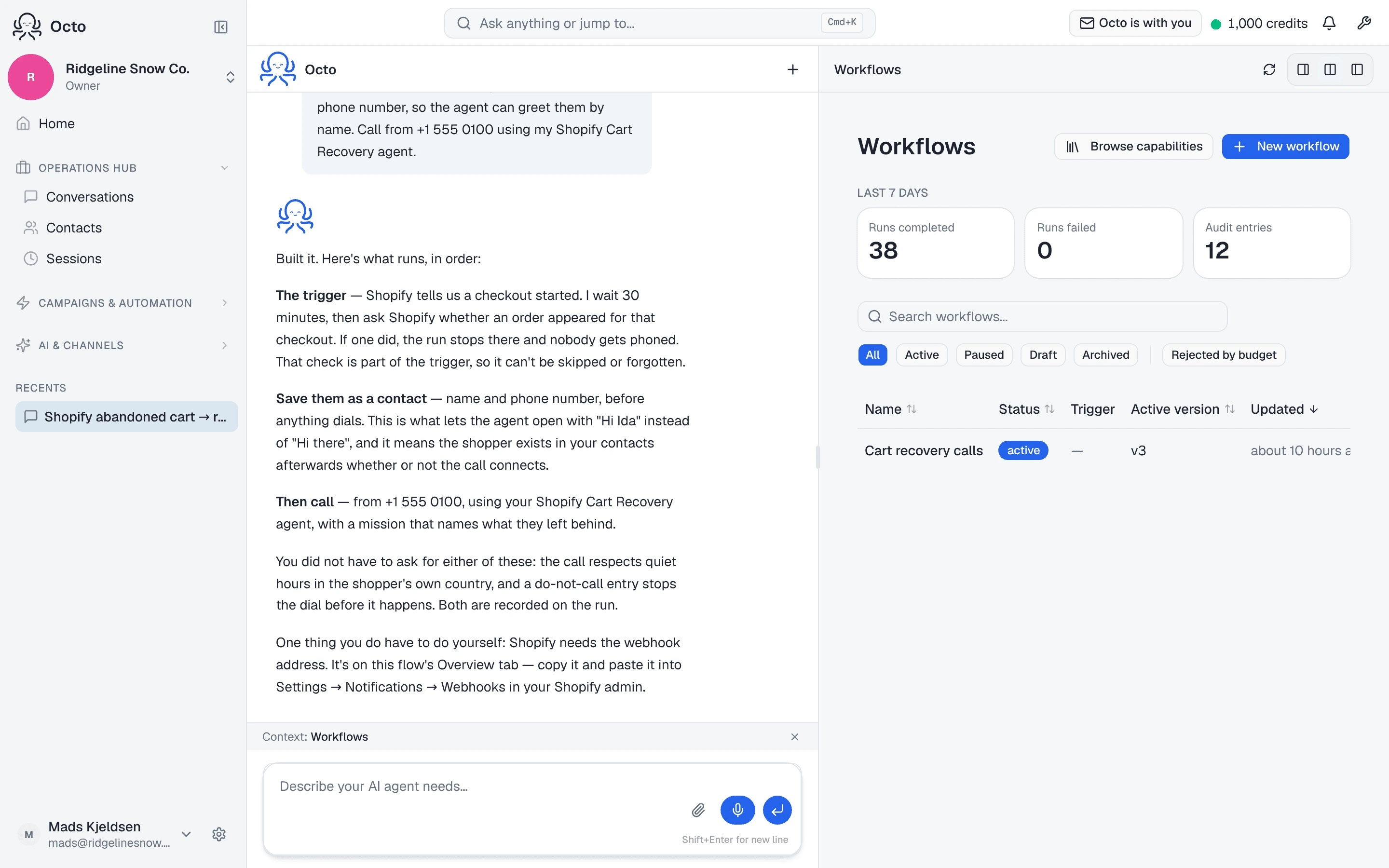
Then check it says Active. A flow still marked as a draft rejects everything Shopify sends, and Shopify’s delivery log fills with failures that look like a wrong address.
Step 4 — Give Shopify the address
Open the flow and find the Webhook endpoint card above the diagram. It shows the address, and a status:
- Ready — live, with a signing secret saved
- Inactive — paused or still a draft, so Shopify’s messages are rejected
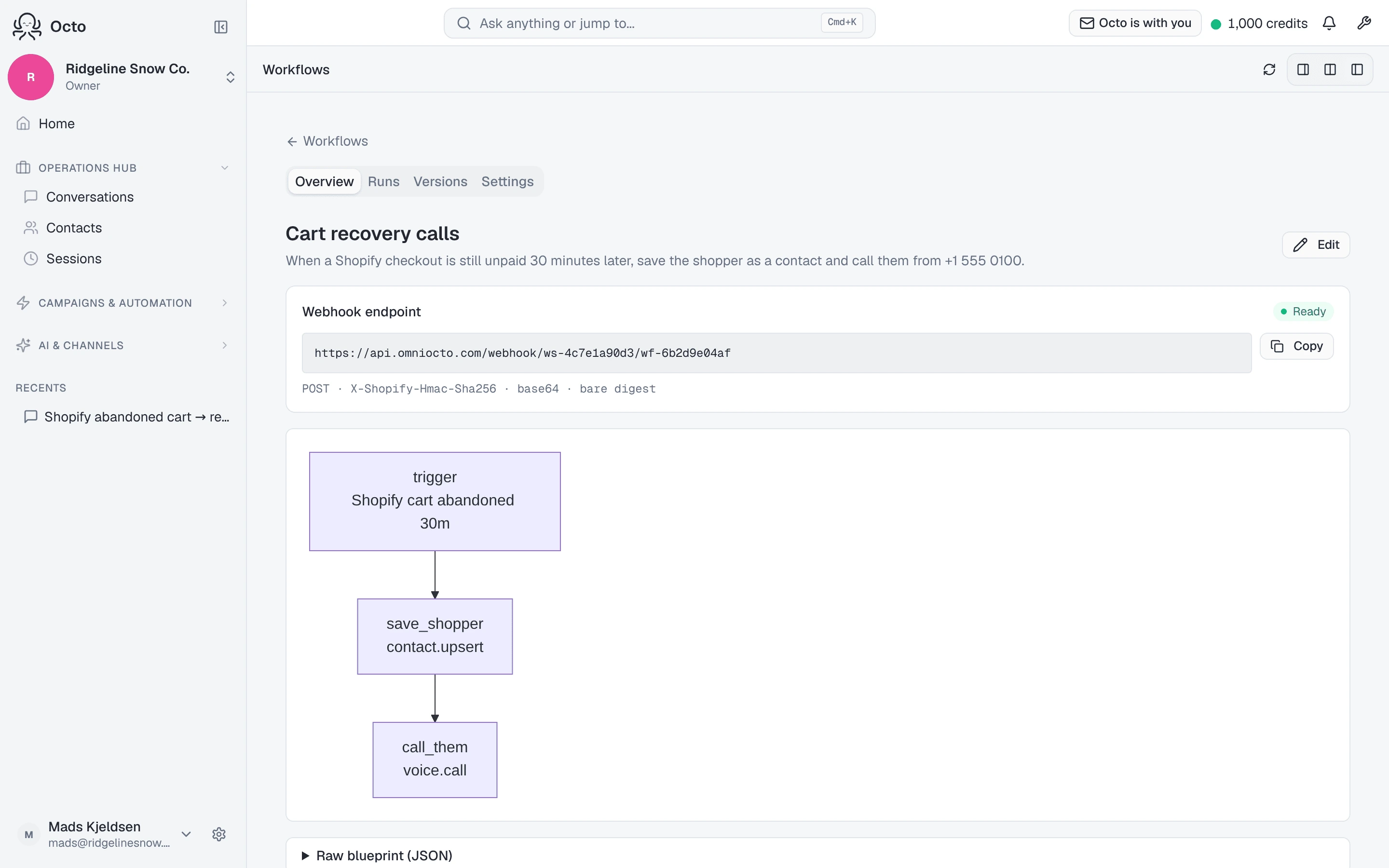
Press Copy. Then in Shopify go to Settings → Notifications → Webhooks → Create webhook and add two of them, both pasting the same address:
| Event | Format | Why |
|---|---|---|
| Checkout creation | JSON | Fires when someone reaches checkout |
| Checkout update | JSON | Fires when they fill in more details |
Why two, in plain terms
Shopify tells you about a checkout the moment someone starts one — which is often before they have typed a phone number. It tells you again each time they fill something in, and one of those later messages is usually the one carrying the number.
Subscribe to only the first and you get flows that start with nobody to call. Subscribe to both and you get somebody to call.
The same dropdown offers Cart creation, which sounds right and is not. A cart is just a basket — Shopify has no email, no phone and no name for it, so there is nobody to ring. Use it only if you want a harmless signal that your webhooks are arriving at all.
Create these webhooks in the Shopify admin, by hand, on this page. Do not create them through the Shopify API. We tested both: the ones made on this page arrived within about thirty seconds; the ones made through the API never arrived at all, over more than an hour, and Shopify gave no error either way.
Press Send test notification on one of them. Something should appear in your flow’s run list within a minute. That single click is the fastest way to prove the connection works, and it costs nothing.
Step 5 — Test it in one minute
Ask Octo to change the wait to one minute.
First, put your own phone number on a customer record. In Shopify: Customers → pick or create a customer with your email → add your phone number and save.
Do this before you shop. Typing a phone number into the checkout page is not enough — on Shopify’s one-page checkout there is no step to submit it before payment, so a number you type there may never reach Shopify at all. We lost an evening to this. The number on the customer record travels with the checkout from the very first message, which is what makes the test work.
Then:
- Sign in to your storefront as that customer
- Add something to the cart
- Go to checkout, so the page loads
- Close the tab
Your phone should ring about a minute after Shopify delivers the message. You do not need to type anything into the checkout form.
Then ask Octo to put the wait back to thirty minutes. At one minute, the flow calls people who are still typing their card number.
When nothing happens
This is the section we wish we had had. Work down it in order — each item is something that actually stopped a test.
Nothing reaches the flow at all
Did you press Install app? Configuring the permissions is not installing.
Are the webhooks made in the Shopify admin, not through the API? See above. This one cost us the most time by far.
Is the flow Active? A draft rejects everything.
Did you just create or edit the flow? Give it a couple of minutes. A brand new flow briefly answers “not ready” while it is picked up, and Shopify retries on its own.
Check Shopify’s own delivery log first, on the webhook you created. If Shopify does not show a delivery, the problem is on their side of the line and nothing in Omni Octo will explain it.
Shopify sends it, but the flow rejects it
Almost always the wrong secret. Which one signs depends on how the webhook was made, which is not obvious:
| Webhook created… | Signed with |
|---|---|
| By hand, on the Notifications page | The signing secret on that same page |
| By an app, through the API | That app’s own API secret key |
If you followed this guide you want the first row. Point the flow at the signing secret connection from Step 2.
A flow starts, but nobody is called
Was there a phone number? Open the run and look at what arrived. No number means no call, by design.
Adding to the cart is not enough. A cart on its own tells Shopify nothing. They have to reach the checkout page, and Shopify has to have a way to contact them — either from the account they are signed in to, or from what they type.
Typing a phone number is not the same as submitting it. On Shopify’s one-page checkout there is no “continue” button before payment, so a number someone types may never reach Shopify at all. The reliable fix is the next one.
Put a phone number on the customer record. In Shopify: Customers → the person → add their phone. A signed-in shopper’s number then travels with the checkout from the very first message, and none of the above matters. This is the single change that made our own test work.
Signing in by SMS does not count. If Shopify texted a code to log in, that number belongs to Shopify’s login system. It never reaches your customer record and you cannot use it.
Testing on a trial or password-protected store
You need the storefront password to shop your own store, from Online Store → Preferences → Password protection.
Do not trust onlineStoreUrl as a sign a product is published. On a
password-protected store Shopify reports it as empty for every product,
published or not. We wasted time publishing products that were already
published. Just open the product page with the password and see.
What stops a call
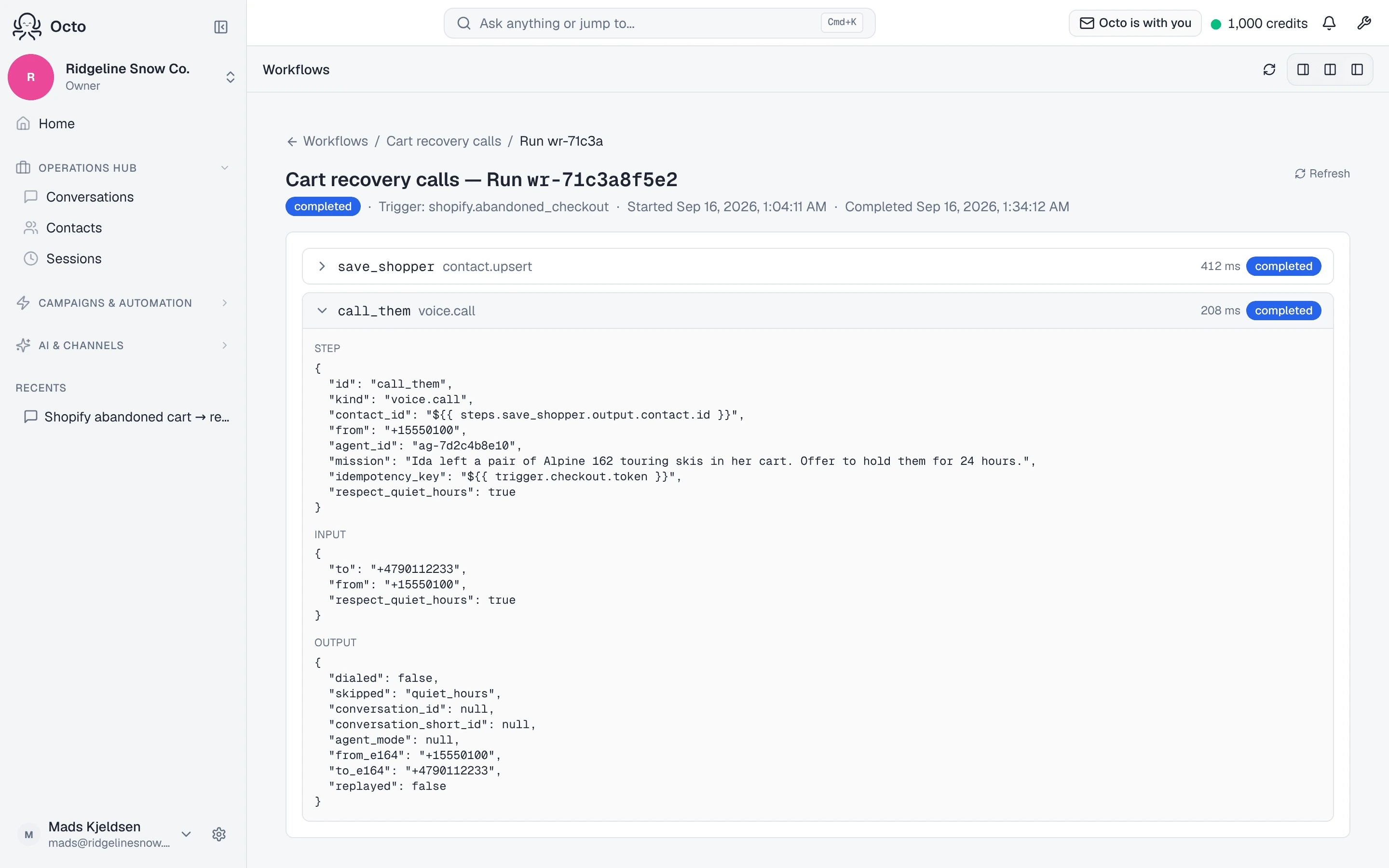
Four checks. Each is a place the run ends quietly and correctly rather than failing. What you see afterwards differs, so it is worth knowing which is which.
They bought. After the wait, we ask Shopify whether an order now exists for that checkout. If it does, the run stops. This is the entire reason for the wait: Shopify counts a checkout as abandoned the moment someone types an email, which is frequently while they are still reaching for their card.
We could not tell. If that check fails — expired token, a permission removed, a network problem — the run stops without calling. Guessing the other way phones someone who paid.
Both of these happen before the first step, because the check is part of the trigger. So a run stopped this way shows as completed with no steps run — nothing was saved and nothing was dialled. Today the run screen does not yet spell out which of the two it was; if runs are completing with no steps and you expected calls, check the Admin API connection first.
It is their night. Calling hours come from the phone number’s country code, and a number we cannot place in a time zone is one we will not call. For a country spanning several zones, it has to be daytime in all of them.
They asked you to stop. A do-not-call entry for that number blocks the call before anything is dialled, and the run records the refusal rather than failing.
What this will not do
It will not create the Shopify webhooks for you. You paste the address in yourself, twice.
It will not invent a phone number. No number, no call.
Treat a recovery call as “at least once”, not “exactly once”. Shopify sends a message every time the shopper changes something, and each one starts its own run. Those runs are matched up so they usually produce a single call, but a long enough gap between messages can still produce a second one. Worth knowing before you point this at real customers.
Keep the API version current. The Admin API connection records which version of Shopify’s API to use. Shopify supports each version for about a year and then quietly answers with an older one instead of telling you. If it has been a year, update it.